Travel connectivity guide
Al Khor eSIM Guide: Mobile Internet in Qatar
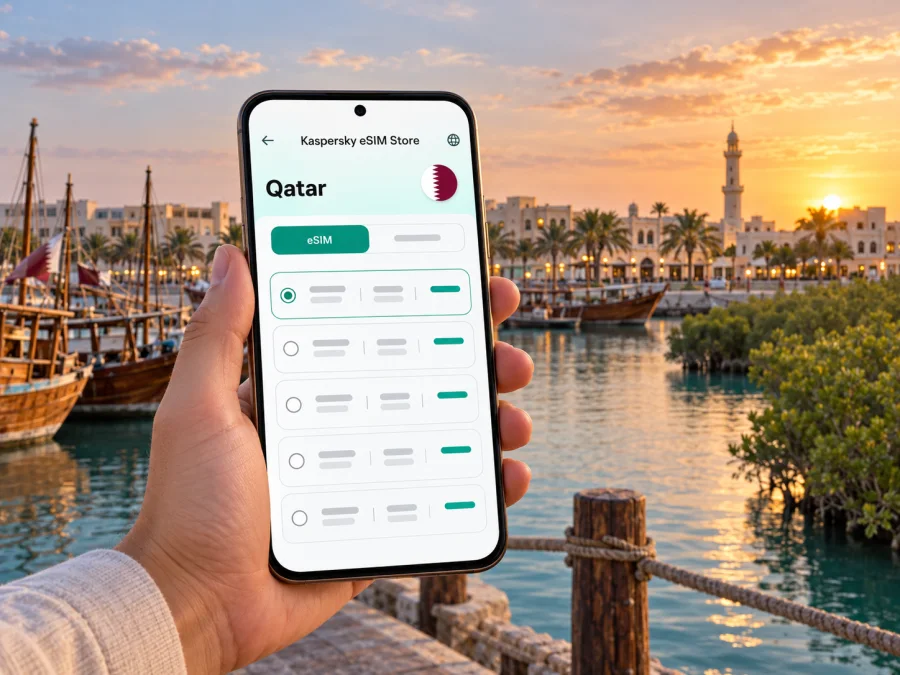
Al Khor eSIM: mobile connection and internet for your Qatar trip
Al Khor is a coastal city in northeastern Qatar, about 60 km north of Doha. Visitors come for its harbour and Corniche, the historic Al Khor Towers, family attractions and the natural landscapes around Al Thakhira and Purple Island. Since the city is spread between waterfront streets and out-of-town sights, mobile internet can make a practical difference: it helps you check directions, coordinate a ride, confirm opening details and keep travel plans accessible while you are away from your hotel.
An eSIM is a digital SIM profile installed on a compatible, unlocked device. A travel data plan can give you mobile internet without changing the physical SIM you use at home. Before choosing one for Al Khor, check the plan's Qatar coverage, validity period, data allowance and activation conditions. An eSIM data plan does not automatically include a regular local phone number, voice calls or SMS; read the selected plan's terms and keep another way to make essential calls.
Why mobile internet is useful around Al Khor
Al Khor works both as a destination in its own right and as a base for nearby coastal and nature trips. You may spend the morning near the harbour, visit Al Khor Park and Zoo or Al Khor Mall, then continue towards mangroves or the island area. A map is useful for keeping these stops in sequence, but mobile data is also helpful for confirming a pickup point, sharing your location with companions, checking a booking message or changing plans when the weather shifts.
Connectivity is especially useful when your itinerary includes more than the central waterfront. Search results and saved map pins can refer to Al Khor, Al Thakhira, Purple Island or Al Farkiah Beach, which are distinct destinations rather than interchangeable names for one place. Save the exact destination in your map before leaving and compare the pin with your booking or tour instructions. If you are travelling with a driver, share the named destination and meeting point rather than relying on a vague instruction such as “the beach.”
An eSIM is one option for data during the trip, not a promise of signal in every location. Actual service depends on the selected plan, its partner network, local coverage, device settings and conditions on the day. Mangrove paths and open coastal areas can differ from built-up streets. Download maps or directions for the day in advance, and agree on a meeting point in case one person's connection drops.
Arriving in Qatar and continuing to Al Khor
Many international visitors arrive through Hamad International Airport in Doha, then travel north to Al Khor. Visit Qatar describes the city as about 60 km north of Doha and notes that a car journey from Doha is around 45 minutes under the conditions reflected in its visitor information. Treat that as a guide rather than a guaranteed journey time: traffic, time of day, route and pickup arrangements can change the trip.
A private car or pre-arranged transfer is straightforward when you have luggage, are travelling as a group or plan to continue to more than one attraction. Check the drop-off address with your accommodation before you set out. Al Khor is a real city, while nearby sites such as Purple Island and the Al Thakhira mangroves lie outside the central waterfront; a hotel address will not necessarily be a convenient pickup point for those visits.
Public transport is another possibility. Visitor information describes travelling by Doha Metro to Lusail and then using a bus service towards Al Khor. Because routes, timetables, fares and service patterns can change, confirm current details before setting off and leave time for the connection. For the final leg to a hotel or a nature site, check whether you need a taxi or a separately arranged ride. Having mobile data helps you find the relevant stop and review updated directions, but it does not replace checking the latest transport information.
If your first stop is central Al Khor, search for the Corniche, harbour, accommodation or a specific landmark rather than entering only “Al Khor” into a navigation app. That can prevent a route from ending at the edge of the city or at a similarly named point. Keep your destination address available offline as well as in your map app. This is useful if you need to show it to a driver or if mobile service is temporarily unavailable.
Choose an eSIM plan for the way you will use Al Khor
The right data allowance depends on your habits and itinerary. A short visit built around saved maps and occasional messages uses data differently from a longer stay with frequent video calls, photo uploads or hotspot use. Estimate your needs across the whole Qatar trip, not just the hours spent in Al Khor; a plan is generally selected for its listed destination or region, not a particular city block.
Before paying, compare the details shown for the specific Qatar plan:
| What to check | Why it matters |
|---|---|
| Destination and coverage terms | Confirm Qatar is included and read any stated coverage or network restrictions. |
| Data allowance | Map use, messaging, browsing, uploads and video consume different amounts of data. |
| Validity | Check how long the plan remains active and when its validity period begins. |
| Activation conditions | Some plans begin on installation, while others begin on first connection; follow the exact terms displayed. |
| Hotspot or tethering | If you need to connect a laptop or another phone, check that the selected plan allows it. |
| Device requirements | Confirm eSIM support, carrier-unlocked status and the device's ability to add another profile. |
| Calls and SMS | Treat the plan as data-only unless its terms explicitly say otherwise. |
Kaspersky eSIM Store is an app and website where you can choose, purchase and activate an eSIM with a suitable plan for mobile internet on an international trip. It is not a mobile network operator. Available plans and their conditions can change, so use the details displayed for the Qatar destination when you are ready to choose. You can review the current Qatar options for your trip and compare the allowance and validity against your itinerary.
For a day trip from Doha, think about how much of the day you will spend navigating, messaging and checking transport, and whether other days in Qatar need to fit the same plan. For a multi-day stay in Al Khor, consider regular browsing and any media use as well. A larger allowance is not automatically necessary: download entertainment over Wi-Fi where practical and use offline maps for areas you have already planned to visit.
Using maps, rides and messages in the city
A city map is most helpful when it is prepared for the local sequence of stops. Add the Corniche or harbour, your accommodation, Al Khor Towers, and any confirmed restaurant or activity. For a second outing, save a separate route to Al Thakhira or Purple Island and check its access instructions. A route that looks close on a small screen may still require a road journey, a transfer or a planned pickup.
When arranging a ride, keep the address or map pin visible and confirm the pickup side of the road or entrance. If your lodging has a gate, lobby or named building, use that detail in the destination notes. At larger attractions, agree on the exact exit or meeting point before anyone wanders off. Messaging apps can help a group coordinate, but they need an internet connection and the other person's app account; they do not supply a conventional phone number through a data-only travel eSIM.
For longer outings, tell someone your estimated return time and keep your phone charged. A power bank is useful if you use navigation continuously, take photos or travel in warm weather. A paper or offline note with your hotel name and local contact details is a simple backup. On a low battery, use the map for essential turns and close apps that are running in the background.
What to expect at the waterfront and nearby nature sites
Al Khor's Corniche and harbour are good places to orient yourself. Visit Qatar identifies traditional wooden dhows, the waterfront promenade and the Al Khor Archaeological Museum among the city's visitor points. The Al Khor Towers and Ain Hleetan Well add historical context to the coastal area. Check the current opening status of any indoor attraction before travelling; visitor information can change and holiday hours may differ.
Purple Island, also known as Bin Ghannam Island, is a natural site near Al Khor, associated with mangroves, walks and kayaking. Visit Qatar notes that facilities and shade on the island are limited, so arrive prepared with water, sun protection and suitable footwear. Mobile coverage should not be treated as a substitute for preparation: keep directions, tour details and a return plan available before leaving the city. Follow local guidance and stay on appropriate paths to avoid disturbing sensitive habitats.
Al Thakhira's mangroves are another nearby nature outing. The landscape is different from the developed waterfront, and a tour or kayak activity may have a specific meeting location. Confirm that location and the operator's instructions in advance. Do not assume that a phone will be convenient to use on the water; protect it from splashes, keep it secured and follow the guide's safety directions. If you want to take pictures, make sure photography does not interfere with the activity or disturb wildlife.
A simple sequence for a nature day is:
- Check the date, weather and any access instructions for the attraction.
- Confirm the exact pickup or meeting point with your host or activity provider.
- Save the address, route and essential messages for offline access.
- Charge your phone and carry water, sun protection and footwear suited to the ground.
- Share your plan and expected return time with someone in your group.
- Keep the local environment in mind and take litter back with you.
The sequence is useful whether you have an eSIM, a local SIM or roaming. The data connection helps with live updates, but a prepared route and clear meeting point matter when coverage or battery is limited.
Installing and activating an eSIM
Set up the profile while you have a stable internet connection and enough time to follow each prompt. The steps and labels differ by device, operating system and plan, so use the instructions supplied with your purchase. In general, you add the eSIM through the phone's mobile or cellular settings, often by scanning a QR code or following an in-app flow. Avoid deleting a profile during troubleshooting unless the plan instructions or support team tell you to do so; a removed profile may not be reusable.
Before starting, make sure the device is charged, connected to Wi-Fi and not in the middle of a software update. Keep the installation code or relevant purchase details accessible on another screen if you need to scan a QR code. Some phones cannot scan a code displayed on that same phone, so check whether the app offers direct installation or manual entry. Keep your primary SIM enabled if you need its number for calls or verification, and choose which line should handle mobile data.
For device-specific help, follow the Android eSIM installation instructions or the iPhone and iPad eSIM installation instructions. Menu names can vary by manufacturer and operating-system version. The eSIM may need data roaming enabled for the eSIM line, depending on its terms; check the plan instructions before changing this setting. Also make sure the correct line is selected for mobile data and that data switching will not unexpectedly use your home SIM.
A reliable setup sequence is:
- Check that your exact device supports eSIM and is not carrier-locked. Check whether your device is compatible.
- Review the Qatar plan's destination, allowance, validity and activation conditions.
- Install the profile using the app's flow or the provided QR code, while connected to Wi-Fi.
- Label the new line clearly, such as “Qatar data,” so it is easy to recognize.
- Decide whether the eSIM or your existing SIM should handle mobile data.
- Follow the plan's activation instructions and wait for the device to register where service is available.
- Test a simple webpage or map before you leave Wi-Fi, and check the selected data line if it does not load.
Do not assume installation and activation are the same event. The terms for the specific plan explain when its validity starts. If activation is scheduled for arrival, install the profile beforehand only if the instructions permit it, then follow the stated steps in Qatar. Keep the original purchase confirmation until you have confirmed that the plan is active and the phone is using the intended line.
Device, data and account checks before departure
Compatibility can depend on the exact device model and regional variant. A family name alone is not enough: phones sold under the same product name can differ by market, and some models have physical SIM configurations that do not include eSIM. Check the manufacturer's specifications for your exact model number, then confirm the device is unlocked and can install another eSIM profile. If you are unsure, use the compatibility check before purchase rather than relying on a generic list.
Also review these settings and practical details:
- Dual SIM behaviour: Decide which line handles calls and which one handles mobile data. Keep your home number available only if that is useful and appropriate for your plan.
- Data roaming: Enable it only for the travel eSIM if its instructions require it. Check that roaming is not enabled for the home line by mistake.
- Automatic switching: Some phones can switch data between SIMs when one connection is weak. Review this setting so data does not move to a line with different charges.
- Hotspot: Confirm whether the plan allows tethering before connecting a laptop or companion's phone.
- Backups and updates: Pause large cloud uploads or app updates until you are on Wi-Fi if you want to manage data use.
- Support details: Keep your order information and help instructions where you can find them without searching your inbox online.
- Battery and storage: A navigation-heavy day can drain a battery, while offline maps and photos need storage space.
Troubleshooting if the phone does not connect
Confirm that the eSIM is switched on, selected for mobile data and within its validity period. Check the plan's Qatar destination and activation terms, then verify signal, airplane mode and any required data-roaming setting for the correct line. Restart the device if needed. Avoid deleting the profile as a first step; if service still does not work, contact support with your device model, location and the settings you checked.
If maps or messages stop working during an outing, use the directions and destination details saved earlier. Ask your driver or host to confirm the next step, return to an area with service when practical, and keep your attention on the route rather than the screen.
Frequently asked questions
Is Al Khor a city or a district of Doha?
Al Khor is described as a city on Qatar's northeastern coast, around 60 km north of Doha. It is a separate destination for trip planning, even though many visitors reach it from Doha or Lusail.
Can I use an eSIM specifically for Al Khor?
Travel plans are usually listed for a country or broader region rather than one city. Check that the selected plan includes Qatar and read its coverage terms. Availability and signal quality depend on the plan and local network conditions; no plan should be assumed to work at every location.
Should I install the eSIM before travelling?
Often, completing installation over reliable Wi-Fi before departure is convenient, but follow the exact instructions for the selected plan. The start of validity can depend on the plan's activation rules, so verify those details before installing or enabling the line.
Will I have signal on Purple Island or in the mangroves?
Coverage can vary by location, network, device and conditions. Do not rely on a live connection for navigation in natural areas. Save directions, meeting details and any booking information before you leave the city, and follow the activity provider's guidance.
Can I keep my regular SIM active?
Many dual-SIM phones allow an existing SIM and an eSIM profile to be available at the same time, but behaviour varies by model and regional variant. Confirm your device's capabilities and select the intended line for mobile data. Review roaming settings carefully to avoid unexpected use of your home plan.
Prepare your connection for Al Khor
Before you leave for Qatar, confirm device compatibility, check that the phone is unlocked, compare the current plan conditions and install the eSIM according to its instructions. Save your Al Khor hotel address, transport plan and any confirmed activity meeting point offline. Once you arrive, select the correct data line and test a map or message while you still have time to adjust settings.
When you are ready, choose a suitable eSIM plan for your Qatar trip through Kaspersky eSIM Store's app or website. Review the current allowance, validity and activation terms, then follow the supplied setup instructions so you can use mobile data for navigation and coordination during your stay in Al Khor.


