Travel connectivity guide
Al Wakrah eSIM: Mobile Internet for Qatar Travel
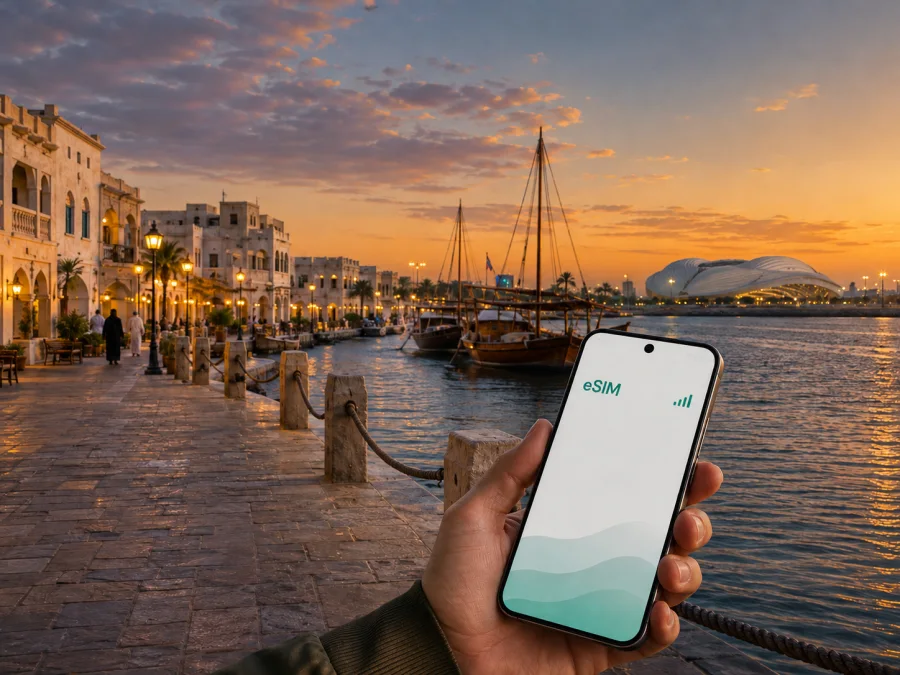
Al Wakrah eSIM: mobile connection and internet for your Qatar trip
Al Wakrah is a practical Qatar base with a coastal setting, an easy route into Doha, and time near the water. The city combines an old fishing-settlement atmosphere with modern roads, hotels, cafés, family beaches, and Al Janoub Stadium. A mobile plan helps you move between these parts without making connectivity the main task of the day.
An eSIM, or digital SIM, can be prepared before departure and used for mobile data in Qatar after installation and activation. You can open a map on arrival, coordinate a transfer, check a hotel message, order a ride, or send a location without looking for a physical SIM card. Choose according to your device, trip length, data use, and the selected tariff’s conditions.
Al Wakrah at a glance
| Travel question | What to plan for |
|---|---|
| Where is the city? | Al Wakrah is a coastal city south of Doha in Qatar. |
| What is the visual centre? | The Souq Al Wakrah area and its seafront promenade are natural points for an evening walk and a meal. |
| What is the main public-transport reference? | Al Wakra Metro Station is on the Doha Metro Red Line and is linked with the city’s bus and Park & Ride facilities. |
| What is a family-friendly outing? | Al Wakrah Beach has shaded areas, playgrounds, sports spaces, restrooms, and barbecue facilities. |
| What is the major modern landmark? | Al Janoub Stadium, known for a roof inspired by the sails of traditional dhow boats. |
| Which data tasks are most common? | Maps, transport, messages, bookings, work tools, and photos. |
Arriving in Al Wakrah: prepare before the wheels touch down
Many visitors first arrive at Hamad International Airport and then continue south by road. The first few hours are easier when the phone is ready before leaving the terminal: a map, booking confirmation, ride details, and a message to your accommodation may all be needed close together.
Use this arrival plan:
- Keep your accommodation address and contact details available offline.
- Install the eSIM on a stable connection if your device and tariff instructions allow pre-installation.
- Leave your home SIM in place if needed, but select the travel eSIM for mobile data only when ready.
- After landing, enable the travel line, assign it to data, and confirm the route to Al Wakrah.
Moving between the airport, Doha, and Al Wakrah
Al Wakrah works well for an itinerary that combines a southern base with time in Doha. Al Wakra is the southern station on the Doha Metro Red Line, and the transport area also includes a bus station and Park & Ride facilities. For a destination away from the station, plan a last-mile trip by taxi, bus, or MetroLink where available.
The phone tasks are different for each part of the journey:
- Airport to accommodation: confirm the property entrance, share your arrival status, and keep the route visible.
- Metro to a local destination: search the final destination rather than assuming the station is beside your hotel.
- Souq and beach evening: save a return meeting point before the group splits up.
- Al Janoub Stadium visit: visitor information identifies Al Wakra as the nearest metro station and M132 MetroLink as the connection. Check service details for your date and leave time for the final leg.
- Trip into Doha: use the metro for the main route when it matches your plans, with a taxi option for a late return or destination away from a station.
Routes and operating hours can change, so check current details for your date. An eSIM keeps information and coordination tools within reach but does not replace a ticket or travel card.
Places in Al Wakrah where mobile data earns its keep
Souq Al Wakrah and the waterfront
The souq and promenade suit an unhurried visit: walk along the coast, choose a restaurant, meet friends, and find a return pickup point. A live map and shared pin are useful in a busy pedestrian area. Save the hotel location and agree on a regrouping point. Maps and messages use less data than video uploads and internet calls.
Al Wakrah Beach
Al Wakrah Beach offers an open day outdoors, with shaded seating, children’s play areas, sports facilities, restrooms, and barbecue spaces. Before leaving, check the route and return plan. Mobile data is useful for weather checks, ride requests, family messages, and finding a café on the promenade.
Bring a power bank, save essential booking details, and keep the main address easy to reach. With children, agree on one visible meeting point.
Al Janoub Stadium
Al Janoub Stadium is one of Al Wakrah’s most recognisable modern landmarks. Its roof takes inspiration from traditional dhow sails and the city’s fishing and pearl-diving heritage. Visitors need the venue address, entrance instructions, transport information, and a way to contact the group.
The station does not necessarily complete the journey. Confirm the final connection and event access instructions, then send the agreed gate or landmark before setting out.
Choosing where to stay and what your tariff must support
The best place to stay depends on your itinerary. A waterfront stay favours walks to the souq, cafés, and beach; accommodation near main roads can simplify airport transfers or a day in Doha. Farther inland, pay attention to the last mile.
Use this simple comparison before booking:
| Your priority | Connection tasks to allow for |
|---|---|
| Waterfront evenings | Walking directions, restaurants, meeting messages, and a return ride. |
| Airport convenience | A terminal route, accommodation contact, and data after arrival. |
| Doha meetings | Metro planning, work tools, station navigation, and a fallback ride. |
| Stadium or family day | Venue or beach directions, group coordination, photos, and return transport. |
For a short stopover, a smaller tariff may suit route checks, messages, and bookings. For several days with work tools, photo backups, and internet calls, estimate more generously. Compare validity, destination, data amount, and restrictions.
When ready, explore eSIM options for a trip to Qatar. Kaspersky eSIM Store is an app and website that helps you choose, arrange, and activate an eSIM with a suitable tariff for mobile internet during an international trip. The selected tariff’s conditions determine how it is used.
A practical eSIM preparation checklist
Before purchase, check:
- Device: confirm that your phone supports eSIM and is not locked to an operator. Regional versions can differ, so check the exact device. Check your device compatibility before completing your choice.
- Destination and duration: confirm that the tariff covers Qatar and lasts for the whole trip.
- Data volume: include navigation, ride bookings, work, internet calls, and media uploads.
- Primary SIM: decide whether it remains enabled for calls and SMS, and select the data line intentionally.
- Activation: read when validity begins and follow the stated conditions.
- Setup and battery: keep Wi‑Fi available during installation if required; charge the phone and carry a power bank.
How to install an eSIM on your phone
Installation uses mobile-network settings and the profile or QR code supplied after the order. Menu names vary. For a device-specific walkthrough, use the Android installation instructions or the iOS installation instructions.
The general sequence is:
- Connect the phone to reliable Wi‑Fi or another working connection.
- Open mobile-network or cellular settings and choose to add an eSIM.
- Scan the QR code or follow the profile flow in your account.
- Label the line “Qatar travel” and keep your usual line for calls if needed.
- Select the travel eSIM for mobile data when ready.
The QR code or profile may be in your purchase email or Kaspersky eSIM Store profile. Do not rescan a code reported as already used; check the instructions or support route. Installation and connection can take a few minutes.
Activating the line after arrival
Installing a profile and using it for data are separate steps. In Qatar, enable the travel line and choose it for mobile data. Some phones require data roaming for the travel eSIM; follow the tariff and device instructions, and disable automatic data switching on the home line.
A useful arrival test takes less than a minute:
- Turn on the Qatar travel eSIM and set it as the mobile-data line.
- If required, enable data roaming for that line.
- Open a webpage or map and send a short internet message.
- Check that the home SIM has not taken over mobile data.
If the test fails, wait briefly and recheck the data line, changing one setting at a time. If the problem remains, check the tariff conditions, restart if appropriate, and contact support with the device model and error message.
Data planning for an Al Wakrah itinerary
Data use depends more on habits than on the city. Maps and messages are lighter than video meetings, photo backups, or streaming. Use this table as a planning aid.
| Travel pattern | Likely data-heavy moments | Planning approach |
|---|---|---|
| One-day stopover | Airport transfer, maps, a few messages, a meal search | Prioritise validity that covers the stopover and keep booking details offline. |
| Weekend by the waterfront | Repeated navigation, ride requests, photos, restaurant research | Allow extra data for photo sharing and keep a power bank with you. |
| Business stay | Email, calendars, documents, calls in work apps, hotspot use | Check whether tethering is allowed and leave a buffer for meetings. |
| Family holiday | Maps, messaging, photos, children’s entertainment, several devices | Estimate for the group, and verify whether the tariff supports the intended hotspot use. |
If data is limited, pause automatic photo backup, save maps or bookings where the app permits it, and use lower-quality media.
Three realistic travel scenarios
A short Al Wakrah stopover
You have one evening and a morning before the next flight. Install the eSIM before departure, save accommodation and airport details, and use data for the transfer and waterfront walk. Choose validity and data for the brief stay.
A work trip with meetings in Doha
Stay in Al Wakrah, use the Red Line towards Doha, and keep the final route to each office or hotel visible. Test the eSIM before the first meeting. If you need a hotspot, confirm that the tariff and company policy allow it.
A family day at the beach and stadium area
Agree on a meeting point, charge every phone, and keep one device available for navigation. Use the eSIM for the route, weather, messages, and a ride request. For the stadium, check the final connection from Al Wakra station and event instructions before leaving. Keep an offline address backup.
Common problems and calm fixes
The eSIM is installed but there is no internet. Confirm that the travel line is enabled and selected for mobile data. Check the tariff’s destination and activation conditions. If the device instructions require data roaming, enable it for the travel line only.
The phone keeps using the home SIM. Open SIM or mobile-data settings, turn off automatic data switching, and select the Qatar travel eSIM. Review the home line’s data settings to reduce roaming charges.
The QR code will not scan. Increase screen brightness, hold the camera steady, or open the code on another screen. If the profile has already been installed, do not keep trying to add it; review the installation instructions or ask support.
A colleague cannot find you at the souq or venue. Send a map pin and written landmark, then agree on a fixed meeting point. A pin is more precise than a description of a multi-entrance area.
FAQ about using an eSIM in Al Wakrah
Can I use an eSIM for calls in Qatar?
Usually, this travel eSIM scenario is for mobile internet, not a regular number, voice calls, or SMS. Those functions apply only when the tariff explicitly says so. Messaging and calling apps use data.
Should I install the eSIM before flying?
Installing before departure can simplify arrival, provided the device is compatible and you have a stable setup connection. Check when validity starts so you do not activate it early.
Will the eSIM work in every phone?
No. Your device must support eSIM and not be operator-locked; the regional version may also matter. Check compatibility before purchase and follow the installation instructions for your operating system.
Is the metro enough to reach every Al Wakrah attraction?
Not necessarily. Al Wakra Metro Station is a useful anchor, but the souq, beach, hotels, stadium area, and other destinations may require a final bus, MetroLink, taxi, or car trip. Confirm the last mile.
Final checklist before leaving for Al Wakrah
- Your phone supports eSIM and is not operator-locked.
- The selected tariff covers Qatar and lasts for the whole planned use period.
- The eSIM profile, QR code, or account access is available.
- Your accommodation, airport transfer, and meeting details are saved offline.
- The travel eSIM is labelled, and you know which line handles mobile data and calls.
- Automatic data switching is configured intentionally.
- A power bank is ready for a beach, waterfront, or stadium day.
- You know how to reach support if installation or activation does not complete.
Al Wakrah rewards a flexible plan: use metro and road connections for larger movements, keep the last mile in view, and leave room for a walk beside the water. Preparing an eSIM keeps maps, messages, bookings, and work tools within reach. When ready, choose an eSIM tariff for your Qatar journey and follow the installation steps for your phone.


