Travel connectivity guide
Apple iPad 10th generation 5G Cellular eSIM
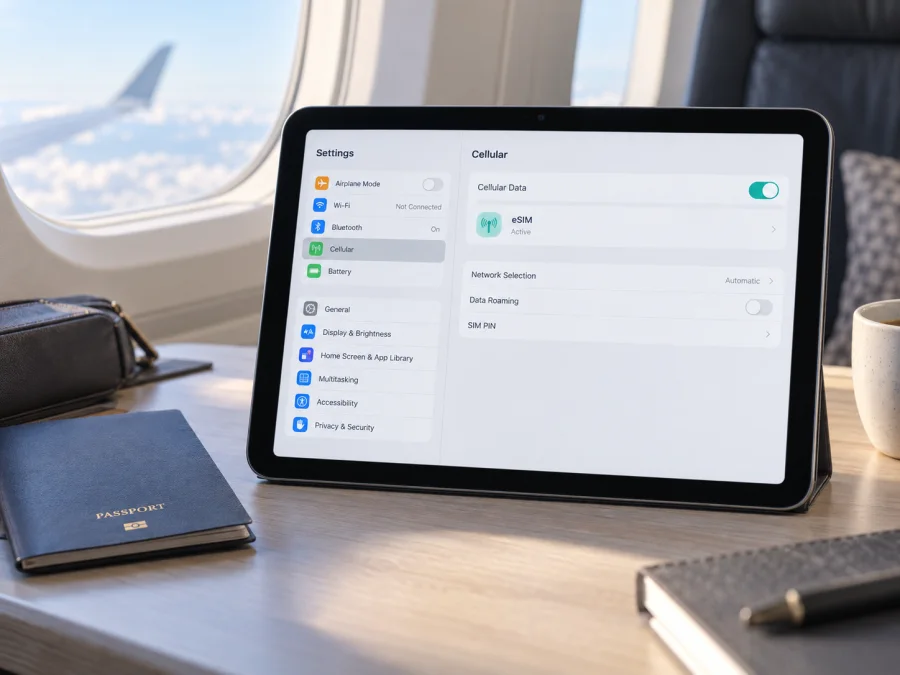
Apple iPad 10th generation 5G Cellular eSIM: compatibility and setup
Short answer: the cellular Apple iPad 10th generation supports eSIM in supported markets. Apple lists nano-SIM and eSIM for the Wi‑Fi + Cellular version, including model A2757, but the available eSIM service depends on the exact model number, country of use, and the provider’s support. The mainland China market has a separate model and operator rule: Apple currently identifies A3162 as the 10th-generation Wi‑Fi + Cellular model that supports eSIM there. Check the model in Settings before choosing a travel plan.
The device name in this guide is Apple iPad 10th generation 5G Cellular. The word “Cellular” matters: a Wi‑Fi-only iPad does not have the cellular hardware needed to install a mobile data eSIM. “5G” describes the supported mobile network capability where a compatible network and plan are available; it does not by itself confirm that a particular regional version can install every eSIM profile. This guide explains the checks to make before you buy or install a plan.
Does Apple iPad 10th generation 5G Cellular support eSIM?
Yes, the Wi‑Fi + Cellular configuration supports eSIM in markets where the specific model and provider are supported. Apple’s current technical specifications list both a nano-SIM and eSIM for the Wi‑Fi + Cellular iPad (10th generation). Apple also notes that eSIM availability for model A2757 is subject to the carrier and is not available in mainland China. That caveat is important: a general specification for the product family does not guarantee identical service in every country or on every market variant.
A cellular iPad can use an eSIM for mobile data without removing its physical SIM tray. The tenth-generation design has a nano-SIM tray on its Wi‑Fi + Cellular models, so the physical SIM and eSIM are two ways to provision mobile service. You do not need to insert a SIM card to add a supported eSIM profile. The Wi‑Fi-only version, commonly identified as A2696, has no cellular service and cannot use an eSIM for mobile data.
| Item | What it means for this device |
|---|---|
| Device | Apple iPad 10th generation 5G Cellular |
| Cellular version | Wi‑Fi + Cellular; confirm this in Settings or on the packaging |
| eSIM | Supported on compatible cellular models and markets; provider support is required |
| Physical SIM | Nano-SIM tray on Wi‑Fi + Cellular models |
| Mainland China | Apple lists A3162 as the 10th-generation Wi‑Fi + Cellular model supporting eSIM in mainland China; China Unicom is the supported iPad eSIM network provider there |
| Mobile data | Requires an eligible plan and compatible network; 5G availability varies by market and carrier |
| Wi‑Fi-only version | Does not support cellular data or eSIM |
Regional versions are not interchangeable
Apple’s model-identification information distinguishes several tenth-generation iPad versions. A2696 is the Wi‑Fi model. A2757 is a Wi‑Fi + Cellular version sold in a number of markets. Apple also identifies A2777 and A3162 as Wi‑Fi + Cellular models for mainland China. These model identifiers tell you which hardware version you have; they are not interchangeable labels for one universal configuration.
For everyday use outside mainland China, A2757 is the commonly listed cellular variant and Apple’s technical specification lists eSIM for this model with a carrier qualification. Do not infer that every iPad purchased in mainland China has the same eSIM access. Apple’s mainland China eSIM guidance specifically lists model A3162 for this generation and says other iPad models cannot install eSIM profiles from mainland China network providers. A2777 appears among the China-only model numbers in Apple’s identification page, but it is not included in the supported-model list on Apple’s mainland-China eSIM page. Treat A2777 as not confirmed for eSIM in that market unless Apple or the relevant provider confirms otherwise for your exact device.
Separate two questions when checking a “China version”: where the iPad was sold, and where you intend to use the eSIM. Mainland China has a market-specific rule for downloading profiles from local providers. Apple also states that the supported A3162 model can install eSIM mobile data plans from providers outside mainland China when travelling abroad, with Location Services enabled during that installation. This is distinct from using a local mainland China plan. A device’s country of purchase is not always the same thing as the country where you will activate or use a profile.
The cellular network itself is also market-specific. Apple says iPad cellular models are configured for particular network technologies and asks customers to confirm compatibility and plan availability with the carrier. Even if the iPad can store an eSIM profile, a provider must support eSIM activation for iPad, offer a plan for the destination, and have a compatible network where you are going. A 5G mark does not promise 5G service everywhere; the iPad may connect through LTE or another supported technology depending on the network, coverage, plan, and local conditions.
Check your exact iPad before buying a plan
Do not rely only on the product name in an online listing. Confirm that the tablet is the cellular model and identify its model number. Then check whether eSIM is available in Settings. On an eligible iPad, the menu may be named Settings > Mobile Data or Settings > Cellular Data, depending on the language and software version. Look for Add eSIM, Add Cellular Plan, or an option to add a mobile data plan. Menu labels can vary with iPadOS and region.
You can also check the device’s EID, a unique identifier associated with its eSIM hardware. Open Settings > General > About and scroll through the information. If an EID appears, it is a useful sign that the device has eSIM capability. Its presence does not establish that a specific provider, tariff, or local network will accept the device, so complete the other checks as well. If neither an EID nor an add-plan option appears, update iPadOS, restart the tablet, and confirm the exact model number before concluding that eSIM is unavailable.
Use this checklist before ordering:
- [ ] Confirm Wi‑Fi + Cellular. A Wi‑Fi-only iPad cannot add an eSIM profile for mobile data.
- [ ] Find the model number. Go to Settings > General > About. Tap the value beside Model Number once if it shows a part number; the view changes to the A-number, such as A2757 or A3162. You can also find the model number on the back of the device or its packaging.
- [ ] Look for EID or an eSIM menu. Check About for EID and Mobile Data/Cellular Data for an add-plan option.
- [ ] Check the market rule. For mainland China use, verify that the model is on Apple’s current supported list; for this generation Apple lists A3162 and identifies China Unicom as the iPad eSIM provider.
- [ ] Ask the eSIM provider about iPad support. Some activation methods or plans may be limited to phones or to particular device models.
- [ ] Confirm the destination and network. The plan must cover the country or region on your itinerary and work with a supported local network.
- [ ] Check account and device restrictions. Make sure the iPad is not restricted from adding a mobile plan by a provider, organization profile, or other management setting.
- [ ] Prepare internet access. A Wi‑Fi connection is useful for downloading and activating the profile.
- [ ] Read the plan terms. Confirm data allowance, validity, activation conditions, supported destination, and whether roaming must be enabled.
Check your device’s eSIM compatibility before choosing a plan.
For another quick check, check your device’s eSIM compatibility before choosing a plan. If you are buying a used iPad, ask the seller to show About and the Mobile Data screen in person. A photo of the exterior alone may not distinguish Wi‑Fi from Cellular or prove the current eSIM menu is available.
What eSIM does on an iPad
An eSIM is a digital profile that lets a compatible iPad connect to mobile data without inserting a physical SIM for that profile. It still requires an eligible plan and access to a supported network. Many travel eSIMs are data-only, so they do not include a phone number, voice calls, or SMS unless the plan terms explicitly say otherwise.
How to install and activate an eSIM
Before starting, connect the iPad to Wi‑Fi, update iPadOS if an update is available, and keep the eSIM instructions or QR code accessible. Use the installation details supplied for your plan. Do not scan one-time activation codes repeatedly or delete a profile just to retry; some codes can only be used once or are tied to the device on which they were first installed.
Add a profile with a QR code
- Open Settings. Tap Mobile Data or Cellular Data.
- Choose the add-plan option. Tap Add eSIM, Add Cellular Plan, or the equivalent item shown on your iPad.
- Scan the provider’s QR code. Hold the code in view and follow the on-screen prompts. If the QR code is on the iPad itself, display it on another device or use the provider’s supported manual method.
- Enter a confirmation code if requested. Use the code supplied by the eSIM provider; it is separate from your device passcode.
- Wait for the profile to download. Keep the iPad connected to Wi‑Fi and do not close the setup until iPadOS confirms the profile has been added.
- Label the profile. Choose a clear name such as “Travel data” so you can distinguish it from other plans.
- Choose when to use it. If you want to avoid starting the travel plan before your trip, leave the profile installed but check its activation rules. Installing a profile and starting its validity period are not necessarily the same event; the plan terms determine when the clock begins.
If the QR code is available in an email or provider webpage and the iPad runs iPadOS 17.4 or later, Apple also describes a supported flow in which you can touch and hold the QR code and tap Add eSIM. Some providers offer activation through a link or their app instead. Follow the method stated in your plan instructions because these options are provider-dependent.
Turn on the plan when you need data
After installation, return to Settings > Mobile Data/Cellular Data. Select the travel eSIM as the line for mobile data. Turn on the eSIM profile if it is disabled. Depending on the plan and destination, you may need to enable Data Roaming for that profile. Only enable roaming after confirming that the selected eSIM plan supports the destination and that the provider’s instructions require or permit it. If the iPad has another active mobile plan, check that the correct profile is selected for data to avoid using the wrong plan.
The device can take a few minutes to register after you arrive or turn on the plan. Leave the iPad in an area with usable cellular signal and wait before making repeated changes. If the plan requires activation after landing, keep the eSIM installed and follow the provider’s stated activation timing. A plan can be installed successfully while its data service is not yet active.
For step-by-step platform guidance, see the iOS eSIM installation instructions and Android eSIM installation instructions. The iOS guide may use iPhone wording or screens; on iPad, follow the equivalent Mobile Data or Cellular Data menu and the instructions supplied with your plan.
Using the eSIM for mobile internet on a trip
The simplest setup is to install the profile while you have reliable Wi‑Fi, then select it for mobile data when the plan’s activation conditions are met. Before departure, save tickets, hotel details, maps, and any essential instructions for offline use. This gives you a fallback if installation or network registration takes longer than expected after arrival.
At your destination, open Settings > Mobile Data/Cellular Data and verify that the travel profile is enabled and selected for data. If the plan requires roaming, turn on Data Roaming for that eSIM only. Then check that Airplane Mode is off and Mobile Data is enabled. Give the tablet a short time to register. A provider may use a partner network, so the displayed network name can differ from the brand shown in the plan checkout. Follow the provider’s instructions for automatic network selection; choose a manual network only when support recommends it.
Think about data use on a tablet. Cloud photo sync, operating-system updates, video streaming, and large file downloads can consume data quickly. If the plan has a limit, review app background refresh and automatic downloads, and use Wi‑Fi for large updates when possible. A data plan’s allowance and validity are set by its provider; the iPad’s settings do not extend them.
Common problems and what to check
There is no “Add eSIM” option
First confirm the model number and that the iPad is a Wi‑Fi + Cellular version. Check Settings > General > About for an EID, then install any available iPadOS update and restart. If the iPad is A2696, it is the Wi‑Fi model. If it is a China-market version, compare the number with Apple’s current supported list for the country where you are installing the plan. A missing menu can also result from device management or a restriction set by an organization. Ask the seller, administrator, or provider to verify the exact model and market support before buying a plan.
The QR code does not scan
Make sure the code is clear, fully visible, and not being scanned from the same screen that is running the camera. Increase screen brightness if the code is displayed on another device. Check whether the plan offers a manual or link-based method. Do not keep retrying a code that may already have been used; ask the provider whether it remains valid and can be reissued.
The profile will not download
Confirm that Wi‑Fi works and that the iPad can reach the internet. Check the date and time setting, restart the iPad, and try again once. Make sure the plan is intended for an iPad and for this market. If an error says the code is invalid, expired, or already used, contact the provider with the exact message. Avoid deleting an existing profile unless support tells you to; deleting it may not reset its activation code.
The profile is installed but there is no service
Check that the eSIM line is turned on, selected for Mobile Data, and configured according to the plan’s roaming instructions. Verify that Airplane Mode is off, mobile data is enabled, and the destination is covered by the plan. Restart the iPad or toggle the eSIM line off and on once. If signal remains unavailable, try a location with better coverage and ask the provider whether a supported partner network is available. A successfully installed profile cannot create service where there is no compatible network coverage.
Data does not work or the wrong plan is being used
In Mobile Data settings, make sure the travel profile is selected as the data line. Check Data Roaming only for that profile if required by the provider. Temporarily turn Wi‑Fi off to see whether the iPad can load a webpage using cellular data. Review the plan’s remaining data and validity in the provider’s account or app. If you also use a physical SIM, verify which plan is selected before browsing; the physical SIM and eSIM can have separate billing and data terms.
Frequently asked questions
Can Apple iPad 10th generation 5G Cellular use eSIM?
Yes, the Wi‑Fi + Cellular version supports eSIM in compatible markets and with a supported provider. Confirm the A-number, EID, and add-plan option first. The Wi‑Fi-only A2696 does not support eSIM.
Which iPad 10th generation model supports eSIM in mainland China?
Apple’s current mainland China guidance lists Wi‑Fi + Cellular model A3162 for eSIM and names China Unicom as the supported iPad eSIM network provider. It says other iPad models, including those bought outside mainland China, cannot install eSIM profiles from mainland China providers. Check the latest Apple guidance and the provider before activation.
Can I install the eSIM before flying?
Usually you can download a profile while connected to Wi‑Fi, but when the plan starts counting validity varies. Read its activation terms before installation. If the profile is intended to activate only at the destination, keep it installed and wait to enable or use it as directed.
Before you choose an eSIM for your trip
Start with the exact hardware: confirm that your Apple iPad 10th generation 5G Cellular is the Wi‑Fi + Cellular version, record its A-number, and look for an EID or an eSIM add-plan option. Pay special attention to market-specific restrictions, especially if the model is A2777 or A3162 and you plan to install a profile in mainland China. Then check the selected provider’s support for iPad, the countries on your route, the data allowance, validity, and activation method.
After those checks, choose an eSIM plan that matches your travel needs. Kaspersky eSIM Store’s app and website let you choose, arrange, and activate an eSIM with a mobile data plan for an international trip. Review the plan terms and confirm compatibility before purchase; if the model or local operator support is unclear, ask the provider to verify it using the iPad’s model number. This short check can prevent an unusable plan and helps you prepare the iPad before leaving Wi‑Fi.


