Travel connectivity guide
Apple iPad 10th generation cellular 64GB eSIM
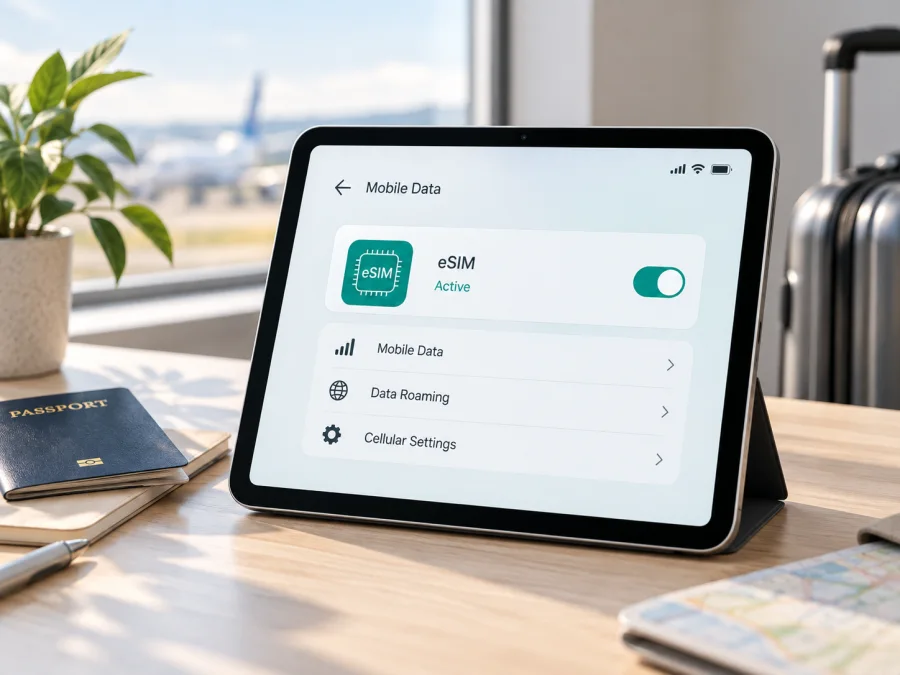
Apple iPad 10th generation cellular 64GB eSIM: compatibility and setup
If you are checking whether the Apple iPad 10th generation cellular 64GB can use eSIM, the short answer is yes, when it is the Wi‑Fi + Cellular version and the particular model, region, carrier and software configuration support the service. Apple lists iPad (7th to 10th generation) Wi‑Fi + Cellular models among iPads that can be set up with eSIM. Apple’s technical specifications for the cellular 10th-generation configuration also list eSIM and nano‑SIM.
A Wi‑Fi-only iPad cannot add a cellular eSIM, and a cellular iPad may still be affected by a market rule or carrier policy. Confirm the device before choosing a plan.
Quick answer for this exact variant
The supplied device name is Apple iPad 10th generation cellular 64GB. It describes a 64GB iPad in the 10th-generation cellular family, rather than a Wi‑Fi-only tablet. Apple usually expresses this hardware as Wi‑Fi + Cellular. Do not treat the word “cellular” in a shop listing as final proof: check the model number and the options in Settings.
| Item | eSIM meaning |
|---|---|
| Exact variant | Apple iPad 10th generation cellular 64GB |
| Generation | 10th generation, introduced in 2022 |
| Storage | 64GB; storage does not determine eSIM support |
| Required hardware | Wi‑Fi + Cellular model |
| SIM capability | Supported versions can use eSIM and nano‑SIM |
| Typical service | Mobile data; a travel eSIM normally does not provide a regular phone number |
| Device checks | Cellular Data settings, EID and an Add eSIM or Add Cellular Plan option |
| Possible differences | Model number, sales region, carrier and local availability |
Does Apple iPad 10th generation cellular 64GB support eSIM?
For a genuine Wi‑Fi + Cellular iPad (10th generation), the model supports eSIM. Apple’s current support guidance includes iPad (7th through 10th generation) Wi‑Fi + Cellular models in the eSIM-compatible group. Apple’s technical specifications for the cellular version list a nano‑SIM tray and eSIM, so the standard supported configuration is not limited to a physical SIM.
The practical answer for your unit is therefore yes, subject to verification. An eSIM is a digital SIM stored in the device. Where the carrier and plan allow it, you can use a mobile-data plan without removing the physical SIM. On an iPad, the service is normally data-focused. Do not assume that a travel eSIM includes a conventional mobile number, voice calling or SMS; check the conditions of the individual plan.
Wi‑Fi + Cellular models have the modem and SIM controls required for mobile data. Wi‑Fi-only models depend on Wi‑Fi or a hotspot and cannot become cellular by downloading a profile. The 64GB label alone does not distinguish them.
Regional and operator differences
Apple documents the general capability, but activation is not identical in every market. The model must be eligible for the country or region, the carrier or worldwide service provider must support eSIM on iPad, and the plan must cover the destination. Some providers use a QR code, while others use carrier activation, an account flow or an app. A service that works on an iPhone is not automatically available on an iPad.
Mainland China requires special care. Apple identifies selected models that support mainland-China carrier eSIM profiles, including 10th-generation Wi‑Fi + Cellular model A3162, and states that other iPad models cannot install those profiles. Do not assume every 10th-generation cellular iPad has the same local activation path.
An imported or refurbished device can have a different model number from a local retail unit. A carrier restriction, company management profile or older software can also change what you see. Firmware updates cannot add cellular hardware to a Wi‑Fi-only iPad.
How to verify compatibility before buying a plan
Use the iPad as the source of truth. Listings can shorten names, confuse Wi‑Fi and cellular versions, or omit the market identifier.
Check cellular settings
Open Settings and look for Cellular Data or Mobile Data. The label depends on language and iPadOS version. In Settings > General > About, look for cellular, IMEI or modem information. A physical nano‑SIM tray is a useful clue on the standard cellular 10th-generation model, but the settings screen is the stronger check.
If there is no cellular-data section, pause the purchase. The iPad may be Wi‑Fi only, managed by an organisation, or affected by a software issue. Do not infer cellular capability from 64GB storage, the exterior colour or the seller’s title.
Record the model number
Go to Settings > General > About. Next to Model Number, you may first see a part number; tap it to reveal the A-number identifier. Record it exactly. Apple’s identification guidance lists A2757 as a Wi‑Fi + Cellular version of the 10th-generation iPad and identifies separate mainland-China variants. The A-number is particularly important for a device bought abroad or refurbished.
Look for EID
On the same About screen, look for EID. EID identifies the embedded-SIM function and is a strong sign that the device has eSIM hardware. Keep it private; do not publish it in a forum or send it to an unverified seller.
No EID is a warning, not a reason to guess. Connect to Wi‑Fi, update iPadOS, restart and check again. If EID and cellular controls remain absent, ask Apple or the seller before buying. A carrier cannot add eSIM hardware to a Wi‑Fi-only unit.
Find the add-plan control
Open Settings > Cellular Data. Look for Add eSIM, Add Cellular Plan, Add Data Plan or an equivalent option. Wording varies by iPadOS version and language. A QR-code option, carrier activation or “Find a New Plan” path can all be valid.
If the option is unavailable, check for Screen Time restrictions, device management or a carrier limitation. For a guided check, use Check your device before selecting a destination plan.
Compatibility checklist
- [ ] The device is the exact Apple iPad 10th generation cellular 64GB, not the Wi‑Fi-only version or another capacity.
- [ ] Settings shows cellular data, IMEI or modem information.
- [ ] The exact A-number model has been recorded and checked for its sales market.
- [ ] An EID or a working Add eSIM/Add Cellular Plan control is visible.
- [ ] The iPad is not carrier-restricted or organisation-managed.
- [ ] iPadOS is suitable for the provider’s activation flow and the iPad can connect to Wi‑Fi.
- [ ] The chosen plan supports iPad data service in every destination on the route.
- [ ] Traffic, validity, activation timing and roaming requirements are understood.
- [ ] Support and purchase details are available if activation fails.
A compatible iPad still needs a compatible plan and a local network relationship that permits service in the destination.
Installing and activating an eSIM on the iPad
Prepare the iPad with reliable Wi‑Fi, sufficient battery and the QR code or activation details. Keep the QR code on another screen and use only the activation method supplied by the service.
1. Confirm the prerequisites
Verify Wi‑Fi + Cellular hardware, model number, EID or add-plan control, an unlocked device and a plan intended for iPad data. Read validity rules before installing a plan for a later trip.
2. Open cellular settings
Open Settings, tap Cellular Data or Mobile Data, then tap Add eSIM, Add Cellular Plan or the equivalent. If no option exists, return to compatibility checks.
3. Choose the activation method
Select Use QR Code when the provider supplied one, or use the approved carrier-activation or app flow. Point the iPad at the complete code and wait for the prompt; do not substitute the ordinary Camera app for the eSIM menu.
4. Add the cellular plan
Review the plan name and destination, approve Add Cellular Plan and wait for the profile to download over Wi‑Fi. If the code is expired or already used, contact support instead of requesting repeated activations.
5. Label and select the eSIM
Give the profile a clear label such as “Travel data”, then select it under Settings > Cellular Data. Review cellular-data switching; disabling it can prevent unexpected use of another line.
6. Activate at the right time
If the plan is for use after arrival, follow its activation conditions. At the destination, turn off Airplane Mode, select the travel eSIM and wait for registration. Some plans require Data Roaming for that line; enable it only when their conditions require it.
For more guidance, see the Android installation instructions and the iOS installation instructions. The iPad follows the iOS-family flow.
Using eSIM for mobile internet in a trip
Before departure, install over Wi‑Fi if allowed, note the label and keep activation details accessible. If installing after landing, save the QR code on another device or securely offline.
After arrival:
- Open Settings > Cellular Data and select the travel eSIM.
- Confirm cellular data is enabled for that line.
- Enable Data Roaming for the travel eSIM only if the plan requires it.
- Disable the home line for data if you want to avoid accidental home-plan roaming charges.
- Wait for network registration and test with a simple webpage.
- Check remaining traffic and validity in the plan account or app.
The connection can support maps, messaging, translation, bookings and work tools. Streaming, video calls, backups and updates can use data quickly. Speed, network selection, tethering and validity depend on the plan and local network; eSIM does not guarantee a particular speed or signal everywhere.
For a multi-country trip, check whether the plan is country-specific or regional and confirm every destination.
Kaspersky eSIM Store is the app and website where you can choose, arrange and activate an eSIM with a mobile-data plan for an overseas trip. After compatibility is confirmed, you can review the destination, traffic allowance and validity in the available plan flow. Kaspersky eSIM Store is not the mobile operator, network owner or mobile-internet provider; service depends on the selected plan, its supporting carrier arrangements, your device and the local network.
Common problems and checks
The QR code will not scan
Increase the brightness of the screen showing the code and make sure the full code is visible. Use Settings > Cellular Data > Add eSIM > Use QR Code. If the code was already used or expired, contact support.
There is no Add eSIM option
Check the A-number, EID, cellular-data section and device-management status. Connect to Wi‑Fi, restart and update iPadOS. If the option remains absent, the hardware variant or market may not support the activation path.
The profile downloads but does not activate
Confirm Wi‑Fi, validity, destination and carrier requirements. Imported iPads need a market check. Do not delete the profile until support explains the consequences.
The eSIM is installed but there is no data
Select the travel eSIM, turn on cellular data, turn off Airplane Mode and check the destination. Enable roaming if required, wait and restart. If service is absent, check local coverage or an outage and contact support with the plan and model details.
The wrong line is being used
Review each label and the selected data line. Disable data switching if you want the travel eSIM to be the only mobile-data source. A home line can create roaming costs even when it is not selected for data.
The connection is slow
Check signal, remaining traffic and validity. Pause backups and high-usage apps, then test elsewhere. A supported network can still have limited capacity or speed-management conditions.
FAQ
Does Apple iPad 10th generation cellular 64GB support eSIM?
Yes, the Wi‑Fi + Cellular version is listed by Apple as eSIM-compatible and its specifications include eSIM alongside nano‑SIM. Confirm the A-number, EID and add-plan control because market and carrier rules apply.
Does 64GB affect eSIM support?
No. 64GB describes storage; it does not prove cellular capability or replace the model-number check.
Can a Wi‑Fi-only iPad use this eSIM?
No. It can use another device’s hotspot, but it cannot install an eSIM for its own mobile-data connection.
Does the eSIM provide a phone number?
Usually not for a travel data plan. Kaspersky eSIM Store plans are intended for mobile internet unless an individual plan says otherwise; ordinary calls and SMS are not automatic.
Is Kaspersky eSIM Store a mobile operator?
No. It is an app and website that helps you choose, arrange and activate an eSIM with a suitable mobile-data plan for an overseas trip. It is not a network owner, operator or mobile-internet provider.
Final device check before choosing an eSIM for a trip
Before paying for a plan, repeat this decision path for the exact Apple iPad 10th generation cellular 64GB in your hands:
- Confirm Wi‑Fi + Cellular in Settings and record the exact A-number.
- Find the EID or a working Add eSIM/Add Cellular Plan control.
- Confirm that the iPad is not carrier-restricted or organisation-managed.
- Check that the plan supports iPad data service in every destination on your route.
- Compare traffic, validity, activation timing, roaming requirements and support conditions.
- Install over reliable Wi‑Fi, select the travel eSIM for mobile data and test it before relying on it.
When these checks are complete, Kaspersky eSIM Store can help you choose, arrange and activate an eSIM plan for mobile internet during your overseas trip. Review the destination, settings and activation timing before you rely on it.


