Travel connectivity guide
Apple iPad 10th generation cellular eSIM guide
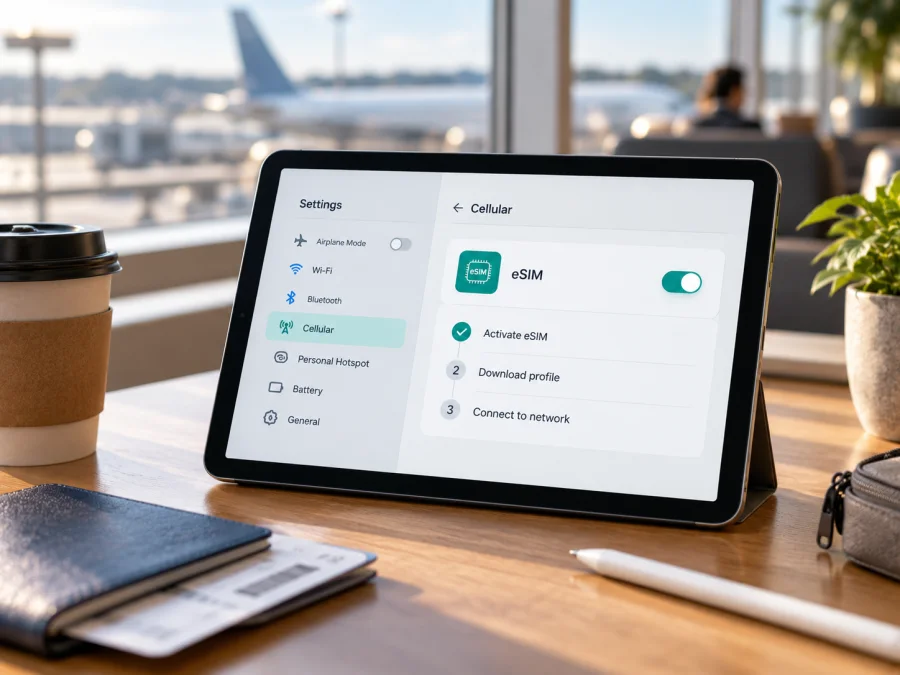
Apple iPad 10th generation cellular eSIM: compatibility and setup
Short answer: the cellular version of Apple iPad 10th generation supports eSIM in many markets, alongside a nano-SIM tray. Apple lists eSIM for the standard Wi-Fi + Cellular model, commonly identified as model A2757. There is an important regional exception: China-mainland models use different model numbers and local activation rules. Check the model number on the iPad itself before relying on eSIM. The Wi-Fi-only iPad 10th generation has no cellular modem and cannot use an eSIM for mobile data.
The phrase “Apple iPad 10th generation cellular” describes a family of regional configurations rather than one worldwide radio variant. A cellular icon or a SIM tray alone is not enough to establish that a particular eSIM plan will activate. This guide explains what to inspect, how to add a profile when the model and provider support it, and what to do if the option or network does not appear.
Does Apple iPad 10th generation cellular support eSIM?
Apple’s specifications for the Wi-Fi + Cellular iPad (10th generation) list both nano-SIM and eSIM. The familiar international cellular model is A2757. It can use a compatible physical nano-SIM or a downloaded eSIM profile, subject to availability from the mobile service provider and the rules in the country where the profile is activated. Cellular iPads are data-only devices: cellular service on this iPad is intended for data, not a conventional mobile phone number for ordinary calls and SMS.
The name on a retailer’s listing may omit the crucial model code. Apple identifies A2777 and A3162 as Wi-Fi + Cellular versions intended for China mainland. Apple’s China-market support information identifies A3162 as a model that can support eSIM in China mainland through China Unicom, subject to the carrier’s plan and activation process. That is a specific operator market; it does not mean every provider or travel eSIM can be installed there. A2777 is another China-mainland version, and the available model information does not establish the same local eSIM eligibility for it. Check its Settings screen and ask the seller or intended carrier to confirm the precise model before purchase.
This distinction is geographic and practical. “China mainland model” means the hardware version intended for that sales market; it is not simply a label for where the tablet is currently located. “eSIM available in China mainland” refers to the local provider and regulatory setup. A supported model travelling outside mainland China may have a different set of options, and Apple says location services may need to be enabled when installing a non-mainland eSIM on a mainland-supported iPad abroad. The destination provider must still accept the device and issue a compatible plan.
| Item | What to know |
|---|---|
| Device in this guide | Apple iPad 10th generation cellular (Wi-Fi + Cellular) |
| Cellular model code | A2757 is the standard global model; A2777 and A3162 are China-mainland models |
| SIM options | Apple lists nano-SIM and eSIM for the general Wi-Fi + Cellular specification; regional eligibility can differ |
| Wi-Fi-only version | No cellular connection, so it cannot install a cellular eSIM plan |
| Cellular use | Mobile data; local plan, network access, and compatible bands are required |
| Main check | Confirm the model number and whether Settings offers an eSIM/mobile-data plan option |
Regional versions and operator availability
For A3162, Apple’s mainland China guidance names China Unicom as the supported local iPad eSIM provider and instructs users to check the carrier’s current plans and activation steps. That fact concerns local service in mainland China. For travel beyond mainland China, Apple describes the possibility of adding a foreign carrier’s eSIM on a China-market supported iPad with Location Services enabled, but availability remains conditional on the travel provider, model, and current software. Do not assume the same rules for A2777: ask the seller or intended provider to verify eSIM functionality for that exact code. If the iPad was bought second-hand, have the seller show the model number and eSIM settings before completing the purchase.
Check your exact iPad before buying a plan
Use the iPad itself as the first check. On the home screen, open Settings > General > About. Find Model Number. It may initially show a part number; tap that entry to reveal the model code beginning with “A”. Record that code. Compare it with the model information for the generation, and keep the code when asking a seller or carrier about activation. Do not share the device’s serial number or EID publicly; they are identifiers, not compatibility badges.
Then look for the cellular controls:
- In Settings, look for Cellular Data (the wording can vary slightly by iPadOS version or language). A Wi-Fi-only iPad will not have the cellular-data setup options of the cellular model.
- If cellular settings are present, look for Add eSIM, Add Cellular Plan, or a similar option. The exact wording and menu position can change with software and region.
- Open Settings > General > About and scroll through the device information. If an EID is shown, the device reports an embedded SIM identifier. Its presence is a useful indication, but the provider must still support the model and plan. If no EID appears, do not conclude from a product listing alone that eSIM will work; confirm the model and ask Apple or the seller.
- Check that the iPad has no carrier or management restriction that prevents adding a plan. If it is organization-managed, ask the administrator whether cellular plan installation is allowed.
- Confirm with the provider that the plan supports iPad and the exact model code, is valid for the country or region you will visit, and can be activated using the method you have. Check whether the plan starts on installation, first connection, or a scheduled date.
Before you choose an eSIM for travel, check whether your device is compatible. The check should include the model code, eSIM support, carrier lock or management status, and the provider’s rules for the destination. A travel plan is useful only when all of these fit together.
Compatibility checklist
- [ ] The iPad is a Wi-Fi + Cellular model, not Wi-Fi only.
- [ ] The model code is recorded from Settings > General > About.
- [ ] The eSIM option or EID is visible, or Apple/the seller has confirmed the exact model’s capability.
- [ ] The intended provider accepts iPad and this regional model for eSIM activation.
- [ ] The device is not blocked by a carrier lock, account restriction, or management profile.
- [ ] The plan covers every destination on the itinerary and supports the required network technology.
- [ ] You have a stable Wi-Fi connection, current account details, and the provider’s valid installation instructions.
- [ ] You understand the plan’s data allowance, validity, activation timing, and any roaming-data setting it requires.
When a travel eSIM can help
Kaspersky eSIM Store is an app and website where you can choose, arrange, and activate an eSIM with a data plan for a trip abroad. Before selecting a plan, check that the listing covers the destination and that its installation method works on your iPad. Plans described for phones may have different requirements, so verify iPad compatibility instead of relying on the device category in a broad offer.
How to install and activate an eSIM
The screens vary by iPadOS version and provider. Start with the instructions supplied for the specific plan; a QR code, a provider app, or an on-device activation flow may be used. Apple’s general iPad steps are also described in its iOS installation guide. The site also has an Android installation guide; its device menus differ, so use the Apple-specific steps below for this iPad.
Before installation
Make sure the iPad is connected to reliable Wi-Fi and has enough battery. Update iPadOS if an update is available and appropriate for your device. Have the activation QR code or app instructions ready on another screen or printed page, since the iPad cannot scan a QR code displayed on its own screen with its rear camera. If the provider offers in-app installation, follow that flow instead. Read the plan conditions first: some activation codes can be used only once, and deleting a downloaded profile may not let you install it again.
Add the profile
- Open Settings and tap Cellular Data. On some software versions or in some regions, the menu label may be Mobile Data.
- Choose Add eSIM or Add Cellular Plan. If the provider or Apple presents an activation notification or app-based setup, follow its on-screen prompts.
- To use a QR code, select the QR-code option if prompted and scan the code supplied for your plan. If asked for a confirmation code, enter the code provided separately. Do not use a QR code from an unknown source.
- Review the plan information and confirm adding the cellular plan. Keep the iPad connected to Wi-Fi while the profile downloads and activates. Wait for the confirmation screen; do not scan the same code repeatedly if setup appears to pause.
- Give the plan a clear label, such as “Travel data” or the destination name, if the iPad offers that choice. Labels help distinguish it from a home SIM or another saved plan.
- If asked which line to use for cellular data, choose the travel plan only when you intend to use it. Keep the home plan’s roaming settings in mind. Review the summary before confirming changes.
Select the eSIM for data
Using the iPad on a trip
On arrival, turn off Airplane Mode, enable Cellular Data, and confirm that the travel plan is selected. Give the iPad a few minutes to register. If the provider requires a supported partner network or data roaming, follow its instructions. Network selection is normally automatic; if it does not connect, restart the iPad and check the provider’s suggested network settings before trying manual selection. Some providers specify an APN (a network access setting); enter one only if the provider gives it for that plan.
Troubleshooting common problems
There is no “Add eSIM” option
First confirm that the iPad is Wi-Fi + Cellular. Check Settings > General > About for the model code and look for an EID. Verify that you are not looking at the Wi-Fi-only A2696. If your device is a mainland China variant, check Apple’s regional guidance and the exact model’s carrier eligibility; local activation rules differ. Restart the iPad, connect to Wi-Fi, and install any suitable iPadOS update. If the model should support eSIM but the option remains absent, contact Apple Support or the seller with the model code. Do not buy a plan on the assumption that a missing menu will appear after payment.
The QR code will not scan or the profile will not download
Increase screen brightness on the device showing the QR code, clean the iPad camera, and keep the code fully visible. If the code is displayed on the iPad itself, open it on another device or use the provider’s manual or app-based option if offered. Confirm that the code belongs to the plan and has not already been used. Keep Wi-Fi connected and check that date and time are set automatically. If the iPad reports that the plan cannot be added, record the exact message and contact the issuer before removing another plan or resetting network settings.
The plan is installed but there is no connection
Check that Cellular Data is on and that the correct eSIM is selected for data. Disable Airplane Mode, then wait briefly. Confirm that the destination is included, the plan has started, and the allowance has not expired or been exhausted. Check whether the provider requires data roaming or a particular APN. Restart the iPad and try again in an area with known cellular coverage. If the provider lists partner networks, check those instructions. A displayed signal does not guarantee that the data plan is active, and an active plan does not guarantee coverage in every location.
The eSIM works at home but not abroad
Confirm that the plan specifically includes the country you are visiting and that it has not expired. Check the selected data plan and the provider’s roaming instructions. A regional model can have radio-band differences, and the local network must support a compatible band and service. Move to a different location, restart the iPad, and allow automatic network selection to try again. If the provider recommends a network selection or APN, follow its current values. Ask the provider to check the profile status and local partner network before changing unrelated settings.
Data seems to come from the wrong plan
Return to Settings > Cellular Data and verify the selected data line. Check each plan’s data-roaming setting and turn off the option to allow switching between plans if you need strict separation and your iPad offers it. Review your home provider’s rules. Keep in mind that Wi-Fi use and cellular data use are different: the status icon or a connected Wi-Fi network may mean traffic is not using the travel eSIM at that moment.
A transfer or reinstall fails
Do not delete the active profile simply to retry setup. eSIM transfer rules depend on the provider, and Apple notes that some plan transfers require carrier involvement. Many one-time activation codes cannot be reused after installation. Contact the provider’s support team with the order information and a description of the error. Avoid sharing the full QR code, EID, or account credentials in public messages.
The iPad is locked or managed
If the iPad was purchased through a carrier or is managed by a school or employer, a lock or management policy may prevent adding another plan. Ask the original carrier to confirm whether the device can use a different provider. Ask the administrator about cellular restrictions on managed devices. Do not treat a factory reset as the first troubleshooting step: it can erase local information and will not remove a network restriction that belongs to the carrier or organization.
Frequently asked questions
Does every Apple iPad 10th generation cellular support eSIM?
Apple lists eSIM for the Wi-Fi + Cellular specification, but the exact regional model and operator market matter. A2757 is the common global model. China-mainland versions have separate rules; A3162 is listed by Apple for mainland eSIM subject to China Unicom’s requirements, while the same assumption should not be made for A2777. Check your own model and provider before purchasing.
Can the Wi-Fi-only iPad use an eSIM?
No. The Wi-Fi-only version has no cellular modem for a mobile-data plan. It can access the internet through Wi-Fi or a separate hotspot, but it cannot download an eSIM to gain cellular service.
Does an EID prove that my travel eSIM will work?
No. An EID indicates an embedded SIM identifier, but compatibility also depends on model, region, provider, plan type, account restrictions, and destination network. Confirm all of these with the plan provider.
Can I use the travel eSIM and the nano-SIM at the same time?
The iPad can store multiple plans, and the cellular version has a nano-SIM tray. Which plans can be active or selected together depends on the device and carrier setup. For cellular data, check which line is selected in Settings. A plan for data does not provide normal voice calling or SMS unless the provider explicitly says otherwise.
Can I install the profile before a trip?
Often this is possible, but follow the plan’s instructions. The installation date and the start of the validity period may differ. Some plans begin when installed, while others begin on first connection or on a scheduled date. Check the exact terms before adding it.
Will an eSIM give the iPad internet everywhere?
No plan can promise service everywhere. Access depends on its destination coverage, local partner network, compatible bands, service availability, account status, and remaining data. Check current plan details and carry offline essentials for areas without coverage.
Check compatibility, then choose a plan for your trip
Before selecting a travel eSIM, confirm that your exact Apple iPad 10th generation cellular is the Wi-Fi + Cellular version, identify its model code, and make sure the intended provider supports that regional variant. Check the destination, data allowance, validity, activation timing, and any roaming or APN instructions. If the model is A2777 or A3162, ask specifically about the China-mainland model and the country where you will activate the plan.
When those checks are complete, Kaspersky eSIM Store can help you browse and activate an eSIM data plan for a trip abroad. Explore the Kaspersky eSIM Store to check current destinations and plan details, then follow the provider’s installation instructions on your iPad. If any compatibility point is still unclear, verify it with the seller, Apple, or the plan provider before paying.


