Travel connectivity guide
Apple iPad Air 2019 cellular 5G eSIM
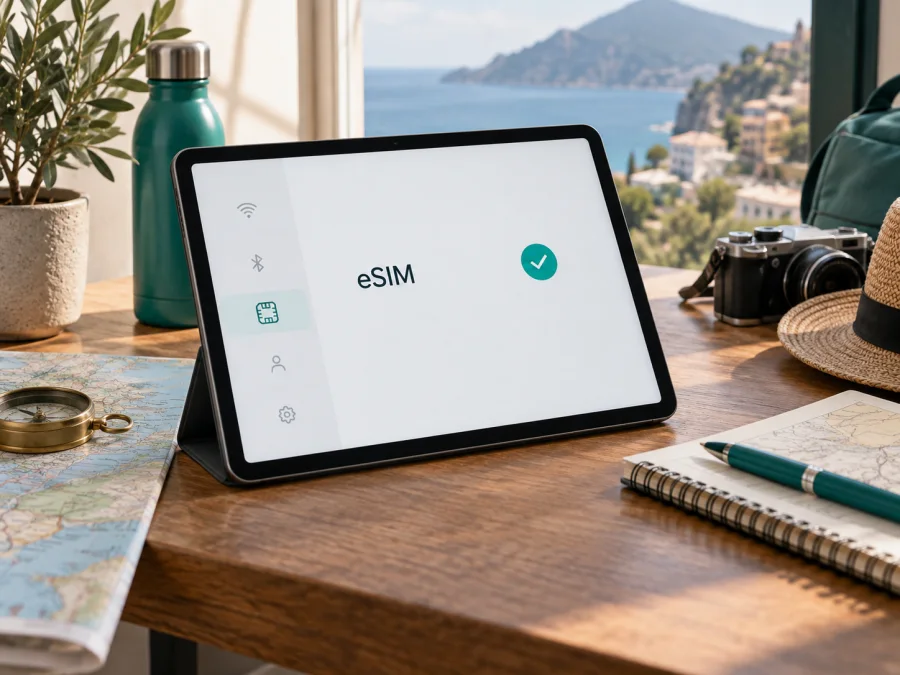
Apple iPad Air 2019 cellular 5G eSIM compatibility and setup
If you are checking Apple iPad Air 2019 cellular 5G before a trip, the short answer is yes: the 2019 cellular iPad Air supports eSIM. There is an important correction, however. Apple identifies this tablet as iPad Air (3rd generation), and its cellular specification is Gigabit-class LTE, not 5G. The word “5G” in a shop listing or search query should be treated as a label to verify, not as proof that this iPad can connect to a 5G network.
eSIM support applies to the Wi‑Fi + Cellular version, not to the Wi‑Fi-only iPad Air. It can also depend on the market, provider, iPadOS and local rules. The actual device should be verified before a travel eSIM plan is purchased.
Quick answer for this exact device
Apple’s technical information for iPad Air (3rd generation) lists eSIM and a nano‑SIM for the Wi‑Fi + Cellular model. That makes the 2019 cellular iPad Air a suitable candidate for a travel data eSIM. It does not mean every carrier can provision it, every country offers the same activation path, or a plan advertised as “5G” will give this iPad 5G service.
Keep these conclusions separate:
- eSIM: supported on the cellular model when the device and service conditions allow it.
- 5G: not supported by the 2019 third-generation iPad Air specification; it uses LTE.
- Travel data: possible after the iPad shows an EID or an add-plan control, and the selected plan is confirmed for iPad, the destination and the device’s regional version.
This distinction matters because retailers sometimes reuse generic filters, confuse this generation with a newer iPad Air or add search keywords. The About screen, mobile-data menu and EID are more reliable than the listing name.
What the Apple specification means
The 2019 release is the third-generation iPad Air. For cellular models, Apple lists mobile data, a nano‑SIM and eSIM, with Gigabit-class LTE rather than 5G NR. This article keeps the exact name Apple iPad Air 2019 cellular 5G because it is the requested variant, while correcting the network assumption.
| Item | What to expect on the verified cellular variant |
|---|---|
| Device name supplied for this page | Apple iPad Air 2019 cellular 5G |
| Apple generation | iPad Air (3rd generation), 2019 |
| Cellular version | Wi‑Fi + Cellular; Wi‑Fi-only models do not qualify |
| eSIM and SIM | eSIM and nano‑SIM are listed for the cellular model |
| Mobile network | Gigabit-class LTE; do not assume 5G from the listing |
| Travel use | Mobile data for maps, messages, browsing and work |
| Final check | EID or add-plan control, provider eligibility and destination coverage |
The table is a screening aid. Apple notes that eSIM is not available from every carrier or in every country and region.
Why the 5G wording needs correction
The “5G” modifier must stay in the device name, but it should not become a technical promise. The third-generation iPad Air predates Apple’s iPad models with 5G hardware. Its official cellular specification is LTE. A 5G-labelled eSIM plan can therefore be used only if its provider allows LTE service for this iPad and destination; the tablet cannot connect to 5G NR.
Selecting a newer 5G-priority plan does not upgrade the modem. If a provider requires 5G hardware, the plan is unsuitable even if the eSIM profile installs.
Regional and carrier differences
Apple’s eSIM listing establishes hardware capability, but not universal availability. Regional versions can differ in bands, carrier bundles and activation behavior. A second-hand or imported tablet may have different cellular policies.
Carrier support is a separate condition. A provider may activate through a notification, QR code, app or manual details, and may restrict eSIM to phones, specific iPad generations or selected countries. An EID proves that the tablet has an eSIM identity; it does not guarantee that a particular plan will activate.
China mainland requires particular care. Apple’s iPad guidance says local eSIM activation there is available only on models that support eSIM in China mainland. Confirm market and carrier eligibility directly; do not infer it from an overseas listing or an EID.
Check eSIM support on the iPad
Connect the tablet to Wi‑Fi while checking it. Keep any existing profile in place and do not delete it as a diagnostic step.
Find the EID
- Open Settings.
- Tap General.
- Tap About.
- Scroll through the identifiers and look for EID. IMEI/MEID and ICCID may also appear.
- Touch and hold the EID to copy it into a provider’s private compatibility form or support request. Do not post it publicly.
If the iPad has not been set up, an information screen during initial setup can also show identifiers. If no EID appears, verify that the tablet is cellular rather than Wi‑Fi-only before buying an eSIM.
Look for the add-plan control
Open Settings > Mobile Data. A compatible configured iPad may show a carrier setup flow, Add a New Plan, a QR-code option or another way to add cellular data. Labels vary by iPadOS version, language, carrier bundle and existing plans.
If the EID is present but the control is missing, connect to Wi‑Fi, update iPadOS, restart and check again. Ask the provider whether it supports this generation and activation method. A Wi‑Fi-only model cannot be converted by software.
Compatibility checklist
- [ ] The tablet is an iPad Air from the 2019 third-generation family.
- [ ] It is Wi‑Fi + Cellular, not Wi‑Fi-only.
- [ ] An EID appears under Settings > General > About.
- [ ] Mobile Data offers a supported setup or add-plan method.
- [ ] The device is updated enough for the provider’s activation flow.
- [ ] The plan explicitly accepts iPad or tablet use.
- [ ] The destination and route are covered.
- [ ] The plan permits LTE use and does not require 5G hardware.
- [ ] The iPad is not carrier-locked or regionally restricted.
- [ ] Wi‑Fi and the QR code or activation details are available.
For a second opinion before choosing a travel plan, Check your device and compare the result with the EID and Mobile Data checks. Do not merge Apple iPad Air 2019 cellular 5G with a newer 5G iPad Air or a Wi‑Fi-only model.
How to install and activate an eSIM
Labels can differ, but the sequence is: confirm the device, prepare the profile, add it in Mobile Data, select it for data and test it. Apple supports carrier activation, transfer, an app and a QR code.
For general help, see the Android eSIM installation instructions for Android devices and the iOS eSIM installation instructions for Apple devices. The steps below are for this iPad.
1. Prepare the iPad and plan
Connect to reliable Wi‑Fi and update iPadOS if required. Keep the QR code on another screen. Check the destination, allowance, validity and activation timing; installation and activation are not always the same event.
2. Open the setup flow
Go to Settings > Mobile Data. Choose Add a New Plan, Set Up Cellular Data, Other or the equivalent option. If a provider notification appears, open it and follow the screen. Select a carrier only when it is associated with the plan you intend to use.
3. Scan or open the activation details
Choose the QR-code option and scan the code. If the code is in an email or provider webpage and the iPadOS version supports it, touch and hold the QR code and choose Add eSIM. A confirmation code or provider link may be required.
If the code does not scan, increase brightness, remove glare and keep the whole code in frame. Do not repeatedly scan a one-time code or edit it.
4. Select the line for data
Give the profile a clear label such as “Trip data” and keep the primary line identifiable. In Mobile Data, select the new eSIM for cellular data. Leave cellular-data switching off unless you deliberately want the iPad to use another plan.
For a data-only travel eSIM, expect mobile internet rather than an ordinary phone number, calls or SMS. Maps, email and messaging apps can work over data; hotspot use depends on the plan’s terms.
5. Activate at the right time
Install before departure over Wi‑Fi, then enable the travel line when the journey begins if validity starts on first network connection. Follow any provider deadline instead.
If required, enable Data Roaming for the travel eSIM. This can allow a travel profile to use a partner network abroad; it does not create 5G capability. Keep the home line’s data roaming off if you want to avoid accidental home-plan use, and confirm the selected data line before browsing.
6. Test the connection
Turn off Wi‑Fi briefly and open a lightweight webpage. Confirm that the travel profile is selected and that the connection works. Turn Wi‑Fi back on after the test if appropriate. LTE is the expected radio result on this generation, even when the plan description mentions 5G.
Using the eSIM while travelling
Confirm the EID and add the profile over Wi‑Fi before departure. After arrival, select the travel eSIM under Mobile Data, enable its settings and test it.
Short city break
Choose validity that matches the visit and confirm that the arrival city is covered. Use data for navigation and messaging; download large files over Wi‑Fi. Allow extra data if the iPad will be a hotspot.
Multi-country route
Verify each country or choose a regional plan covering the route. A single-country plan may stop at a border even though the profile remains installed. Check special-market rules.
Troubleshooting
No EID appears
Confirm that the tablet is cellular, not Wi‑Fi-only. Restart, update iPadOS and check Settings > General > About again. If the EID remains absent, ask Apple or the seller to confirm the model before purchasing.
Add-plan is missing
Connect to Wi‑Fi, update, restart and inspect Mobile Data again. If the EID is present but the option is still absent, ask whether the provider supports this generation and route.
QR code fails
Use the QR option inside Mobile Data, a bright display and a full code in frame. For a code shown on the iPad, use touch-and-hold Add eSIM where available. If it was single-use or expired, request the provider’s next step.
Profile installs but there is no service
Wait, restart, confirm that the travel profile is on and selected for data, and check the destination and roaming setting. Turn Wi‑Fi off for the test. If LTE appears but apps do not connect, check allowance, validity and APN instructions.
It worked at home but not abroad
Installation proves only that the profile downloaded. Recheck the country list, activation timing, roaming setting and selected line. Contact support before changing settings repeatedly.
Speed is lower than expected
This iPad is LTE, not 5G. Speed also depends on signal, buildings, congestion and the partner network. Try an open area and a light webpage. Do not treat a 5G label as a promise for this tablet.
Frequently asked questions
Does Apple iPad Air 2019 cellular 5G support eSIM?
Yes, when the name refers to the 2019 iPad Air (3rd generation) Wi‑Fi + Cellular model, Apple lists eSIM. Confirm the EID and Mobile Data settings. The “5G” part is not an official capability; it is an LTE device.
Can I use a 5G eSIM plan?
Only for LTE data if the provider allows LTE fallback and iPad use. The tablet cannot connect to 5G NR. If the plan requires 5G hardware, it is unsuitable even if installation succeeds.
Is Kaspersky eSIM Store the mobile operator?
No. Kaspersky eSIM Store is an app and website where you can choose, arrange and activate an eSIM with a suitable tariff for mobile internet during an international trip. Service and tariff conditions depend on the selected offer and its network arrangements.
What if activation still fails?
Confirm the EID, Wi‑Fi, selected line, destination and activation status. Keep the QR code and purchase details available. Contact support rather than deleting the profile or repeatedly scanning a one-time code.
Conclusion: verify first, then choose a travel eSIM
The practical verdict for Apple iPad Air 2019 cellular 5G is clear: the 2019 iPad Air cellular variant can support eSIM, but it should be treated as an LTE iPad, not a 5G iPad. Verify the EID and add-plan control, confirm the regional and carrier conditions, and choose a plan that explicitly works with iPad over LTE in every destination on your route.
Kaspersky eSIM Store helps you choose, arrange and activate an eSIM tariff for mobile internet during an international trip through its app or website. Before paying, compare the destination, data volume, validity and activation timing with your itinerary. Then install over Wi‑Fi, select the travel profile for Mobile Data, follow its roaming instructions and test the connection.
Final device check before your trip eSIM
- Confirm that the tablet is the 2019 cellular Apple iPad Air (3rd generation), not a Wi‑Fi-only model.
- Open Settings > General > About and confirm that an EID is present.
- Open Settings > Mobile Data and confirm a supported way to add or manage a plan.
- Treat the “5G” modifier in Apple iPad Air 2019 cellular 5G as a listing label; expect LTE on this generation.
- Check current iPad eligibility, regional restrictions, destination coverage and LTE compatibility.
- Confirm when validity begins, then select the travel eSIM for data and follow its roaming instructions.
- Test a small amount of data before leaving Wi‑Fi and keep purchase details ready for support.
Once these checks pass, choose the eSIM tariff that fits the destination and length of the trip. This keeps the decision tied to the exact device in your hands rather than to an incomplete “5G” label.


