Travel connectivity guide
Apple iPad Air 5G 256GB Cellular eSIM
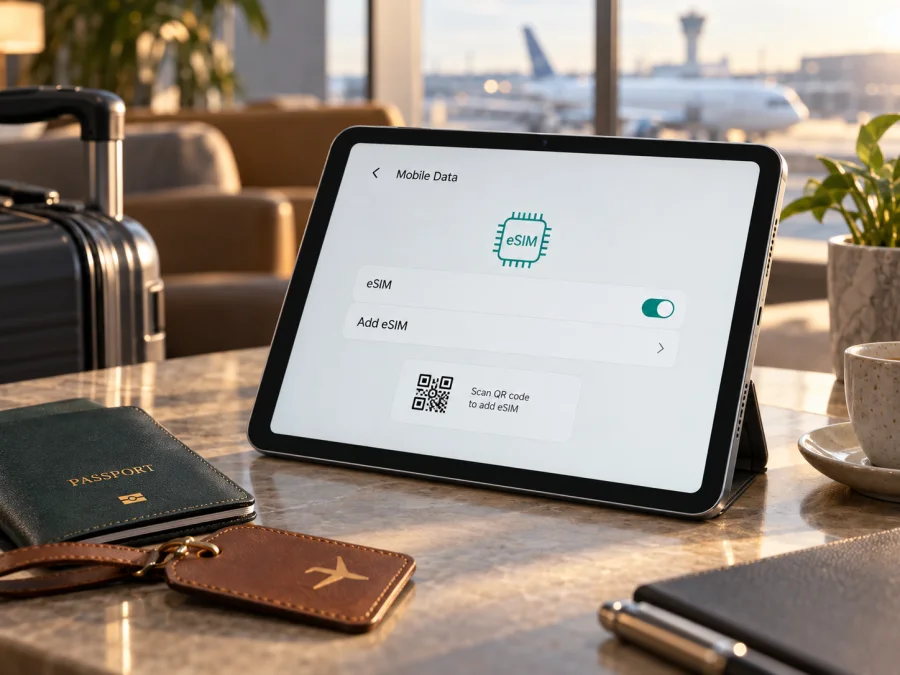
Apple iPad Air 5G 256GB Cellular eSIM: compatibility and setup
Short answer: Yes, Apple iPad Air 5G 256GB Cellular supports eSIM when it refers to a Wi-Fi + Cellular iPad Air. The supplied product name omits the generation and model number, so confirm those on the iPad before buying a plan. Apple lists iPad Air (3rd to 5th generation) Wi-Fi + Cellular as eSIM-capable; later cellular iPad Air models also use eSIM, with some newer generations relying on eSIM only. The 256GB storage size does not determine eSIM support. Country rules, the regional hardware version and the specific provider still matter.
<a id="kesim-device-compatibility"></a>
Does Apple iPad Air 5G 256GB Cellular support eSIM?
Yes, provided the name refers to iPad Air (5th generation), Wi-Fi + Cellular, rather than the Wi-Fi-only model. Apple’s current iPad eSIM compatibility guidance includes iPad Air (3rd to 5th generation) Wi-Fi + Cellular. Apple’s iPad Air (5th generation) technical specifications list both nano-SIM and eSIM for cellular models and include a 256GB capacity option. So a 256GB cellular unit of that generation is eSIM-capable in markets and with providers that support the service.
| Item | What to expect |
|---|---|
| Device name supplied | Apple iPad Air 5G 256GB Cellular |
| Generation | Not stated in the supplied product name; verify the model number |
| Apple-confirmed eSIM example | iPad Air (5th generation) Wi-Fi + Cellular |
| Storage | 256GB is a storage configuration; it does not determine eSIM support |
| Cellular hardware | Wi-Fi + Cellular; the fifth-generation cellular model has a nano-SIM tray and eSIM capability |
| Model identifiers for Wi-Fi + Cellular | A2589 or A2591; confirm the number on your own device |
| Mobile data | The iPad is data-focused; check each plan’s terms for included services |
| Main qualification | Carrier support, local rules and the specific market can affect eSIM activation |
Regional versions and carrier-market limits
An eSIM has two sides: the device must contain and expose eSIM capability, and a carrier or travel service must support activation for that device in the country where you want to use it. A fifth-generation cellular iPad Air is not automatically restricted to the country where it was bought, but support should be checked for the particular model, destination and provider. Cellular bands and carrier policies vary. A plan that installs successfully may still have different network availability or activation rules in another market.
Mainland China is a specific exception, not a general statement about all countries in Asia or all Chinese-language markets. Apple’s current guidance says only certain iPad models can activate a local mainland China eSIM plan. The iPad Air (5th generation) and its model identifiers A2589 and A2591 are not on that supported-model list. Apple identifies China Unicom as the only supported iPad eSIM network provider there. This means you should not expect this generation to install a mainland China carrier’s eSIM profile for local mobile data. That restriction is about local carrier eSIM activation in mainland China; it does not mean the iPad has no eSIM capability everywhere. When travelling outside mainland China, a supported iPad Air model may be able to install an eSIM plan from a provider in the destination, subject to that provider’s requirements.
Before you choose an eSIM plan
Confirm all of these points before paying for a travel data plan:
- The device is the Wi-Fi + Cellular version, not Wi-Fi only.
- The model number matches the cellular generation you intend to use; A2589 and A2591 are listed for iPad Air (5th generation) Wi-Fi + Cellular.
- Settings offers a cellular-data plan or an add-plan option, and the device shows an EID if available.
- The iPad is not locked or restricted by a carrier, school, employer or management profile.
- The eSIM provider supports iPad, your precise device variant and the destination market. Phone-only eSIM support does not always mean tablet support.
- The plan is for mobile data if you need internet access; do not assume it includes a regular phone number, voice calls or SMS.
- You have Wi-Fi or another internet connection available during installation, and you understand when the plan starts and how long it remains valid.
Keep the three checks separate: the iPad’s hardware model, the country-specific rules that apply where you intend to connect, and the eSIM provider’s own supported-device and plan conditions. A network partner available in a destination does not automatically mean every travel plan supports tablets there. Ask the plan provider directly if its compatibility page is unclear, and give it the iPad model number rather than only the storage capacity or marketing name. This matters most when the device was imported or the itinerary includes a market with special eSIM restrictions.
If you need a model-by-model checklist before proceeding, check whether your device is compatible with eSIM. Use the result for the exact model in hand, not only the family name printed in a shop listing.
How to check eSIM on your iPad
The Settings screen is the most practical first check. Menu wording can vary a little with language and iPadOS version; “Mobile Data” may appear as “Cellular Data” or “Mobile Service.” Connect to Wi-Fi before opening the settings so that the iPad can load provider or activation details if needed.
- Open Settings.
- Tap General, then About.
- Find Model Number. If it shows a part number, tap it to reveal the A-number. For the fifth-generation Wi-Fi + Cellular iPad Air, Apple lists A2589 and A2591. Compare this with Apple’s model-identification page and the information supplied by the seller.
- On the same About screen, look for EID. EID is the identifier associated with the embedded SIM capability. It is different from the serial number, IMEI and the iPad’s Wi-Fi address. Do not post it publicly; share it only with a provider or support team when they request it through an appropriate channel.
- Return to Settings and open Mobile Data or Cellular Data. Look for Add eSIM, Add a New Plan, Set Up Cellular Data or a similar option. An existing plan may appear in the list instead of a prominent add button.
- If neither an EID nor an eSIM-related option is visible, confirm the exact A-number, that the iPad is the Cellular model, that iPadOS is up to date, and that no organizational profile or regional restriction is hiding the feature. Restart the iPad and check again. If the result remains unclear, contact Apple Support or the seller before purchasing a plan.
When to install and activate a travel eSIM
Plan around the provider’s instructions. You can often install the profile over reliable Wi-Fi before departure and enable it on arrival. Installation, activation and the start of validity may be separate: a plan can start at installation or when it first connects, depending on its terms. Check this timing before scanning a one-time QR code.
How to install an eSIM on Apple iPad Air 5G 256GB Cellular
The precise menu labels depend on iPadOS and the activation method. Apple supports provider activation, a QR code and—in cases supported by the provider—activation through a provider app or link. Follow the instructions attached to the plan if they differ from the general flow below.
Install by QR code
- Confirm the iPad is connected to Wi-Fi, update iPadOS if practical, and keep the provider’s QR code and any confirmation code ready.
- Open Settings and tap Mobile Data or Cellular Data.
- Choose Add eSIM or Add a New Plan. If the option is not shown, check the model and EID as described above before continuing.
- Select Use QR Code or the equivalent option, then scan the code supplied for this iPad plan. If prompted, enter the confirmation code from the provider.
- Review the plan details and tap Continue, Add Mobile Plan or the on-screen confirmation button. Keep the iPad online and wait while the profile downloads.
- When installation finishes, give the plan a clear label such as “Travel data” so you can distinguish it from a home plan. Choose whether to enable the line now or later, following the provider’s timing guidance.
- In Mobile Data settings, select the travel plan for mobile data when you are ready to use it. Turn on data roaming for that plan only if the provider’s instructions require it.
For device-specific help, Apple’s iPad setup route is similar to its iOS workflow, while Android uses different menus. See the iOS eSIM installation instructions or the Android eSIM installation instructions for the relevant platform steps; use the iOS guide for this iPad and follow your plan’s own activation details where they differ.
Use the eSIM for mobile data on a trip
Once the eSIM is installed, the iPad needs to select it as the data plan. The name and order of controls can differ by iPadOS version, but the important checks are straightforward:
- Open Settings → Mobile Data and tap the travel plan.
- Make sure the line is enabled. Select it as the plan for mobile data if the iPad has more than one plan.
- Check Data Roaming for that plan. Enable it only when the travel provider’s instructions say roaming must be on; the word “roaming” can be required for a travel eSIM to connect even though it is the intended plan.
- If the iPad asks about switching mobile-data plans, read the prompt. Avoid automatic switching if you want to keep data on the travel plan and avoid unexpected use of another plan.
- Turn Wi-Fi off briefly in a safe place and check that a webpage loads over mobile data. Then verify that the correct plan is selected and monitor data use in the provider’s app or account where available.
Kaspersky eSIM Store is an app and website where you can choose, arrange and activate an eSIM with a mobile-data plan for an international trip. After checking that this exact cellular iPad is compatible and that the plan supports tablets in your destination, you can choose a data plan for your trip. Review the destination, data allowance, validity, activation timing and any provider requirements before you confirm.
Common problems and what to check
“Add eSIM” is missing
Check that the iPad is a Wi-Fi + Cellular model, not Wi-Fi only. Confirm its A-number in Settings → General → About, look for an EID, update iPadOS and restart. Check whether a school, employer or other management profile controls mobile-data settings. For mainland China local service, remember the specific model restriction described above. If the number or capability still does not match the seller’s claim, ask Apple or the seller to verify it before buying a plan.
The QR code will not scan or the profile will not download
Use a stable Wi-Fi connection, increase screen brightness on the device showing the QR code, clean the iPad camera lens and hold the code steady within the frame. Make sure the code is meant for this particular eSIM and has not already been used. If the provider gives a manual activation or confirmation code, enter it exactly as supplied. If the code was sent to the iPad, try the supported touch-and-hold method on a compatible iPadOS version. Do not repeatedly scan an expired or single-use code; ask the provider whether it can issue a replacement.
The profile is present, but there is no signal
Check that the travel plan is switched on and selected for mobile data. Confirm that the destination is covered and that the plan’s active period has begun. Some providers require data roaming on; others have different instructions, so use the plan’s setup guidance. Move to an area with better reception, enable and disable Airplane Mode once, then restart the iPad. If it still cannot register, check with the provider whether the local network supports the iPad model and whether the plan needs manual network selection or APN settings.
The iPad connects, but pages do not load
Verify that Mobile Data is on and that the travel eSIM—not a different plan—is selected. Check the plan balance or data allowance with the provider. If the provider supplies APN instructions, compare the settings carefully; do not invent an APN value. Turn off any VPN temporarily if it interferes with the connection, then test a simple webpage. Check date and time settings and confirm that the plan has not expired. A 5G indicator alone does not guarantee working data or an active allowance.
FAQ
Does every Apple iPad Air 5G 256GB Cellular support eSIM?
The product name does not identify a generation. For iPad Air (5th generation) Wi-Fi + Cellular, Apple lists A2589 and A2591 and confirms eSIM support. Verify the model number and settings on the actual unit; carrier support, market rules and the exact plan still matter.
Will eSIM provide calls and text messages?
Not by default. The eSIM plans discussed here are for mobile data unless their terms explicitly say otherwise. You can use internet-based calling and messaging apps over data, but do not assume that a standard phone number, carrier voice calls or SMS are included.
Final check before your trip
Apple iPad Air 5G 256GB Cellular supports eSIM when it is a compatible Wi-Fi + Cellular model. Verify the A-number and EID, check that Settings offers eSIM, and confirm the destination, provider and tablet eligibility before paying. The mainland China local-carrier restriction and the plan’s activation timing also matter.
Install over Wi-Fi, select the travel eSIM for mobile data and enable data roaming only as directed. Test a webpage before relying on the connection during your trip.


