Travel connectivity guide
Apple iPad Air 5G eSIM: Setup & Compatibility
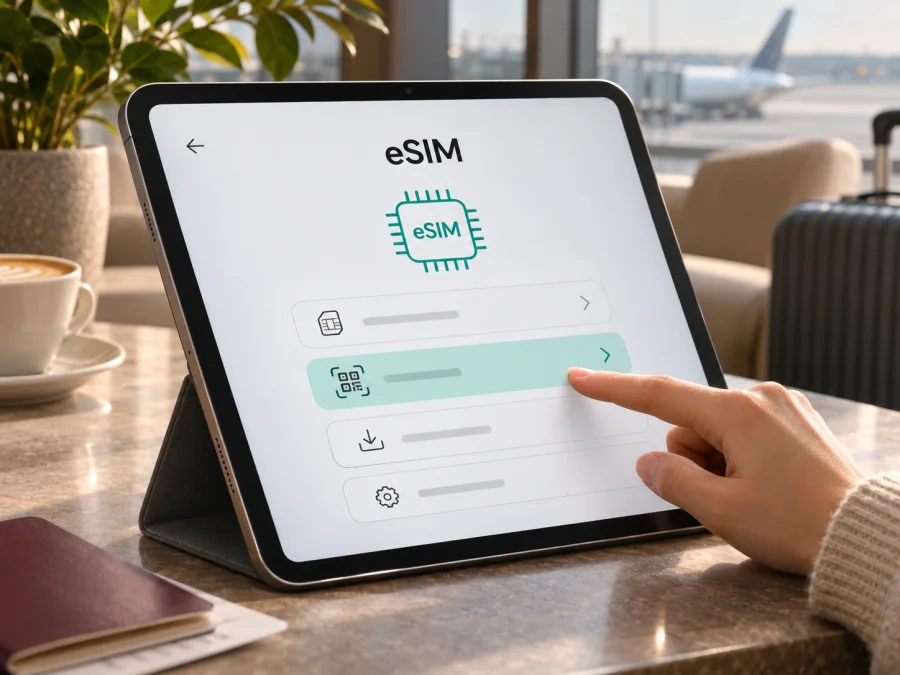
Apple iPad Air 5G eSIM: compatibility, setup and travel data
Short answer: the Wi‑Fi + Cellular version of Apple iPad Air 5G (iPad Air, 5th generation) supports eSIM in markets and with providers that support it. The Wi‑Fi-only version has no cellular modem and cannot use an eSIM for mobile data. Regional model numbers matter: Apple lists eSIM for the cellular generation in its general specifications, but says eSIM is not available in mainland China. A China-market unit may therefore behave differently from an otherwise similar imported tablet. Check the model number and the settings on your own iPad before choosing a plan.
This guide explains what “5G” means on this iPad, how to distinguish the cellular and Wi‑Fi versions, where to look for an EID or an eSIM setup option, and how to prepare a travel data profile. Because “Apple iPad Air 5G” does not identify a sales region or a specific model number, the exact result for an individual tablet depends on its hardware variant, the country where you use it, iPadOS and the carrier or travel plan.
Does Apple iPad Air 5G support eSIM?
Yes, if you have the fifth-generation Wi‑Fi + Cellular iPad Air and your particular market and provider permit eSIM activation. Apple’s specifications list both nano‑SIM and eSIM for supported cellular configurations, alongside 5G. This is a cellular-data tablet: an iPad data plan is separate from an ordinary mobile phone plan, and cellular availability depends on the model, location and network provider.
The name entered for this guide is not a complete hardware identifier. “5G” describes a cellular network capability; it does not prove that a tablet has cellular hardware or that its eSIM can be activated in every country. Apple sold this generation as Wi‑Fi and Wi‑Fi + Cellular. A Wi‑Fi model may look almost identical, but it has no SIM tray or cellular data settings. On the cellular versions Apple lists A2589 and A2591; the Wi‑Fi model is A2588. Mainland China specifications for this generation list nano‑SIM only. Available radio bands and carrier support can also differ by market.
The mainland China restriction needs special attention. Apple’s general specifications state that eSIM is not available in mainland China. Its mainland China guidance identifies a limited group of newer iPad models for local carrier eSIM and does not include iPad Air (5th generation). So do not infer that an iPad Air 5G will accept a mainland China carrier’s eSIM just because it supports eSIM elsewhere. If the device is a mainland China-market unit, or you plan to activate a local profile there, confirm eligibility with Apple and the carrier before purchase. Rules for a foreign travel eSIM used outside mainland China are a separate question; check the intended country and plan.
| Check | What it means for this iPad |
|---|---|
| Device generation | iPad Air (5th generation), introduced in 2022 |
| Wi‑Fi-only model | No cellular data connection and no eSIM activation |
| Wi‑Fi + Cellular models | A2589 or A2591; cellular data hardware is present. The mainland China specification for this generation lists nano‑SIM only |
| Network capability | 5G and LTE support vary by model and network; a 5G label does not guarantee 5G service everywhere |
| SIM options | Apple lists nano‑SIM and eSIM for supported cellular versions, subject to provider and region |
| Mainland China | General eSIM availability is restricted; this generation is not among the iPads Apple lists for mainland China carrier eSIM |
| Service type | iPad cellular plans provide data; do not assume a conventional phone number, voice service or SMS |
| Required checks | Exact model number, eSIM option or EID, carrier eligibility, device lock status and travel-plan terms |
For the exact rules in your destination, distinguish three things: where the iPad was sold, where you want to use or activate the plan, and which provider issued the profile. A regional hardware variant can have different radio bands or activation rules. Separately, a provider may not support eSIM on tablets, may require a particular activation method, or may restrict use to certain countries. “Works with eSIM” is not the same as “works with every eSIM plan.”
Check your model, EID and eSIM menu
Start with Settings rather than the product name in an online listing. On iPadOS, open Settings → General → About. Find Model Number. The value initially shown may be a part number; tap it to reveal the A-number. For this generation, A2589 and A2591 identify Wi‑Fi + Cellular models, while A2588 identifies the Wi‑Fi model. You can also compare the number with the label on the original packaging. If the device was bought second-hand, check the iPad itself rather than relying on the seller’s description.
Next, look for an EID in Settings → General → About. EID is the identifier associated with the embedded SIM hardware. Its presence is a useful sign that the device has eSIM capability, but it does not guarantee that a particular operator, country or tariff will accept the device. If no EID appears, update iPadOS, restart the iPad and check again. Then confirm the exact A-number and ask Apple or the relevant provider to verify the variant. Menu names can differ with language and iPadOS version.
You can also inspect Settings → Cellular Data (sometimes labelled Mobile Data). A compatible cellular iPad may show Add eSIM, Add a New Plan, Set Up Cellular Data, or a provider selection flow. The wording varies. If the tablet has no Cellular Data section, it may be the Wi‑Fi-only model. If the section exists but has no eSIM action, region, provider or software restrictions may apply. Do not treat a missing menu as proof on its own: check the model number and EID too.
Use this checklist before paying for a travel data plan:
- [ ] The iPad is Apple iPad Air 5G / iPad Air (5th generation), not another generation with a similar name.
- [ ] It is a Wi‑Fi + Cellular model; the A-number is A2589 or A2591, not A2588. If it is a mainland China-market unit, account for that variant’s nano‑SIM-only specification.
- [ ] Settings → General → About displays an EID, or Settings → Cellular Data offers an eSIM or plan-add option.
- [ ] The model and the market where activation will occur are eligible. Mainland China has distinct restrictions.
- [ ] The iPad is not restricted by an organization’s management profile or a carrier-imposed lock that prevents another provider’s plan.
- [ ] The travel eSIM provider confirms that its plan can be installed on an iPad and in your destination.
- [ ] You have Wi‑Fi or another internet connection available during installation, plus the QR code or activation details for the correct device.
- [ ] The plan’s destination, data allowance, validity period, activation timing, supported networks and any top-up rules fit your trip.
For another device or a quick second opinion, check whether your device supports eSIM. That compatibility check is a starting point; confirm the exact iPad model and the plan terms before checkout. Do not order a plan solely because a page says “iPad Air 5G.”
Before installing a travel eSIM
Choose a plan that explicitly includes each country on your itinerary. Compare its data allowance and validity with how you use the iPad: video, cloud backups and hotspot use consume data quickly. Check when validity begins, whether automatic renewal or top-ups apply, and whether tethering is allowed. Prices and terms can change, so review the current details before checkout.
Kaspersky eSIM Store is an app and website where you can choose, arrange and activate an eSIM with a suitable data plan for an overseas trip. The available networks and service depend on the plan. If your route or exact tariff is not listed, check the current options and confirm destination coverage before ordering.
Keep the iPad on reliable Wi‑Fi during installation, and have the correct QR code or activation details ready. Some codes are single-use or tied to a device. Do not delete an installed profile unless the provider confirms you can reinstall it.
How to install and activate eSIM on Apple iPad Air 5G
The exact labels depend on iPadOS, country and activation method. A travel provider may give you a QR code, an in-app installation route, a carrier activation flow, or details to enter manually. Follow the instructions included with the specific plan; the steps below describe the usual QR-code route for a supported Wi‑Fi + Cellular iPad.
- Prepare the connection. Connect to Wi‑Fi and keep it available until the profile is installed. Confirm that the iPad has enough battery, that the plan is for this device, and that you have the provider’s QR code and any confirmation code.
- Open cellular settings. Go to Settings → Cellular Data or Settings → Mobile Data. Tap Add eSIM, Add a New Plan, or the closest option shown. If prompted to choose how to add a plan, select the QR-code route or the provider’s stated method.
- Scan or enter the activation details. Point the iPad camera at the supplied QR code, then review the plan information and follow the onscreen prompts. If scanning is unavailable, select the manual-entry option only if the provider supplied the required details. Never use a QR code intended for another account or device.
- Confirm the profile. Tap the option to add or activate the cellular plan. Enter a confirmation code if requested. Wait for iPadOS to finish downloading the profile; keep Wi‑Fi on and do not close the setup flow prematurely.
- Name the plan. Use a clear label such as “Travel” so it is easy to distinguish from an existing SIM plan. A label is only for your convenience; it does not change the service.
- Choose the data line. In Cellular Data settings, select the travel eSIM as the line for mobile data when you want to use it. If the iPad has another plan, check which one is selected before leaving Wi‑Fi.
- Activate at the right time. Some plans start when installed, while others start when the iPad first connects to a supported network or on a date defined by the provider. Read the activation terms so you do not start a short validity period earlier than intended.
- Test the connection. When the plan should be active, turn Wi‑Fi off briefly and check a familiar webpage. If there is no connection, restore Wi‑Fi and troubleshoot before relying on the eSIM during your trip.
The Kaspersky eSIM Store installation pages can help you follow the general flow: iOS eSIM installation instructions and Android eSIM installation instructions. The Android guide is for Android devices; on an iPad, use the iPadOS menu and the method shown by your provider. If the setup screen differs, use the iPad’s current on-screen wording and consult the plan’s instructions.
Installation is not always the same as activation
Adding a profile stores it on the iPad; it may not start service immediately. A plan may begin at installation, first network connection or a date defined by the provider. Check the terms so you do not start a short validity period too early. Apple says a supported iPad can store more than one eSIM, but only one can be used at a time. Select the intended data profile in Cellular Data settings.
Use the eSIM for mobile data on a trip
After arrival, open Settings → Cellular Data and make sure the travel profile is on and selected for mobile data. If the provider requires data roaming, enable it for that eSIM only. If you want to avoid unintended use of your regular plan, select the travel eSIM and disable data switching if the control is available.
Start with automatic network selection. If there is no connection and the provider recommends a specific local network, check whether it appears in the available list. A travel plan may connect through a local partner, so the displayed network name can differ from the plan name. 5G or LTE availability depends on the local network, regional model bands, signal and plan.
A travel data eSIM generally gives internet access, not a conventional phone number, voice calls or SMS unless its terms say otherwise. Internet messaging and calling apps may work while data is available. For a laptop or phone, check that Personal Hotspot is supported and permitted; tethered traffic uses the same allowance. Download large files over Wi‑Fi where possible.
Practical travel scenarios
- One-country holiday: confirm destination and validity, then install on Wi‑Fi. If the plan starts at first network connection, follow its instructions before enabling it.
- Multi-country route: verify every country is listed in the regional plan; do not assume neighboring countries are included.
- Work tablet: include video calls and hotspot use in your data estimate, and download key documents before departure.
- Mainland China: Apple does not list this generation among iPads eligible for mainland China carrier eSIM. Ask the carrier about current rules and consider an explicitly compatible alternative. A plan for use outside mainland China is a separate case.
Common problems and checks
No Cellular Data menu: confirm that the iPad is Wi‑Fi + Cellular, check its A-number, update iPadOS and restart. A Wi‑Fi-only model has no cellular service.
No EID or Add eSIM option: check the model and market, update and restart, and look for a school or company management profile that restricts settings. Ask Apple or the provider to verify the exact variant.
QR code will not scan: increase the code’s brightness, clean the camera and ensure the code belongs to this plan and has not already been used. If it is on the iPad screen, use another screen or the provider’s manual/link method if available.
Profile installed but no service: confirm the plan is active, the travel profile is enabled and selected for data, your destination is included, and data roaming is on if required. Toggle Airplane Mode, restart, and check network selection. Allow a few minutes to register.
Signal but no internet: turn Wi‑Fi off for a clean test; check the selected data line, remaining allowance and validity. Enter APN details only when the provider supplies them.
LTE instead of 5G: check local 5G coverage, plan access and supported bands for the exact model. The iPad can fall back to LTE where 5G is weak or unavailable.
Home plan is using data: recheck the selected cellular-data line and disable data switching if available. Home-plan roaming charges follow that provider’s terms.
If the issue continues, note the model number, iPadOS version, country and on-screen message. Contact the plan provider about its profile or service, and Apple about hardware or iPadOS. Do not delete a profile until support confirms it can be installed again.
FAQ
Can Apple iPad Air 5G use eSIM without a physical SIM?
Yes, a supported Wi‑Fi + Cellular model can use an eSIM without inserting a nano‑SIM. The Wi‑Fi-only model cannot use cellular service.
Does every iPad Air 5G support eSIM?
No. Confirm the generation, cellular configuration and A-number; then check for an EID or eSIM setup option and verify market and provider eligibility. Mainland China-market specifications for this generation list nano‑SIM only.
Will it work with a travel eSIM in every country?
No. The plan must include the destination, support iPad installation and work with available local networks and the model’s bands. Mainland China has a separate restriction for this generation.
Does the eSIM provide a phone number?
Treat a travel data plan as internet-only unless its terms explicitly include a number, voice or SMS. Internet calling apps may work over data.
Can I install it before leaving, or move it later?
Advance installation may be possible, but check when validity begins. Transfer or reinstallation depends on the profile; ask the provider before deleting or moving it.
Will it always use 5G?
No. The model, plan, local carrier, bands and signal determine whether 5G is available; LTE may be used instead.
Final check before your trip
For Apple iPad Air 5G, the practical answer is conditional: a fifth-generation Wi‑Fi + Cellular model supports eSIM in supported markets, but Wi‑Fi-only hardware does not, and mainland China has a specific restriction for this generation. Verify the A-number, EID or Add eSIM setting, the country where you will activate and use the plan, the device’s carrier or management status, and the provider’s iPad compatibility before paying.
Once compatibility is clear, compare the current plan’s destination list, data allowance, validity, activation timing, network and hotspot terms. Kaspersky eSIM Store is an app and website where you can review available options and choose, arrange and activate a travel data eSIM. Check current eSIM options for your trip and make the final compatibility check against your exact iPad and itinerary. Keep the profile instructions available, install over Wi‑Fi, and test the selected data line before depending on it away from home.


