Travel connectivity guide
Apple iPad Air cellular 256GB 5G eSIM
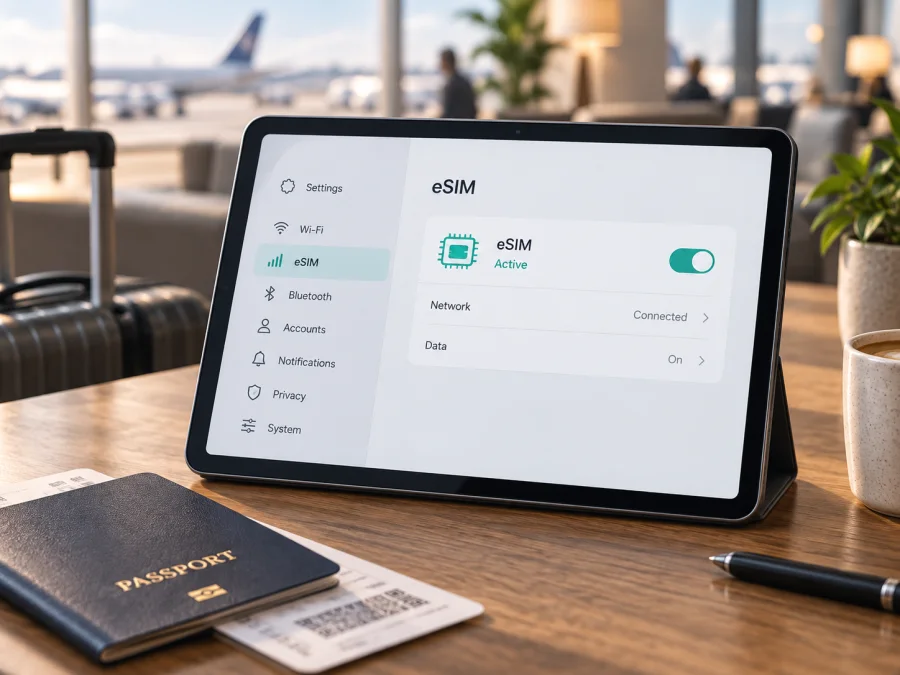
Apple iPad Air cellular 256GB 5G eSIM compatibility and setup
If you are considering an eSIM for the Apple iPad Air cellular 256GB 5G, the answer is conditional: compatible Wi-Fi + Cellular iPad Air generations support eSIM, but the generation, model number, sales region and plan provider matter. “256GB” identifies storage, not cellular hardware. Verify your actual tablet before buying a plan.
This exact listing name is preserved because it omits a generation. Some Air cellular models offer eSIM alongside a physical SIM; newer models use eSIM without a SIM tray. A Wi-Fi-only Air cannot gain cellular service through a software update.
Quick compatibility answer
Apple’s current support information lists Wi-Fi + Cellular iPad Air models among iPads that can use eSIM. Supported earlier generations may include eSIM and a physical SIM, while newer iPad Air models are activated with eSIM and have no physical SIM card. Apple lists eSIM and 5G for compatible current cellular models. This confirms family capability, but not that every regional version can activate every plan.
For this description, support is likely if it is a genuine Wi-Fi + Cellular iPad Air, but must be confirmed for its generation and market. Storage does not affect eSIM, and “5G” does not mean every network or plan will provide 5G service.
| Item | What to confirm |
|---|---|
| Name | Apple iPad Air cellular 256GB 5G |
| Model | Wi-Fi + Cellular, with generation/A-number identified |
| Storage | 256GB does not identify SIM capability |
| Radio | 5G depends on model bands, plan and local coverage |
| eSIM | Available on compatible cellular Air models; confirm EID and provider |
| Physical SIM | Configuration varies; newer generations may be eSIM-only |
Identify the specific iPad Air before buying
An online listing alone cannot identify an iPad Air generation. On the tablet, open Settings → General → About and note the model name, model number and EID. Tap the model-number field if needed to show the “A” number. Ask a seller for these details and the original sales market if buying second-hand or importing.
Confirm the unit is Wi-Fi + Cellular. Depending on generation, it may have a SIM tray or be eSIM-only. A missing tray can be normal; a tray does not prove eSIM support. Match the A-number to Apple’s specifications. An “unlocked” or “5G” listing label is not a substitute.
Regional versions can differ in cellular bands, activation rules and eSIM availability. Mainland China has specific model qualifications for eSIM activation. Imported hardware may also be restricted by its original carrier or account status. Ask the provider whether the exact model can activate its plan in each destination.
Because Apple iPad Air cellular 256GB 5G omits generation and region, confirm the A-number and EID before paying. If the seller cannot supply them, wait until you can inspect the tablet.
Compatibility checklist
<a id="kesim-device-compatibility"></a>
- [ ] It is a Wi-Fi + Cellular iPad Air, not a Wi-Fi-only version.
- [ ] Settings → General → About displays an EID, the embedded SIM identifier.
- [ ] The A-number is an eSIM-capable cellular Air model for its sales market.
- [ ] Settings → Cellular Data offers Add eSIM, Set Up Cellular Data or a carrier-plan option.
- [ ] The tablet is not carrier-restricted and the plan provider accepts its model.
- [ ] The offer covers your destination and its data, validity and activation terms suit the trip.
- [ ] You have Wi-Fi, power and the provider’s QR code or activation details.
A missing menu is a reason to investigate, not proof that hardware lacks eSIM. Update iPadOS, restart, recheck the model number and confirm carrier restrictions. If neither an EID nor an eSIM option appears, ask Apple or the original carrier to identify the unit before purchasing. A provider cannot add eSIM hardware to a Wi-Fi-only iPad.
Check these three details together: cellular model number, EID in About, and an eSIM setup control in Cellular Data. A provider can then confirm its own eligibility and destination coverage. Do not share an EID or activation code publicly.
If you are checking a tablet remotely, ask the owner to read the model number from Settings rather than relying on the box or purchase receipt, which may belong to a different unit. A screenshot of About can help with model identification, but the EID and serial number should be hidden before it is sent. The provider’s final compatibility decision should use the model and plan rules, not storage capacity alone.
Check your device before choosing a plan, especially if the tablet was bought second-hand or abroad.
Where to find EID and eSIM settings
An EID is the embedded SIM identifier, different from an IMEI, serial number and activation code. Find it at Settings → General → About. Share it only in a provider’s secure activation flow if requested. Some plans install through a QR code or supported app without manual EID entry.
Then open Settings → Cellular Data. Depending on model, iPadOS and country, you may see Add eSIM, Set Up Cellular Data, Add a New Plan or an existing plan list. An installed profile does not necessarily mean the plan is active, in date or able to connect at your destination. Do not delete a profile unless the provider confirms it can be reinstalled.
Install and activate an eSIM on iPad
Activation may use a QR code, supported app, manual details or carrier setup. Read the instructions and timing first. Keep the QR code available on another screen, and do not share a code that could install your plan.
- Prepare: Connect to Wi-Fi, charge the iPad, update iPadOS if needed, and confirm model and EID under Settings → General → About.
- Check terms: Confirm destinations, data, validity, network access, eligibility and whether validity starts on installation or first connection. iPad data plans usually do not include ordinary calls or SMS.
- Open setup: Go to Settings → Cellular Data and select Add eSIM or the closest option. If absent, pause and verify model and region.
- Install: Scan the supplied QR code or enter manual details only when instructed. Follow the prompts and label the plan “Travel data.”
- Choose data: Select the travel plan for Cellular Data as appropriate. Enable Data Roaming only if required; some plans use partner networks.
- Activate and test: Follow stated timing. At a safe location, switch Wi-Fi off briefly and open a page, then restore Wi-Fi if desired. The plan may not connect until you reach its destination.
See the iOS eSIM installation instructions. For a different device, the Android eSIM installation instructions describe Android menus and do not replace iPad settings.
Use the iPad Air for mobile data on a trip
A cellular iPad is useful for maps, booking details, documents and video calls over data. Choose a plan covering every country on the route, including stopovers. Compare allowance and validity with expected use: maps and messaging generally use less data than streaming, backups or large downloads.
If terms allow, install before travel and activate at the intended time. Keep setup details available off the iPad in case another screen is needed. For multi-country trips, verify each country and any fair-use rules. Personal Hotspot may depend on iPadOS, the plan or provider, so check tethering before relying on the tablet for a laptop.
A travel eSIM is primarily a mobile-data connection. It usually does not provide a regular phone number, calls or SMS unless the plan says so. Use internet messaging where available and keep another service for phone-number verification.
Kaspersky eSIM Store is an app and website where you can choose, arrange and activate an eSIM with a suitable mobile-data plan for an international trip. Confirm the offer supports iPad installation and your destinations. Connectivity depends on the plan, compatible hardware and local coverage.
Before leaving, download offline maps, boarding documents and hotel details over Wi-Fi. Review which apps can use cellular data and pause large photo-library or operating-system downloads until you have a suitable connection. If the eSIM is for a family trip, estimate usage across all devices before relying on hotspot sharing; a tablet plan may limit tethering or count shared data against the same allowance. Save the provider’s support route and order reference somewhere accessible offline.
At the destination, leave the home plan settings as they are unless you need to change them. Select the travel plan for Cellular Data, then confirm the plan is registered on a supported network. Menu labels can change with iPadOS and region, so follow the on-screen controls for the installed version. If you do not see a 5G indicator, check whether data works first, then compare the device’s supported bands and plan terms with the local network.
Common problems and checks
No Add eSIM option: Confirm Wi-Fi + Cellular, check A-number, update iPadOS and restart. If About also has no EID, ask Apple or the original carrier about the unit.
QR code fails: Check it is intended for this iPad, readable, unused and in date. Use Wi-Fi and ask the provider about model or regional restrictions.
Profile installed, no service: Confirm the plan is active, in date and covers the country. Select it for Cellular Data, enable roaming if instructed, toggle Airplane Mode briefly and restart. Registration can take time after arrival.
LTE appears instead of 5G: Check model bands, local coverage and plan access. Buildings and congestion affect service; LTE does not by itself mean setup failed.
Plan fails abroad or data runs out: Recheck destinations, start time, allowance and selected line. Disable large cellular backups; contact the provider with the order number. Do not post the QR code or EID.
Carrier refuses activation: Confirm the iPad is unlocked and account requirements are met. eSIM hardware may exist even if a specific offer is ineligible. Do not erase the tablet or remove a profile before asking how it can be restored.
If basic checks do not resolve the issue, note the iPadOS version, exact A-number, country, time of failure, selected data line and any error message. Give those details to the plan provider or carrier through its support channel. Avoid sharing full activation codes, account credentials or an unredacted EID. A reset should be a last step only when support explains its effect on the installed profile.
Practical scenarios
- One-country holiday: Verify model and EID, install on Wi-Fi if allowed, then test the selected data line on arrival.
- Multi-country route: Check every destination and roaming or fair-use limits; save maps and tickets offline and expect network changes at borders.
- Remote work: Confirm hotspot permission and data for calls or file sync. Keep Wi-Fi as a backup for large transfers.
- Used/imported tablet: Verify A-number, EID, sales region and carrier lock before purchase.
FAQ
Does Apple iPad Air cellular 256GB 5G support eSIM?
Compatible Wi-Fi + Cellular iPad Air generations do. Newer Air models can be eSIM-only; this listing omits generation and region, so confirm A-number and EID. Wi-Fi-only models do not support eSIM.
Does 256GB mean eSIM is supported?
No. Storage capacity does not identify cellular hardware or SIM configuration.
Is 5G required for eSIM?
No. eSIM and 5G are separate. A plan can work over LTE where 5G is unavailable or not included.
Can it use a physical SIM and eSIM?
That depends on generation and region. Check the exact model; newer Air models may not have a SIM tray.
Can I install before travelling, and will I get a phone number?
Often you can install in advance, but validity may begin at installation or first connection. Most travel data plans do not include ordinary calls or SMS unless their terms say otherwise.
Before your next trip
For Apple iPad Air cellular 256GB 5G, confirm the model number, generation, market and EID on the device you will carry. Check that Cellular Data offers an eSIM setup option, that the tablet is not carrier-restricted, and that the plan accepts the iPad and covers your destination. Then compare data, validity, 5G or LTE access and activation timing before purchase.
Once compatibility is clear, Kaspersky eSIM Store can help you choose, arrange and activate an eSIM plan for mobile data during an international trip. Keep the installation details available, select the right data line when you arrive, and test the connection before relying on it. A few checks in advance help ensure that the tablet you own—and the plan you choose—are ready for the route ahead.


