Travel connectivity guide
Apple iPad Air cellular 256GB eSIM Compatibility
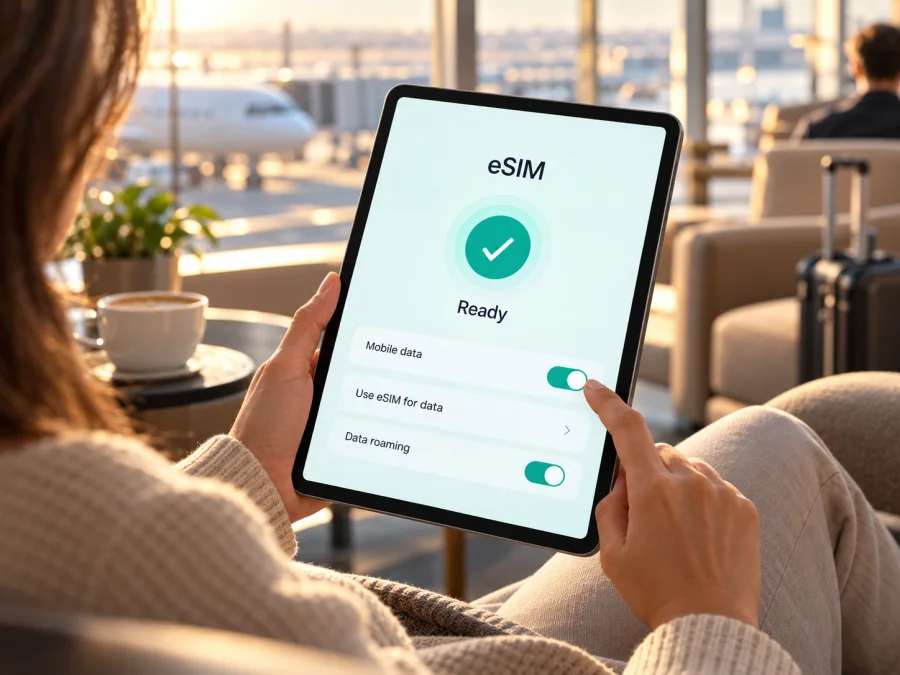
Apple iPad Air cellular 256GB eSIM: compatibility and setup guide
If you are checking whether Apple iPad Air cellular 256GB can use an eSIM, the short answer is: the words “cellular” and “256GB” do not identify its generation or regional model, so they are not enough to confirm this exact unit. Apple lists eSIM support for Wi‑Fi + Cellular iPad Air models from the 3rd through 5th generation and for the M2, M3 and M4 generations. The Wi‑Fi-only version has no cellular service, regardless of storage capacity. Before buying a plan, identify the iPad’s model number and check its settings for an EID or an option to add a mobile plan.
Capacity describes storage, not cellular hardware. Several generations offer 256GB, and listings may omit generation, size, market, or model number. eSIM support depends on the exact Wi‑Fi + Cellular model and regional configuration.
At a glance
| Detail | What the name tells you | What you still need to verify |
|---|---|---|
| Product family | Apple iPad Air | Exact generation, year, and screen size |
| Connectivity wording | “cellular” indicates a cellular-capable configuration in the listing | Confirm that the actual device is Wi‑Fi + Cellular, not Wi‑Fi only |
| Storage | 256GB | Storage does not determine eSIM support |
| SIM method | Depends on generation and market | Check EID, model number, and the Add eSIM/mobile plan controls |
| Travel data | An eSIM data plan can be used if the device and plan are compatible | Confirm destination, supported bands, plan conditions, and any carrier lock |
| Calls and texts | Not established by the product name | Travel data plans are commonly data-only; read the selected plan terms |
Apple lists Wi‑Fi + Cellular iPad Air (3rd–5th generation) and 11-inch and 13-inch M2, M3, and M4 models as eSIM-capable. M2 and later models use eSIM without a physical SIM card. Compare the model number in Settings with Apple’s identification information; listings may use inconsistent generation labels.
Does this exact 256GB version support eSIM?
It may, if it is one of Apple’s supported Wi‑Fi + Cellular iPad Air generations and the regional model can activate service where you plan to use it. The information “Apple iPad Air cellular 256GB” does not specify enough to make that determination for a particular unit. The unambiguous next step is to inspect the iPad itself: look for an EID and a mobile-plan or eSIM setup option. If you are shopping remotely, ask the seller for the model number and a screenshot of the relevant Settings screen, or confirm the device’s serial/model details with Apple before paying.
An eSIM-capable device still needs an eligible provider and destination. Regional restrictions, account limitations, or local availability can prevent activation; the absence of a SIM tray is not proof that a particular travel plan will work.
Why generation and market matter
“iPad Air” is a product family, not one hardware configuration. Apple’s current support guidance distinguishes several iPad Air generations and sizes. In the supported list, the 3rd, 4th and 5th generation Wi‑Fi + Cellular models appear alongside the 11-inch and 13-inch M2, M3 and M4 Wi‑Fi + Cellular models. The more recent M2-and-later Wi‑Fi + Cellular models are eSIM-only according to Apple; earlier listed generations may have a different physical SIM arrangement as well as eSIM. A 256GB capacity can appear across more than one generation, so it cannot resolve which SIM configuration you have.
Regional differences matter. Apple documents that eSIM data-plan activation in mainland China is available only on iPad models supported there. This concerns eligibility in that market, not every device or destination. Check the sales region, model identifier, provider rules, and supported bands for your destination. A listed network technology does not guarantee service at every location.
An iPad mobile plan is designed for cellular data. Do not assume that it includes a conventional phone number, voice calls, or SMS. If you need those services, check the plan terms and keep an existing phone line or use internet calling and messaging apps where appropriate. A tablet eSIM also does not replace the need to check the destination, data allowance, validity period, and activation conditions of a travel plan.
Check the iPad before buying an eSIM plan
Use this checklist on the device you intend to travel with. Menu labels can vary slightly by iPadOS version and language. If a feature is missing, update iPadOS over Wi‑Fi, restart once, and check again; a missing menu still needs investigation rather than guesswork.
- Confirm the model identity. Open Settings → General → About. Note the model name and tap the model-number field if needed to show the model number. Record the generation, size, and model identifier; do not rely only on “256GB” in a sales description.
- Look for EID. On the same About screen, look for an EID entry. An EID is an identifier associated with an embedded SIM. Its presence is a strong device-side indicator, but it does not guarantee that a particular plan or operator will accept the device.
- Check the mobile-data controls. Open Settings → Mobile Data (called Cellular Data in some regions). Look for an option such as Add eSIM, Add Mobile Plan, Set Up Mobile Data, or Find a New Plan. A provider may use a QR code, an app, an activation notification, or a supported link instead of a generic add button.
- Compare with Apple’s model list. Check that the identified model is a Wi‑Fi + Cellular iPad Air generation listed as supporting eSIM. If the model number, market, or SIM status is unclear, ask Apple or the seller to confirm the exact unit.
- Check for a carrier restriction. Ask the seller or the original provider whether the iPad is unlocked and eligible for a different data provider. A device can have eSIM hardware but still fail to activate a plan because of account or provider restrictions.
- Check the plan and destination. Confirm that the plan supports iPad/tablet activation, the country or region on your route, and the network technology and bands used there. Read the data allowance, validity, activation timing, and roaming requirements.
For a quick review, use the eSIM device compatibility check. If you cannot find an EID or any mobile-plan control, do not buy on the assumption that a 256GB cellular listing is enough. Verify the model number first and contact Apple, the seller, or the intended provider. Screenshots supplied by a seller should show the actual iPad’s Settings information, with personal identifiers hidden where appropriate.
How to install and activate an eSIM on iPad Air
Before installation, connect to Wi‑Fi, update iPadOS if practical, and keep the plan instructions available. Use the activation details issued for your plan; QR codes may be single-use, so do not scan repeatedly or delete the profile unless instructed.
- Confirm eligibility first. Check the model number, EID, eSIM menu, carrier-lock status, and destination support using the checklist above. If any item is uncertain, resolve it before purchasing or using an activation code.
- Choose a suitable data plan. Select the country, region, or route you will visit. Review the data amount, validity, start-of-validity rule, activation deadline, supported networks, and any restrictions on tablets or tethering. Save the confirmation and installation details.
- Open the iPad’s mobile-data settings. Go to Settings → Mobile Data/Cellular Data and choose Add eSIM or the equivalent option if it appears. Follow the onscreen steps. Depending on the provider and iPadOS, you may instead receive an activation notification or use a provider-supported link or app.
- Use the QR code if that is the offered method. Display the code on a separate screen or print it, then scan it from the iPad’s setup flow. With iPadOS 17.4 or later, a QR code shown in a provider email or webpage may be added by touching and holding the code and selecting Add eSIM. Follow any confirmation-code prompt from the provider. If the code is on the same iPad, use the supported touch-and-hold method or another screen rather than trying to scan the display with its own camera.
- Wait for the profile to install. Keep the iPad online and do not close the setup flow while it downloads. When prompted, assign a clear label such as “Travel data” so you can distinguish the plan from another profile. Labels are only for your convenience and do not change the plan’s coverage or terms.
- Set the correct line for data. Open Settings → Mobile Data/Cellular Data and select the travel eSIM for mobile data when you are ready to use it. If you keep another data plan active, check which line is selected. Turn off automatic switching if you want to prevent the iPad from changing to a home line unexpectedly.
- Enable data roaming only when the plan requires it. Some travel eSIM profiles need Data Roaming enabled to connect to their partner network. Follow the plan’s own instructions. If enabled, verify that the travel eSIM—not a home plan—is selected for data, and understand the home provider’s roaming terms before changing its settings.
- Test the connection. When your plan is active and you are in a supported destination, turn Wi‑Fi off briefly and open a simple webpage. Allow a few minutes for registration. If it does not connect, use the troubleshooting checks below before reinstalling or deleting the profile.
The general iOS guide may help with the QR-code flow: Kaspersky eSIM Store iOS installation instructions. The site also has Android installation instructions for travelers setting up a separate Android device; Android menu names are not the iPad steps. Follow the instructions shown for your plan and the options present in iPadOS. Apple’s iPad setup methods can include provider activation, a new plan option, an activation link, a provider app, or QR code; the available route depends on the provider.
Installation and plan validity
Installing a profile adds it to the iPad; the plan’s data period may begin at purchase, installation, a scheduled date, or first connection. Check its terms before installing early. Kaspersky eSIM Store is an app and website where travelers can choose, arrange, and activate an eSIM plan for mobile data during an international trip. It is not a mobile network operator and does not itself provide coverage. Review the current destination options and plan conditions; data plans do not imply a phone number, calls, or SMS unless expressly stated.
Using the iPad for mobile data while travelling
A cellular iPad can provide a larger screen for maps, bookings, messaging, or work away from Wi‑Fi. Save essential maps and documents offline. A signal alone does not mean the chosen plan is active or supported at that location.
A useful travel routine is to verify the model and plan at home, install over Wi‑Fi if the provider allows early installation, and save the setup details securely. At your destination, select the travel profile for mobile data, enable roaming for that profile only if required, turn Wi‑Fi off briefly, and test a webpage. During the trip, monitor data and validity; use Wi‑Fi for large downloads if you want to conserve data. On a multi-country route, check every country explicitly: a plan for one destination is not automatically valid elsewhere. Reception also depends on local networks, compatible bands, and conditions such as indoor coverage or congestion.
Keep in mind that an iPad plan is separate from Wi‑Fi and any home mobile subscription. Cellular iPads are data devices; do not count on ordinary voice or SMS unless the plan explicitly includes it. Messaging and calling apps can use data when configured.
Troubleshooting: when the eSIM does not connect
Start with the least disruptive checks. Keep the eSIM profile installed while you investigate, because deleting it may require a new activation from the provider.
| Symptom | Checks to try |
|---|---|
| No Add eSIM option | Confirm that the iPad is a listed Wi‑Fi + Cellular model, check Settings → General → About for EID, update iPadOS, restart, and ask Apple or the seller to verify the exact model and region. |
| QR code is not recognized | Check that the code is for this plan and has not already been used; increase screen brightness, clean the camera, use a separate display, or use the supported touch-and-hold method on iPadOS 17.4 or later. Ask the provider for a supported alternative if needed. |
| Profile installs but shows no service | Confirm that the plan is active for the current destination and date, select it for mobile data, check the plan’s roaming instructions, and wait a few minutes. Toggle Airplane Mode on and off once or restart. |
| Data does not work despite signal bars | Verify the selected data line, plan allowance and validity, data roaming setting for the travel profile if required, and the provider’s network selection instructions. Try a basic website with Wi‑Fi off. |
| Works in one country but not another | Recheck that the second destination is included, the plan remains valid, the local network is supported, and the iPad’s regional model supports compatible bands. |
| Activation is refused | Check whether the code was used before, whether the plan is tablet-compatible, whether the model is carrier-restricted, and whether an account or confirmation code is required. Contact the provider before deleting the profile. |
If checks fail, note the error, model number, iPadOS version, destination, selected data line, and whether the profile appears in Settings. Share these details with support; never post your QR code, activation code, EID, or credentials publicly. If EID or eSIM controls are missing, verify the model before trying another code.
Avoid deleting the eSIM or erasing the iPad as an early step: a single-use activation code may not restore the profile. If necessary, ask the provider whether it can be reinstalled or reissued.
Practical examples
A short city break: verify the model and EID at home, choose a plan that matches the destination and dates, and install over Wi‑Fi if permitted. Select the travel profile on arrival and test with Wi‑Fi off.
A multi-country itinerary: compare every country against the plan’s coverage description and confirm validity for the full route. Broad regional labels do not guarantee every border crossing is included.
A second-hand or imported tablet: ask for the model number and inspect Settings → General → About. Check EID, mobile-data controls, carrier restrictions, and regional eligibility before paying. Storage capacity and a seller’s “cellular” wording do not establish the exact SIM configuration.
Frequently asked questions
Does Apple iPad Air cellular 256GB definitely have eSIM?
The label alone cannot confirm it because it leaves out the generation and regional model. Apple lists eSIM support for Wi‑Fi + Cellular iPad Air models from the 3rd through 5th generation and M2 through M4. Check the model number, EID, and mobile-data settings on the actual iPad before purchasing a plan.
Is 256GB the eSIM version?
No. Storage size indicates capacity for apps and files; it does not identify cellular hardware or SIM support. The generation, Wi‑Fi + Cellular configuration, model number, and market are the relevant checks.
What does an EID tell me?
An EID is an identifier for the embedded SIM hardware. Finding one in Settings → General → About is a useful check, but it does not prove that every provider, country, or plan supports the device. Confirm the plan and regional requirements too.
Can I use an eSIM bought for a phone on this iPad?
Not automatically. The plan must support activation on an iPad or tablet, and its provider must accept the device and destination. Check the plan’s terms and the installation method before buying; a QR code or activation method may be limited to one device or one use.
Do I need to turn on data roaming?
It depends on the eSIM profile and provider instructions. Some travel profiles require roaming to connect to a partner network. If you enable it, confirm that the travel profile is selected for mobile data and understand the roaming settings of any other line on the iPad.
Why is eSIM setup unavailable in mainland China?
Apple states that activating an eSIM data plan in mainland China is available only on iPad models that support eSIM there. This is a regional device and service limitation. Check Apple’s mainland-China model guidance and the local provider’s current rules for the exact iPad rather than applying this restriction to all regions.
Before you go
For Apple iPad Air cellular 256GB, confirm the exact generation and regional model rather than relying on storage or a shortened listing title. Check for an EID and an Add eSIM/mobile-plan option, make sure the device is not restricted to one provider, and compare the plan’s destination and activation rules with your itinerary. If any of those checks do not line up, pause and verify the device with Apple, the seller, or the intended provider.
Once compatibility is established, Kaspersky eSIM Store’s app and website can help you review and activate an eSIM plan for mobile data on an international trip. Browse current travel plans on the Kaspersky eSIM Store website and check the destination options and plan conditions before following the provider’s setup steps over Wi‑Fi. A few minutes spent confirming the model, route, and settings before departure can make it easier to get connected when you arrive.


