Travel connectivity guide
Apple iPad mini 2019 cellular eSIM Compatibility
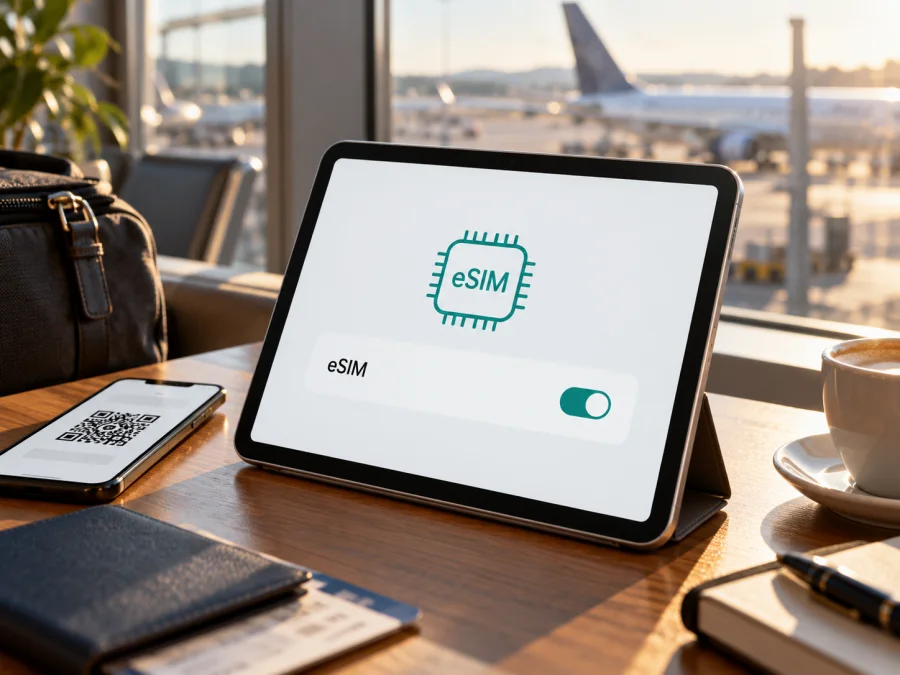
Apple iPad mini 2019 cellular eSIM: compatibility and travel setup
The Apple iPad mini 2019 cellular is the Wi‑Fi + Cellular version of the fifth-generation iPad mini, released in 2019. Its standard cellular variants support eSIM as well as a physical nano-SIM, according to Apple’s product specifications. There is an important regional exception: Apple identifies a China-mainland-only model, A2125, and local eSIM availability there is restricted. The exact model number and the settings on the individual iPad matter more than a seller’s short “cellular” description.
Quick answer: if your tablet is an eSIM-capable Wi‑Fi + Cellular variant such as A2124 or A2126, it can generally install an eSIM data plan when the plan provider supports iPad and your software and region allow activation. The Wi‑Fi-only A2133 has no cellular modem and cannot use an eSIM for mobile data. For A2125, do not assume that the family-wide eSIM specification guarantees service in mainland China; check the model and EID on the actual device and confirm the destination and provider’s rules before purchasing.
An eSIM is a digital profile for mobile data; it does not by itself add a conventional phone number, voice service, or SMS. Internet apps may still work.
Apple iPad mini 2019 cellular at a glance
| Item | What to know |
|---|---|
| Product family | iPad mini (5th generation), 2019 |
| Cellular editions | Wi‑Fi + Cellular; Apple identifies A2124 and A2126 as standard cellular models and A2125 as China-mainland-only |
| Wi‑Fi-only edition | Model A2133; no cellular modem, so no mobile-data eSIM |
| SIM hardware | Cellular models have a nano-SIM tray; supported versions can also use eSIM |
| eSIM conclusion | Supported on the standard Wi‑Fi + Cellular family, with carrier, region, and exact-model conditions |
| Network generation | LTE cellular; this 2019 model is not a 5G iPad |
| Typical use | Data-only mobile internet on trips, if the specific plan accepts this iPad |
| What to verify | Model number, EID or Add eSIM controls, iPadOS, device restrictions, provider and destination support |
Storage does not determine eSIM support: either capacity may be Wi‑Fi-only or Wi‑Fi + Cellular. Check the model number.
Which regional version do you have?
“Apple iPad mini 2019 cellular” describes a product family, not a complete part number. Apple’s model-identification guide lists A2124 and A2126 as iPad mini (5th generation) Wi‑Fi + Cellular models and separately lists A2125 as the Wi‑Fi + Cellular version for mainland China. The Wi‑Fi model is A2133. This difference is relevant because eSIM availability is shaped by both the device model and the market where a cellular plan is being activated.
Apple’s technical specifications list eSIM and nano-SIM for the Wi‑Fi + Cellular fifth-generation mini, while warning that carrier support varies and eSIM is not available in mainland China under the cited specifications. Treat the family specification as support for the standard cellular family, not a guarantee for every regional model or operator. A2125 is not interchangeable with A2124 or A2126 for local China service. Outside mainland China, check the A2125’s EID and the provider’s device policy; public documentation does not establish every travel-plan combination for it.
Hardware support does not guarantee that a provider supports iPad, offers service in a destination, or allows a particular activation. Coverage, radio bands, validity, data allowance, and hotspot rules depend on the plan and local network.
This 2019 Cellular iPad mini uses LTE rather than 5G. That does not prevent eSIM use: eSIM describes how the subscriber profile is stored, while LTE describes the radio network. If you need service on a route, check that the plan and its partner network support this iPad’s LTE bands in the places you will visit. Do not choose a plan simply because it mentions 5G; this model cannot connect to 5G networks.
Check eSIM support on the iPad itself
Before choosing a plan, confirm the hardware directly. A used or refurbished device may have an inaccurate listing, regional origin, a managed-device restriction, or an unreported repair. These checks help establish whether the tablet can host a profile, although a visible EID alone cannot guarantee a particular provider will activate it.
- Open Settings on the iPad.
- Tap General, then About.
- Find Model Number. The first value shown may be a part number; tap it to reveal the A-number. Compare it with Apple’s identification: A2133 is Wi‑Fi-only; A2124 and A2126 are cellular versions; A2125 is the China-mainland-only cellular version.
- On a cellular model, look for an EID in the About screen. An EID is the identifier associated with the device’s embedded SIM capability. Record it only for a provider that asks for it; do not post it publicly.
- Also inspect Settings for Cellular Data or Mobile Data. Depending on the iPadOS version and region, the plan setup option may appear as Add eSIM, Add Cellular Plan, or a carrier-oriented setup choice.
- If the controls are absent, connect to Wi‑Fi, install any available iPadOS update, restart, and check again. If still missing, verify the model and ask Apple or the seller to confirm the hardware and region.
For a simple pre-purchase check, use this checklist:
- [ ] The iPad is Wi‑Fi + Cellular, not A2133 Wi‑Fi-only.
- [ ] The model number is known; A2124/A2126 and China-only A2125 are not treated as identical regional variants.
- [ ] An EID or an eSIM/add-plan control appears in Settings, where expected for the version.
- [ ] The iPad is not blocked by an organization profile, unpaid balance, or other account restriction.
- [ ] The intended plan provider confirms support for this iPad model and iPadOS version.
- [ ] The plan covers the country or region on the itinerary and its data-only terms match your needs.
Check whether your device is compatible before you pay for an eSIM plan. If the model is unclear or the menu is missing, resolve that point first; do not rely on a generic compatibility list alone.
Install and activate an eSIM
Before beginning, connect to Wi‑Fi, keep QR instructions on another screen, and check when validity starts. Activation codes may be single-use; do not repeatedly scan or delete a profile without provider guidance.
The exact menu labels can differ between iPadOS versions and markets. Apple documents several supported methods: provider activation, a carrier app, a QR code, or another provider-supported flow. The travel plan must explicitly allow installation on an iPad; phone-only compatibility should not be assumed to cover a tablet.
Install with a QR code
- Connect the iPad to Wi‑Fi and open Settings.
- Tap Cellular Data or Mobile Data, then choose the option to add a plan or eSIM. If no option appears, return to the compatibility checks above.
- Use the camera view to scan the QR code supplied for this plan. If the code is on the iPad itself, open it on another screen or follow the provider’s manual-entry instructions. On supported iPadOS versions, a QR code received in an email or webpage may also offer an Add eSIM action when you touch and hold it.
- Review the plan details shown on screen and confirm installation. Keep the iPad connected to Wi‑Fi while the profile downloads.
- Wait for the plan to appear in the cellular settings. Give it a clear label such as “Travel data” so it is easy to distinguish from a home plan or physical SIM.
- Follow the provider’s activation instructions. Some plans activate at installation; others start when they first connect to a supported network or on a scheduled date. The provider’s terms determine which applies.
Activate data for the trip
After installation, open Settings → Cellular Data/Mobile Data. Turn on the travel plan and select it as the line for mobile data. If the screen offers a setting for data roaming on that eSIM, follow the plan provider’s instructions: some travel profiles require roaming to reach a partner network. Check the terms for any extra roaming behavior before enabling it. If you keep a home SIM active, review which line is selected for data so the iPad does not use the wrong plan.
For step-by-step platform guidance, see the iOS eSIM installation instructions. The Android installation instructions are intended for supported Android devices and do not replace the iPad steps above.
Kaspersky eSIM Store is an app and website where you can choose, arrange, and activate an eSIM with a mobile-data plan for an international trip. Before selecting a plan, check that the destination, data allowance, validity, start conditions, and iPad compatibility suit your itinerary. The site’s English homepage is a useful starting point to browse available destinations and current plan information: Explore eSIM options for a trip. It is a general entry point, not a tariff page for a particular country.
Using the iPad mini on a trip
A cellular iPad can keep maps, tickets, bookings, translation, email, and messaging available on a larger screen. It can be a dedicated data device while your phone stays on its regular SIM. Check destination coverage and validity before relying on it.
Choose a plan for the actual route. For multiple stops, verify each country in a regional plan’s coverage list instead of inferring coverage from the region name. Check whether data is total or daily, when validity starts, and whether tethering is allowed.
If allowed, install in advance over Wi‑Fi and leave the travel line off until departure. If validity begins at installation, choose timing accordingly. Turning off a line does not require deleting its profile; deletion can make a one-time code unusable.
On arrival, enable the plan and check the selected data line, cellular-data toggle, roaming instructions, and network selection. If hotspot sharing is supported by both device and plan, test it before relying on it.
Unless stated otherwise, the travel plan is data-only, without a phone number, SMS, or voice minutes. Keep account recovery methods available if they depend on your home SIM.
Troubleshooting: if the eSIM does not work
There is no Add eSIM option. Check that the device is the Wi‑Fi + Cellular model and confirm its A-number. A Wi‑Fi-only A2133 cannot be converted by software. On a cellular device, update iPadOS, restart, and check for an organization or profile restriction. If it is A2125, treat the China-market distinction as material and verify the intended region and operator rather than assuming local eSIM availability.
The iPad has an EID, but the provider rejects activation. EID confirms an embedded SIM identifier; it does not prove that a particular plan supports the iPad, destination, or regional variant. Compare the model number with the provider’s compatibility rules, check that the plan is data-only and tablet-compatible, and contact the provider with the model and error message. Share the EID only through the provider’s private support channel if requested.
The QR code will not scan. Increase screen brightness on the device showing the code, clean the iPad camera lens, and keep the QR code fully visible. If scanning from the iPad’s own display is impossible, open it on a second device or use the manual details supplied by the provider. Confirm that the code is for this purchase and has not already been used. Do not ask another person to photograph or forward a private activation code unnecessarily.
The profile installs but shows no service. Check whether activation should happen immediately or only in the destination. Confirm the correct eSIM is enabled, select it for cellular data, and apply the provider’s roaming instructions. Toggle Airplane Mode briefly, restart the iPad, and allow it time to register. If available, try automatic network selection before choosing a supported network manually. A profile may install successfully even when the current country is not covered.
The iPad connects, but apps have no internet. Verify that Cellular Data is on and that the travel eSIM is selected as the data line. Check any provider-specific APN instructions, plan balance or allowance, validity dates, and data-roaming requirement. Test a webpage and another app to distinguish a network issue from an app-specific problem.
Data is being used by the wrong SIM or unexpectedly fast. Recheck the preferred data line and disable data switching if that option is present and unsuitable for your setup. Turn off background refresh, automatic downloads, cloud-photo sync, and video autoplay while on the travel plan. The iPad mini’s larger screen can make map and media use convenient, but streaming and backups can consume a limited allowance quickly.
The connection is slow or intermittent. Move to an open area, check whether the plan supports the local LTE network, and confirm that the destination is listed. Congestion, indoor coverage, terrain, and local network conditions affect service. If service remains unavailable, contact the provider with the country, model number, and status messages.
The installation fails after deleting a profile. Many eSIM activation codes are intended for a single installation and cannot be reused. Do not keep resetting network settings or scanning an old code. Contact the plan provider to ask whether the profile can be reissued or restored, and provide the order reference through its secure support route.
Frequently asked questions
Does the Apple iPad mini 2019 cellular support eSIM?
The standard fifth-generation Wi‑Fi + Cellular models support eSIM according to Apple’s technical specifications. Confirm that the actual device is cellular and identify the model number. A2133 is Wi‑Fi-only; A2124 and A2126 are standard cellular models; A2125 is the China-mainland-only variant and needs separate regional verification.
Can I use eSIM on the Wi‑Fi-only iPad mini?
No. The Wi‑Fi-only iPad mini has no cellular modem, so it cannot connect directly to mobile networks with an eSIM. It can use Wi‑Fi or share a connection from another device if that device and plan support tethering.
Does it work with every travel eSIM?
No. The device capability is only one requirement. The provider must support iPad activation, the exact regional model must be eligible, the plan must cover your destination, and the local network must be compatible. Confirm these points before purchase.
How do I find the EID?
Open Settings → General → About and look for EID. If the entry does not appear, check the A-number and whether the iPad is Wi‑Fi + Cellular. Menu availability can also depend on software and regional restrictions.
Can I install a travel eSIM before leaving home?
Often, if the plan’s setup method allows it and Wi‑Fi is available. Read the activation terms first: installation and validity may begin at different times. Leave the travel line off until arrival only if the provider permits this and explain whether the plan begins on installation or first connection.
Will the travel eSIM give the iPad a phone number?
Usually travel data plans are data-only. They do not provide standard voice calls, SMS, or a new telephone number unless those features are explicitly included in the plan. Internet messaging and calls may work through apps.
Is the Apple iPad mini 2019 cellular a 5G tablet?
No. This 2019 model supports LTE, not 5G. An eSIM data profile may still work over compatible LTE networks when the exact model and plan are supported.
Can I use the travel plan in mainland China?
Do not assume so based only on the iPad mini family name. Apple marks eSIM availability for iPad in mainland China as restricted and identifies A2125 as the mainland-China-only fifth-generation cellular variant. Check Apple’s current regional guidance and confirm the exact model and local provider rules before relying on eSIM service there.
Final check before choosing a travel eSIM
For the Apple iPad mini 2019 cellular, start with the A-number: A2124 and A2126 identify standard Wi‑Fi + Cellular versions, while A2125 is the China-mainland-only regional variant; A2133 is Wi‑Fi-only. Then confirm an EID or eSIM setup control in Settings, ensure iPadOS is current, and ask the provider whether the selected plan supports that model and your destination. Review coverage, data amount, validity start, roaming, and hotspot terms before paying.
Once compatibility is clear, use the Kaspersky eSIM Store app or website to browse, choose, arrange, and activate an eSIM with a mobile-data plan for your international trip. Recheck that the destination is covered and keep the provider’s installation instructions available. A few checks before purchase can help you arrive with a setup that fits the device, route, and way you expect to use data.


