Travel connectivity guide
Apple iPad mini 5G 256GB eSIM compatibility
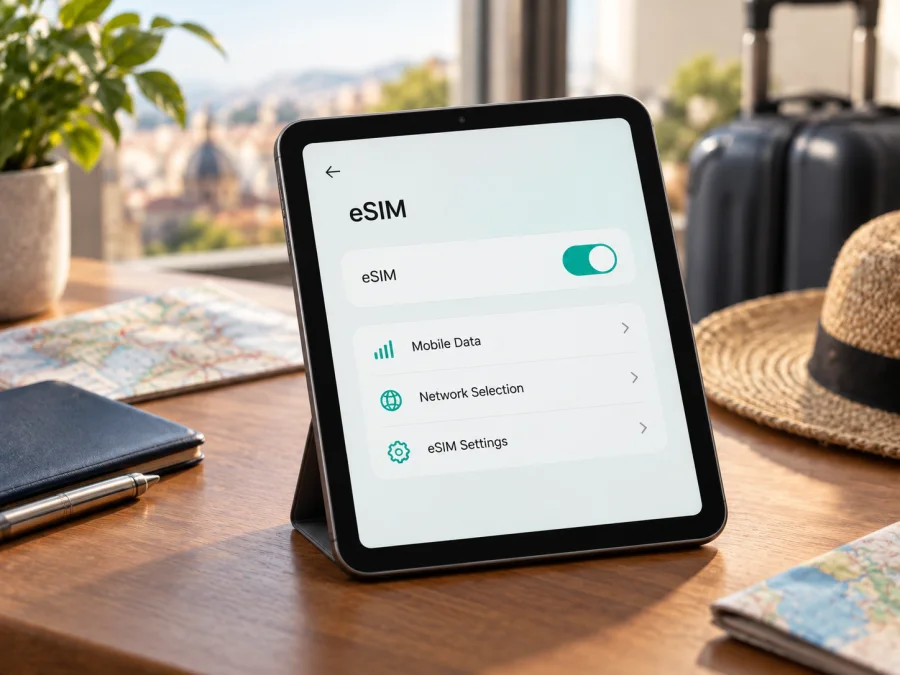
Apple iPad mini 5G 256GB eSIM compatibility and setup guide
The Apple iPad mini 5G 256GB supports eSIM when it is the Wi‑Fi + Cellular configuration intended for a market where Apple and the mobile provider support eSIM. Apple’s specifications for iPad mini (6th generation), introduced in 2021, list both 64GB and 256GB storage options, 5G on Wi‑Fi + Cellular models, and eSIM. That matches the combination described by this device name. The storage capacity does not determine SIM capability: the Wi‑Fi-only iPad mini cannot connect to mobile networks, and the 256GB label by itself is not proof that a particular unit has cellular hardware.
A practical qualification matters. Apple says eSIM is not available in mainland China, and not every provider supports eSIM. The exact hardware model, country or sales region, carrier policy, iPadOS version, and account eligibility can affect activation. So the direct answer is yes for the compatible Wi‑Fi + Cellular 5G model; verify the individual iPad before buying a plan, especially if it was imported or sold for another market.
At a glance
| Item | What to expect |
|---|---|
| Device name supplied | Apple iPad mini 5G 256GB |
| Cellular generation | The 5G, 256GB cellular configuration corresponds to iPad mini (6th generation) (2021) |
| Storage option | 256GB; storage does not add cellular capability to a Wi‑Fi-only device |
| Mobile network | Wi‑Fi + Cellular model supports 5G and LTE bands that vary with model and market |
| eSIM | Supported on eligible Wi‑Fi + Cellular models, subject to provider and regional availability |
| Physical SIM | Some sixth-generation cellular versions include a nano-SIM tray; this does not guarantee eSIM service in every market |
| Mobile service type | iPad cellular service is data-focused; do not expect an ordinary phone number, voice calling, or SMS from a data-only travel plan |
| Final check | Look for EID and an eSIM or Add eSIM option in Settings, then confirm the exact model with the seller or carrier |
Why the exact version matters
“Apple iPad mini 5G 256GB” is a retail description, not a full hardware identifier. Apple lists the sixth-generation iPad mini in 64GB and 256GB capacities, and separates Wi‑Fi from Wi‑Fi + Cellular models. Only the cellular configuration connects to mobile networks. Confirm the model number in Settings and compare it with Apple’s identification information; a listing can be incomplete or inaccurate.
Regional models can differ in supported bands, SIM configuration, and provider availability. Apple states that eSIM is unavailable in mainland China and that not every provider supports it. Imported devices may also be subject to carrier, account, or management restrictions. Ask the seller or provider to confirm the exact model and eligibility before purchase.
5G is a capability, not a guarantee of 5G service everywhere. A compatible local network, band, plan, coverage, and network conditions are all required; LTE may be the available connection and can still provide data.
Check this iPad before purchase
Use the actual tablet if possible:
- [ ] Settings identifies it as Wi‑Fi + Cellular, not Wi‑Fi only.
- [ ] The model number matches the seller’s regional version.
- [ ] Settings > General > About shows an EID.
- [ ] Settings > Cellular Data offers Add eSIM, Add Cellular Plan, or equivalent.
- [ ] The provider confirms it supports eSIM activation for this model and destination.
- [ ] The iPad is not blocked by carrier, account, or device-management restrictions.
An EID is a strong sign of eSIM hardware, but it does not guarantee that a specific provider or plan will activate. Menu wording can vary by iPadOS, and some providers use an app or account flow. If the EID or setup control is missing, confirm the cellular model, restart and update iPadOS, then ask Apple, the seller, or provider to check the precise configuration. A software update cannot add eSIM support to a region-specific model that lacks it.
A useful confirmation is to compare three things on the same unit: its model number, the EID in About, and the eSIM option in Cellular Data. If one is missing, pause before ordering rather than relying on a marketplace description or box label. Ask the seller to demonstrate the Settings screens, then check with the provider that the destination plan accepts that model. This quick cross-check separates storage and 5G marketing labels from the cellular and eSIM capability you actually need.
Check your device’s eSIM compatibility
What you need before installation
Set up over reliable Wi‑Fi. Have the activation QR code or provider app/account ready, and display the QR code on another screen if you will scan it with the iPad. If the code is displayed on the iPad itself, use the provider’s manual or in-app method. Treat the code as private activation information.
Before ordering, review destination coverage, data allowance, validity, hotspot rules, and when the plan starts counting. Some plans start at installation; others start on first network connection or another defined event. Follow the plan’s terms. Charge the iPad and keep a way to reconnect to Wi‑Fi if setup pauses.
Install and activate eSIM on the iPad
Labels vary by iPadOS and provider. Use the steps supplied with your plan:
- Connect to Wi‑Fi and keep it on while downloading the profile.
- Open Settings > Cellular Data and select Add eSIM or Add Cellular Plan.
- Scan the provider’s QR code, use its app or activation link, or enter details manually if offered.
- Review the prompt and add the plan. Give it a recognizable label such as “Travel.”
- Wait for confirmation without repeatedly scanning or reinstalling the same profile.
- Select the travel plan for cellular data. Keep other lines configured as needed.
- Enable Data Roaming for that plan only if the provider instructs you to.
- Test with Wi‑Fi off where the plan should work. If activation is destination-based, wait until arrival.
See Android eSIM installation instructions and iOS eSIM installation instructions. The iPad runs iPadOS, so follow its Settings labels and your plan’s iPad-specific directions if they differ. Android steps are for other devices.
Installation downloads the profile; activation may happen during setup, on first connection, or at another event specified by the provider. Confirm when validity starts and keep the confirmation until data service works.
Using the iPad mini on a trip
A compact cellular tablet is useful for maps, messages, itineraries, email, and work apps away from Wi‑Fi. Check every country on your route against the plan’s destinations. Coverage can vary between cities, rural areas, airports, and transit. Estimate your data needs: navigation and messaging usually consume less than streaming, cloud backup, or large downloads.
For a short visit, you may be able to install the profile before departure. Check whether installation starts the validity period. On arrival, select the travel eSIM for data and allow it to register. For a multi-country route, confirm all destinations are included; after a border crossing, network registration may take a little time. Start with automatic network selection and use manual selection only as the provider directs.
If you want to share data with a laptop, first confirm hotspot support and plan rules. Pause photo backups and updates, use data-saving settings, and monitor usage in Settings and the plan account; displays can update at different times.
Treat a data eSIM as mobile internet, not a regular phone subscription. It does not normally provide a standard mobile number, carrier voice calls, or SMS. FaceTime and messaging apps may work over data, subject to the app and local availability. Arrange another option if you need calls, texts, or verification codes.
Kaspersky eSIM Store is an app and website where you can choose, arrange, and activate an eSIM with a mobile-data plan for an international trip. Review the destination, data amount, validity, and activation terms. The app and website help you prepare; the local provider and network determine availability and performance.
Troubleshooting: start with the likely cause
Add eSIM is missing. Confirm Wi‑Fi + Cellular and check for EID under Settings > General > About. Restart and update iPadOS. Regional availability, account restrictions, or device management may affect the option; ask the seller, Apple, or provider to confirm the model.
The QR code will not scan or the profile will not download. Check internet access, readability, glare, and that the code is intended for this device. If it is shown on the iPad, use the app or manual method. Some codes are single-use; do not keep retrying if the provider says the code was consumed. Request a replacement when needed.
The profile installed but there is no data. Select the travel line for Cellular Data, enable cellular data, and check destination eligibility, validity, remaining data, and Data Roaming instructions. Toggle Airplane Mode briefly, restart, and allow time for registration. Test where reception is stronger.
LTE appears instead of 5G. eSIM may still be working. 5G requires a compatible band, plan, local network, and coverage. The regional iPad may connect to LTE, which can still provide data.
It stopped working after crossing a border. Confirm the new country is included, roaming is enabled when required, and the plan has not expired or run out. Allow registration time; follow provider guidance before manually choosing a network.
The home line appears to use data. Re-select the travel line in Cellular Data settings. Review data switching and your home carrier’s roaming settings so the travel profile does not change your primary plan’s terms.
The plan cannot be added or moved. Check whether it was already installed, expired, or tied to another device. Some profiles cannot be transferred or reinstalled. Do not delete a working profile to experiment. Contact the provider with the error and model details; keep QR codes and account credentials private.
Keep the profile safe
Treat an eSIM QR code as a private, sometimes one-use credential. Keep the order confirmation and support details available offline. Whether a profile can be moved to a replacement iPad depends on its terms. On returning home, select your usual data line and review roaming settings. Remove the travel profile only when you no longer need it and know whether reinstallation is allowed.
Frequently asked questions
Does Apple iPad mini 5G 256GB support eSIM?
Yes, when it is the Wi‑Fi + Cellular configuration whose regional hardware and provider support eSIM. Apple lists eSIM for sixth-generation cellular models; its note excludes mainland China and says provider support varies.
Is 256GB the eSIM version?
No. Storage and cellular hardware are separate. A Wi‑Fi-only model can also have 256GB, so check the cellular designation, EID, and setup option.
Can this iPad make ordinary calls or receive SMS?
A data eSIM provides internet, not a standard phone subscription. Internet calling and messaging apps may work over data, but do not provide carrier voice and SMS service.
Does an EID guarantee my travel plan works?
No. The exact regional model, provider, plan, destination, account eligibility, and network all matter. Verify them before buying.
Can I install before travelling or move the profile later?
Often installation can happen in advance, but check when validity begins. Transfer and reinstallation rules vary, so do not delete a profile unless the provider allows it.
Why does the iPad show LTE instead of 5G?
5G depends on local coverage, supported bands, and plan access. LTE may be the available connection.
Conclusion: verify the iPad, then prepare the trip
Apple iPad mini 5G 256GB is eSIM-compatible as a Wi‑Fi + Cellular configuration when its regional hardware and mobile provider allow eSIM activation. The key checks are simple: verify the model number, confirm Wi‑Fi + Cellular, find the EID and eSIM setup option in Settings, and make sure the plan supports both the device and your destinations. Do this before purchase, especially for a used or imported iPad.
Once compatibility is confirmed, choose a travel eSIM plan around your route, expected data use, validity period, and activation timing. Install it over a reliable connection, select it for cellular data, and test service under the plan’s stated conditions. Kaspersky eSIM Store’s app and website can help you choose, arrange, and activate an eSIM plan for mobile data abroad. Check the exact device and plan first, then set up the connection that fits your trip.


