Travel connectivity guide
Apple iPad mini 5G 64GB Cellular eSIM Guide
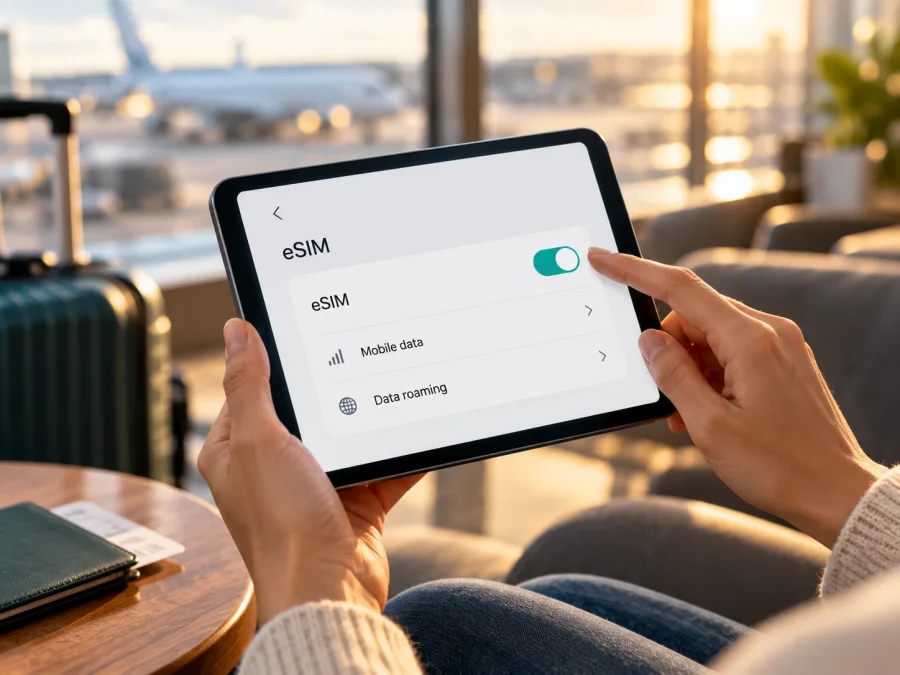
Apple iPad mini 5G 64GB Cellular and eSIM: compatibility and setup
The short answer is yes—with an important naming check. Apple lists eSIM support for the iPad mini (5th generation) Wi‑Fi + Cellular. Its 64GB capacity is one of the configurations Apple lists. However, Apple’s specifications identify this fifth-generation mini as an LTE device, not a 5G device. The phrase “5G” in Apple iPad mini 5G 64GB Cellular does not match Apple’s official generation name or its radio specification. Before buying a plan, check the iPad’s model number and settings; a seller’s title alone cannot confirm which iPad you have.
If the device is indeed a fifth-generation Wi‑Fi + Cellular iPad mini, it can use eSIM for mobile-data plans in markets and with providers that support this model. Wi‑Fi-only iPad mini models do not have cellular service or eSIM. Regional availability and the specific plan provider still matter, so verify the actual unit and intended travel destination before purchase.
Quick specification check
| Item | What to know |
|---|---|
| Exact name supplied | Apple iPad mini 5G 64GB Cellular |
| Apple’s generation name | iPad mini (5th generation), introduced in 2019 |
| Storage in this variant | 64GB; storage size does not determine eSIM support |
| Cellular configuration | Wi‑Fi + Cellular is required; the Wi‑Fi-only model cannot connect to mobile networks |
| Mobile network generation | Apple lists LTE for the fifth-generation model, not 5G |
| SIM options | Cellular versions have a nano‑SIM tray; Apple also lists eSIM for the Wi‑Fi + Cellular fifth-generation iPad mini in supported markets |
| eSIM certainty | Supported on the correct cellular generation, subject to the regional model, destination-market rules, provider compatibility and device status |
| Practical first check | Settings → General → About: confirm the model name, model number, EID and IMEI; then inspect Settings → Mobile Data/Cellular Data |
The name in a marketplace listing can combine distinct details, or use “5G” loosely. Apple calls the 2021 sixth-generation model “iPad mini (6th generation)” and lists 5G for that model. The 2019 fifth-generation model uses LTE. A 64GB capacity is available for both generations, so storage does not resolve the ambiguity. Treat “5G” as a clue to investigate, not proof of the generation. If you expected a 5G iPad mini, confirm that the About screen says sixth generation and compare its model number against Apple’s identification information. This guide keeps the supplied name intact while describing the fifth-generation Cellular variant only when the hardware is confirmed.
Does this specific iPad mini support eSIM?
Apple’s current setup guidance includes iPad mini (5th and 6th generation) Wi‑Fi + Cellular among iPads that can set up a mobile-data plan with eSIM. Apple’s fifth-generation technical specifications list eSIM and nano‑SIM for Cellular models. So the answer is yes if “Apple iPad mini 5G 64GB Cellular” means a fifth-generation Wi‑Fi + Cellular iPad mini sold for a market where that capability is enabled. It is not a universal yes for every iPad mini, regional version or provider.
Keep three distinctions in mind:
- Wi‑Fi versus Wi‑Fi + Cellular: only Cellular hardware has a mobile modem, IMEI and cellular-plan settings. Wi‑Fi-only units cannot be upgraded to cellular with software. A SIM tray is a useful clue, but does not prove eSIM support by itself.
- Fifth generation versus 5G: fifth generation is a product generation; 5G is a radio network. Apple lists LTE for the fifth-generation mini. The sixth-generation mini is associated with 5G. A 64GB capacity exists in both generations, so it does not resolve the listing ambiguity.
- Device versus service: an eSIM-ready iPad still needs a provider and plan that support tablets, the exact model and the country of use. Bands, account requirements and local rules can vary.
Regional versions matter. Apple identifies A2124 and A2126 as fifth-generation Wi‑Fi + Cellular models, and A2125 as the mainland China Cellular model. Apple’s current China-specific guidance says only certain iPads can install eSIM profiles from mainland China providers; the fifth-generation mini is not on that list. This concerns a mainland China provider’s eSIM in mainland China. If a China-market unit will travel abroad, confirm its EID and the destination provider’s requirements rather than assuming the domestic rule settles overseas use.
The supplied “5G” could be reseller shorthand, a typo or a reference to a different generation. Check the About screen and model number. If they identify a different iPad, use specifications for that actual device. The title here preserves the supplied name; it does not validate its 5G claim.
Check compatibility before choosing a plan
Use this checklist on the iPad itself whenever possible. If you are buying second-hand, ask the seller to show the About screen and Mobile Data/Cellular Data settings in person, with personal identifiers obscured.
- [ ] Confirm the generation. Open Settings → General → About and read Model Name. For the fifth generation, the name should identify iPad mini (5th generation). Do not equate “5G” in an advert with fifth generation.
- [ ] Confirm it is Cellular. In About, look for an IMEI and an EID. The hardware should also have a SIM tray. A Wi‑Fi-only model lacks cellular radio hardware.
- [ ] Check for an EID. In About, scroll through the device identifiers. Apple says the EID is shown there on iPad; you can also look before completing setup by tapping the information button on the Hello screen. An EID is strong evidence that an eSIM component is present, but it does not by itself guarantee provider acceptance or service in every market.
- [ ] Open the mobile-data settings. Depending on iPadOS language and version, open Settings → Mobile Data or Settings → Cellular Data. Look for an option such as Add eSIM, Add Mobile Plan, or Add a New Plan. Menu wording varies. A pre-existing SIM plan may appear on the same screen.
- [ ] Check the model number. In Settings → General → About, tap the part number beside Model Number to display the A-number. Compare it with Apple’s device-identification information and the provider’s compatibility terms. Fifth-generation Wi‑Fi + Cellular models include A2124 and A2126; A2125 is the China-market model. Confirm the full number rather than guessing from a partial listing.
- [ ] Check the target market. Ask whether the plan supports tablets, this model, and the country or region where you intend to use it. Mainland China has a separate Apple eligibility rule for local-provider iPad eSIM profiles. A plan that works in one country should not be assumed to work in another.
- [ ] Check restrictions. Confirm the iPad is not managed or restricted in a way that blocks cellular changes, and that the service or provider has not imposed an account restriction. An eSIM-capable device can still fail to add a plan if it is restricted or the provider does not support it.
If an EID appears and an add-plan control is available, the device is likely ready for eSIM setup, subject to the points above. If one is missing, first confirm that the iPad is the Wi‑Fi + Cellular version and restart it with a working Wi‑Fi connection. Check iPadOS updates and inspect the model number. If the hardware is confirmed as cellular but no EID or add-plan control appears, ask Apple or the seller to verify the configuration before spending money on a travel plan.
Check whether your device is compatible before you select a plan. Match the exact model and regional version with the destination and the plan’s terms. Do not share the EID, IMEI or QR activation code publicly; provide identifiers only to the device maker or provider when needed for support.
Set up an eSIM on iPad mini
An iPad uses iPadOS, so Apple’s iOS-family instructions are the relevant starting point. Menu labels can differ slightly by version. Stay connected to Wi‑Fi while the profile downloads, and keep activation details available. Do not delete a profile to troubleshoot unless the provider confirms it can be installed again; some codes are single-use.
- Check the plan. Confirm support for your precise Cellular model, destination and tablet use. Read the coverage list, data amount, validity, start trigger, roaming and hotspot terms.
- Connect to Wi‑Fi. Install an available iPadOS update and restart if practical.
- Open settings. Go to Settings → Mobile Data or Settings → Cellular Data, then choose Add eSIM, Add Mobile Plan or the equivalent control.
- Use the supplied method. Scan the provider’s QR code, open its activation link, use its app or enter details manually as instructed. If the QR code is on this iPad, use another screen or the provider’s manual method. Some current iPadOS versions let you touch and hold a QR image in email or a webpage to add it.
- Confirm and wait. Follow the prompts, enter any provider-issued verification code, and allow the profile to download. Keep Wi‑Fi on until setup finishes.
- Label and select the plan. Give it a clear label such as “Travel data.” Select it for mobile data when ready; keep your existing physical SIM plan if you need it for its separate purpose.
- Set roaming only if required. Follow the travel plan’s instructions for its eSIM line. Provider behavior varies.
- Test at destination. With Airplane Mode off and the eSIM selected, turn Wi‑Fi off briefly and load a simple webpage where the plan is supported.
For a visual walkthrough, see the iOS eSIM installation instructions. The Android installation instructions apply to Android phones used by other travellers; their menus do not apply to iPad. Kaspersky eSIM Store is an app and website where you can choose, arrange and activate an eSIM with a suitable mobile-data plan for an overseas trip. It cannot add cellular hardware or guarantee that a provider supports a regional variant.
Using the iPad mini for mobile data on a trip
A travel eSIM can provide mobile data on a compatible Cellular iPad for maps, browsing, email, cloud files and messaging apps. This is a tablet, not a phone: Apple describes the fifth-generation Cellular iPad as data-only for its mobile network. Do not expect an ordinary phone number, carrier voice calls or SMS unless the plan specifically says it includes them. Internet calling apps can work over data, subject to their own terms.
Before departure, compare the plan’s coverage list with every stop on your route. Nearby territories are not automatically included. Match the data allowance and validity to your expected use: maps and occasional messages typically need less data than video, large downloads, cloud photo backups or hotspot sharing. Read the start trigger carefully. Some plans begin validity at installation; others begin on first network connection. Install before departure only if the provider’s instructions and activation timing make that appropriate. Keep the setup details somewhere secure and available offline.
At your destination, select the travel eSIM for mobile data. If a home SIM is installed, choose its role deliberately and avoid unintended data use on the home line. Disable automatic downloads or backups over cellular if conserving data matters. Hotspot availability depends on iPad settings and provider terms; check before relying on it. Save maps and essential details for offline use as a backup.
An eSIM-compatible device is not a promise of 5G, a particular speed, signal everywhere or connection to a specific local operator. This fifth-generation iPad mini is LTE according to Apple. Coverage and performance depend on the destination network, bands, congestion, location and plan terms.
Common problems and what to check
No Add eSIM option: confirm this is Wi‑Fi + Cellular, then check EID and IMEI in General → About. Restart on Wi‑Fi, update iPadOS and inspect restrictions or management settings. If identifiers are missing despite verified Cellular hardware, ask Apple or the seller to confirm the unit before purchasing a plan.
QR code will not scan: show it on another screen, raise brightness, avoid cropped or blurred images and clean the camera lens. Use manual activation only when the provider supplies those details. Some codes can be used once; do not repeatedly retry or share them.
Profile will not download: check Wi‑Fi, available storage, date/time and whether the code was already used. Confirm the provider accepts the exact model and market. Save the error message and contact the provider before deleting a partially installed profile.
Plan is installed but there is no data: check that Airplane Mode is off, the travel eSIM is enabled and selected, and the destination is covered. Follow the provider’s instructions on Data Roaming, wait a few minutes and restart once. Try an area with better reception; activation delays or coverage gaps can resemble a device fault.
Listing says 5G but About says fifth generation: Apple’s fifth-generation specification is LTE. eSIM may still work on a confirmed Cellular fifth-generation model, but the listing is not a reliable radio specification. If 5G is essential, resolve the model identity before purchase; a plan cannot add 5G hardware.
Mainland China profile is rejected: Apple applies a separate eligibility list for mainland China provider eSIMs. Check current Apple guidance and ask the provider about the specific A-number. Verify overseas travel use separately; the local-market restriction does not automatically answer it.
Travel setup checklist
Before leaving, work through these checks:
- Confirm the About screen shows the Cellular iPad mini generation and model number you intended to buy.
- Verify an EID is present and a mobile-plan control is available; check with the provider if either result is unclear.
- Ask the provider to confirm tablet support for the exact regional model and every destination on your route.
- Read the plan’s data amount, duration, coverage list, activation start time and roaming or hotspot requirements.
- Install the profile using a stable connection at the time recommended by the provider; keep its activation instructions available.
- Label the profile clearly, choose the correct mobile-data line and test the connection where the plan is supported.
- Keep essential maps, tickets and addresses available offline in case mobile coverage is unavailable.
FAQ
Does Apple iPad mini 5G 64GB Cellular support eSIM?
If it is a fifth-generation Wi‑Fi + Cellular iPad mini, Apple lists eSIM support. “5G” conflicts with Apple’s LTE specification for that generation. Confirm the model, A-number and EID first.
Does every 64GB iPad mini have eSIM?
No. Capacity is separate from cellular hardware. The Wi‑Fi-only model cannot use mobile data. Check the actual unit’s EID, IMEI and settings.
Can a mainland China unit use eSIM abroad?
Apple’s mainland China rules limit local-provider eSIM profiles to eligible models, and the fifth-generation mini is not on its current list. For overseas use, ask the travel provider about the exact model and verify that its EID is present.
Does fifth generation mean 5G?
No. It is a product generation. Apple lists LTE for the fifth-generation mini; the sixth generation is associated with 5G. A listing may be inaccurate.
Can I use any phone eSIM plan?
No. Provider rules determine support for tablets, model, market and activation method. A data plan should not be assumed to include a phone number, voice or SMS.
Where is the EID?
Open Settings → General → About and scroll through identifiers. Apple also describes checking it from the initial Hello screen or through a connected computer/account. Keep it private and share it only for support when needed.
Should I remove the physical SIM?
Usually not just to add a separate data eSIM. Select the desired mobile-data plan in settings and follow the provider’s instructions if activation replaces an existing line.
What if the EID is present but activation fails?
An EID does not guarantee that a particular plan will activate. Check destination, model acceptance, connection, iPadOS and whether the QR code was used already; then contact the provider with the error message.
Check first, then choose a travel plan
For Apple iPad mini 5G 64GB Cellular, start with the actual hardware: identify whether it is a fifth-generation Wi‑Fi + Cellular model, look for its EID and add-plan control, and resolve the LTE/5G naming mismatch. Then confirm regional eligibility and tablet support for your destination. These steps prevent a storage label or reseller title from being mistaken for a compatibility guarantee.
Once your device and route are confirmed, browse current plans on Kaspersky eSIM Store, compare the stated data allowance and validity for your destination, and choose and activate an eSIM plan suitable for mobile internet on your trip. Check the plan conditions before arranging it, then follow the iPad’s on-screen installation steps. The final decision should be based on the exact iPad variant, the place you will use it and the provider’s current terms.


