Travel connectivity guide
Apple iPad mini 5G eSIM: Compatibility & Setup
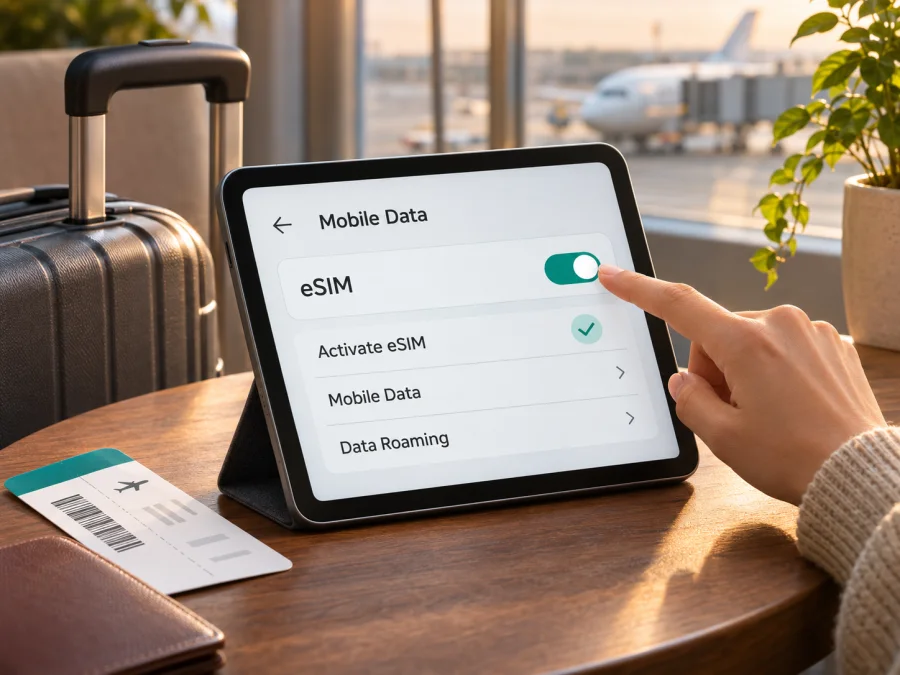
Apple iPad mini 5G eSIM: compatibility and setup
Short answer: the 5G-capable iPad mini is the Wi-Fi + Cellular iPad mini (6th generation). Apple lists eSIM support for that cellular configuration, so it can use a compatible mobile-data eSIM when the specific model, country or region, and provider support it. The Wi-Fi-only model cannot connect to mobile networks. The phrase “iPad mini 5G” can also be confused with the older iPad mini (5th generation): that 2019 tablet has LTE, not 5G, although its Wi-Fi + Cellular version also lists eSIM in Apple’s specifications. Check the model number before buying a plan.
This guide covers identification, compatibility, setup, travel use, and troubleshooting. An eSIM profile still needs an active plan that supports your iPad and destination.
Apple iPad mini 5G at a glance
| Check | What to know |
|---|---|
| Device indicated by “5G” | iPad mini (6th generation), Wi-Fi + Cellular, introduced in 2021 |
| Cellular capability | 5G and LTE, depending on model, network, plan, and local coverage |
| eSIM | Supported on the Wi-Fi + Cellular version; provider and market restrictions apply |
| Physical SIM | The 6th-generation Wi-Fi + Cellular model has a nano-SIM tray as well as eSIM support |
| Wi-Fi-only model | No cellular modem, SIM tray, or mobile-data eSIM service |
| Older model often confused with it | iPad mini (5th generation), 2019; LTE rather than 5G; eSIM is listed for its Wi-Fi + Cellular version |
| Main check before purchase | Confirm the model number, eSIM option in Settings, carrier unlock status, and plan eligibility |
Apple calls the 5G model iPad mini (6th generation) rather than “iPad mini 5G.” Its cellular hardware and eSIM support are features of the Wi-Fi + Cellular configuration, not the Wi-Fi-only configuration. This distinction matters when browsing used devices, marketplace listings, or plan compatibility lists. A seller’s short description is not enough to identify a regional variant.
Does Apple iPad mini 5G support eSIM?
Yes, if the name refers to the iPad mini (6th generation) Wi-Fi + Cellular. Apple’s technical specifications list both 5G NR and eSIM for the cellular model. An eSIM lets the iPad download a carrier profile without inserting a physical SIM card. It does not make the tablet a phone and does not provide a mobile plan by itself.
The Wi-Fi-only iPad mini (6th generation) has no cellular service and cannot use an eSIM for its own data. Check the model and Settings rather than relying on appearance; Wi-Fi and cellular versions look similar.
The “5G” and “5th generation” distinction
“5G” describes a network generation; “5th generation” describes the product generation. Apple introduced 5G on the iPad mini (6th generation). The earlier iPad mini (5th generation) is a 2019 LTE device. Apple lists eSIM for its Wi-Fi + Cellular configuration too, but that does not make it a 5G tablet.
For the 6th-generation iPad mini, Apple identifies A2568 as Wi-Fi + Cellular and A2569 as the mainland China cellular model; A2567 is Wi-Fi only. The 5th-generation cellular identifiers include A2124 and A2126, while A2125 is the mainland China version. Match the A-number to Apple’s model-identification information when a listing is vague.
Regional model identifiers can have different radio bands, SIM configurations, and service rules. Apple’s current iPad guidance also says eSIM availability depends on country or region and participating providers. In mainland China, eSIM activation on iPad has specific model and carrier conditions; do not assume that a mainland-China variant accepts the same travel profile as an international model. Confirm the A-number and eligibility with the provider for the specific market before purchase. A device’s ability to display an eSIM menu does not guarantee that every provider or plan will activate on it.
A quick compatibility checklist
Before choosing an eSIM plan, confirm each item:
- [ ] The iPad is a Wi-Fi + Cellular model, not Wi-Fi only.
- [ ] The model number matches the generation you expect. For the 5G iPad mini (6th generation), check the model information for A2568 or the regional A2569 variant.
- [ ] Settings includes a mobile-data plan or add-eSIM option, or the device displays an EID in its About information.
- [ ] The iPad is not restricted by a carrier or device-management policy.
- [ ] The iPadOS version is current enough for the activation method you plan to use.
- [ ] The eSIM plan explicitly supports tablets or iPad, the destination, and your activation method.
- [ ] You have Wi-Fi or another internet connection available during installation.
- [ ] You understand when the plan’s validity begins and whether data roaming must be enabled for that eSIM.
Use the model and Settings checks below before placing an order. If you cannot confirm the model from Settings, compare the A-number printed on the device or shown in the system information with Apple’s model-identification guidance, then ask the seller or carrier about the exact regional version.
How to check eSIM on your iPad
Menu wording can vary with iPadOS version and language. If the device is used or its origin is unclear, check both its model identifier and Settings rather than relying on a seller’s description.
1. Find the model number
Open Settings → General → About and check Model Name and Model Number. Tap the displayed part number if needed to reveal the A-number. For the 5G-capable mini, confirm that it is the 6th-generation Wi-Fi + Cellular model; A2568 is the common identifier, while A2569 is the mainland China variant. A2567 is Wi-Fi only. The 5th-generation model is a different LTE device. You can also check the back of the iPad. Keep the serial number private.
2. Look for EID or an eSIM option
In Settings → General → About, look for EID, an identifier associated with eSIM hardware. Then open Settings → Mobile Data or Cellular Data and look for Add eSIM, Add a New Plan, or a similar setup option. EID and an eSIM menu are useful indicators, but they do not guarantee that a particular provider or plan will work in every market.
If the option is missing, confirm that the iPad is cellular rather than Wi-Fi only, update iPadOS, and check whether an organization manages the device. Regional rules and provider support can also affect activation. If the model and settings remain unclear, confirm the A-number with Apple or the seller before purchase.
3. Check restrictions and provider eligibility
Ask whether the iPad is carrier-locked or subject to a school or employer management policy. Confirm with the provider that it supports your exact iPad model, regional variant, activation method, and destination. A compatible tablet can still reject a profile if a restriction or plan condition applies.
Check whether your device is compatible before selecting a plan. If compatibility cannot be confirmed, use a verified eSIM-capable device, a physical SIM in an unlocked compatible device, or Wi-Fi as an alternative.
Choosing an eSIM for a trip
A travel eSIM can provide mobile data for maps, messages, bookings, browsing, or work away from Wi-Fi. Confirm the plan covers your destination and supports tablets. Read its terms for data allowance, validity, activation method, hotspot rules, and when validity starts.
An eSIM data plan generally does not supply an ordinary mobile phone number or conventional voice calls and SMS unless its terms explicitly say otherwise. You can use internet-based messaging or calling apps over data where those apps and services are available. Keep your usual phone line active on a separate phone if you need calls or verification codes; an iPad does not replace that line.
Kaspersky eSIM Store is an app and website where you can choose, arrange, and activate an eSIM with a suitable mobile-data plan for an international trip. It does not operate a mobile network or provide network coverage. Check the plan details for your destination, device eligibility, data amount, validity, and any roaming setting before confirming. Browse the Kaspersky eSIM Store to check the current destinations and available plans; the homepage is a general starting point, not a country-specific tariff page.
For an iPad, decide whether the tablet itself needs mobile data or whether Wi-Fi and a phone hotspot are sufficient. A compact tablet can be convenient for navigation, travel documents, email, or a larger work screen, but data use can rise quickly with video calls, cloud backups, app updates, and high-resolution streaming. Turn off automatic downloads or large backups over mobile data if you want to conserve the plan allowance. Check the app’s data use during the trip and connect to trusted Wi-Fi for large updates when practical.
How to install and activate an eSIM
Connect the iPad to Wi-Fi and keep the activation details ready. Depending on the plan, setup may use a QR code, activation link, provider app, or manual details. If the QR code is displayed on the iPad, use another screen or a provider-supported alternative. Do not delete an installed profile unless the provider confirms it can be added again.
- Confirm compatibility. Check the model, eSIM menu or EID, carrier restrictions, and the plan’s iPad and destination support.
- Open cellular settings. Go to Settings → Mobile Data or Cellular Data and choose Add eSIM or Add a New Plan.
- Install the profile. Scan the provider’s QR code, follow its link or app, or enter supplied details. Enter a confirmation code if requested and stay online while it downloads.
- Name the plan. If offered, use a clear label such as “Travel data”.
- Select mobile data. Choose the travel eSIM as the line for Mobile Data.
- Set roaming as instructed. Some travel plans require Data Roaming for their eSIM. Enable it only for the intended profile and check charges for your regular plan.
- Activate at the right time. Validity may begin at purchase, installation, or first connection. Follow the plan terms before switching the travel line on.
- Test the connection. When ready, turn on Mobile Data and wait for network registration. Open a simple webpage to check that data works.
Apple’s setup options vary by iPadOS and provider. Follow the plan instructions if your menus differ. For platform guidance, see the Android eSIM installation guide and the iOS eSIM installation guide. The iOS guide is general Apple-platform help; iPad menus can differ from iPhone menus.
Install before departure or after arrival?
If the plan permits early installation, setting it up over reliable Wi-Fi leaves time to resolve problems. You can keep the travel line off until its activation conditions are met. If validity begins on installation, wait until the right time. Some plans connect only in the destination. Save the provider’s instructions for access during the trip and check transfer or reissue rules before removing a profile or replacing the iPad.
Using the eSIM for mobile data while travelling
After installation, open the cellular settings and make the travel eSIM the selected line for mobile data. If your iPad includes more than one plan, confirm the selected profile rather than relying on its label alone. Check that Mobile Data is on and, if required by the plan, Data Roaming is enabled for the travel eSIM. Do not enable roaming indiscriminately on your regular plan: its charges and terms are separate.
Coverage and network generation depend on the plan, local partner network, radio bands, signal, and conditions at your location. “5G” in the product name does not guarantee a 5G connection on every trip. The iPad may use LTE or another supported network where 5G is unavailable, where the provider does not permit 5G access, or where the regional model lacks a required band. A 5G icon is not necessary for data to work; LTE can be suitable for maps, messaging, and browsing.
For a short trip, install over Wi-Fi and turn on the travel-data eSIM when its activation conditions are met. Monitor remaining data where available. For a multi-country itinerary, confirm that the plan covers each destination.
If you use the iPad as a personal hotspot for another device, first check whether the plan and iPadOS support hotspot use. Availability can vary by plan and network. Keep personal hotspot disabled when you do not need it, and use a secure password if you turn it on.
Common problems and checks
“Add eSIM” is missing
Confirm that the iPad is Wi-Fi + Cellular, not Wi-Fi only, and check the A-number and iPadOS version. Look under both Mobile Data and Cellular Data. Device management, a regional restriction, or provider eligibility can affect setup. Ask the carrier or seller about the exact model, especially for a mainland China variant. If the menu and EID are both absent, contact Apple Support before purchasing a plan.
The QR code will not scan or the profile will not download
Make sure the code belongs to an iPad-compatible plan, is valid, and has not already been used. Connect to stable Wi-Fi and follow the provider’s activation steps. If you are viewing the code on the iPad, use another screen or a provider-supported alternative. Some codes are single-use; do not repeatedly retry while an installation is processing. Treat the code as private activation information.
The profile is installed but there is no service
Check that the plan covers your destination, its validity has started, and data remains. Select the travel eSIM for mobile data, turn on Mobile Data, and enable Data Roaming for that profile if the provider requires it. Wait for network registration and restart only if advised. Use manual network or APN settings only when the provider supplies instructions for this plan.
The iPad uses LTE instead of 5G
A 5G-capable model may use LTE when the local network, plan, regional bands, or signal do not support 5G at your location. LTE can still handle browsing, maps, and messaging. The “5G” label does not guarantee a particular speed or coverage.
The plan works on another device, but not this iPad
The plan may limit supported device types or activation methods. Confirm iPad support, check carrier restrictions, and compare the profile with the provider’s instructions. Do not delete the eSIM until you know it can be installed again. When contacting support, provide the model number, iPadOS version, destination, and error text; keep your QR code and password private.
Data does not work or is draining quickly
Confirm the selected data line, activation conditions, and remaining allowance. Review which apps can use cellular data, pause automatic updates and cloud backups, and avoid large downloads on a limited plan. A restart may refresh the connection, but it will not add data or extend validity.
Frequently asked questions
Can the Wi-Fi-only iPad mini use an eSIM?
No. It has no cellular connection for its own plan. It can use Wi-Fi or another device’s hotspot.
Is Apple iPad mini 5G the same as iPad mini (5th generation)?
No. The 5G-capable iPad mini is the 6th-generation Wi-Fi + Cellular model. The 5th-generation mini is an older LTE device. Apple lists eSIM for Wi-Fi + Cellular configurations of both generations, subject to regional and provider limits.
Does every iPad mini (6th generation) support eSIM?
No. The Wi-Fi-only model cannot use cellular eSIM service. The Wi-Fi + Cellular model is listed with eSIM support, subject to market and provider availability.
Can I keep a physical SIM and add eSIM?
The 6th-generation cellular mini has a nano-SIM tray and eSIM support. Stored profiles and usable combinations depend on model, iPadOS, and carrier; do not assume two plans can provide data simultaneously.
Do travel eSIMs include calls and SMS?
Usually a travel data plan does not include a conventional number, calls, or SMS unless its terms say so. Internet-based calling and messaging apps may work over data.
Can I install the eSIM before travelling or move it to another iPad?
Installation timing and validity rules depend on the plan. Some profiles are single-use or tied to one device. Check the provider’s terms before installing early, deleting a profile, resetting the iPad, or switching devices.
Will the iPad mini 5G connect to 5G everywhere?
No. It needs compatible local bands, a suitable plan, and an available 5G network. It may connect over LTE where 5G is unavailable or unsupported.
Before you choose a plan
For Apple iPad mini 5G, verify the exact model first: the intended 5G version is the 6th-generation Wi-Fi + Cellular iPad mini, not the Wi-Fi-only model and not the older LTE iPad mini (5th generation). Check the A-number, EID or eSIM controls, regional eligibility, carrier restrictions, and the plan’s tablet support. Then compare the destination, data allowance, validity, activation timing, roaming instructions, and hotspot terms.
Once compatibility is clear, choose a plan for the country or region on your itinerary and install it using the provider’s supported method. Kaspersky eSIM Store’s website and app let you check current options and choose, arrange, and activate a suitable eSIM plan for mobile data on an international trip. Review the plan terms before confirming, and keep a Wi-Fi connection available for setup or troubleshooting.


