Travel connectivity guide
Apple iPad mini cellular 64GB 5G eSIM: setup
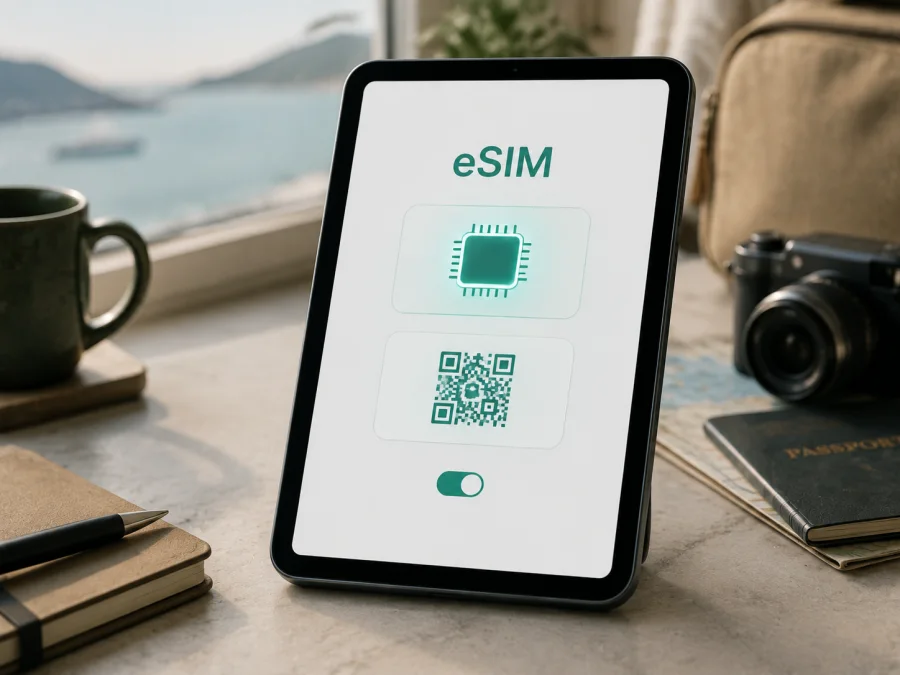
Apple iPad mini cellular 64GB 5G eSIM: compatibility, installation and travel use
If you are checking whether Apple iPad mini cellular 64GB 5G can use an eSIM for mobile data abroad, the short answer is: yes for the international Wi‑Fi + Cellular version that matches the sixth-generation 64GB configuration, but not automatically for every regional or carrier version. Apple’s technical specifications list eSIM for the Wi‑Fi + Cellular iPad mini (6th generation), alongside 5G and nano‑SIM. Apple also says that eSIM availability depends on the provider and is not available in mainland China. Confirm the model number and the eSIM controls on your iPad before selecting a plan.
The supplied name is deliberately kept complete: Apple iPad mini cellular 64GB 5G. Storage does not create eSIM support by itself. The deciding factors are cellular hardware, regional configuration, provider support and iPadOS.
<a id="kesim-device-compatibility"></a>
Does Apple iPad mini cellular 64GB 5G support eSIM?
For the expected international 64GB 5G Wi‑Fi + Cellular configuration, eSIM is supported. Apple identifies the iPad mini (6th generation) Wi‑Fi + Cellular model A2568 as a cellular device with 5G, eSIM and nano‑SIM, and lists 64GB as one of that generation’s capacities. A compatible iPad can add a digital cellular plan in Settings and use it for mobile data.
The page name does not include a model number or sales region, so one qualification is essential. Apple identifies A2569 as the iPad mini (6th generation) Wi‑Fi + Cellular model for mainland China, and its current specifications state that eSIM is not available in mainland China. A device with the same storage and 5G labels can therefore behave differently by region. A provider must also support eSIM activation for iPad.
The safest conclusion is conditional:
- Likely compatible: an international iPad mini (6th generation) Wi‑Fi + Cellular, 64GB, with a model number such as A2568, an EID and an Add eSIM or equivalent cellular-plan control.
- Not compatible with eSIM: the mainland China configuration identified by Apple as A2569, because Apple marks eSIM as unavailable there.
- Do not buy yet: any unit without an EID, without a cellular-data add-plan option, or with a provider that does not support eSIM for iPad.
Key specifications and what they mean for eSIM
| Check | Apple iPad mini cellular 64GB 5G | Why it matters |
|---|---|---|
| Exact page variant | Apple iPad mini cellular 64GB 5G | The full device name stays unchanged throughout this guide. |
| Product family used for verification | iPad mini (6th generation), 2021, when the 64GB/5G combination matches | Confirm the generation in Settings or by model number. |
| Storage | 64GB | Matches the supplied variant; storage is not the eSIM signal. |
| Cellular version | Wi‑Fi + Cellular | A Wi‑Fi-only iPad cannot add a mobile-data eSIM. |
| Network capability | 5G NR and LTE on supported bands | Network support still depends on provider and destination. |
| SIM technologies | eSIM and nano‑SIM on the international cellular model | A digital profile can be added when region and provider allow it. |
| Expected international identifier | A2568 | Verify the physical device rather than trusting a listing title. |
| Mainland China identifier | A2569 | Apple says eSIM is unavailable for this regional configuration. |
| RAM | Not stated in the supplied device name | No RAM label is invented or used for compatibility. |
Regional and carrier differences
Apple’s model list distinguishes the sixth-generation cellular versions. A2568 is the relevant international identifier in this verification, while A2569 is listed for mainland China. On the international version, a nano‑SIM tray and eSIM can coexist.
There are three separate questions:
- Does the hardware contain eSIM capability? Check the model and EID.
- Does iPadOS expose the controls? Check Settings and About.
- Will the chosen provider activate data on this iPad in the destination? Check the plan conditions before paying.
Apple notes that not all providers support eSIM. Some use a QR code, some use an app or network-provider activation, and some restrict iPad data service by country or account type. A travel plan may be data-only, may require data roaming, may start when installed or first connected, and may not be transferable after activation. Read its conditions rather than assuming every QR code behaves the same way.
An operator or account restriction is separate from hardware compatibility. A used iPad may be restricted to a provider or to an account that cannot add a new plan. Ask the seller for the exact model number and confirm that the device is not restricted. Do not delete an existing profile simply to test a new one unless you know it can be restored.
What to check before purchasing a travel eSIM
Before choosing a plan for Apple iPad mini cellular 64GB 5G, complete this checklist over reliable Wi‑Fi:
- Confirm that it is a Wi‑Fi + Cellular model, not Wi‑Fi-only.
- Open Settings > General > About and record the model number. If a part number appears, tap it to switch to the model identifier.
- Find the EID in the About screen. It is the embedded-SIM identifier, not the serial number or IMEI.
- Open Settings > Cellular Data and look for Add eSIM, Add Cellular Plan, Set Up Cellular or similar wording.
- Verify that the selected plan supports iPad or tablet activation, not only a smartphone.
- Check destination, validity, data allowance, activation rule and hotspot conditions.
- Check whether the provider requires a QR code, confirmation code, link, app or manual details.
- Update iPadOS if an update is offered, then restart the iPad.
- Keep the QR code on another screen or on paper; the iPad cannot conveniently scan a code displayed on its own camera screen.
- Make sure the iPad is charged and support details are available.
For a quick internal jump, Check your device compatibility before you choose a plan. If the EID or add-plan control is missing, stop. “5G” in a listing is not a substitute for an on-device check.
How to verify the EID and eSIM controls
Open Settings, select General, then About and scroll through the identifiers. An EID should appear on an eSIM-capable cellular model. Keep it private; use it only when legitimate support needs to identify the device.
Next open Settings > Cellular Data. A compatible interface normally offers a way to add a cellular plan. Depending on iPadOS and region, it may say Add eSIM, Add Cellular Plan, Set Up Cellular or show a provider activation option. If the EID and cellular controls are both absent, treat the unit as the wrong variant until Apple or the provider confirms otherwise.
If an EID is visible but the add-plan action is missing, the cause can be regional availability, provider policy, an iPadOS issue or an account restriction. Connect to Wi‑Fi, update and restart, then ask the provider before buying. An EID confirms hardware; it does not promise that a particular plan can be activated.
How to install and activate an eSIM
Prepare the plan, activation details and Wi‑Fi first. Installation and the start of validity are not always the same event. If the plan is for a trip, you may be able to install it before departure and wait to enable data roaming until arrival, but follow the plan’s own rule.
1. Confirm the device and plan
Verify the EID, the add-eSIM control and the destination. Make sure the account or iPad is not restricted. Keep the original profile until the new one works.
2. Open cellular-data settings
Go to Settings > Cellular Data and select the option to add a plan or eSIM. If the iPad offers provider activation, follow the on-screen instructions.
3. Scan or enter the activation details
Display the QR code on another device or use the provider’s supported link or app. Scan it and wait for the cellular-plan prompt. On newer iPadOS versions, a QR code in an email or provider webpage may offer Add eSIM when you touch and hold it. Enter a confirmation code only if the provider supplied one.
4. Label the profile
Use a clear label such as Travel data or the destination name. This helps prevent selecting the wrong line when both a home plan and travel profile are installed.
5. Select the line for mobile data
When iPadOS asks which plan should provide cellular data, choose the travel eSIM if that is the intended line. Return to Settings > Cellular Data later to change it. Multiple profiles may be stored, but active-line behaviour depends on the model, iPadOS and provider.
6. Configure roaming and test
If required by the plan, open the travel line’s settings and enable data roaming. Keep roaming disabled for a line that should not use data abroad. Turn Wi‑Fi off briefly, open a webpage and allow several minutes for registration. Restart if the profile was added but the connection does not appear.
See the iOS eSIM installation instructions and the Android eSIM installation instructions for additional QR-code guidance.
After compatibility is confirmed, Kaspersky eSIM Store can help you choose, complete and activate an eSIM with a suitable mobile-internet plan for a foreign trip through its app or site. It is an interface for choosing and activating a plan, not a mobile operator, network owner or provider of cellular coverage.
Using eSIM for mobile data while travelling
Select the travel eSIM under Cellular Data when you want it to handle trip data, and review Allow Cellular Data Switching so iPadOS does not silently use another line. Install over Wi‑Fi if the plan allows it, but confirm whether validity starts at installation, activation or first network use. At the destination, enable the line and data roaming only if required. LTE instead of 5G can be normal: coverage, bands, the plan and local conditions determine the connection.
Useful scenarios include arrival navigation and messages, a short work trip with a planned data allowance, a multi-country route whose plan covers every border, and backup when hotel or public Wi‑Fi is unavailable. Use hotspot only when the plan allows it. Unless stated otherwise, this kind of eSIM is for mobile data, not a regular phone number, voice calls or SMS; messaging apps can work over data.
Common problems and practical checks
The EID or Add eSIM option is missing
Check Settings > General > About and Settings > Cellular Data, confirm the model and region, connect to Wi‑Fi, update iPadOS and restart. If an international cellular unit should have an EID but does not, or if the unit is the mainland China configuration, pause and ask Apple or the provider before purchasing.
The QR code does not scan
Use another screen or paper, increase brightness, remove glare and confirm that the code has not already been used. If available, try the provider’s link, app or manual activation method.
The profile is added but there is no internet
Select the travel eSIM for data, check data roaming, airplane mode and destination coverage, then test with Wi‑Fi off. Allow several minutes and restart. Do not delete the profile before support reviews the error.
The iPad uses LTE or the wrong line
LTE is not proof of eSIM failure; check local 5G and supported bands. For wrong-line usage, return to Settings > Cellular Data, disable automatic switching if needed and review background sync, video and hotspot use.
Activation or transfer is blocked
A provider, account or used-device restriction can block a compatible iPad. Ask support about unlock status, transfer, replacement and reinstallation before removing anything.
FAQ
Can Apple iPad mini cellular 64GB 5G use a travel eSIM?
Yes, for the international sixth-generation Wi‑Fi + Cellular configuration when the provider supports eSIM for iPad. Verify the model number, EID and Add eSIM control; mainland China availability is different.
Does 64GB determine eSIM compatibility?
No. It identifies storage. eSIM depends on cellular hardware, region, iPadOS and provider support.
Can I keep a physical SIM and an eSIM?
Apple lists nano‑SIM and eSIM for the international cellular model. Which profile is active depends on iPadOS and provider rules.
Is an eSIM a phone plan?
Not necessarily. Travel eSIMs here are generally for mobile internet and may not include a phone number, voice calls or SMS. Check the plan conditions.
Does Kaspersky eSIM Store provide the mobile network?
No. Kaspersky eSIM Store is an app and website that helps you choose, complete and activate an eSIM with a suitable tariff for mobile internet during an overseas trip. The network and coverage depend on the selected plan and local provider arrangements.
Final device check before your trip
For Apple iPad mini cellular 64GB 5G, confirm: (1) Settings > General > About shows the intended cellular model, model number and EID; (2) Settings > Cellular Data shows an add-eSIM control; (3) the plan supports iPad, covers the route and states when validity begins; (4) the profile is installed over Wi‑Fi and clearly labelled; (5) the travel line is selected for data and roaming is enabled only when required; and (6) a webpage loads with Wi‑Fi off.
When these checks pass, open Kaspersky eSIM Store in the app or on the site to choose and activate an eSIM plan for the destination and trip length. Compare allowance, validity and conditions after confirming the device. This keeps the focus on a compatible Apple iPad mini cellular 64GB 5G, a clear activation path and predictable mobile internet during the journey.


