Travel connectivity guide
Apple iPad Pro 11-inch 2020 cellular 128GB eSIM
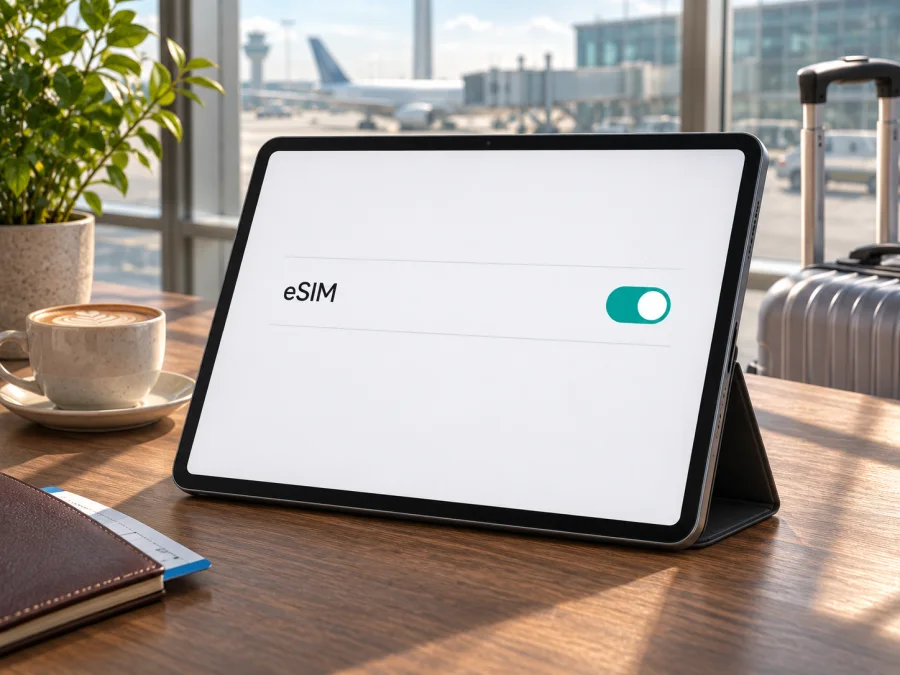
Apple iPad Pro 11-inch 2020 cellular 128GB eSIM: compatibility and setup
Short answer: eSIM is supported by the cellular version of the 2020 11-inch iPad Pro, including the 128GB configuration. Apple’s technical specifications for the iPad Pro 11-inch (2nd generation) list eSIM for Wi‑Fi + Cellular models and list 128GB among the available capacities. That answers the model-family question, but it does not guarantee that every unit can activate every plan in every country. The exact model number, sales region, carrier restrictions and the service available in your destination still matter.
The distinction is especially important if you are buying a used or imported tablet. Apple states that eSIM activation for mobile-data plans in mainland China is available only on a limited set of supported iPad models; the 2020 11-inch Pro is not on that list. Elsewhere, eSIM availability depends on the carrier or travel-plan provider and on whether the device is eligible for its service. Check the tablet itself before paying for a plan.
Does Apple iPad Pro 11-inch 2020 cellular 128GB support eSIM?
Yes, provided that the device is the Wi‑Fi + Cellular version and its regional model and service conditions allow eSIM activation. Apple identifies the 11-inch iPad Pro (2nd generation) Wi‑Fi + Cellular as eSIM-capable. Apple’s technical specifications also include 128GB as a capacity for this generation, so the storage size does not remove eSIM capability. The Wi‑Fi-only version cannot connect to a mobile network and does not become cellular-capable through an eSIM.
Apple’s current “Set up eSIM on iPad” guidance, checked on 4 November 2026, lists iPad Pro 11-inch models from the first through fourth generations among iPads that support eSIM. The same guidance warns that activating a mobile-data plan in mainland China is restricted to specific iPad models. Apple’s specifications for the 2020 generation likewise note that eSIM is not available in mainland China. In other words, a tablet may contain eSIM capability for use with a compatible provider abroad while not being eligible for an eSIM plan from a provider in that particular market.
| Item | What to know |
|---|---|
| Device named in this guide | Apple iPad Pro 11-inch 2020 cellular 128GB |
| Apple generation name | iPad Pro 11-inch (2nd generation) |
| Storage | 128GB is a listed capacity; storage does not determine cellular or eSIM capability |
| Required connectivity version | Wi‑Fi + Cellular; the Wi‑Fi-only model has no cellular service |
| eSIM support | Listed for the cellular generation, subject to the unit, market and provider |
| Physical SIM | Apple lists a nano-SIM tray for this generation as well as eSIM, in markets where applicable |
| Cellular technology | LTE generation; do not assume 5G support from the word “cellular” |
| Mainland China | Apple’s current China guidance does not list this 2020 generation for local eSIM plan activation |
| What to confirm before purchase | Model number, EID/eSIM menu, carrier lock status, provider eligibility and destination terms |
These points should not be read as a guarantee of coverage or speed. A travel eSIM plan has its own supported countries, networks, activation rules and validity period. Even when the tablet supports eSIM, the plan must be suitable for the destination and the tablet must be able to register on a partner network there.
Why region and carrier details matter
“2020 cellular 128GB” identifies a family and capacity, not a complete hardware identifier. Regional variants may have different model numbers and radio bands. Storage does not reveal where a unit was sold, and “Cellular” alone does not prove that a particular provider will accept it.
Mainland China has a specific restriction: Apple’s current list of iPads eligible to activate local mobile-data plans by eSIM does not include this 2020 generation. If you need a mainland China carrier plan, confirm the exact model number and permitted activation method with Apple or the provider. This rule does not automatically determine whether a plan for another destination will work.
In other markets, providers decide whether they support iPad eSIM, a particular regional model, and the chosen activation method. Carrier restrictions, organization management or outdated software can also prevent setup. Confirm three things separately: the device has eSIM capability; the provider accepts the exact unit; and the plan covers your route and dates. A “yes” to one is not a guarantee of the others.
Check compatibility before choosing a plan
Use the iPad’s settings as well as the seller’s description. Menu names can vary by iPadOS version and language. Connect to Wi‑Fi, then check:
- Model number: Open Settings → General → About. Tap the part number if needed to reveal the “A” model number. Compare it with Apple’s information for iPad Pro 11-inch (2nd generation), and ask Apple or the provider if its region is unclear.
- EID: In the same About screen, look for EID. It identifies the embedded SIM hardware. Its presence is useful evidence, but does not guarantee that a provider or plan will activate.
- Mobile-data controls: Open Settings → Mobile Data or Cellular Data and look for Add eSIM, Add a New Plan or a plan list. A missing label alone is not conclusive; confirm the model and current iPadOS guidance.
- Restrictions: Check with the original carrier that the iPad is not restricted, and ask whether a work or school administrator manages cellular settings.
- Provider and plan: Confirm iPad support for this exact model, destination coverage, allowance, validity, activation trigger and any roaming or tethering conditions.
If the EID or add-plan option is missing, verify that the tablet is cellular, restart it and install an available iPadOS update over Wi‑Fi. Ask Apple or the provider to confirm the exact model before buying. Do not post the EID, IMEI, QR code or activation code publicly; activation codes may be single-use.
For another device, use Check your device. Check compatibility before selecting a package; a Wi‑Fi-only tablet cannot gain cellular service through an eSIM.
A quick pre-purchase checklist
- [ ] The settings identify a Wi‑Fi + Cellular iPad, not a Wi‑Fi-only model.
- [ ] The model number matches the 2020 11-inch iPad Pro cellular family.
- [ ] Settings show an EID or an eSIM/mobile-data plan option.
- [ ] No carrier lock or management restriction prevents adding a plan.
- [ ] The provider confirms support for this model and its regional variant.
- [ ] The plan explicitly covers the destination and trip dates.
- [ ] You understand when validity begins and whether data roaming must be enabled.
What eSIM does on an iPad
An eSIM is a digital SIM profile stored in a compatible device. The 2020 cellular iPad Pro may also have a nano-SIM tray, depending on its regional version. A tray does not establish that the device is unlocked or that a provider will support it.
Travel plans in Kaspersky eSIM Store are intended for mobile data. Unless a specific plan says otherwise, do not expect a regular phone number, cellular voice calls or SMS. Internet messaging and calls may work through apps. Keep your usual number for services that need it, and check your home carrier’s roaming terms separately.
Do not assume an installed eSIM can be moved freely to another tablet. Transfer and reissue rules depend on the provider, and many activation codes are single-use. Check before deleting a profile.
How to install and activate an eSIM
Before you begin, connect the iPad to reliable Wi‑Fi, keep it charged, and have the provider’s QR code or in-app installation details ready. Read the plan instructions first: some eSIMs should be installed before departure but activated only when you arrive, while others begin their validity as soon as installation or purchase is completed. Follow the selected plan’s terms rather than assuming every eSIM starts at the same time.
Install with a QR code
- Confirm eligibility. Check eSIM support, restrictions and provider compatibility.
- Connect to Wi‑Fi and keep the iPad charged during installation.
- Open mobile-data settings. Go to Settings → Mobile Data or Cellular Data, then choose Add eSIM or Add a New Plan if available.
- Scan the provider’s QR code or use its supported in-app/link flow. If a confirmation code is requested, enter the one supplied through a trusted channel.
- Follow the prompts to add the plan, then label it clearly, for example “Travel data”.
- Select the travel eSIM for mobile data when you intend to use it. Enable data roaming for that profile only if its instructions require it.
- Test after arrival. Turn off Wi‑Fi briefly, confirm network registration and load a simple page.
Installation does not always start validity. Check whether the chosen plan begins at purchase, installation, a scheduled date or first connection in the destination. If installing early is allowed, leave the profile inactive until the correct time. Do not delete it to stop data use.
Apple’s current iPad guidance describes QR-code, provider-app and provider-assisted activation. For general setup steps, see Android eSIM installation instructions and iOS eSIM installation instructions. iPad menu labels may differ from those in the iOS guide, so follow the iPad prompts and plan instructions.
Before departure and on arrival
Installing a profile and starting a plan are not always the same event. Review the plan details for the exact validity trigger. If validity begins at first connection in the destination, you may be able to install the profile at home and leave it inactive until arrival. If the plan starts at purchase, installation or another event, choose the timing accordingly. A planned activation date, where offered, should be checked in the order details.
At your destination, switch off Wi‑Fi temporarily to test mobile data. Confirm the travel profile is turned on, selected for data and allowed to connect to the appropriate network. Some plans require data roaming on that specific profile. Do not enable roaming on a home line unless you have checked its terms. Wait a few minutes for registration, then restart the iPad if the provider recommends it. A stable signal depends on the partner network, local conditions, supported frequency bands and the plan’s coverage; an eSIM cannot guarantee service in every location.
Using the iPad for data while travelling
A cellular tablet is useful for maps, email, bookings, cloud documents and messaging on a larger screen. Estimate your usage: video, backups, app updates and hotspot use can consume data quickly. Download maps and travel documents on Wi‑Fi, and limit automatic downloads if your allowance is small.
- Short city break: choose a package whose data and validity cover the visit, including arrival and departure. Check the validity start time.
- Multi-country itinerary: verify each destination explicitly. A regional plan’s name does not guarantee that every country on your route is included.
- Work trip: confirm tethering is permitted before relying on the iPad as a laptop hotspot, and monitor usage.
Kaspersky eSIM Store is an app and website where you can choose, arrange and activate an eSIM with a mobile-data plan for international travel. It is not a mobile operator and does not own the networks used by a plan. Conditions can change, so browse current destinations and plans and review the listed allowance, duration and activation rules for your route.
Common problems and what to check
The iPad does not show an eSIM option
First verify that it is the Wi‑Fi + Cellular version. Recheck Settings → General → About for the model number and EID, then look in Mobile Data or Cellular Data. Restart the iPad and install any available iPadOS update over Wi‑Fi. If the EID is absent, settings are restricted, or the model’s origin is uncertain, ask Apple Support or the seller to confirm the exact hardware. A region-specific restriction, carrier policy or organization profile may explain why a menu is unavailable. Do not buy a plan until the provider confirms the device can be activated.
The QR code will not scan or the profile will not download
Check that the code is complete, readable and intended for this plan. Make sure the iPad has internet access, date and time are set automatically, and the provider has not already used or expired the code. If you received installation details on the same device, use the provider’s in-app or manual method if offered. Do not repeatedly remove and re-add a profile: a QR code may work only once. Contact the provider through its official support route and keep the order reference private.
The eSIM is installed but there is no connection
Open mobile-data settings and confirm the travel plan is enabled and selected for cellular data. Check that airplane mode is off. At the destination, verify that the plan covers the country, that the selected network is permitted, and that data roaming is enabled on the travel profile if required. Wait a few minutes, then toggle the profile off and on or restart once. If the device allows network selection, use automatic selection unless the provider gives a specific network instruction. A plan cannot connect where there is no compatible partner coverage.
The iPad connects, but pages do not load
Check the remaining data and plan validity in the account or app where the package is managed. Confirm that the iPad has selected the eSIM as its mobile-data line and that cellular data is on. Temporarily disable a VPN or content filter only if you use one and understand its effect; network settings can sometimes interfere with activation. If only one app fails, test another website before changing network settings. Avoid resetting all network settings until the provider or Apple Support recommends it, as doing so can remove saved Wi‑Fi and other preferences.
The home plan appears to be using data
Recheck which line is selected for mobile data and whether the home carrier’s roaming is on. If the iPad has more than one active plan, label each one clearly and review its individual settings. A travel eSIM should be selected for data only when you intend to use it. Ask your home carrier how it bills roaming; the travel plan’s conditions cannot change charges imposed by another provider.
The plan will not transfer to another tablet
Do not delete the original eSIM until you have checked transfer and reissue rules. Some eSIM profiles are tied to the first device or activation code. Contact the plan provider to ask whether it can issue a replacement profile. A stored QR code is not necessarily reusable, and Apple’s device-level ability to manage eSIMs does not override the provider’s transfer policy.
Frequently asked questions
Does the 128GB version have eSIM while a larger-capacity version does not?
No capacity-based difference is indicated. Apple lists 128GB among the 2nd-generation 11-inch Pro capacities and lists eSIM for Wi‑Fi + Cellular models. Confirm that the actual unit is cellular and check its model number.
Is this the same as a Wi‑Fi model?
No. A Wi‑Fi-only iPad has no mobile-data radio and cannot use an eSIM plan. Verify the model in Settings → General → About; do not rely on a marketplace title alone.
Can I activate a local eSIM plan in mainland China?
Apple’s current mainland China list does not include the 2020 11-inch iPad Pro. Confirm local activation rules with Apple or the provider. This does not by itself determine whether a travel plan for another destination will work.
Can I keep a physical SIM and add eSIM?
Apple lists a nano-SIM tray and eSIM for this generation in supported markets. Actual availability and simultaneous use depend on regional hardware and provider terms. Choose the intended mobile-data line in settings.
Does a travel eSIM include a phone number, and must roaming be on?
Usually a travel plan is data-only; check its terms for calls or SMS. Enable roaming only for the travel eSIM if its instructions require it, and check the home line separately.
Can I install before flying?
Often, but timing depends on when the plan’s validity starts. Check its terms before scanning the code. If the EID is present but activation fails, confirm provider eligibility and the model number before deleting the profile or buying another plan.
Final check before you travel
For Apple iPad Pro 11-inch 2020 cellular 128GB, the model-family answer is yes: Apple lists eSIM for the 2020 11-inch iPad Pro Wi‑Fi + Cellular. The exact result still depends on the unit’s model number, market-specific rules and provider support; mainland China local activation is a particular limitation to verify.
Before choosing a package, confirm the EID or eSIM option in settings, check that the device is not locked or managed, and ask the provider whether it supports your exact model and route. Then compare destination coverage, data allowance, validity and activation timing. When these checks are complete, use Kaspersky eSIM Store to review current travel-plan options and choose one that matches your itinerary. A few minutes spent confirming compatibility before purchase can prevent an unusable profile or an unexpected setup delay when you arrive.


