Travel connectivity guide
Apple iPad Pro 11-inch 2020 cellular 256GB 5G eSIM
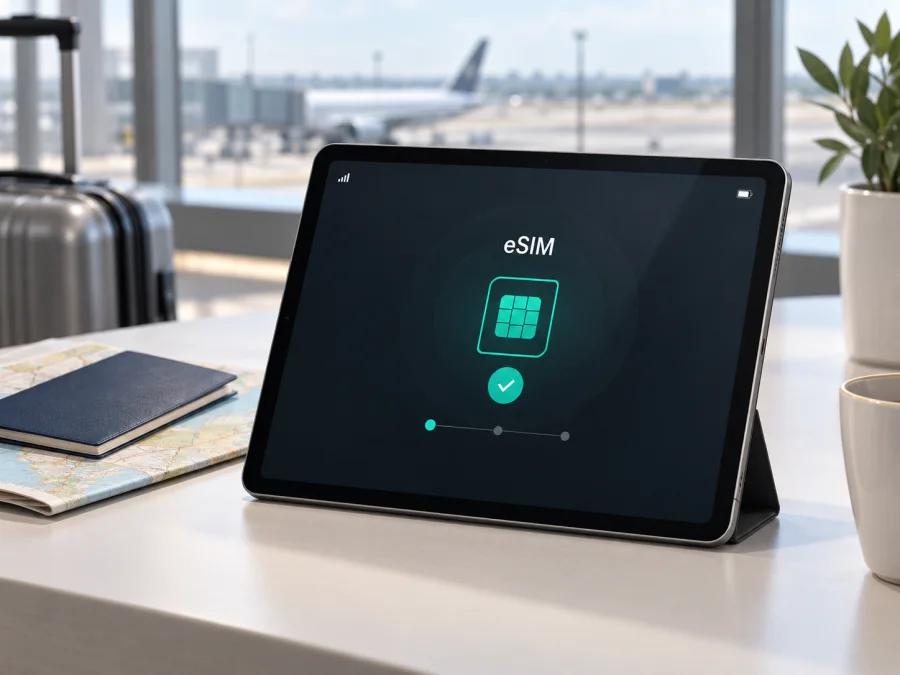
Apple iPad Pro 11-inch 2020 cellular 256GB 5G eSIM: compatibility and setup
The Apple iPad Pro 11-inch 2020 cellular 256GB 5G name combines the model, year, cellular type, storage and a 5G modifier. Keep every part of that name when checking a listing. For eSIM purposes, the decisive detail is Cellular: a Wi‑Fi-only iPad cannot gain eSIM through an app or an iPadOS update.
The direct answer is yes: an authentic second-generation 11-inch iPad Pro Wi‑Fi + Cellular supports eSIM. Apple’s technical specifications list eSIM and a nano‑SIM tray for this generation, and Apple’s current iPad eSIM guidance includes iPad Pro 11-inch Wi‑Fi + Cellular models from the first through fourth generations. Support still depends on the country, carrier, plan and exact regional model. Apple also warns that not all carriers support eSIM on iPad.
There is an important correction to the supplied wording. The 2020 second-generation iPad Pro uses Gigabit-class 4G LTE cellular hardware, not a 5G radio. The word “5G” must remain in the device name for exact identification, but it is not evidence that this tablet connects to 5G. eSIM support and 5G support are separate questions: this Cellular iPad can accept an eSIM and use LTE where the provider supports it.
Direct answer for this exact variant
If the tablet is really the 256GB Wi‑Fi + Cellular version of the 2020 11-inch iPad Pro, you can use a compatible mobile-data eSIM. Storage capacity does not affect the embedded SIM. Verify the model number, Cellular hardware, EID and carrier conditions, especially when a listing calls this LTE generation “5G.”
Apple’s specifications describe this family as a data-capable iPad, not as a phone. A travel eSIM normally supplies mobile data; it does not automatically include a telephone number, voice service or SMS. Use internet calling and messaging apps when appropriate, and read the tariff conditions before purchase.
Relevant specifications
| Item | What applies to the requested listing |
|---|---|
| Model family | iPad Pro 11-inch, second generation, 2020 |
| Requested capacity | 256GB; this does not determine SIM capability |
| Cellular version | Wi‑Fi + Cellular, not Wi‑Fi-only |
| eSIM | Supported by the Cellular family, subject to region and carrier |
| Physical SIM | Nano‑SIM tray on this generation in many regional versions |
| Official radio | Gigabit-class LTE and listed cellular bands; not 5G |
| Travel use | Mobile-data eSIM where the provider supports iPad and the destination |
This describes the model family, not every second-hand unit. Carrier restrictions, profiles, replacement parts or regional differences can change menus, so verify the tablet before paying.
Regional and carrier uncertainty
Different markets may use different model numbers and LTE band combinations. A nano‑SIM tray does not mean eSIM is absent; on this generation, physical SIM and eSIM can coexist. Conversely, seeing an eSIM option in a generic iPad guide does not prove that a Wi‑Fi-only unit has cellular hardware.
Activation may be limited by local rules. Apple specifically notes restrictions for local eSIM activation on iPad in mainland China, where only models supporting eSIM in mainland China can be activated with a local carrier. A tablet bought in one market may therefore show different carrier choices in another. A carrier can also decline data-only tablet activation, require an account, ask for a confirmation code or offer only a particular activation method.
Menu wording changes with iPadOS, language and carrier settings. “Add eSIM,” “Add a New Plan” and “Set Up Cellular Data” can describe the same action. A missing button may mean Wi‑Fi-only hardware, a regional restriction, an unavailable carrier flow or outdated software. Check EID and cellular identifiers instead of one label.
Before travel, ask whether the provider supports this iPad generation and country of purchase. Confirm destination, LTE networks, roaming, hotspot policy, validity start and reinstall rules. Some eSIMs are single-use or device-bound.
How to verify EID and eSIM support
Use the tablet itself whenever possible and keep it on Wi‑Fi while checking. Do not remove an existing plan just to test compatibility.
- Open Settings > General > About.
- Confirm the 11-inch iPad Pro identity and 256GB capacity. Tap Model Number if necessary to reveal the A-number.
- Find EID. This is the identifier for the embedded SIM; its presence is strong evidence that the Cellular tablet has eSIM hardware.
- Look for IMEI or other cellular identifiers. They support the conclusion that the unit is cellular, although EID is the most direct eSIM check.
- Open Settings > Mobile Data or Settings > Cellular Data. Look for Add eSIM, Add a New Plan or similar wording.
- Leave a nano‑SIM installed if one is present. A physical SIM tray and EID can coexist.
- Check Settings > General > Software Update, install a supported update if offered, and return to Mobile Data.
- Ask the provider to confirm that its QR code, link or app flow is intended for iPad rather than only iPhone.
If you only have packaging, compare the A-number and capacity with Apple’s model-identification information and buy only with a return option. “Cellular,” “LTE,” “Wi‑Fi + Cellular,” “eSIM” and “5G” are not interchangeable. The requested title contains “5G,” while the 2020 official specification is LTE; treat a mismatch as a reason to pause.
Compatibility checklist
- [ ] The listing is Apple iPad Pro 11-inch 2020 cellular 256GB 5G, and the underlying model has been verified.
- [ ] The tablet is Wi‑Fi + Cellular, not Wi‑Fi-only.
- [ ] EID appears in Settings > General > About, or a working eSIM setup path is visible.
- [ ] There is no activation lock, organisation profile or carrier restriction blocking a new plan.
- [ ] iPadOS and carrier settings are current enough for the provider’s activation flow.
- [ ] The provider supports iPad eSIM in the destination and on the tablet’s regional model.
- [ ] The plan covers the destination and its LTE bands; do not expect 5G from this 2020 hardware.
- [ ] Data amount, validity, start condition, roaming, hotspot and refund terms are clear.
- [ ] Wi‑Fi, the QR code or link, and the purchase account are available for installation.
<a id="kesim-device-compatibility"></a>
Check your tablet before purchase
Check your device before choosing a travel eSIM. Confirm Cellular hardware, find the EID and make sure Mobile Data offers a way to add a plan. If a check fails, contact the seller or provider before payment; this is safer than buying a tariff that cannot be installed.
Installation and activation
Prepare the iPad on stable Wi‑Fi. Keep the home SIM active until the travel line works, and display the QR code on another screen if it cannot be scanned from the iPad itself. The common iPadOS sequence is:
- Review the plan. In the Kaspersky eSIM Store app or on the site, choose the destination and check data volume, duration, supported networks and activation timing. Kaspersky eSIM Store is an app and website that helps you choose, arrange and activate an eSIM with a mobile-data tariff for a trip abroad; it is not an operator, network owner or mobile-internet provider.
- Open cellular settings. Go to Settings > Mobile Data or Settings > Cellular Data, then select Add eSIM, Add a New Plan or the equivalent command.
- Use the activation method. Scan the provider’s QR code. On supported iPadOS versions, touch and hold a QR code in an email or webpage on the iPad and choose Add eSIM. A provider may instead use a link or app.
- Confirm the profile. Check the displayed provider and plan before continuing. Enter a confirmation code if requested.
- Label the line. Use “Travel data” or another clear label so it cannot be confused with the home line.
- Select data. Choose the new eSIM under mobile data. Turn on the line and enable Data Roaming for it only if the provider requires it. Keep roaming off on the home line unless you accept its charges.
- Control switching. Disable Allow Mobile Data Switching if you want to prevent iPadOS from using another line automatically.
- Test. Wait for network registration, turn Wi‑Fi off briefly and open a small webpage. If activation hangs, do not scan the same single-use profile repeatedly; contact the provider.
For platform guidance, see the Android installation instructions and the iOS installation instructions. The iOS guide is the relevant starting point for an iPad. Do not install one purchased profile on another device unless the plan explicitly allows it.
Using the iPad in a trip
Before departure
Check when validity starts. Some plans begin on installation, while others begin at first connection to a supported network. If installation starts the clock, wait until close to departure; if first network use starts it, install on home Wi‑Fi and leave the travel line off until needed. Download maps and media before leaving, and keep the QR code and account details accessible.
Arrival and daily use
After landing, select the travel eSIM as the data line, turn on data roaming for that line when required, and test with Wi‑Fi off. The 2020 tablet can use partner LTE networks; it will not become a 5G device because the listing includes “5G.” Restrict automatic downloads, photo synchronisation, background refresh and high-quality streaming. Check the plan balance and validity in the provider’s app or account.
Routes, tethering and borders
For a multi-country journey, confirm that every country is included rather than assuming that an airport or regional plan covers the whole route. After crossing a border, allow time for registration and recheck the selected line. Hotspot availability is plan-dependent; do not assume that the iPad can share its travel data with a laptop. If tethering is allowed, use a password and expect higher battery use on a weak signal.
Troubleshooting
No Add eSIM option
Recheck the A-number, Cellular status, EID and iPadOS. Restart the tablet and return to Mobile Data. If EID is absent with no cellular identifiers, the unit may be Wi‑Fi-only or faulty. If EID is present but the option is missing, a carrier, region, management profile or software state may be limiting activation. Ask the provider about this iPad generation.
QR code will not scan
Increase brightness, show the complete code, clean the camera lens and hold the iPad steady. Display the code on another screen or use the touch-and-hold route when supported. Do not guess an SM-DP+ address or activation code. The code may be expired, single-use or issued for another device type.
Profile installs but does not activate
Use reliable Wi‑Fi, automatic date and time, the latest confirmation code and a non-managed device. Confirm that the destination and provider accept the tablet. Do not delete and reinstall repeatedly: some plans cannot be reinstalled after removal.
Signal is present but data does not work
Make sure the travel line is on and selected under Mobile Data, Airplane Mode is off, and data roaming is enabled when required. Test with Wi‑Fi off and check remaining data, plan validity and destination coverage. If the provider gave APN values, enter them exactly and restart; never copy APN settings from an unrelated carrier.
Speed is lower than expected
This generation uses LTE. Speed depends on the partner network, band, congestion, signal and tariff. The “5G” wording in the supplied name does not change the radio hardware. Try an open area, automatic network selection and another time of day before blaming the eSIM.
FAQ
Does 256GB change eSIM compatibility?
No. Capacity does not add or remove eSIM. Wi‑Fi + Cellular hardware, model number, region, carrier and software state are the relevant checks.
Is this a 5G iPad?
Preserve “5G” because it is part of the supplied device name, but do not promise 5G performance. Apple’s 2020 second-generation 11-inch iPad Pro specifications describe LTE cellular connectivity. eSIM can still work over LTE.
Can eSIM replace the nano‑SIM?
It can provide mobile data when the provider accepts the iPad. It is not automatically a phone number, voice service or SMS plan. The physical SIM can remain installed if you need it.
Can I use the same profile on a phone?
Assume no unless the plan explicitly supports transfer or multiple devices. Many profiles are device-bound or single-use.
Will it work in every country?
No. Partner networks, LTE bands, local rules, carrier approval and plan coverage vary. Check the destination before purchase.
Conclusion
The exact Apple iPad Pro 11-inch 2020 cellular 256GB 5G listing should be verified as a 256GB Wi‑Fi + Cellular iPad Pro, with the “5G” wording treated cautiously because the official 2020 hardware is LTE. Apple confirms eSIM support for this Cellular generation, but the carrier and region must also allow iPad activation. Check the model number, EID and Add eSIM path before purchasing a plan.
Final device check and trip eSIM choice
Before paying, verify Cellular hardware and 256GB capacity, record the model number, find the EID in About and confirm the Mobile Data setup path. Then choose an eSIM tariff for every country on the route, matching its data volume, validity and hotspot rules to your use. In the Kaspersky eSIM Store app or on the site, you can review travel options, arrange the selected eSIM and activate it for mobile internet abroad. Keep the instructions, monitor the balance and remember that this 2020 iPad uses LTE. If the EID or setup option is absent, resolve compatibility with the seller or provider before buying.


