Travel connectivity guide
Apple iPad Pro 11-inch 2020 cellular 256GB eSIM
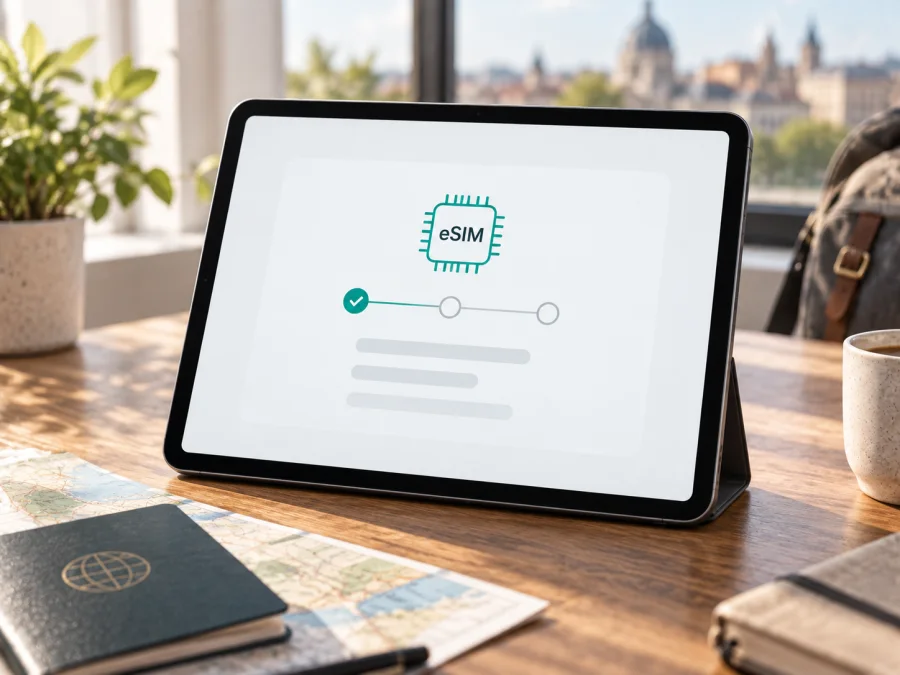
Apple iPad Pro 11-inch 2020 cellular 256GB eSIM: compatibility and setup
Quick answer: Yes. Apple lists eSIM for the iPad Pro 11-inch (2nd generation) Wi‑Fi + Cellular model, and the 256GB capacity does not change cellular capability. The 2020 model can use a digital data plan as well as a nano-SIM, subject to the exact regional model, local rules, iPadOS, and the provider’s support. Apple’s technical specifications also state that Apple SIM and eSIM are not available in China mainland. If the tablet is being used there, or was sold for a different market, check the model number and local provider requirements before buying a plan.
This article is specifically about Apple iPad Pro 11-inch 2020 cellular 256GB. It does not describe the Wi‑Fi-only model or a different storage configuration. On Apple’s technical-specifications page the device is named iPad Pro 11-inch (2nd generation); the 2020 cellular configuration was offered with 256GB storage. A used device’s actual configuration and network history should still be confirmed in Settings and with the seller.
Does Apple iPad Pro 11-inch 2020 cellular 256GB support eSIM?
Yes, when it is the Wi‑Fi + Cellular version intended for a market where eSIM service is available. Apple lists eSIM and a nano-SIM tray in the specifications for the second-generation 11-inch iPad Pro. Its cellular feature is for mobile data; the iPad does not become a regular phone with a cellular voice number simply because an eSIM profile is installed. A travel eSIM plan is generally a data plan, and its exact inclusions are set by the plan provider.
There are three separate questions to resolve:
- Is the hardware cellular-capable? The model must be Wi‑Fi + Cellular. The Wi‑Fi-only iPad Pro has no cellular modem and cannot be made eSIM-compatible by a software update.
- Does this regional model support eSIM where you will activate it? Apple’s specifications warn that Apple SIM and eSIM are not available in China mainland. The 2020 model is not among the iPad models Apple lists for installing a local provider’s eSIM profile in China mainland. This restriction concerns activation with providers in that market; it does not mean the device lacks eSIM hardware everywhere.
- Does the specific provider support iPad eSIM in the destination and offer a compatible data plan? Support differs by country, provider, plan, and activation method. A provider may support eSIM on phones but not on iPads, or may require a separate tablet plan.
| Item | What applies to this configuration |
|---|---|
| Device generation | iPad Pro 11-inch (2nd generation), introduced in 2020 |
| Requested capacity | 256GB; storage size does not determine eSIM support |
| Cellular variant | Wi‑Fi + Cellular required; Wi‑Fi-only is not compatible |
| SIM options | eSIM is listed; a nano-SIM tray is also present on this generation |
| Cellular use | Mobile data; network and plan compatibility must be checked |
| China mainland | Apple says Apple SIM/eSIM is not available there for this generation; local provider eSIM setup is restricted to newer listed models |
| Before purchase | Confirm the exact model, EID/eSIM setting, device unlock status, destination support, and plan conditions |
The words “cellular” or “Wi‑Fi + Cellular” matter more for eSIM than “256GB.” Capacity describes local storage for apps, files, and downloads. It does not add an eSIM radio to a Wi‑Fi-only tablet, nor does more storage make a cellular profile work in a market where the device or provider cannot activate it.
Regional model and provider differences
Cellular iPads can differ by market in hardware identifiers and supported network bands. The actual provider also decides whether its eSIM offer supports iPads, which activation methods it accepts, and whether it requires a separate tablet plan. A provider’s phone eSIM support does not automatically confirm support for this iPad. Check the exact model number, destination, data allowance, validity, coverage, and any roaming or tethering conditions.
China mainland is a distinct case. Apple’s specifications for this generation state that Apple SIM and eSIM are not available there. Apple’s current local guidance lists only certain newer iPads that can install a local provider’s eSIM profile; the 2020 iPad Pro 11-inch is not listed. This is a restriction on local activation in that market, not proof that the tablet cannot use eSIM abroad with a compatible provider. If the iPad was imported or purchased second-hand, also verify that it is unlocked and free of a carrier, school, or workplace restriction.
Check compatibility before buying an eSIM plan
Use this checklist before paying for a travel plan:
- [ ] In Settings → General → About, confirm the iPad shows the expected model and a cellular identifier such as IMEI. Tap the displayed model number if you need to reveal the hardware model number.
- [ ] In Settings → General → About, look for an EID. On a compatible iPad with eSIM hardware, the EID is a useful identifier for a provider. Its presence is a positive check, but it does not guarantee that a particular provider or destination will accept the device.
- [ ] Open Settings → Cellular Data (the label may appear as Mobile Data in some regions or iPadOS versions). Look for options such as Add eSIM, Add Cellular Plan, or a way to find a plan. Menu wording can vary.
- [ ] Confirm the iPad is the Wi‑Fi + Cellular configuration. The storage size, camera, and external appearance alone cannot establish this.
- [ ] Confirm that the exact regional model and its software are eligible for the destination market. For local eSIM service in China mainland, this 2020 model is not on Apple’s supported-model list.
- [ ] Ask the provider whether it supports eSIM installation on an iPad Pro 11-inch (2nd generation), and whether its plan is valid in your destination.
- [ ] Check that the tablet is unlocked and is not subject to a carrier, school, or workplace restriction that prevents adding a plan.
- [ ] Check the plan’s country or regional coverage, data limit, validity period, activation timing, and rules for data roaming or tethering.
- [ ] Make sure you will have Wi‑Fi or another internet connection available during installation, and keep the QR code or activation details accessible on a second screen if needed.
If there is no EID and no eSIM-related option, pause before purchasing. Check the model number and whether the device is Wi‑Fi-only; then ask Apple or the provider to confirm the exact configuration. Do not infer support just because a seller calls the tablet “cellular,” because a nano-SIM tray is visible, or because an eSIM menu exists on another iPad.
For a broader device check, Check your device before selecting a plan. This is especially useful when the model name in a listing is shortened, the iPad was imported, or the seller has not clearly distinguished Wi‑Fi from Wi‑Fi + Cellular.
What EID means, and what it does not prove
EID is an identifier associated with eSIM hardware. Find it in Settings → General → About, scrolling through the device identifiers. Its presence is a useful compatibility clue, but does not guarantee that a provider or destination will accept the device. It is not the activation code or plan; share it only when a provider or support team requests it. If it is absent, verify the exact hardware model and eSIM option with Apple or the seller before purchasing.
How to install and activate an eSIM on the iPad
Before you begin, confirm compatibility, connect to Wi‑Fi, update iPadOS if practical, and have the provider’s activation information ready. The provider may supply a QR code, an activation link, an app-based flow, or carrier activation. A code can usually be used only as the provider specifies; do not scan it repeatedly or delete a profile simply to restart an installation.
QR-code installation
- Connect to Wi‑Fi. Keep the iPad online while the profile is downloaded and activated. If the QR code is displayed on the iPad itself, open it on another screen or use the provider’s supported manual method.
- Open Settings. Go to Cellular Data or Mobile Data, then choose Add eSIM or Add Cellular Plan if that option appears. If prompted to scan, use the iPad camera or the on-screen QR option.
- Scan the provider’s QR code. Check that the code comes from the provider and is intended for this device and plan. If a confirmation code is requested, enter the code supplied through the provider’s official channel.
- Review the plan prompt. Follow the displayed steps and confirm that you want to add the cellular plan. Do not close Settings while the profile is being downloaded.
- Wait for activation. It may take a few minutes. Keep Wi‑Fi connected and follow any final instruction from the provider.
- Label the plan. Give the new line a memorable label such as “Travel data” so it is easy to distinguish from a home plan or a physical SIM.
- Choose the data line. In Cellular Data/Mobile Data settings, select the newly installed plan for cellular data when you are ready to use it.
Apple’s interface and provider flows can change. On a supported version of iPadOS, a QR code received by email or shown on a provider webpage may also be added by touching and holding the code and selecting Add eSIM. This option depends on software version and the provider’s QR implementation. If it is not offered, use the camera scan or the provider’s documented installation path.
Other provider activation methods
Some providers can assign an eSIM directly to a device or let you activate it in their iPad app. If you receive a notification that a mobile plan is ready, open it and follow the on-screen prompts. If the provider sends an activation link, open it on the iPad and approve the eSIM installation when asked. Availability varies; do not expect every provider to offer each method.
Some providers offer a plan through Settings → Cellular Data/Mobile Data → Find a New Plan. If the option is missing, it may simply mean that the provider does not support this activation route in your current location. It does not alone prove the iPad is incompatible. You can also use a supported plan-transfer feature if your provider and previous iPad allow it, but transferring a plan may deactivate it on the old device. Check the provider’s transfer rules before proceeding.
For a device-specific walk-through, see the iOS eSIM installation instructions. Android instructions are also available for a different device type: Android eSIM installation instructions. The wording in the article uses Apple’s current iPad menu names where possible; your menus can differ slightly by iPadOS version, language, and region.
Activate now or install before departure?
A profile and a plan’s validity period are not necessarily the same thing. Some plans start when installed; others begin at first connection or at a stated time. Read the provider’s terms before scanning the code. If you install in advance, keep the profile on the iPad and follow the instructions about when to enable the line. Do not delete a working profile to restart setup: many QR codes are single-use and may need provider assistance to replace.
Use the eSIM for mobile data on a trip
After installation, open Settings → Cellular Data/Mobile Data and choose the travel eSIM as the line for mobile data. If another plan is also installed, check which one is selected. Label the new profile “Travel data” or another clear name. At your destination, turn off Airplane Mode, enable the travel line, and wait for it to register on a supported network. If the provider requires data roaming, enable roaming for that eSIM only after checking the plan terms.
Test a lightweight webpage once connected. Check the plan’s destination list, remaining allowance, and validity in the provider’s app or account. If travelling across several countries, verify that one regional plan covers every stop; a plan for one country may not include a neighbouring country or territory. Coverage and speed depend on the local network and conditions.
An iPad eSIM can provide a tablet’s own mobile data connection for maps, email, cloud files, and work away from Wi‑Fi. It does not automatically share data with other devices; hotspot support depends on iPadOS settings and the plan. A data-only plan does not provide an ordinary phone number for cellular calls or SMS, though internet calling and messaging apps can work over data where available. Download offline maps as a backup if you will rely on navigation.
Kaspersky eSIM Store is an app and website where travellers can choose a destination, select a suitable eSIM data plan, and complete activation for an overseas trip. After checking this iPad’s compatibility, use it to review destinations and plan conditions, then follow the activation steps. Provider coverage and plan terms still apply.
Common problems and what to check
“Add eSIM” or “Add Cellular Plan” is missing
Confirm the device is Wi‑Fi + Cellular, then check Settings → General → About for IMEI and EID, and inspect Cellular Data/Mobile Data. Update iPadOS and restart. If the option remains absent, verify the model number and market with Apple or the seller. A Wi‑Fi-only iPad cannot add eSIM; a regional rule or management profile can also affect available options.
The QR code is not recognised
Make the code large and bright on the other screen, hold the iPad steady, and check that the entire code is visible. Confirm it is an eSIM activation code issued for this plan. If your iPadOS offers Add eSIM when you touch and hold a QR code in email or a webpage, try that; otherwise use the camera or the provider’s documented method. Ask the provider for help rather than repeatedly scanning an expired or used code. Keep the QR code private.
The profile downloads but activation fails
Keep Wi‑Fi connected. Check that the code has not expired or already been used, and confirm that the provider supports this iPad and its region. Look for a pending confirmation or account step, and check for a network lock or management restriction. Contact the provider with the exact error before deleting the profile.
The profile is installed but there is no data
Turn off Airplane Mode, enable the travel line, and select it under Cellular Data/Mobile Data. Confirm the plan is active, in date, has data remaining, and covers your location. If required by the provider, enable data roaming for that eSIM. Restart after checking these settings; if service still fails, follow the provider’s network-selection instructions.
Data uses the wrong plan, or the eSIM stops working across a border
Select the intended data line explicitly and review any automatic data-line switching option. Then confirm the plan covers the current country or territory. A plan that worked at one stop may not cover the next. For China mainland, this 2020 model’s local eSIM restriction still applies even if an international eSIM worked elsewhere.
FAQ
Does the 256GB version have eSIM?
Yes, if it is the Wi‑Fi + Cellular version. Capacity does not determine eSIM support. The Wi‑Fi-only version is not cellular and cannot use eSIM.
Can this iPad use a physical SIM and eSIM?
This generation has a nano-SIM tray and Apple lists eSIM for the cellular model. Whether both plans can be active or switched in a particular way depends on iPadOS and provider rules. Check the Cellular Data settings and the provider’s conditions.
Is eSIM available on this model in China mainland?
Apple’s specifications for this generation say Apple SIM and eSIM are not available in China mainland. Apple’s current local guidance lists newer supported iPad models for eSIM from China mainland providers; the 2020 iPad Pro 11-inch is not included. Do not buy a local eSIM plan for this iPad without direct confirmation from Apple and the provider.
Does installing an eSIM give the iPad a phone number?
Usually no. Travel eSIMs for iPad are commonly data plans. Check the exact offer, and use internet-based calling or messaging apps for communication over data where supported.
Should I install the plan before I travel?
You can often install it in advance over Wi‑Fi, but the start of validity depends on the plan. Read its activation terms first. Keep the profile installed and follow the provider’s guidance on when to enable the line or data roaming.
Can I delete an eSIM and scan the QR code again?
Do not assume so. Many activation codes are single-use, and deleting a profile can require the provider to issue a replacement. Contact the provider before removing a profile that has already been installed.
Final check before choosing a travel eSIM
For Apple iPad Pro 11-inch 2020 cellular 256GB, eSIM support is confirmed for the Wi‑Fi + Cellular configuration, and the 256GB storage option does not change that answer. Verify the model number, EID, eSIM menu, unlocked status, and destination-specific provider support on the actual tablet. Treat China mainland as a distinct case: this generation is not listed among iPads that can install a local provider’s eSIM there.
Once those checks pass, compare the plan’s destination coverage, data allowance, duration, activation timing, and roaming requirements. Use the Kaspersky eSIM Store app or website to choose a destination, select an eSIM plan for mobile data, and complete activation for your overseas trip. Check the iPad before purchase, then choose a plan that matches your route and intended use.


