Travel connectivity guide
Apple iPad Pro 11-inch 2020 cellular 2TB eSIM
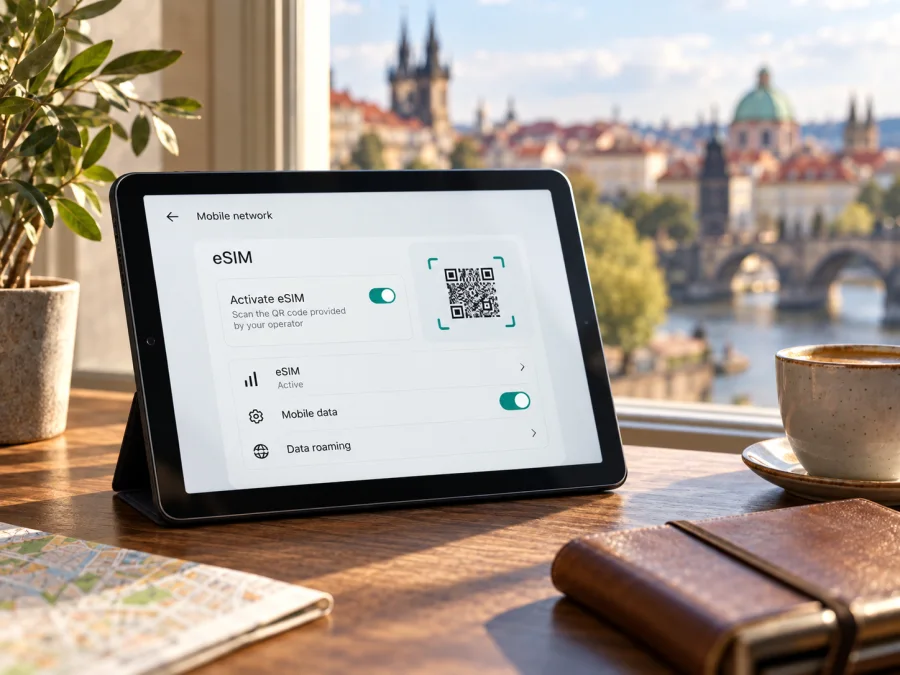
Apple iPad Pro 11-inch 2020 cellular 2TB eSIM compatibility and setup
Quick answer
The cellular version of the 2020 11-inch iPad Pro supports eSIM, alongside its nano-SIM tray, according to Apple’s technical specifications for the second-generation model. There is one important mismatch in the name supplied for this guide: Apple’s specifications list 128GB, 256GB, 512GB and 1TB capacities for this generation, not 2TB. Apple did not list an “Apple iPad Pro 11-inch 2020 cellular 2TB” configuration. The eSIM answer below applies if the device is actually an iPad Pro 11-inch (2nd generation), Wi-Fi + Cellular; check the model number and Settings before buying a data plan.
This distinction matters because “2020” identifies a generation, “cellular” identifies the radio-equipped model, and “2TB” does not match the storage options Apple published for that generation. A seller’s title, a case listing or a storage figure from another iPad Pro generation can be inaccurate. Confirm the hardware itself rather than relying on a listing description. Storage capacity does not add or remove eSIM support; the Cellular hardware and regional model are what matter.
At a glance
| Item | What to expect |
|---|---|
| Exact name supplied | Apple iPad Pro 11-inch 2020 cellular 2TB |
| Matching Apple generation | iPad Pro 11-inch (2nd generation), introduced in 2020 |
| Listed storage for this generation | 128GB, 256GB, 512GB or 1TB; no 2TB option in Apple’s specifications |
| Cellular model eSIM | Supported on the Wi-Fi + Cellular model, subject to the specific regional model and service availability |
| Physical SIM | Nano-SIM tray is listed alongside eSIM for this generation |
| Wi-Fi-only model | Does not have cellular service or eSIM capability |
| Best pre-purchase checks | Model number, EID/eSIM controls, carrier lock or restrictions, and destination-plan compatibility |
Apple’s current guidance includes the iPad Pro 11-inch first through fourth generations among models that support eSIM while travelling. The device must still be a Wi-Fi + Cellular model. A Wi-Fi-only iPad of the same size and year cannot be made cellular by downloading a profile or changing a setting.
What “cellular” means for this iPad
Apple sold this generation in Wi-Fi and Wi-Fi + Cellular configurations. Only the latter contains the mobile network hardware and the SIM interface. Apple’s technical specifications identify both nano-SIM and eSIM for the cellular variant. This lets a compatible unit use a physical SIM card or install a digital SIM profile, depending on the operator and the country where the device is being used.
Apple lists this generation up to 1TB, so treat a 2TB seller label as unverified. It could be a listing error, external or cloud storage, or a different-generation device. In Settings > General > About, tap Model Number to reveal the regulatory A-number, then confirm the generation before buying. A later sale date does not change the hardware generation.
Regional versions and operator compatibility
The model family supports eSIM, but plan availability varies by market. Mainland China is a special case: Apple limits iPad eSIM activation there to specific supported models, and the 2020 iPad Pro 11-inch is not currently listed. This geographic service restriction does not mean its eSIM hardware stops working elsewhere.
Regional hardware can differ in model number and supported cellular bands, affecting LTE access even when eSIM installation is available. Providers may support iPad activation in some countries or only through a specific route. Check destination coverage, network, exact model and activation method before purchase; a Settings menu alone does not prove plan compatibility.
The 2020 iPad is an LTE model, not a 5G model. A travel eSIM cannot upgrade its radio hardware to 5G. Depending on the regional variant and the local network, service may connect over LTE or another supported generation. Coverage, network access, speed and roaming rules are controlled by the local network operator and the plan terms, not by the tablet’s storage size or by the eSIM installation process.
An eSIM profile does not guarantee the iPad is unrestricted. Ask the seller or original carrier about restrictions; corporate or school management can also block plan changes and may require an administrator’s approval.
Check compatibility before buying a plan
Use this checklist on the iPad you will take on the trip. If you are buying a used device remotely, ask the seller to complete the checks and share the model information before paying.
- [ ] In Settings > General > About, confirm that the model is an iPad Pro 11-inch (2nd generation) or otherwise identify the exact generation shown.
- [ ] Tap Model Number to reveal the A-number, then confirm the regional model through Apple’s identification information.
- [ ] Confirm that the device is Wi-Fi + Cellular. A SIM tray is a useful physical clue on this generation, but verify in Settings and by model number.
- [ ] Look for an EID in Settings > General > About. An EID is the identifier for the embedded SIM hardware. The presence of an EID is a strong sign that the device can hold an eSIM profile.
- [ ] Open Settings > Mobile Data (called Cellular Data in some regions or software versions). Check for an option such as Add eSIM, Add Data Plan or Set Up Mobile Data. Wording can vary by iPadOS version, market and carrier.
- [ ] Make sure the device is not carrier-restricted and is not managed with a policy that blocks adding mobile plans.
- [ ] Check that the exact plan supports a tablet/iPad eSIM, your destination, your device’s regional radio bands and the intended activation method.
- [ ] Confirm the plan’s data allowance, validity start, expiry, tethering rules if relevant, and whether it is data-only.
If you cannot find an EID or mobile-data setup control, do not assume that a software update will add eSIM to a Wi-Fi-only unit. Recheck the model number and contact Apple Support or the device seller with that number. A missing control can also be caused by restrictions, regional provisioning or software, so it is worth ruling those out before concluding that the hardware is incompatible.
The EID indicates embedded SIM hardware, while the menu shows that iPadOS exposes a setup path. Neither confirms that a particular provider supports your destination, so verify both the iPad and the offer. Check whether your device is compatible before choosing a travel plan.
Install and activate an eSIM
Before starting, connect the iPad to reliable Wi-Fi, update iPadOS if practical, keep the device charged and have the provider’s QR code, activation details or app ready. Read the plan instructions first. Some providers expect installation before departure but activation only after arrival; others start validity as soon as the profile is installed or first connects. The plan’s stated rule takes precedence.
Add a plan with a QR code
- Keep the QR code available on another screen or printed page. If it was sent to this iPad, use the provider’s supported manual or app-based method if the camera cannot scan a code displayed on the same screen.
- On the iPad, open Settings and choose Mobile Data or Cellular Data.
- Tap Add eSIM, Add Data Plan or the equivalent option shown by your iPadOS version.
- Choose the QR-code option if prompted. Scan the provider’s code and follow the on-screen steps.
- If asked for a confirmation code, enter only the code provided with that plan. Never guess an SM-DP+ address or confirmation code.
- Review the plan details, then tap Add or Continue to download the profile. Keep Wi-Fi connected until installation completes.
- Give the plan a clear label, such as “Travel data,” so it is easy to identify beside a home plan or physical SIM.
- Select the newly added plan for cellular data when the provider says it should be active. Turn Data Roaming on only if the plan instructions require it.
- Wait for network registration. If installation completes before the trip, leave the line disabled until the provider’s activation timing calls for it.
With iPadOS 17.4 or later, Apple documents an additional route for certain QR codes received by email or shown on a web page: touch and hold the QR code and choose Add eSIM. This shortcut depends on the iPadOS version and how the provider supplies the code. If it is not offered, use the Settings route or the provider’s official app.
Use a provider app or activation link
Some providers activate a plan through their own app or a secure link. Install the official app from a trusted store, sign in as requested, and follow the provider’s flow. If an activation link is supplied and the iPadOS version supports it, opening the link can display an Activate New eSIM prompt. Confirm the plan name and destination before accepting. Avoid installing duplicate profiles because each QR code may be single-use or tied to one device.
For additional platform guidance, see the iOS eSIM installation instructions and the Android eSIM installation instructions. The Android guide is useful when the QR code is being displayed on an Android phone or when you need to understand the sending device’s screen; the iPad itself follows Apple’s iPadOS menus. Exact labels can vary between system versions, and the provider’s activation steps remain decisive.
Confirm that the plan is working
After the eSIM is installed, open Settings > Mobile Data and confirm that the new plan is listed and enabled. Select it as the data line if the iPad presents that control. Turn Wi-Fi off briefly in a safe place to test cellular data, then load a simple web page. Check for a network name or signal indicator and confirm that the plan’s account page shows usage if available. Turn Wi-Fi back on after testing to avoid using cellular data unnecessarily.
An iPad data eSIM is generally intended for mobile data. Do not expect it to provide an ordinary mobile phone number, standard voice calls or SMS unless the specific plan explicitly includes those services. Internet calling and messaging apps can work over a data connection, subject to each app’s rules and connectivity. Keep a separate method for urgent calls if required at your destination.
Using the iPad for mobile internet on a trip
A tablet can be a convenient second screen for navigation, hotel bookings, maps, messages, translation, work documents and video calls. Before departure, decide whether the home SIM should stay active for its usual service and which plan should carry data abroad. On arrival, switch the mobile-data selection to the travel eSIM when the plan is ready, and check the provider’s instructions for Data Roaming. If you leave the home line active, confirm roaming charges and settings with your home operator.
Choose a data allowance around expected use; storage capacity does not set the plan’s data amount. Offline maps and documents, restrained streaming quality and paused cellular backups can help conserve data. Review usage during the trip.
Consider these common travel situations:
- Short city break: Install the plan over Wi-Fi before leaving, check when validity begins, and enable it on arrival. A smaller allowance may be enough if maps and tickets are downloaded in advance and hotel Wi-Fi is available.
- Multi-country itinerary: Confirm that every destination is covered by the same regional plan. A plan for one country may not roam into a neighboring market. Check border transitions and local network availability before relying on continuous service.
- Remote work: Verify expected upload and download needs, network coverage near the accommodation, and any hotspot or tethering limits. Test a video call before an important meeting. A tablet’s cellular connection may not replace a fixed broadband connection for heavy work.
- Keeping a home line available: Data and the home SIM can have separate roles, depending on the model and carrier setup. Check which line is selected for data and disable home data roaming if you do not want it used. An iPad does not necessarily offer the same voice-and-SMS dual-line behavior as a phone.
- No signal after landing: First confirm that the plan is active for that country and its validity period has started. Then check airplane mode, selected data plan, roaming setting, and network coverage. Allow a short time for registration and restart only after noting the settings.
Kaspersky eSIM Store is an app and website where travellers can choose, arrange and activate an eSIM with a mobile-data plan for an overseas trip. Check the destination and plan terms in the app or on the site, then confirm that this particular iPad and its regional version meet the compatibility requirements before choosing a plan. Kaspersky eSIM Store is not the mobile operator or the owner of the destination network; the local network and the selected plan determine service availability and conditions.
Troubleshooting: what to check first
There is no Add eSIM option. Verify that the iPad is Wi-Fi + Cellular and check Settings > General > About for its model number and EID. Install available iPadOS updates, reconnect to Wi-Fi and restart. A school or business administrator may block plan changes. If the EID is missing, verify the hardware with Apple or the seller before purchasing a plan.
The QR code will not scan. Increase the brightness of the screen showing the code, steady it in front of the camera and confirm it is an eSIM activation code. If the QR is on the iPad itself, show it on another screen or use the provider’s link/app method. Codes can expire or be single-use; ask the provider to check it before retrying repeatedly.
The profile installs but there is no data. Make sure the plan is enabled and selected for Mobile Data. Confirm the destination is covered and the validity period has begun. Enable Data Roaming if the provider requires it, then toggle Airplane Mode briefly and allow time for registration. Enter an APN or select a network only when the plan instructions provide the exact values.
The plan cannot be added or the iPad connects slowly. Confirm that the provider supports iPad eSIM for this device market and country. Check restrictions, remaining data, signal and local coverage. The 2020 model uses LTE rather than 5G; speeds depend on the network, location and plan. Do not delete a failed profile until the provider confirms it can be reinstalled, because a QR code may be single-use.
The travel eSIM fails while a home SIM works. The two plans may use different activation routes, networks or market rules. Check the travel plan’s start time, coverage and roaming requirements. If the iPad may be locked or managed, ask the seller, carrier or administrator to confirm its status.
Frequently asked questions
Does Apple iPad Pro 11-inch 2020 cellular 2TB support eSIM?
That exact capacity does not match Apple’s published configuration: the 2020 second-generation 11-inch model was listed up to 1TB. If the device is actually the Wi-Fi + Cellular iPad Pro 11-inch (2nd generation), Apple lists eSIM and nano-SIM. Verify its model number and EID before relying on that answer.
Is eSIM available on every iPad Pro 11-inch 2020?
No. Wi-Fi-only models lack mobile network hardware. The eSIM answer applies to Wi-Fi + Cellular units and depends on regional details, carrier restrictions and plan availability in the destination market.
Can 2TB storage change eSIM support?
No. Storage does not add cellular hardware, and 2TB was not listed for this 2020 generation. Treat that description as a possible listing error or different-generation device until you verify the model.
Where do I find the EID?
Open Settings > General > About and scroll through the device information. Keep the identifier private. If it is absent, confirm the exact model and cellular configuration. An EID does not prove that a particular plan is supported.
Do I need to remove the physical SIM?
The cellular generation lists both nano-SIM and eSIM. Usually you can add an eSIM without removing the nano-SIM, but follow the provider’s instructions if the new plan replaces an existing one.
Does it support 5G or regular calls and SMS?
No 5G: this model is LTE-era hardware. A data-only travel eSIM also does not normally include a phone number, standard calls or SMS; check the specific plan terms. Internet calling apps can work over data.
Final check before your trip
Treat “Apple iPad Pro 11-inch 2020 cellular 2TB” as a supplied search phrase, not proof of an official configuration. Apple lists eSIM for the 2020 11-inch Wi-Fi + Cellular generation, but lists storage only up to 1TB. Confirm the actual model number and cellular status, look for an EID or Add eSIM control, and check for carrier or management restrictions. Then compare the chosen plan’s destination coverage, supported tablet activation method, data allowance, validity and roaming instructions.
Once those checks line up, install the profile on reliable Wi-Fi, label it clearly, and activate it according to the provider’s timing. In the Kaspersky eSIM Store app or on the website, you can choose, arrange and activate an eSIM with a mobile-data plan for your overseas trip. Check the device before you choose the plan, and review its conditions before departure so the iPad is ready for the places you plan to visit.


