Travel connectivity guide
Apple iPad Pro 11-inch 2020 cellular 512GB 5G eSIM
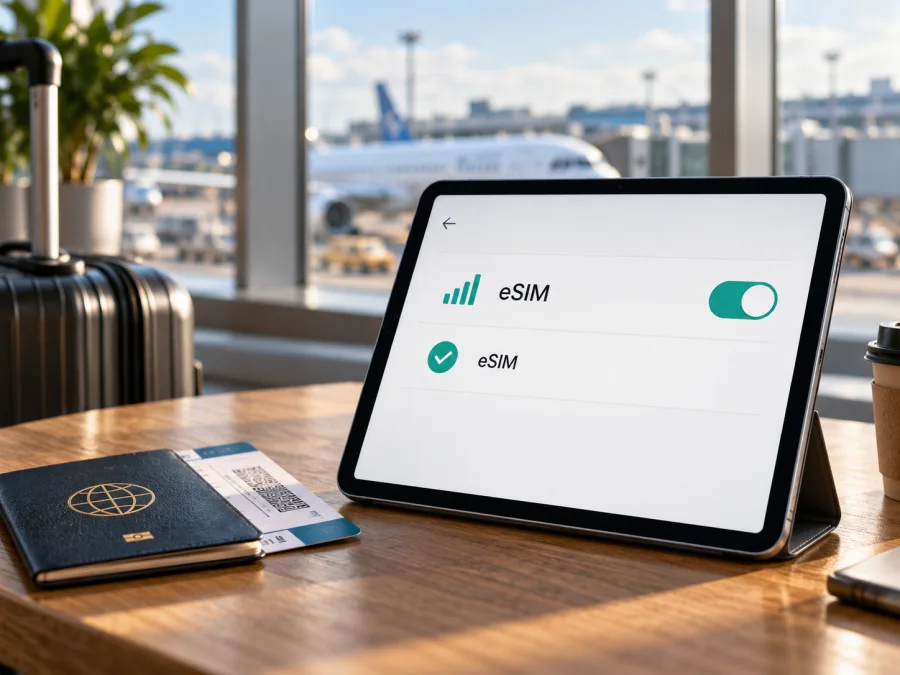
Apple iPad Pro 11-inch 2020 cellular 512GB 5G eSIM: compatibility and setup
Short answer: the 2020 Apple iPad Pro 11-inch Wi‑Fi + Cellular supports eSIM in markets and with providers that support it. However, the “5G” part of the requested device name does not match Apple’s specification for this generation: its cellular models are listed with Gigabit-class LTE, not 5G. The 512GB storage option does not change eSIM compatibility. A China-mainland regional model is a special case because Apple says eSIM is not available in China mainland.
Before buying a travel plan, confirm that the iPad is truly the Cellular model, identify its regional model number, and check that the provider supports eSIM data plans on iPad. A listing title alone cannot confirm the radio, region, carrier status or plan compatibility.
Compatibility at a glance
| Item | What to know |
|---|---|
| Requested variant | Apple iPad Pro 11-inch 2020 cellular 512GB 5G |
| Apple model family | iPad Pro 11-inch (2nd generation), introduced in 2020 |
| Storage | 512GB; storage size does not affect eSIM support |
| Cellular connection | Wi‑Fi + Cellular configuration; supported regional models have a nano‑SIM tray |
| eSIM | Supported on this generation’s Cellular model in supported markets and with participating providers |
| 5G | Not listed for the 2020 model; Apple lists Gigabit-class LTE |
| Regional caution | A2231 is the mainland-China Wi‑Fi + Cellular model; Apple states eSIM is unavailable in mainland China |
| Before purchase | Confirm A-number, add-plan setting or EID, carrier-lock status and provider support |
Apple lists 128GB, 256GB, 512GB and 1TB capacities for the 2020 11-inch iPad Pro. Its model guide identifies A2068 and A2230 as Wi‑Fi + Cellular versions and A2231 as the mainland-China version. Apple’s technical specifications list eSIM for the Cellular model, while noting that not all carriers support eSIM and that it is unavailable in mainland China. The same technical specifications list Gigabit-class LTE, not 5G.
Does this specific 512GB Cellular configuration support eSIM?
For a standard-market Apple iPad Pro 11-inch 2020 Wi‑Fi + Cellular, the answer is yes, where eSIM service is available and the plan provider supports iPad activation. Apple’s current eSIM setup guidance includes iPad Pro 11-inch models from the first through fourth generations, including the 2020 second generation. A phone plan is not automatically suitable for a tablet, so check the provider’s device requirements.
The 512GB figure describes storage, not a separate modem configuration. What can change compatibility is the exact model, region, carrier restrictions and local provider support. Apple identifies A2231 as the 2020 Cellular model for mainland China and states eSIM is unavailable in mainland China. If your iPad is A2231, confirm the device and intended activation market with Apple or the provider before purchase. A model’s support in one market does not mean a plan is available everywhere.
The requested name includes “5G,” but Apple lists Gigabit-class LTE for the 2020 Cellular model, not 5G. Do not pay a premium for 5G based only on a seller’s title. The 5GHz Wi‑Fi band is also different from fifth-generation mobile service. An eSIM adds a digital profile; it cannot upgrade the iPad’s modem. If 5G is essential, compare another generation’s exact model number with Apple’s specifications.
Identify the exact version
On the iPad, open Settings > General > About and find Model Number. If you initially see a part number, tap it to reveal the A-number. You can also check the small model identifier on the back. Compare it with Apple’s model guide rather than relying on a marketplace title.
For this generation, Apple identifies A2068 and A2230 as Wi‑Fi + Cellular models, A2231 as the Wi‑Fi + Cellular model for mainland China, and A2228 as Wi‑Fi only. If a seller claims Cellular but Settings shows A2228, it is not the cellular configuration. Before paying, also ask whether the iPad is carrier locked and whether the provider supports eSIM on that particular iPad. A used tablet may have account or hardware issues even if its model family supports eSIM.
Check for eSIM on the iPad
Menu labels can vary with iPadOS version and language. Use the following checks together:
- Connect to Wi‑Fi. A stable connection may be needed to download a profile. Keep the iPad charged.
- Open Settings. Look for Mobile Data or Cellular Data. A Wi‑Fi-only model does not have the same mobile-plan controls.
- Look for an add-plan option. In Mobile Data, check for Add New Plan, Add eSIM or a QR-code setup option.
- Check the device details. Open Settings > General > About and look for EID, an identifier associated with an embedded SIM. If present, it is useful evidence of eSIM hardware, but it does not guarantee that a specific provider or market will accept the device.
- Confirm the A-number and market. Check the model guide and, for A2231, the mainland-China limitation.
- Ask the provider. Give it the iPad’s generation, A-number and country of purchase. Confirm that its eSIM data plan can be installed on this tablet in your destination.
If neither EID nor an add-plan option appears, first confirm that the iPad is the Cellular model, restart it, install any available iPadOS update and check again. If the options are still missing, ask Apple or the seller to identify the device before buying a plan. An EID alone is not a promise of service; a cellular menu alone does not guarantee that a particular plan will activate.
Compatibility checklist
Before purchase, make sure that:
- [ ] The iPad is Wi‑Fi + Cellular, not Wi‑Fi only.
- [ ] The A-number matches the 2020 11-inch generation and its market is understood.
- [ ] Settings shows a way to add a plan, or an EID appears in About.
- [ ] The iPad is not locked to a carrier or restricted from adding another profile.
- [ ] The provider supports eSIM data plans on iPad in the destination.
- [ ] The plan covers every stop on your route and its validity matches your dates.
- [ ] You know when the plan starts and whether data roaming is required for that profile.
- [ ] You have Wi‑Fi or another connection available for installation and troubleshooting.
Check whether your device is compatible before choosing or paying for a plan. The device settings and current provider terms are the final checks.
Install and activate an eSIM
An eSIM is a digital profile downloaded to the iPad. Depending on the provider, setup may use a QR code, an app, an activation link or a manual code. Keep the provider’s instructions available while installing. If the QR code is displayed on the iPad itself, use another screen or the provider’s supported manual method; the iPad camera cannot scan its own display. Do not share the code or delete an installed profile unless the provider explains how it can be restored.
Before you begin, confirm compatibility, carrier status and plan terms. Check when validity starts: a plan may start at installation, activation or first connection, depending on its conditions. Do not assume that you can pause or reinstall a profile. Use reliable Wi‑Fi and keep the iPad powered during setup.
Add a plan with a QR code
- Open Settings. Go to Mobile Data or Cellular Data.
- Choose the add-plan option. Tap Add New Plan, Add eSIM or the QR-code option shown on your iPad.
- Scan the provider’s code. Hold the code on another display within the camera frame. Some iPadOS versions also let you touch and hold a QR code received by email or shown on a web page and choose Add eSIM.
- Enter a confirmation code if requested. Use the code supplied by the provider.
- Review the plan. Make sure the profile and destination match your purchase.
- Add the mobile plan. Follow the on-screen steps and wait for the profile to download.
- Label the eSIM. Choose a clear name such as “Travel data.”
- Choose when to use it. If you install before departure, keep your usual data line selected until you are ready, if the provider’s terms allow it.
For a general Apple-device flow, see the iOS eSIM installation instructions. The page describes iOS steps; iPad menu labels can differ slightly from iPhone. Follow the plan provider’s current method if it uses an app or activation link. The Android eSIM installation instructions apply to Android devices and are included for readers setting up a different device; their menu steps do not apply to this iPad.
Select the eSIM for mobile data
Installing a profile does not necessarily select it for data. When you are ready to connect, open Settings > Mobile Data, enable the travel eSIM and select it as the mobile-data line. Turn on data roaming for that profile only if the plan’s instructions require it. Check your home carrier’s roaming terms separately: enabling roaming for a travel eSIM does not mean you should enable it on your home line.
Review the selected line before using data. If the iPad offers automatic mobile-data switching, turn it off if you want to avoid an unintended switch to your regular plan. A travel data eSIM generally does not include a conventional phone number, voice calls or SMS unless the specific plan terms say otherwise. Internet calls and messages through apps can work over data.
A profile may appear installed before it registers on a network. At your destination, enable the travel line and allow a few minutes to connect. Some providers require automatic network selection; others may give instructions for selecting a network or entering an APN (access point name). Enter an APN only when the provider supplies it.
Use the iPad for mobile data while travelling
The Cellular iPad can connect directly to a supported data plan for maps, bookings, messaging, email and work when Wi‑Fi is unavailable. Before travel, check the plan’s destination list, data allowance, validity and activation timing. Install before departure only if the terms allow it. Some plans begin at installation or activation; others begin on first connection, so ask the provider if the start rule is unclear.
On arrival, turn off Airplane Mode, enable the travel profile and select it under Mobile Data. Turn on roaming for that profile if instructed. Open a web page to test, then briefly turn off Wi‑Fi to confirm cellular data is working. If there is no service, wait a few minutes before changing settings. Indoor signal can be weak and network registration may take time.
For a multi-country route, verify that the plan covers every stop and check its validity rules. Large downloads, video calls, cloud backups and hotspot use can consume data quickly; download maps and documents over Wi‑Fi where practical. The iPad’s 512GB storage is separate from a plan’s mobile-data allowance. Confirm hotspot support with the provider before relying on it.
Kaspersky eSIM Store is an app and website where travellers can choose, arrange and activate an eSIM with a data plan for a trip abroad. After checking your device, you can browse current eSIM plans for your destination. This is a starting point for current options, not a country-specific tariff page. The chosen plan’s terms determine where it works and when data use begins.
Practical scenarios
- Short city break: estimate use for navigation, bookings and messages. Hotel Wi‑Fi for large downloads may reduce the data you need.
- Work trip with several stops: confirm coverage in each country and restrict automatic uploads if you want to preserve data.
- Longer stay: compare validity with your dates, check top-up rules and ask before erasing the iPad; an active profile may not transfer.
- Connection sharing: check that the plan allows hotspot use. Tethered devices draw from the same allowance.
Common problems and checks
No “Add eSIM” option
Confirm the A-number and make sure the iPad is Wi‑Fi + Cellular. The Wi‑Fi-only A2228 cannot gain cellular capability through an update. Review the A2231 regional limitation if relevant, restart, update iPadOS and check again. If the setting remains absent, ask Apple or the seller to confirm the device before purchase.
QR code will not scan
Increase the brightness of the screen showing the code, clean the camera lens and hold the image steady. Verify that it belongs to this purchase and has not already been used. Show it on another screen or use a provider-supported method. Avoid repeated scans if the code is single-use.
Activation does not finish
Keep Wi‑Fi connected and wait for the on-screen process. Check that the plan has not already been installed on another device and that its destination and start date are correct. Note the exact error and contact the provider before deleting the profile; removal may prevent reinstallation.
Installed profile has no data
Check that Mobile Data is on, the travel profile is enabled and selected, the plan is active and you are in a supported destination. Enable roaming for the travel profile only if instructed. Briefly toggle Airplane Mode, then restart if needed. Keep the home plan’s roaming settings separate.
Signal appears but apps cannot connect
Check validity and remaining data. Turn Wi‑Fi off briefly to test cellular service. If the provider supplied an APN, compare it exactly; do not invent one. A device-management profile or network filter can also affect connections.
Connection is slow or unstable
This generation is LTE, not 5G. Speed depends on local coverage, network load, supported bands, plan conditions and surroundings. Try another location or wait and test again. If a seller promised 5G, recheck the model number and listing.
Plan works on a phone but not on the iPad
The provider may restrict the plan by device type or activation method. Give support the A-number and ask specifically about iPad eSIM. Do not assume a QR code can be reused to transfer a profile. When contacting support, have the iPadOS version, destination and exact error ready; never share your password or publish the QR code.
Frequently asked questions
Does the Apple iPad Pro 11-inch 2020 cellular 512GB 5G support eSIM?
The 2020 iPad Pro 11-inch Wi‑Fi + Cellular model supports eSIM where available and with participating providers. Apple lists 512GB as a storage option. Check the A-number and settings. The official specification is LTE, not 5G, so “5G” in the requested name is not a verified capability.
Is the 512GB Wi‑Fi-only version compatible?
No. A Wi‑Fi-only iPad lacks cellular hardware for a mobile-data plan. Storage size does not indicate eSIM support.
Can the mainland-China model use eSIM in mainland China?
Apple identifies A2231 as the China-mainland Cellular version and says eSIM is unavailable in mainland China. Confirm current device and destination rules with Apple and the provider.
Where can I find the EID?
Look under Settings > General > About. The EID may not appear in every software or menu state. Also check Settings > Mobile Data for an add-plan option. If both are absent, confirm the Cellular model and region with Apple or the seller.
Does a travel eSIM include ordinary calls and texts?
A travel data plan generally does not include a regular phone number, calls or SMS unless its terms explicitly say otherwise. Internet messaging and calls through apps can work over data.
Can an update add 5G or can I move the eSIM to another iPad?
No update can turn this generation’s LTE radio into a 5G modem. Do not assume an eSIM can be transferred either; provider and profile rules vary, and some codes are single-use. Ask before erasing the old iPad.
Check the device, then choose a travel plan
For the Apple iPad Pro 11-inch 2020 cellular 512GB 5G, confirm the actual A-number and Cellular configuration first. The 2020 Cellular generation supports eSIM under the right market and provider conditions, but its official mobile-network specification is LTE rather than 5G. Storage size does not change compatibility. Check for an EID or add-plan setting, carrier restrictions, destination coverage and plan terms before purchase.
When those details are clear, compare current options by destination, allowance and validity. Kaspersky eSIM Store’s app and website help travellers choose, arrange and activate an eSIM data plan for a trip abroad. Confirm that the selected plan supports your iPad and route, follow its setup instructions, and select it for mobile data when you are ready to use it.


