Travel connectivity guide
Apple iPad Pro 11-inch 2020 cellular 512GB eSIM
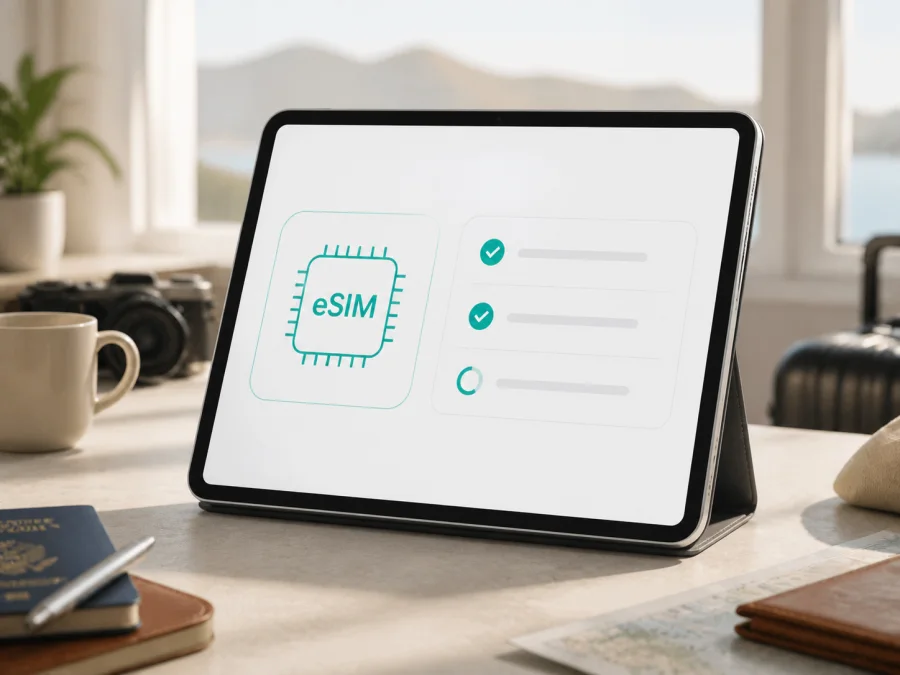
Apple iPad Pro 11-inch 2020 cellular 512GB eSIM: compatibility and setup
If you have an Apple iPad Pro 11-inch 2020 cellular 512GB, you can use an eSIM for mobile data when it is a Wi-Fi + Cellular model and the provider and region support the service. Apple’s 2nd-generation specifications list eSIM, a nano-SIM tray and a 512GB configuration.
The short answer is therefore yes, this exact cellular 512GB variant is designed to support eSIM. The storage capacity does not remove eSIM capability. The important qualification is the word “cellular”: a Wi-Fi-only iPad cannot add a mobile plan, even if its screen size, year and storage look identical. A second qualification is that a hardware-compatible iPad still needs a supported eSIM provider and a plan that is available in the country or region where you intend to use it.
What eSIM support means on this iPad
An eSIM is a digital SIM built into the device. It adds a mobile data plan without a physical card. On this iPad, a travel eSIM is normally for internet rather than a regular phone number, voice calls or SMS. It can support maps, email, browsing, cloud work, video calls and messaging apps that use data.
Key specifications
| Item | Apple iPad Pro 11-inch 2020 cellular 512GB |
|---|---|
| Device family | iPad Pro 11-inch (2nd generation, 2020) |
| Variant in this guide | Cellular / Wi-Fi + Cellular, 512GB |
| eSIM | Supported on the Wi-Fi + Cellular model, subject to provider and region |
| Physical SIM | Nano-SIM tray is listed for this generation |
| Cellular role | Mobile data; plan and carrier policies apply |
| Storage | 512GB configuration |
| Software | iPadOS; menu names can vary slightly by version and region |
Does the Apple iPad Pro 11-inch 2020 cellular 512GB support eSIM?
Yes, if the tablet is the Wi-Fi + Cellular hardware described above. Apple’s current iPad eSIM guidance includes the iPad Pro 11-inch Wi-Fi + Cellular models from the 1st through the 4th generation. Its 2nd-generation specifications list eSIM and 512GB, matching this 2020 cellular configuration.
That is device capability, not a guarantee that every plan will activate. Apple notes that not all carriers support eSIM. Providers can restrict activation by country, account, plan type or iPad policy, and a travel eSIM may be data-only. Confirm iPad activation before paying.
Regional and operator differences
Regional versions can have different model numbers or band sets. Check an imported or refurbished tablet on the device itself, not only by its shop title or box.
China mainland requires particular care: Apple says local eSIM activation there is available only on iPad models that support eSIM in China mainland. Do not treat the general 2nd-generation answer as a promise for every regional unit or local plan. Confirm the exact model and provider policy.
Operator support also varies: QR code, app, account and plan rules differ, and a phone plan may not be accepted by a tablet. If an eligibility checker asks for an EID, use this iPad’s EID, not its serial number or IMEI.
Compatibility check before buying a plan
Use the following checklist before ordering a travel eSIM. It separates the parts you can verify on the tablet from the parts that belong to the provider and the plan.
- [ ] The tablet is marked Wi-Fi + Cellular or has a Mobile Data / Cellular Data section in Settings.
- [ ] Settings > General > About shows an EID. Scroll down if it is not visible immediately.
- [ ] The settings page offers Add eSIM, Add Cellular Plan or comparable wording.
- [ ] The device is not locked by a carrier, enterprise profile or outstanding account restriction.
- [ ] iPadOS is updated to the latest version available for this iPad.
- [ ] You have a stable Wi-Fi connection for downloading the eSIM profile.
- [ ] The provider accepts iPad or tablet activation and supports eSIM in the destination.
- [ ] The plan is suitable for mobile data, with enough traffic and validity for the trip.
- [ ] You understand whether the plan starts at installation, first connection or another stated event.
- [ ] You know whether data roaming must be enabled for this eSIM at the destination.
How to find the EID and confirm the menu
- Open Settings.
- Tap General.
- Tap About.
- Scroll through the identifiers and look for EID.
- Note the Model Name, Model Number, IMEI and Modem Firmware if a provider’s support team asks for them.
- Return to Settings and open Mobile Data or Cellular Data.
- Look for a control such as Add eSIM, Add Cellular Plan or Set Up Cellular Data.
For a quick route to the device-side checks, use Check your device. The link does not replace the provider’s terms: a visible EID confirms an eSIM identity, but not that a particular tariff or market will accept it.
Prepare the eSIM for a trip
Match the eSIM plan and installation timing to the journey. Decide whether the iPad will be used in one country, across a region or on a route that crosses borders. Estimate traffic for navigation, messaging, video calls, cloud work and hotspot use.
Kaspersky eSIM Store is an app and website where you can choose, order and activate an eSIM with a suitable plan for mobile internet on an international trip. It helps you prepare the digital SIM and review the available direction, traffic amount, validity and purchase conditions. It is not a mobile operator, network owner or mobile-internet provider. Network access depends on the selected plan, its underlying local networks, the destination and the conditions shown at the time of purchase.
Before checkout, confirm the destination and scope. A country plan may not cover a neighboring country, and a regional plan can still have exclusions. Check whether the plan is prepaid, when validity begins, whether top-up is possible, what happens when traffic runs out, and whether iPad activation is supported.
How to install and activate eSIM on iPad Pro
Connect the iPad to Wi-Fi, keep it charged, and have the QR code or activation details ready. Read the plan’s activation rule first: installing a profile and starting validity are not always the same event.
Option 1: add the plan with a QR code
- Open Settings.
- Tap Mobile Data or Cellular Data.
- Tap Add eSIM or Add Cellular Plan.
- Choose the QR-code option if it is shown.
- Display the QR code on another device, or use the iPad camera when the plan instructions allow it.
- Scan the QR code.
- Tap Continue when the detected plan notification appears.
- Tap Add Cellular Plan or the equivalent confirmation button.
- Enter a confirmation code if the provider requests one.
- Wait while the eSIM profile downloads and activates.
Option 2: use a provider activation flow
Some providers assign a plan directly or activate it through their app. Open Settings > Mobile Data, choose the offered plan or Find a New Plan, and follow the prompts. Provider rules may limit transfer, so do not erase an old profile until the new connection works.
For a device-specific walk-through, see Apple iOS installation instructions. The page is useful for the iPadOS-style flow; Android steps are different, so the corresponding Android installation instructions are included for people preparing another device or sharing a plan workflow with a travel companion.
Select the eSIM for mobile data
After installation, open Settings > Mobile Data. Select the new profile, label it, turn it on and set it as the line for mobile data. If a physical SIM remains active, review mobile-data switching so the iPad does not fall back to the wrong line.
If required by the plan, enable Data Roaming for the travel eSIM. This may be necessary when the plan connects through a partner network. Change it only for the intended profile, then turn Wi-Fi off briefly and load a web page.
Activation may take a few minutes. A plan can appear in Settings before network registration. Restart or briefly toggle Airplane Mode if recommended, and do not repeatedly scan a single-use QR code.
Using the iPad in a travel scenario
Before leaving
Complete the EID and add-plan check at home on reliable Wi-Fi. Order only after confirming compatibility. Install according to the validity rule, label the profile, and leave the original profile untouched until the travel eSIM works. Keep purchase details and essential travel information accessible offline.
At the airport or after arrival
At arrival, select the travel eSIM under Mobile Data, turn it on and enable data roaming if required. Turn off data for the home profile if you want to avoid using it. Wait for registration, then test a simple web page. If first connection starts validity, test only when ready to use the plan.
During a multi-country route
Before crossing a border, confirm that the plan includes the next country. A regional eSIM may continue automatically, while a country plan may need another profile. If service stops, confirm the selected line, remaining traffic and destination coverage before assuming that the eSIM failed.
When you need a larger screen or hotspot
Navigation, remote work and video calls can consume data quickly. Review Settings > Mobile Data and disable nonessential background access. Personal Hotspot depends on the plan and provider, so confirm it is allowed before tethering and monitor the balance.
Common problems and fixes
“Add eSIM” is missing
Confirm that the iPad is cellular, not Wi-Fi-only. In Settings > General > About, look for an EID, then update iPadOS and restart. If the EID is absent, verify the model number and regional configuration before buying another QR code.
The QR code will not scan
Display the full code on another bright screen and use Settings > Mobile Data > Add eSIM when that option is available. Check that the code belongs to this purchase and has not been used. Never publish activation details.
The profile downloads but there is no connection
In Settings > Mobile Data, turn on the travel eSIM and select it for data. Check whether data roaming is required, toggle Airplane Mode, restart if needed, and test with Wi-Fi off. Confirm destination, validity and remaining traffic before contacting the provider with the error, EID and model details. Do not delete the profile unless support advises it.
The connection is slow or unstable
Signal, indoor coverage, local load, radio bands and the plan’s partner network can affect performance. Move to an open area, let the iPad select a network automatically and test again. A speed result is not a promise of future performance.
The provider rejects the device
Ask whether the plan accepts iPad, this regional model and data-only activation. Confirm that the tablet is not carrier-restricted. An eSIM-capable iPad cannot override a provider’s eligibility rule.
FAQ
Can I use eSIM on the Apple iPad Pro 11-inch 2020 cellular 512GB?
Yes. This exact 512GB cellular configuration belongs to the 2nd-generation iPad Pro 11-inch family that Apple documents with eSIM support. Confirm the EID and Mobile Data controls on the actual tablet, then verify the selected provider and region.
Is the 512GB version different from other capacities for eSIM?
No capacity-based eSIM limitation is listed for this generation. The key distinction is Wi-Fi + Cellular versus Wi-Fi-only, followed by region and provider policy.
Does eSIM give the iPad a normal phone number?
Usually not for a travel data plan. Voice calls, SMS and a regular number are included only when the chosen service says so. Messaging apps can work over mobile data.
Can I install the eSIM before the flight?
Often yes, but the plan decides when validity or traffic use begins. If first connection starts validity, keep the travel line off until ready; if online activation is required, complete it on Wi-Fi.
Why does the region matter if the iPad has an EID?
An EID confirms an eSIM identity, not universal service. Regional hardware, local rules and provider eligibility can still limit activation. China mainland has additional model-specific restrictions.
Can I move the activated eSIM to another iPad?
Do not assume that you can. Transfer and QR-code reuse depend on the provider. Ask support before deleting or moving an active profile.
What information should I give support?
Provide the error, model name and number, EID when requested, iPadOS version, destination, selected data line and test conditions. Do not send a QR or activation code publicly.
Conclusion
The Apple iPad Pro 11-inch 2020 cellular 512GB supports eSIM as a Wi-Fi + Cellular 2nd-generation iPad Pro. Verify the EID and add-plan menu, confirm provider and regional eligibility, then select the travel eSIM for Mobile Data and monitor the profile during the trip.
Device check and trip eSIM
Before you buy, run the complete device check: confirm Wi-Fi + Cellular, find the EID under Settings > General > About, locate Add eSIM under Mobile Data, and verify that the tablet is not restricted by a carrier or regional rule. Then choose an eSIM plan for the countries on your itinerary, with a traffic allowance and validity period that fit your use. Kaspersky eSIM Store helps you select, order and activate that eSIM through its app or website for mobile internet during an international trip. It does not act as a carrier or provide the underlying network. If all checks pass, install the profile over Wi-Fi, activate it at the right time, select it for mobile data and keep the plan details available while you travel.


