Travel connectivity guide
Apple iPad Pro 11-inch 2020 cellular eSIM
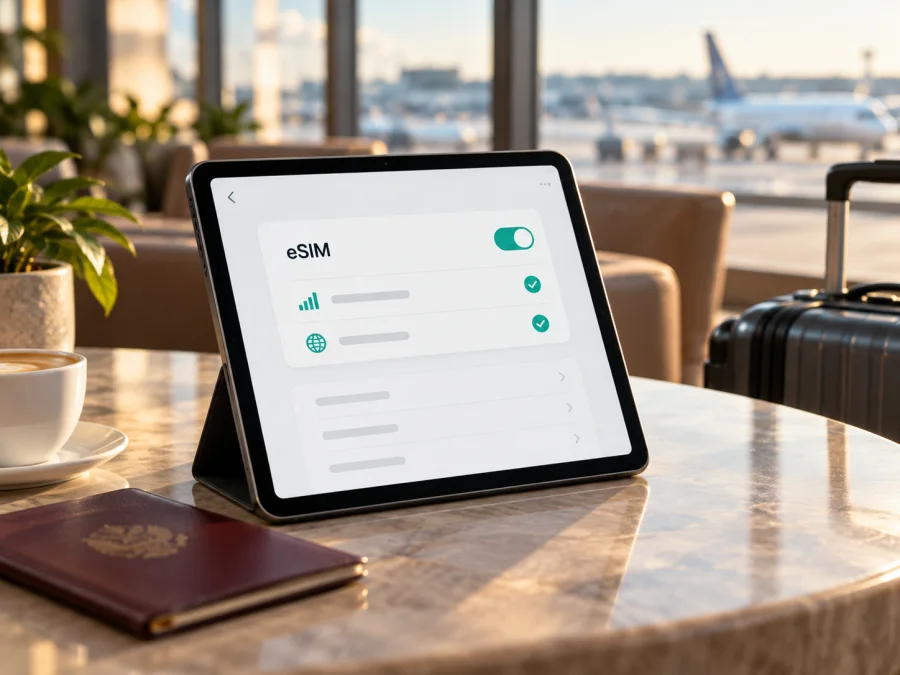
Apple iPad Pro 11-inch 2020 cellular eSIM: compatibility and setup
The Apple iPad Pro 11-inch 2020 cellular can use eSIM for mobile data when it is a Wi‑Fi + Cellular model and the eSIM service is supported for that device, location and plan. The Wi‑Fi-only version does not have cellular service or eSIM. For the 2020 Wi‑Fi + Cellular family, Apple identifies model numbers A2068 and A2230 for general markets, and A2231 as the China mainland model. Regional availability matters: Apple’s specifications state that eSIM is not available in China mainland, while its model guide separates the China mainland SKU from other cellular versions. Check the model number and the actual Cellular Data settings on the iPad before choosing a plan.
Compatibility at a glance
| Item | Apple iPad Pro 11-inch 2020 cellular |
|---|---|
| Generation and year | 2nd generation, introduced in 2020 |
| Cellular configuration | Wi‑Fi + Cellular; Wi‑Fi-only models are not compatible with eSIM |
| Cellular SIM options | eSIM and a physical nano‑SIM tray on supported versions |
| International eSIM status | Supported on the Wi‑Fi + Cellular generation, subject to region, provider and plan |
| Known model identifiers | A2068 and A2230 for Wi‑Fi + Cellular; A2231 is listed for China mainland |
| China mainland limitation | Apple says eSIM is not available in China mainland; its China mainland eSIM support list does not include this 2020 generation |
| Mobile network | LTE cellular data; this 2020 model is not a 5G iPad |
| Best first check | Settings → General → About, then Cellular Data settings |
The short answer
If your iPad is the Wi‑Fi + Cellular version from the 2020 generation, eSIM is supported for compatible mobile-data plans in markets where the service is available. If the device is Wi‑Fi-only, eSIM is not supported. If it is a China mainland version, do not assume that an eSIM can be activated while in China mainland: Apple lists that region as unavailable for eSIM on this generation. When travelling elsewhere, confirm support for the specific A-number and provider rather than relying on the model name alone.
Identify the exact version before you buy a plan
Check the iPad itself rather than a listing title, box description or seller’s shorthand. On the device, open Settings → General → About. Locate Model Number. It may first show a part number; tap it to reveal the A-number, such as A2068, A2230 or A2231. Compare that with the model printed on the rear case and any purchase documentation. If the settings screen and case do not agree, use the information shown in Settings and ask Apple or the seller to clarify the device history.
Some device checkers use the EID, a unique identifier for the embedded SIM. On iPad, check Settings → General → About for an EID entry if one is shown. Its presence is useful evidence that the device has an eSIM component, but it does not prove that the iPad is unlocked, eligible for a given plan, or permitted to register on a network in your destination. If EID is absent, first confirm the A-number and that the device is actually Wi‑Fi + Cellular; also install available iPadOS updates and restart before checking again. Do not publish or send an EID unnecessarily: it identifies the device’s eSIM hardware.
Compatibility checklist
Before ordering, go through each item:
- [ ] The About screen identifies a 2020 iPad Pro 11-inch Wi‑Fi + Cellular model, not the Wi‑Fi-only A2228.
- [ ] The A-number matches the regional version you intend to use. A2068 and A2230 are listed as Wi‑Fi + Cellular models; A2231 is identified as the China mainland version.
- [ ] Settings shows Cellular Data and an eSIM-related add or plan option, or an EID is available in About.
- [ ] The device is not restricted by a carrier or account lock. Ask the original carrier or seller if you cannot confirm this in settings.
- [ ] The eSIM provider confirms support for this iPad model and for the country or region where you will use the plan.
- [ ] The plan is for mobile data and its coverage area, validity period, activation conditions and data allowance fit your trip.
- [ ] You have Wi‑Fi or another internet connection available during installation, plus access to the QR code, app or activation details supplied for the plan.
For a broader device check, use Check your device before you commit to a travel plan. A compatibility result is a starting point; verify the A-number and the chosen provider’s current requirements as well.
Regional versions and network restrictions
A2068 and A2230 are the A-numbers Apple associates with the 2020 Wi‑Fi + Cellular model in its general model guide. A2231 is listed separately as the China mainland Wi‑Fi + Cellular version. Do not interpret “China mainland model” as a universal statement about eSIM use everywhere; distinguish the location where you are trying to activate service from the device’s sales region. For activation in China mainland, Apple’s current guidance restricts eSIM to a short list of newer iPads and names China Unicom as the supported provider for those models. The 2020 iPad Pro 11-inch is not on that list. For use outside mainland China, confirm the specific iPad and plan with the provider before payment; do not infer eligibility from a plan advertised for phones or from an overseas seller’s description.
Install and activate an eSIM
The provider’s instructions determine the exact activation route. You may receive a QR code, an in-app flow, a carrier activation notification or a link. Keep the iPad connected to Wi‑Fi and follow the provider’s directions in order. Avoid scanning a QR code more than once unless the provider confirms it can be reused; many activation codes are intended for one installation.
- Confirm the device and plan. Check the A-number and Cellular Data menu. Verify that the plan covers your destination, accepts an iPad and is not restricted to a different model or market.
- Prepare the connection. Connect to stable Wi‑Fi, charge the tablet, and update iPadOS if an update is available. Keep the provider’s QR code or activation details accessible on another screen or in printed form so the iPad camera can scan it.
- Open cellular settings. Go to Settings → Cellular Data or Mobile Data. Choose Add eSIM, Add Cellular Plan or the option that corresponds to the provider’s instructions. The wording can vary.
- Add the profile. Scan the provider’s QR code, follow the link, or use the provider’s app or activation flow. If a confirmation code is requested, enter the one supplied by the provider. Review the plan name and any prompts before continuing.
- Wait for installation to finish. Keep the iPad online and do not close the settings screen while the profile is being added. When installation completes, the new plan should appear in Cellular Data settings. The profile being installed does not always mean its data allowance has started; check the plan’s activation rules.
- Choose the data line. If more than one plan is stored, select the travel plan for cellular data. For a trip, you can label it “Travel” or with the destination to make it easier to recognise. Keep your home plan available only if you need it and understand its roaming charges.
- Set data roaming if required. Open the travel plan’s settings and enable Data Roaming only if the provider’s instructions require it. Some travel eSIMs connect through a partner network and need roaming enabled; other plans may use a different configuration. Follow the plan’s directions instead of changing this setting at random.
- Test the connection. Turn off Wi‑Fi briefly, confirm the cellular indicator appears, and open a simple webpage or map. If the plan is intended to start on arrival, wait until you reach its coverage area before deciding it has failed. Turn Wi‑Fi back on afterward if you need to conserve cellular data.
For more device-specific help, see the iOS eSIM installation instructions. The Android eSIM installation instructions are intended for Android devices; the iPad uses iPadOS, so follow the iOS guide and the instructions provided with your plan.
Installation is not the same as plan activation
Installing the profile and starting the data allowance may be separate events. Check the plan’s start condition and validity before installation. Do not delete a working profile to restart a plan unless the provider advises it; the code may not be reusable.
Use the iPad for mobile data on a trip
An 11-inch tablet is convenient when you need a larger screen for navigation, bookings, work documents or video calls. A travel data eSIM can keep those tasks connected when Wi‑Fi is unavailable, provided that the selected plan covers the places you visit. Before departure, choose the country or regional coverage that matches your itinerary, estimate how much data you will use, and compare the plan’s validity with your travel dates. A short stopover and a multi-country journey may need different coverage choices.
Kaspersky eSIM Store is an app and website where travellers can choose, arrange and activate an eSIM with a suitable mobile-data plan for an international trip. Review the destination, data amount, validity and activation information shown for the plan. The plan’s network access and coverage are determined by the relevant provider and its local network arrangements, not by the tablet brand. The iPad’s eSIM is for mobile data in this context; it does not automatically give the device a standard phone number, voice calling or SMS. Messaging and calling apps may use the internet, subject to each app’s setup and account requirements.
Explore Kaspersky eSIM Store to review eSIM options for an international trip.
For example, before a week-long trip, you might install the profile at home over Wi‑Fi, leave it turned off until travel, and enable it when you reach the destination if the provider’s terms allow that timing. For a route across several countries, verify whether the plan covers every stop rather than assuming that a country plan follows you across a border. For work that uses video calls or cloud files, check likely data use and keep large downloads on Wi‑Fi. For a brief visit, an existing mobile provider’s roaming option may be more convenient; compare its terms with the travel eSIM details available to you.
Troubleshooting: what to check first
There is no Cellular Data menu. Confirm that the iPad is a Wi‑Fi + Cellular model. The Wi‑Fi-only A2228 does not support cellular service. In Settings → General → About, verify the A-number and check the device description. Restart and install any available iPadOS update. If the iPad is cellular but the menu remains missing, ask Apple or the seller to inspect the device rather than assuming a plan will add cellular hardware.
There is no Add eSIM option or EID. Check the exact regional version, especially if the device is A2231 or was sold for China mainland. Recheck after updating iPadOS and restarting. Confirm that you are looking under Cellular Data and not only at the physical SIM tray. If the interface remains absent, share the A-number (not unnecessary personal information) with Apple Support or the provider and ask whether that version can activate their specific plan in your current country.
The QR code is not recognised. Make sure it belongs to the plan you selected, the camera can focus, and the code is displayed clearly on another screen. Check whether the provider expects a confirmation code, a link or its own app instead. If the code was already used, do not keep retrying; ask the provider whether it can be reissued. Some iPadOS versions also let you touch and hold an eSIM QR image received in an email or webpage to start adding it.
The profile installs but there is no internet. Select the travel plan as the cellular data line, check that the plan is active and that the iPad is inside the coverage area. Turn off Wi‑Fi briefly to test cellular data. Review Data Roaming, APN or network-selection settings only against the provider’s instructions; some plans configure these automatically. Check for an exhausted allowance, expired validity, an activation date that has not arrived, or a provider-side restriction.
Activation is stuck or fails with an error. Keep Wi‑Fi connected, verify the iPad’s date and time are set automatically, restart once, and try the provider’s recommended method. Do not erase the device or delete the profile as a first step. Record the exact message and contact the provider with the plan reference and device A-number. The provider can confirm whether the profile was issued, whether it was already activated, and whether the plan supports this tablet in the destination.
Frequently asked questions
Does Apple iPad Pro 11-inch 2020 cellular support eSIM?
Yes, the Wi‑Fi + Cellular model supports eSIM, alongside a physical nano‑SIM tray, subject to provider and regional availability. The Wi‑Fi-only version does not support eSIM. Confirm the A-number and the Cellular Data settings on the tablet you own.
Is eSIM available on the China mainland version?
Apple identifies A2231 as the China mainland Wi‑Fi + Cellular model and says eSIM is not available in China mainland for this generation. The current mainland China eSIM list is limited to newer iPad models and does not include the 2020 iPad Pro 11-inch. For use outside China mainland, check the specific A-number and the chosen provider’s requirements before purchasing.
Does this iPad use 5G?
No. Apple’s 2020 iPad Pro 11-inch Wi‑Fi + Cellular specification lists LTE and earlier cellular technologies. It is not a 5G model, so a 5G plan cannot make the tablet connect to 5G.
Should I install the eSIM before the trip?
Often it is convenient to install while you have stable Wi‑Fi, but timing depends on the plan. Read when the validity period begins and whether the profile should be enabled before or after arrival. Installation and the start of the data allowance are not necessarily the same event.
Before you choose a travel eSIM
The compatibility answer for Apple iPad Pro 11-inch 2020 cellular is positive for the Wi‑Fi + Cellular generation in supported markets, with important regional and provider conditions. Verify that the device is cellular, read its A-number in Settings, confirm the EID or eSIM add option where available, and check that the plan accepts this iPad in the exact country or region where you will connect. Pay particular attention to the China mainland restriction and the A2231 regional version.
Once those checks are complete, compare the trip’s coverage area, data allowance, validity and activation instructions. Kaspersky eSIM Store lets you choose, arrange and activate an eSIM plan for mobile data during an international trip. Confirm your device and the plan’s terms before purchase, then follow the installation steps for iPadOS and test the connection when the plan is expected to work.


