Travel connectivity guide
Apple iPad Pro 11-inch 5G 1TB eSIM Compatibility
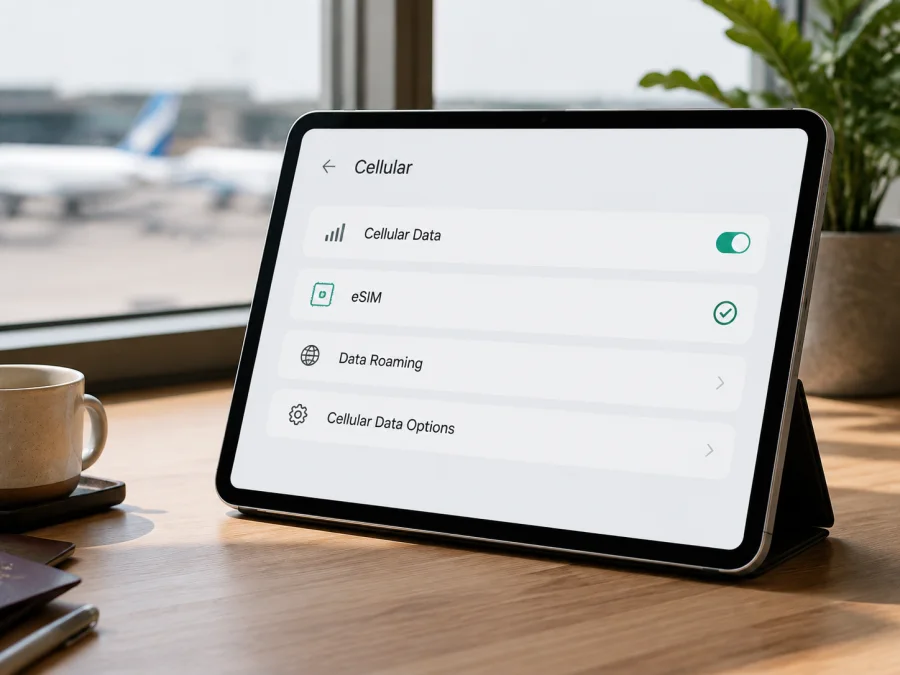
Apple iPad Pro 11-inch 5G 1TB eSIM: compatibility and setup
If you are checking whether Apple iPad Pro 11-inch 5G 1TB can use an eSIM on a trip, the practical answer is yes when it is a supported Wi‑Fi + Cellular model. Apple’s current iPad documentation lists eSIM support for 11-inch iPad Pro Wi‑Fi + Cellular models, including the 1st through 4th generation and later M4 and M5 models. Storage capacity does not decide compatibility; cellular hardware, generation, market, and carrier do.
What the device name means
Keep every modifier in Apple iPad Pro 11-inch 5G 1TB when you search, compare a listing, or contact support:
| Detail | Relevance to eSIM |
|---|---|
| Apple iPad Pro | Product family; it does not identify a generation. |
| 11-inch | Display-size family with several Pro generations. |
| 5G | Points to cellular capability in the supplied name; the exact model and bands still depend on the unit. |
| 1TB | Storage capacity; it does not add or remove eSIM hardware. |
| Wi‑Fi + Cellular | The configuration needed for mobile-data service; verify it in Settings. |
| eSIM | A digital SIM profile activated without a physical SIM when supported. |
Does Apple iPad Pro 11-inch 5G 1TB support eSIM?
Yes, the supported Wi‑Fi + Cellular 11-inch iPad Pro family supports eSIM according to Apple’s current manufacturer information. Apple names 11-inch iPad Pro 1st through 4th generation and 11-inch M4 and M5 Wi‑Fi + Cellular models, and its specifications list eSIM for the cellular configuration.
This is not a promise that every device bearing a similar retail name will activate every plan. Apple states that eSIM is not available in all countries and regions and that not all carriers are supported. China mainland has an additional qualification: local-carrier activation is limited to iPad models that support eSIM there, so the exact model and carrier must be checked. Imported stock, carrier locks, organisation management, market-specific rules, or a different generation can change the available activation route.
An eSIM here is for cellular data, not automatically normal telephone service. Unless the tariff says otherwise, do not expect a phone number, ordinary voice calls, or SMS. Maps, email, translation, booking, messaging, and internet calling can work through data.
Check your device compatibility
Run this checklist on the exact iPad rather than relying on a seller’s title or a picture of another model:
- Confirm that the iPad is an 11-inch iPad Pro and record its model number in Settings > General > About.
- Confirm that it is Wi‑Fi + Cellular, not Wi‑Fi-only. Cellular-data controls should be visible in Settings.
- In Settings > General > About, look for an EID. Do not post the full EID publicly; share it only through a provider’s secure support process when required.
- In Settings > Cellular Data, look for Add eSIM, Add a New Plan, or equivalent wording.
- Check that a carrier lock or organisation management profile does not prevent adding a plan.
- Connect to reliable Wi‑Fi before installation and check for an appropriate iPadOS update.
- Check the chosen tariff’s destination, allowance, validity, activation rules, hotspot policy, and refund conditions.
- Confirm that the tariff supports iPad or tablet activation, especially for an imported iPad or phone-only plan.
Find the EID
- Open Settings.
- Tap General.
- Tap About.
- Scroll to EID.
The EID is different from the serial number, IMEI, Wi‑Fi address, and model number. If an EID is shown but Add eSIM is missing, investigate the market, provider, carrier restriction, profile type, or management status instead of assuming that any eSIM will work.
If the eSIM menu is missing
First check whether Cellular Data exists at all. If Settings shows only Wi‑Fi controls, the unit may be Wi‑Fi-only or misidentified. If Cellular Data exists but adding a plan is unavailable, restart the iPad, check for an update, and look for a carrier or organisation restriction. A market or provider may offer a different activation path.
Do not purchase a non-refundable tariff solely because a listing says “5G.” Keep the exact device name, model number, country of purchase, and any non-sensitive error message ready for support. Keep the EID and QR code private.
The on-device check is important because product listings often combine family names, capacity, network generation, and regional sales labels. A listing can describe a cellular family without proving that the particular unit exposes the same activation options. Record the model number, review Cellular Data, and protect the EID and QR code. If the result is unclear, keep the exact device name and model number together when asking for help. Do not treat a listing title or storage size as a substitute for on-device checks. For a short reminder, Check your device before you commit to a tariff. An EID and eSIM menu are strong signs, but provider, destination, and regional conditions still need to match.
What to check before choosing an eSIM tariff
Compatibility is only the first decision. Kaspersky eSIM Store is an app and website where users can choose and activate an eSIM with a suitable tariff for mobile internet during an international trip. It is not a mobile operator or network owner; it is not a mobile-internet provider. Network and service conditions come from the provider behind the selected tariff.
Start with geography. A country tariff may fit a single-country holiday; a regional tariff may suit a route across borders. Confirm every stop, including islands and transit points. Availability, network selection, coverage, and speed can vary by destination and local conditions.
Estimate data use. Navigation, messages, email, and browsing generally require less data than video calls, streaming, backups, or hotspot use. Restrict automatic downloads and choose a reasonable margin. No tariff is universally cheapest or best; suitability depends on the route and habits.
Read activation wording carefully. A profile may be installed before departure but start validity or data use only under a stated condition, such as connection to a supported network. Keep the QR code available and do not delete a working profile unless reinstalling is allowed.
How to install an eSIM on Apple iPad Pro 11-inch 5G 1TB
Use stable Wi‑Fi, sufficient battery, and the provider’s QR code, app flow, or manual details.
1. Prepare the iPad
Connect Apple iPad Pro 11-inch 5G 1TB to Wi‑Fi and power. Confirm the EID and Add eSIM checks. Display the QR code on another screen.
2. Open cellular-data settings
Open Settings and tap Cellular Data. For a first plan choose Set Up Cellular Data; for an existing plan tap Add a New Plan. Wi‑Fi access alone does not install an eSIM.
3. Add the profile
Choose the QR-code option and place the code inside the camera frame. For manual details, type the values exactly as supplied.
4. Confirm the plan
Read the plan label and conditions, check the destination, then tap Continue or Add Cellular Plan. If a previous attempt may have created a profile, inspect Settings before scanning again.
5. Label the eSIM
Use a clear label such as “Trip data” or the destination. A label distinguishes the travel profile; it does not change the tariff.
6. Select the data line
In Settings > Cellular Data, select the new eSIM for cellular data. Apple says an iPad can store more than one eSIM but uses only one at a time.
7. Set the activation moment
If installed before departure, leave the profile off or follow the tariff’s instructions until the intended start. If data roaming is required, enable it only for the travel eSIM. Validity depends on the selected tariff.
For platform-specific background, see the Android installation instructions and the iOS installation instructions. An iPad uses iPadOS menus, so follow the labels on your iPad.
Activate and use eSIM data while travelling
Install before departure when possible, while dependable Wi‑Fi is available. Keep the home profile if needed, but select the travel eSIM under Cellular Data when you want to use it. An installed profile that is not active can be normal if the tariff starts on first supported-network connection.
After landing, open Settings > Cellular Data and select the travel eSIM. Turn on Cellular Data. If required by the tariff, open Cellular Data Options and enable Data Roaming for that profile. Be careful not to enable roaming on the home line. Decide whether to allow cellular-data switching; turning it off can prevent accidental use of another line.
Allow several minutes for registration. Network availability, activation status, signal conditions, destination, and provider rules all matter. Test with a small webpage before video or cloud backup. If an APN is required, use only values supplied for that tariff.
Practical scenarios:
Arrival and navigation. Use the travel eSIM for maps, transport, translation, bookings, and messages after leaving airport Wi‑Fi. Download offline maps before departure where possible.
Work trip. Email, documents, meetings, and collaboration can work over mobile data; restrict large synchronisation and video when the allowance is limited.
Multi-country route. Confirm each border crossing is covered. Switch profiles in Settings > Cellular Data and retain an unused profile unless the terms say otherwise.
Shared connection. Personal Hotspot may depend on the provider. Check the tariff first and monitor the allowance if tethering is allowed.
Return home. Select the usual data plan, disable travel-profile roaming, and decide whether to retain the travel profile.
Troubleshooting common eSIM problems
The QR code will not scan
Increase the display brightness, clean the camera area, and hold the code steady. Check that it belongs to this tariff and has not already been used. Try another display or manual entry if provided. Do not crop, edit, or reuse a code issued for another device.
Add eSIM is missing
Check for an EID and Cellular Data. Verify the model number, restart the iPad, and check for an appropriate iPadOS update. If Apple lists eSIM for the family but the menu remains absent, ask the seller or provider to confirm the regional configuration and restrictions.
The profile installs but there is no data
Select the travel eSIM under Cellular Data and confirm that Cellular Data is on. Check the destination, activation status, allowance, and validity. Enable Data Roaming for the travel profile only if required. Toggle Airplane Mode once, wait for registration, and restart if necessary. Contact support with the model, iPadOS version, and error wording, but never share the full EID or QR code publicly.
Data is using the wrong line
Open Settings > Cellular Data and select the intended eSIM. Give profiles distinct labels and turn off automatic switching if you want one fixed data line. Check that the home plan’s roaming is disabled when that is your preference.
The iPad is locked or managed
A carrier lock, organisation profile, unpaid device balance, or activation restriction can prevent a new plan. The relevant carrier, seller, or administrator must resolve it. Do not buy another tariff until the restriction is clear.
FAQ
Is Apple iPad Pro 11-inch 5G 1TB an eSIM device?
The supported Wi‑Fi + Cellular 11-inch iPad Pro family supports eSIM according to Apple’s current documentation, including 1st through 4th generation and M4/M5 cellular models. Verify the individual iPad with its EID and Cellular Data settings because the supplied name does not state the generation or market.
Does 1TB storage affect eSIM support?
No. Storage does not add or remove embedded-SIM hardware. Cellular configuration, generation, regional availability, carrier support, and restrictions matter.
Does an eSIM provide a phone number?
Not normally. Travel eSIM tariffs in this context are for mobile internet. Voice calls, SMS, and a regular phone number are not included unless the specific tariff says so. Internet messaging and calling apps can work through data.
What if Apple supports my model but the tariff does not activate?
Apple support means that the device can expose the required capability; it does not guarantee that every carrier or tariff supports every iPad. Confirm tablet compatibility, destination, activation method, market restrictions, and account status with the provider.
Key takeaways
Apple iPad Pro 11-inch 5G 1TB can be eSIM-compatible when it is the supported Wi‑Fi + Cellular configuration. Apple lists 1st through 4th generation and M4/M5 cellular models, but the supplied name does not identify the generation or market. Verify EID, Cellular Data, Add eSIM, and lock status, then check the trip tariff’s destination, allowance, validity, and activation moment.
Final device check and trip eSIM choice
Before paying for a tariff, complete this sequence:
- Confirm the exact device is Apple iPad Pro 11-inch 5G 1TB and record its model number.
- Confirm Wi‑Fi + Cellular hardware, an EID, and an Add eSIM or equivalent option.
- Confirm that the device is not carrier-locked or organisation-managed.
- Confirm the destination, route, allowance, validity, activation moment, and tablet compatibility of the chosen tariff.
- Connect to Wi‑Fi, install the profile, and keep the QR code or activation details available until setup is complete.
- At the destination, select the travel eSIM for Cellular Data and check roaming and data use before browsing heavily.
Once these checks pass, Kaspersky eSIM Store can help you choose and activate an eSIM tariff for mobile internet during your international trip. Review the selected direction’s conditions before relying on the connection abroad.


