Travel connectivity guide
Apple iPad Pro 11-inch 5G 256GB eSIM Guide
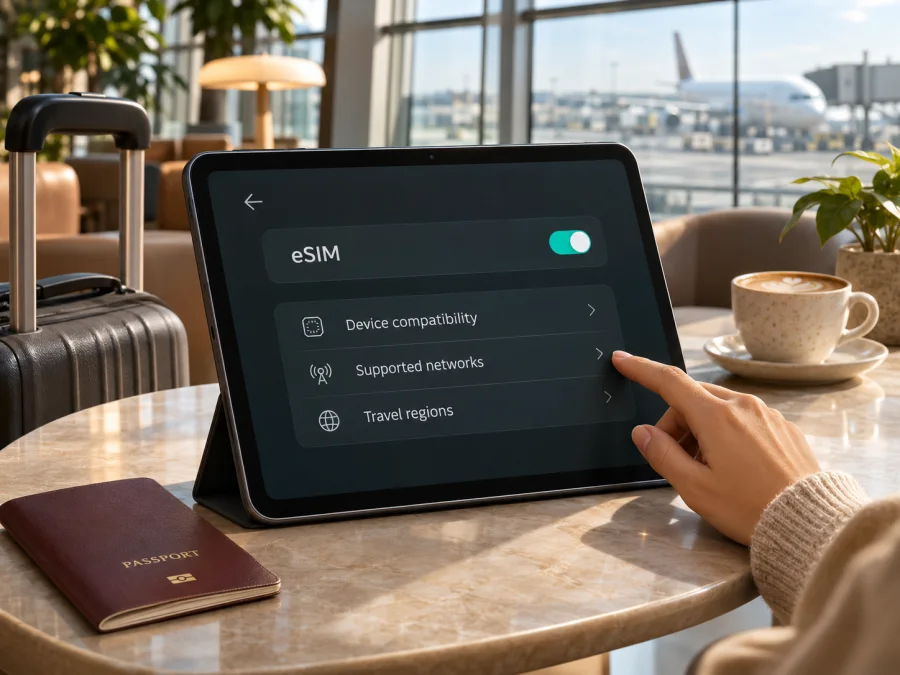
Apple iPad Pro 11-inch 5G 256GB eSIM: compatibility, setup and travel use
If you are checking whether Apple iPad Pro 11-inch 5G 256GB can use an eSIM, the practical answer is: the Wi‑Fi + Cellular 5G version of the iPad Pro 11-inch supports eSIM, but the product wording alone does not identify its generation, exact model number, sales region or carrier status. Confirm those details on the iPad before choosing a plan. The 256GB storage capacity does not determine cellular or eSIM support. A Wi‑Fi-only iPad Pro, even with the same screen size and storage, cannot add a mobile data plan.
Apple’s current Support article Set up eSIM on iPad lists Wi‑Fi + Cellular iPad Pro 11-inch models from the 1st through 4th generations, as well as M4 and M5 versions, as eSIM-capable. Apple’s SIM-type guide separates these by generation and market: some newer cellular variants are eSIM-only, while other listed generations support both eSIM and nano-SIM. Apple also says eSIM availability depends on country, region and carrier. These statements were checked on 3 November 2026. Since “5G 256GB” can refer to more than one generation, use your iPad’s model number and Settings screen as the final check rather than inferring a year from the storage size.
| Item | What can be said about this configuration |
|---|---|
| Device name supplied | Apple iPad Pro 11-inch 5G 256GB |
| Form factor | 11-inch iPad Pro; the supplied name does not specify a generation or chip |
| Storage | 256GB; storage does not establish SIM capability |
| Cellular wording | “5G” indicates the cellular family is intended, but confirm that the actual unit is Wi‑Fi + Cellular and not a Wi‑Fi-only listing with an inaccurate description |
| eSIM status | Apple lists cellular iPad Pro 11-inch from generations 1–4 and M4/M5 as eSIM-capable; exact availability still depends on model, region and carrier |
| Physical SIM | Depends on generation and sales region; newer M4/M5 versions are eSIM-only in Apple’s current guidance, while earlier cellular generations can support eSIM and nano-SIM |
| Mobile data | A compatible iPad data plan is required; an eSIM data plan does not automatically provide a standard phone number, voice service or SMS |
Does Apple iPad Pro 11-inch 5G 256GB support eSIM?
For the matching Wi‑Fi + Cellular model, yes: Apple’s support list explicitly includes iPad Pro 11-inch Wi‑Fi + Cellular from the 1st to 4th generation and the M4 and M5 cellular versions. The entry is about the family of cellular models, not every iPad that happens to be called “11-inch” or have 256GB. The Wi‑Fi-only model has no cellular modem and cannot use an eSIM for mobile data.
The task name does not say “Wi‑Fi + Cellular,” a generation, an Apple model number or a country of purchase. That leaves an important gap. A marketplace listing can shorten the name or reuse “5G” loosely, and 256GB is offered in several iPad Pro generations. Treat the name as a search description, then verify the hardware you will actually use. If Settings shows a cellular data panel and an EID, that is strong confirmation that the iPad contains eSIM hardware. If it does not, do not buy a travel plan on the assumption that the listing title guarantees support.
Apple’s current SIM guidance draws a useful regional distinction. Its Learn which type SIM your iPhone or iPad uses page lists iPad Pro 11-inch (1st–4th generation) Wi‑Fi + Cellular under eSIM and nano-SIM, and identifies M4/M5 Wi‑Fi + Cellular versions among eSIM-only models. The page also notes that some devices have eSIM-only activation in certain countries and regions. That difference affects whether a physical SIM tray is expected; it does not mean a nano-SIM-capable iPad lacks eSIM. The region where the device was sold and the current country where you want to activate service can each matter.
Mainland China needs particular care. Apple states that activating an eSIM data plan from a local network provider there is available only on iPad models supported for that market. Do not assume that a device bought abroad can activate every local profile in mainland China, or that a model sold there follows the same rules as an international version. Check the exact A-number, the current local carrier’s requirements and Apple’s regional guidance before relying on eSIM for that trip. A device may contain eSIM hardware while a specific carrier or territory does not offer a compatible activation route.
An eSIM is a digital subscriber identity built into the device. It is provisioned by a supported carrier or service provider; it is not a downloadable replacement for the iPad’s cellular hardware. A data-only travel plan can be useful for maps, browsing, email, messaging and work apps, but it is not automatically a voice line. If you need ordinary calls or SMS, keep a separate service that supports them, or check the plan’s terms. Internet calling and messaging apps can work over data where their services are available.
First check: identify the exact iPad and its eSIM capability
Use more than one clue if you are checking a used, imported or refurbished iPad. The product name, box and seller description can be incomplete. The menu labels below can vary slightly with iPadOS language and version.
- Open Settings → General → About. Find Model Name and Model Number. The number shown beside Model Number may initially be a part number; tap it to reveal the hardware model number beginning with “A”. Record both values.
- Check for cellular settings. In Settings, look for Cellular Data or Mobile Data. A cellular iPad normally has this section; a Wi‑Fi-only unit does not have a cellular data plan menu.
- Look for an EID. In Settings → General → About, scroll through the identifiers for EID. An EID is associated with the embedded SIM. Its presence is a useful hardware check, but it does not guarantee that a chosen provider, destination or account can activate a plan.
- Look for an add-plan option. Open Settings → Cellular Data/Mobile Data and check for Add eSIM, Add a New Plan, Find a New Plan or a similar option. Names and setup routes differ between iPadOS versions, countries and providers. A missing menu can reflect an unsupported model or software/region configuration, so compare it with the model number and ask the carrier before purchasing.
- Confirm the lock and eligibility status. iPad cellular plans are subject to provider policies. Ask the seller or current provider whether the device is restricted to a network, has an unpaid or blocked status, or has any management profile that limits cellular settings. Do not confuse a carrier’s account or activation restriction with lack of eSIM hardware.
- Check the destination and provider. The data provider must support eSIM on iPad and offer service in the country or region you will visit. eSIM support on a phone from a provider does not prove that the same provider supports iPad activation.
Use Check whether your device is compatible as a quick reminder to confirm device support before choosing a plan. For a purchase, the strongest check is to inspect the actual iPad or obtain a clear photo of its About screen and cellular settings, then confirm with the provider that it accepts that model.
Regional and carrier versions: what changes
“5G”, “256GB” and “11-inch” do not identify the generation. Apple has sold several cellular 11-inch iPad Pro versions, and SIM arrangement and activation options vary by model and region. Apple’s Learn which type SIM your iPhone or iPad uses page lists 1st–4th generation cellular 11-inch models under eSIM and nano-SIM, and lists M4/M5 cellular iPad Pro as eSIM-only in some markets. A SIM tray therefore does not rule out eSIM, and no tray can be normal on a newer model. Check the precise A-number rather than borrowing assumptions from another iPad.
Keep three geographic questions separate: the country where the tablet was sold can affect hardware and SIM arrangement; the country where you activate it can have local restrictions; and the travel plan covers only the destinations named in its current conditions. Apple specifically warns that local-provider eSIM activation in mainland China is limited to supported iPad models. For an imported device, check the A-number, current regional guidance and the local carrier’s requirements before relying on service there.
A carrier/account restriction is separate from eSIM hardware. A supported iPad may still be unable to use a particular plan if its provider does not accept iPad, has not enabled that model or market, or has restricted the device. Ask the provider whether it needs the model number, EID, iPadOS version or a specific account type, and whether hotspot use is allowed.
Choose a travel data plan for an iPad
Choose a plan around use: navigation and email need less data than video calls, sync or streaming. For multi-country travel, verify each destination and layover. Check data allowance, validity, network and hotspot terms; use Wi‑Fi for large downloads and keep a backup connection until the eSIM works.
Kaspersky eSIM Store is an app and website where you can choose, arrange and activate an eSIM with a mobile data plan for an international trip. If your iPad and the selected plan are eligible, you can browse the Kaspersky eSIM Store to check the current destinations and plan conditions. This is the Store homepage, not a country-specific tariff page. Review the selected plan’s destination, data allowance, validity, activation timing, supported device conditions and any tethering limits before proceeding. Availability and terms can change; a plan’s presence in the Store does not by itself establish compatibility with a particular iPad.
Remember that iPad plans are for data; unless stated otherwise, do not expect a phone number, voice calls or SMS. Messaging and calling apps can use data.
Install and activate an eSIM on iPad
Set up over reliable Wi‑Fi, with enough battery and the provider’s instructions available. Installation, activation and the start of validity can be separate events; follow the selected plan’s terms.
- Prepare the iPad. Connect to Wi‑Fi, charge the battery, update iPadOS if practical and make sure you can unlock Settings. Keep the original service available until the new profile is installed and tested.
- Confirm the device. Recheck the model number, EID and Add eSIM/Add a New Plan option. Confirm that the provider supports data plans on this iPad and the destination is included.
- Keep the activation details ready. Depending on the provider, activation may use an in-app flow, a carrier notification, a QR code, a link or manual details. Use the method supplied for the plan. QR codes may be single-use; do not share them or scan them on another device.
- Open the cellular menu. Go to Settings → Cellular Data or Mobile Data → Add eSIM/Add a New Plan. Select the provider-assisted option if offered, scan the supplied QR code, follow the activation link, or enter the details manually when instructed. The exact menu names depend on iPadOS and region.
- Follow the confirmation prompts. Review the plan label and any confirmation code requested by the provider. Allow time for the profile to download and activate. Do not close the setup process or delete the profile because the status does not change instantly.
- Label the plan clearly. Choose a label such as “Travel data” so it is easy to distinguish from a home plan. If more than one profile is stored, identify the one intended for mobile data in the destination.
- Set the data line. In Cellular Data/Mobile Data settings, select the travel plan for cellular data when appropriate. Keep the home line’s data roaming setting in mind to avoid accidental roaming charges. Whether data roaming should be on for the travel eSIM depends on that plan’s instructions; do not toggle it blindly.
- Test before relying on it. At the intended time, turn off Wi‑Fi briefly and check that the iPad connects to mobile data. Try a simple web page or map. If you are still at home, the travel plan may not register on a network until it reaches its destination; check the activation terms and do not treat that alone as a failed installation.
Apple’s Set up eSIM on iPad guidance covers provider activation, adding a plan and QR setup; providers do not all offer every method. For the Kaspersky eSIM Store flow, see the iOS eSIM installation instructions. On iPad, use Cellular Data/Mobile Data controls. The Android eSIM installation instructions are for Android devices, not iPadOS.
Troubleshooting: eSIM installed but no mobile data
Work through the checks in order and avoid deleting a working profile as a first response. If you remove an eSIM, it may not be possible to reinstall it without help or a fresh activation code.
| What you see | What to check |
|---|---|
| No Cellular Data/Mobile Data or EID | Confirm Wi‑Fi + Cellular model, A-number and region; restart/update iPadOS. Wi‑Fi-only hardware cannot be upgraded to cellular. |
| QR code fails or activation stays pending | Check Wi‑Fi, brightness and code validity; it may be single-use. Wait, restart once, then ask the provider to check provisioning before deleting the profile. |
| Installed but no connection | Verify destination, validity start, selected data line and whether the plan requires roaming. Toggle Airplane Mode, restart, and check the allowance. |
| Signal but apps do not load | Turn Wi‑Fi off for a true test, review cellular permissions and allowance, and temporarily disable a VPN for diagnosis. |
| Home line incurs charges | Confirm which plan is selected for data and review roaming settings for every line. |
| Hotspot is unavailable | Tethering depends on plan, provider and model; check the plan terms and provider settings. |
If these checks do not solve the problem, contact the provider with the exact model number, iPadOS version, EID if requested, destination, plan name and the message displayed. Do not post the EID or QR code publicly. Apple can help determine whether the iPad model supports eSIM; the plan provider must resolve account provisioning, QR code or network access issues.
Practical examples
City break: Install before departure if allowed, use Wi‑Fi for large downloads, and check when validity starts.
Work trip: Estimate data for meetings and sync, verify hotspot permissions and disable large automatic downloads. Test before the first meeting.
Multi-country route: Match every stop and layover to the plan destinations; do not assume a single-country plan works across borders.
Frequently asked questions
Does 256GB mean the iPad supports eSIM?
No. Storage is independent of cellular hardware. A cellular version may support eSIM; a Wi‑Fi-only iPad cannot connect to mobile data. Check the model and EID.
Is Apple iPad Pro 11-inch 5G 256GB eSIM-only?
The supplied name omits the generation. Apple’s guidance identifies M4/M5 cellular iPad Pro as eSIM-only, while earlier listed cellular 11-inch generations support eSIM and nano-SIM. Confirm the model and region.
Can I keep several eSIMs on the iPad?
Supported iPads can store multiple profiles, but stored profiles are not simultaneous connections. Apple says you can switch between plans and use one eSIM plan at a time; provider restrictions may also apply.
Will a travel eSIM provide a phone number or SMS?
Usually a travel data plan is for internet access only. Check its terms. Messaging and calling apps can use data but do not create a standard cellular voice line.
Can I install at home and activate abroad?
Often yes, but installation, activation and the start of validity can be separate events. Follow the selected plan’s instructions rather than assuming when its term begins.
Does eSIM work wherever 5G is available?
No. Device support, radio bands, carrier service, local rules and plan destinations are separate. A 5G label does not guarantee eSIM or 5G service in every country.
What if I cannot find an EID?
Confirm the model is cellular, restart and update iPadOS, then compare its A-number with Apple’s SIM guidance. If EID and cellular controls remain absent, ask Apple or the seller to verify the hardware before choosing a plan.
Final checklist: confirm the iPad, then choose the trip plan
Before arranging an eSIM for Apple iPad Pro 11-inch 5G 256GB, confirm all of the following:
- The exact unit is Wi‑Fi + Cellular, not Wi‑Fi-only.
- Settings → General → About identifies its model number and displays an EID.
- Settings includes Cellular Data/Mobile Data and an option to add or manage a plan.
- The sales region and current destination do not prevent the intended eSIM activation; mainland China requires a separate model and carrier check.
- The specific plan provider supports this iPad and the route, and its current terms fit your data needs, validity dates and any hotspot use.
- You know when installation, activation and plan validity begin, and have kept a backup connection until the travel profile works.
When those checks are complete, choose an eSIM plan for the destination and verify its current conditions. Kaspersky eSIM Store’s app and website can help you choose, arrange and activate a plan for mobile data on an international trip; review the destination and compatibility details before proceeding. If any device check is uncertain, confirm it with Apple or the plan provider first. That simple step helps prevent a mismatch between a capable tablet, a regional restriction and a plan that cannot activate on the journey.


