Travel connectivity guide
Apple iPad Pro 11-inch 5G 2TB Cellular eSIM
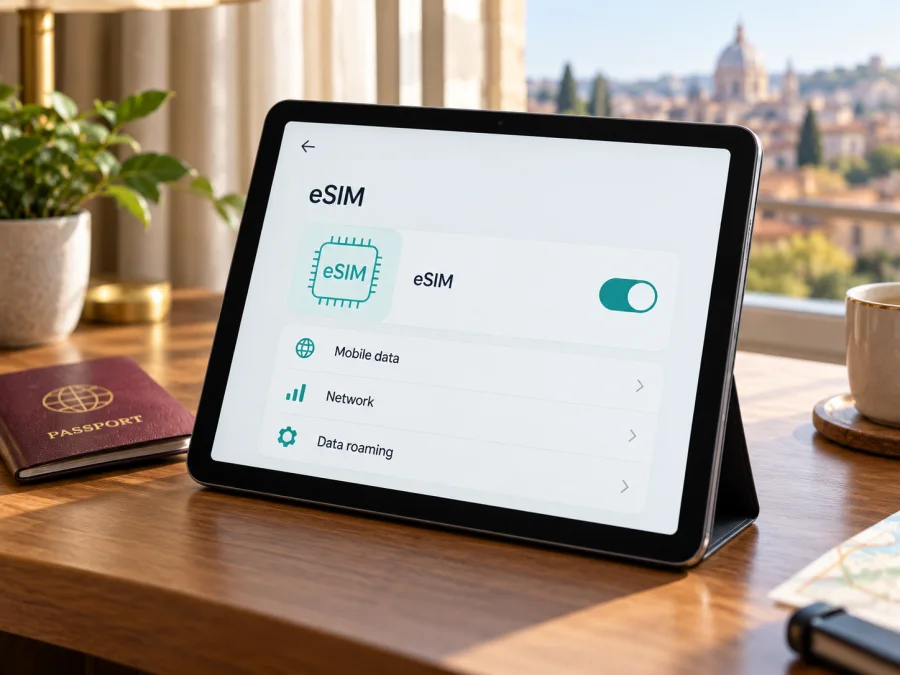
Apple iPad Pro 11-inch 5G 2TB Cellular eSIM: compatibility and setup
The Apple iPad Pro 11-inch 5G 2TB Cellular can use eSIM when it is a Wi-Fi + Cellular model whose regional version supports the service you plan to activate. Apple lists eSIM support for cellular iPad Pro 11-inch models across its generations, including the current M4 and M5 models. The wording supplied for this device does not identify a generation, model number, country of sale or carrier, so it cannot establish the exact radio variant by itself. Check the model number and EID on the iPad before buying a plan.
An eSIM is a digital SIM profile that can provide mobile data without a plastic SIM. The 5G, 2TB and Cellular labels do not confirm that every regional version can install every provider’s profile; the provider must also support iPad eSIM in your destination.
Does this iPad support eSIM?
The direct answer is yes for supported Wi-Fi + Cellular iPad Pro 11-inch versions. Apple’s current eSIM setup information includes iPad Pro 11-inch (M4, M5) Wi-Fi + Cellular and iPad Pro 11-inch (1st to 4th generation) Wi-Fi + Cellular. The 2021 and 2022 cellular generations are among the 5G models; newer M4 and M5 cellular versions are also listed with eSIM. The Wi-Fi-only configuration has no cellular modem and cannot use an eSIM for mobile data.
However, the device name is not a complete model identifier. Apple has shipped regional versions with different model numbers and different ways to connect to mobile networks. Some newer iPad Pro models use eSIM only and have no physical SIM tray, while older cellular models can have a nano-SIM tray as well as eSIM. China mainland versions also follow separate local rules. The storage capacity does not tell you which of these versions you have.
| Item | What the name suggests | What to confirm on the iPad |
|---|---|---|
| Device | Apple iPad Pro 11-inch | The generation, such as a numbered generation or M-series chip, and the A-number model identifier |
| Mobile connection | 5G and Cellular | That Settings shows a cellular section and the device is the Wi-Fi + Cellular variant, not Wi-Fi only |
| Storage | 2TB | Capacity affects local storage, not eSIM eligibility |
| SIM type | eSIM is supported on the listed cellular iPad Pro models | Whether this regional version has an EID and offers an eSIM setup route |
| Service | A compatible eSIM data plan | That the provider supports iPad eSIM in the destination and that the plan is available for your trip |
An eSIM plan on an iPad is generally for mobile data. Do not assume it adds a regular phone number, voice calling or SMS. Apple describes cellular iPad service as data-focused; use internet calling and messaging apps when you have a data connection, or keep another phone line for ordinary calls and texts.
Regional versions and carrier details
“Cellular” identifies a mobile-network version, but it does not mean that every network or plan will work in every country. A tablet’s radio bands, the provider’s supported devices, local activation rules and the terms of the plan all matter. A 5G label also does not guarantee a 5G connection on a trip: coverage, network bands, local agreements, congestion and the plan can affect the connection. The iPad may use LTE or another available service instead.
The country where an iPad is sold is especially important when the plan will be activated in China mainland. Apple says only specified China mainland iPad models can install eSIM profiles from local carriers there, and China Unicom is the supported iPad eSIM carrier. Apple’s current list includes the China mainland 11-inch iPad Pro M4 and M5 cellular model numbers A3006 and A3359. A device bought in another market should not be assumed to accept a local China mainland iPad eSIM. Confirm the exact A-number and the provider’s current terms before travel or purchase.
For service outside China mainland, check the plan’s own destination and device rules. Apple notes that eSIM-capable iPad models can use compatible mobile data plans while travelling, but availability depends on the service provider. Country of purchase, current location, local activation rules and the chosen provider are separate factors: an iPad that supports eSIM in one market may still be unable to activate a particular local plan elsewhere.
For a used or imported iPad, ask the seller to show the About screen and confirm the model number. An installed plan is not necessarily transferable. Check for account, organisation-management or provider restrictions before purchase.
Check compatibility before choosing a plan
Use this checklist before paying for an eSIM plan:
- [ ] Confirm the exact model. Open Settings → General → About. Find Model Number. It may first show a part number; tap it to reveal the A-number. Compare that number and the generation with Apple’s model information or the seller’s documentation.
- [ ] Look for an EID. In Settings → General → About, scroll down and look for EID. The EID is the identifier associated with the embedded SIM. If it is present on a cellular iPad, that is a strong sign the device has eSIM hardware, but the provider and regional rules still matter.
- [ ] Check the cellular controls. In Settings, look for Mobile Data, Cellular Data or Mobile Service (the wording depends on language and iPadOS). A supported cellular iPad should expose mobile-data settings. Look for Add eSIM, Add Cellular Plan, Set Up Cellular or a provider-plan option; labels can vary by version and market.
- [ ] Check the sales market. Confirm whether the iPad was sold for your country or for China mainland. For China mainland service, check Apple’s supported model list and the supported carrier before choosing a plan.
- [ ] Check the exact provider and destination. Make sure the plan accepts an iPad, covers every country or region on your route, and has data, validity and activation rules that fit your trip.
- [ ] Check device restrictions. Confirm the iPad is not restricted by a provider, organisation profile or account issue and that you can access Settings and install a cellular plan.
- [ ] Prepare a connection for setup. Keep the iPad connected to Wi-Fi while downloading the eSIM profile. Update iPadOS if an update is available and follow the provider’s instructions for when the plan becomes active.
If you are unsure about the compatibility result, check your device before choosing a plan. The EID and the eSIM option are useful checks on the device itself; a product listing alone is weaker evidence, particularly for an imported or refurbished iPad.
After confirming the model and destination, you can browse destinations and check current eSIM plans for your trip. Review the plan’s coverage area, data allowance, validity period, activation timing and any device or regional conditions before you decide.
How to find the EID and model number
You do not need to remove a SIM tray or install anything to check the iPad’s identifiers.
- Open Settings.
- Tap General, then About.
- Scroll to EID. If you need to give it to a provider for troubleshooting, copy it directly from the screen and share it only through that provider’s official support channel.
- Find Model Number. Tap the displayed part number to switch to the A-number, such as A2837 or another regional identifier.
- Note the iPadOS version shown on the same page. Menu labels and setup methods may differ after software updates.
If there is no EID, first make sure that you are looking at the cellular model and that you have opened the complete About page. Then compare the A-number with Apple’s list for that market. The absence of an EID or add-eSIM option can indicate a Wi-Fi-only configuration, a regional limitation, a software or settings issue, or a hardware problem. It is not a reason to keep purchasing activation codes: confirm the model with Apple or the seller before buying a plan.
Share the EID or IMEI only through the provider’s official support channel when needed; do not post them publicly.
How to install an eSIM on iPad Pro
The exact menu wording and available activation methods vary by iPadOS version and provider. Have a stable Wi-Fi connection, access to the provider’s QR code or activation instructions, and the account details required for the plan. Keep the QR code on another screen or printed page if the iPad camera is needed to scan it.
Add a plan with a QR code
- Check the plan. Confirm it is for data, supports iPad and covers your destination. Make sure it has not already been installed elsewhere.
- Connect to Wi-Fi. Keep it on while the profile downloads.
- Open eSIM setup. Go to Settings → Mobile Data (or Cellular Data / Mobile Service) and choose Add eSIM, Add Cellular Plan or a similar option. Follow the setup screen if prompted during initial iPad setup.
- Scan or open the activation code. Use the iPad camera or on-screen scanner. On supported recent iPadOS versions, touch and hold a QR code in email or on a web page and choose Add eSIM. Follow provider instructions for links or apps.
- Enter a confirmation code if requested. Use only the code supplied with the plan.
- Approve the profile. Check the plan name and wait for installation to finish; this can take a few minutes.
- Label and select the data line. Use a clear label such as “Travel data”, then choose it for mobile data when needed.
- Check when validity begins. A plan may start at installation, first connection or on a stated date. Read its terms before adding it.
Apple also documents provider activation, plan transfer from another iPad, joining an eligible iPhone plan, finding a plan from the iPad and provider apps. These methods appear only when supported by the provider, device and account. They are not required for QR-code activation.
The Kaspersky eSIM Store iOS installation guide explains the app’s general iOS flow. It is written for iOS, so follow the iPad labels and the eSIM instructions shown by your own device. The Android guide is for Android phones and is not the setup path for this iPad.
Use the eSIM for mobile data while travelling
Before leaving, install the profile when you have reliable Wi-Fi if the plan’s activation rules allow it. Save the plan instructions and support details somewhere accessible offline. Check whether the plan starts on installation, on first connection abroad or on a specific date. Do not assume that scanning the code and starting the validity period are always separate events.
When you reach the destination:
- Open Settings → Mobile Data and select the travel eSIM as the line for mobile data.
- Turn on mobile data for the selected profile. If the provider’s instructions require data roaming for that eSIM, enable roaming for that line only. Roaming is not always necessary, so follow the specific plan guidance.
- Keep your usual SIM or other data line from being selected for mobile data if you want to avoid unintended use of its allowance. Check your home provider’s roaming terms before changing settings.
- Give the iPad a few minutes to register on a supported network. The network name and available technology can vary by destination and plan.
- Open a simple webpage or app to confirm that data works. Then check the plan’s data balance or usage information in the relevant account or app.
An iPad can be useful for maps, tickets, translation, trip documents, email, messaging and work when Wi-Fi is unavailable. A travel data eSIM does not necessarily provide voice calls or SMS. If you need an ordinary phone number, use a phone plan that includes one or keep a separate compatible line for calls and messages.
For a multi-country itinerary, check whether the plan covers every destination rather than assuming that one country plan works throughout a region. Verify the network and fair-use terms for islands, border areas, ferries and flights; coverage at sea or in the air is not guaranteed. A local plan may be better for a long stay, while a regional plan can suit a route across several countries. Choose based on the route, expected data use, duration and total price shown at checkout.
If you share the connection with another device, check hotspot availability and limits in the plan terms. Large downloads, cloud sync and streaming can use data quickly; consider pausing background updates while travelling.
Common eSIM problems and checks
There is no Add eSIM option. Confirm this is a Wi-Fi + Cellular iPad, look for an EID, update iPadOS and restart. If the option remains missing, compare the A-number with Apple’s model information and ask the seller or Apple Support about the regional version before buying a plan.
The QR code will not scan. Increase its brightness, clean the camera and avoid reflections. Confirm the code is for this plan and unused. If manual entry is offered, copy the activation details exactly; do not post them publicly.
The plan cannot be added. Check Wi-Fi, iPadOS, the activation code and destination eligibility. Confirm the profile was not already installed; request a replacement confirmation code from official support if it expired.
The profile is installed but there is no internet. Select it for mobile data, check whether data roaming is required, and confirm the plan is active in that location. Toggle Airplane Mode, then restart. Check supported networks, remaining data and service notices.
The iPad uses the wrong line. Select the travel profile for mobile data and check automatic switching. Ask your home provider about roaming charges if needed.
The connection is slow or drops. Move to better reception, toggle Airplane Mode and wait for registration. Local coverage, bands and provider arrangements may mean LTE is available instead of 5G.
An eSIM cannot be moved. Profiles may be device-bound or transferable only through the provider. Before deleting one or resetting the iPad, ask whether it can be reissued or transferred.
A China mainland plan does not activate. Check Apple’s supported model list and confirm the local carrier. A foreign-market or older iPad may not accept a local profile even if eSIM works elsewhere.
Practical checks for different travel situations
- Short city break: Check coverage and validity, install over Wi-Fi if allowed, then test a map or message on arrival.
- Multi-country route: Compare each stop with the plan’s coverage list; a regional plan is useful only when it explicitly includes the destinations.
- Work trip: Confirm data allowance and hotspot rules, and save key documents offline in case service varies.
- Long stay: Compare total cost and conditions with local options; do not assume a travel plan renews indefinitely.
- Family trip: Agree who manages the plan. An installed profile is tied to this iPad unless the provider allows transfer.
Frequently asked questions
Can the Apple iPad Pro 11-inch 5G 2TB Cellular use eSIM?
Yes, if it is a supported Wi-Fi + Cellular version. Apple lists eSIM for cellular iPad Pro 11-inch models, but the supplied name does not identify the generation or market. Check the A-number and EID on the iPad, and confirm that the provider supports it in your destination.
Does 2TB storage make eSIM more likely to work?
No. Storage capacity is unrelated to eSIM compatibility. The model number, cellular hardware, regional version, iPadOS and provider support determine whether you can install and use a profile.
Is an iPad eSIM the same as a phone plan?
Usually not. iPad eSIM plans are for cellular data. They should not be assumed to include a conventional voice number, calls or SMS unless the specific plan says otherwise.
Can I use this iPad in China mainland with a local eSIM?
Only if the exact model is on Apple’s supported list and the plan meets local requirements. Apple identifies China Unicom as the supported iPad eSIM carrier there. Check both before buying.
Can I install the eSIM before my trip?
Often, if the provider permits it. Check whether validity starts at installation or first connection abroad.
Will 5G work in every destination?
No. Coverage, bands and plan terms determine service; LTE may be used where 5G is unavailable.
What if the About screen has no EID?
Confirm this is the cellular model, verify its A-number with Apple or the seller, and ask Apple Support if a supported model still shows no EID or eSIM controls.
Final compatibility check before your trip
For the Apple iPad Pro 11-inch 5G 2TB Cellular, the safest answer is conditional: Apple lists eSIM for Wi-Fi + Cellular iPad Pro 11-inch models, but the exact generation and regional variant must be checked on the iPad. Confirm the A-number, look for the EID, and make sure Settings offers an eSIM setup route. For China mainland service, verify the exact supported model and local carrier separately.
Once compatibility is confirmed, select a data plan that covers your destination or route, fits your expected data use and remains valid for the full trip. Review activation timing, network and roaming instructions, hotspot conditions and any regional restrictions. Kaspersky eSIM Store is an app and website where travellers can choose, arrange and activate a suitable eSIM data plan for an international trip. Check the device first, then browse destinations and current plan details before you travel.


