Travel connectivity guide
Apple iPad Pro 11-inch 5G 512GB Cellular eSIM
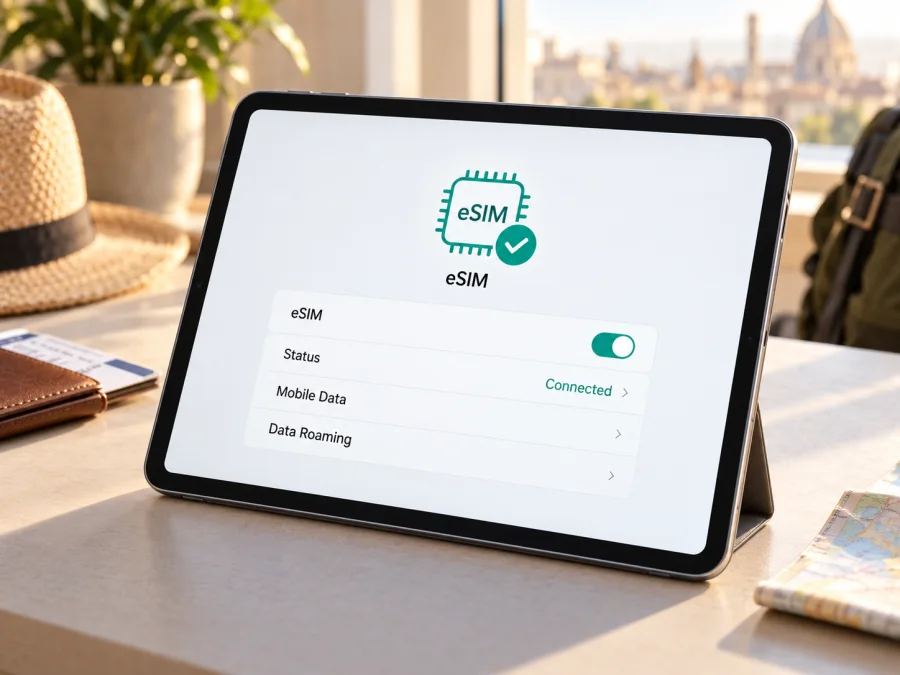
Apple iPad Pro 11-inch 5G 512GB Cellular eSIM: compatibility and setup
Short answer: yes. Apple lists eSIM support for 11-inch iPad Pro Wi‑Fi + Cellular models, and its current technical specifications include a 512GB cellular configuration. However, “Apple iPad Pro 11-inch 5G 512GB Cellular” does not include a generation, model number, or country of sale. Confirm the identifier on the iPad before buying a plan: cellular features and permitted eSIM providers can depend on the regional model and the country where you will use it.
Apple’s current iPad Pro technical specifications identify the 11-inch M5 Wi‑Fi + Cellular model as eSIM-only, with 5G and 512GB among the available configuration options. Apple’s iPad eSIM setup guidance also lists earlier 11-inch Wi‑Fi + Cellular generations. That supports a positive answer for the described cellular device family, but the storage capacity and “5G” wording alone cannot identify which generation or regional model you have. Apple’s model-identification and mainland China eSIM guidance distinguish those variants; check your own model number before acting on general advice.
| Item | What the name indicates | What to verify on the iPad |
|---|---|---|
| Device | Apple iPad Pro 11-inch | The exact generation or chip is not stated in the supplied name. |
| Mobile connection | 5G, Cellular | Confirm the full model number and that cellular settings are present. |
| Storage | 512GB | Storage does not determine eSIM compatibility. |
| eSIM | Supported on Apple-listed 11-inch Wi‑Fi + Cellular models | Check for an EID and an option to add a mobile data plan. |
| Regional service | Varies by model and operator market | Mainland China has a specific model and carrier restriction. |
Does Apple iPad Pro 11-inch 5G 512GB Cellular support eSIM?
For an 11-inch iPad Pro that is genuinely a Wi‑Fi + Cellular model, the answer is yes: Apple’s current support page lists 11-inch iPad Pro (M4, M5) Wi‑Fi + Cellular and the 1st through 4th generation Wi‑Fi + Cellular models as eSIM-capable. Apple’s current M5 technical specifications state that the cellular model uses eSIM and is not compatible with a physical SIM card. Earlier models may have a nano‑SIM tray as well as eSIM, depending on generation and market. Therefore, do not infer the SIM arrangement from “Cellular” alone.
The model name provided does not mention M4, M5, or a generation. That matters when identifying the exact variant, though Apple’s published list covers the 11-inch cellular line from the 1st through 4th generations and the M4 and M5 generations. The model identifier is the clearest way to separate these versions. The 512GB storage option does not change whether an eSIM radio or digital SIM profile is supported.
Apple identifies the current 11-inch iPad Pro (M5) Wi‑Fi + Cellular as model A3358 in its general model list. A3359 is a separate M5 Wi‑Fi + Cellular version for mainland China. The 11-inch iPad Pro (M4) mainland-China version is A3006. Other generations and markets have their own identifiers. If a listing uses only the task name, ask the seller for the model number and confirm it under Settings before you buy an eSIM plan.
Regional versions and the mainland-China distinction
Regional variants can differ in supported cellular bands, SIM hardware, and which operator services can provision a profile. For the current M5 model, Apple’s identifier page describes A3358 as the 11-inch Wi‑Fi + Cellular version and A3359 as the mainland-China version. Apple’s mainland-China eSIM guidance names the supported iPad models for that market, including the 11-inch iPad Pro M4 A3006 and M5 A3359. It says other iPad models, including models bought outside mainland China, cannot install eSIM profiles from carriers in mainland China.
Apple’s same guidance says China Unicom is the supported iPad eSIM carrier in mainland China. That is a country-specific carrier rule, not a claim that every version of this iPad works with every provider there. Conversely, a mainland-China-specific model can use eSIM data plans from providers outside mainland China while travelling abroad; Apple says Location Services must be enabled when installing a non-mainland-China eSIM while outside mainland China. Verify the destination carrier’s requirements as well as the iPad variant.
Outside that specific market, availability still depends on the eSIM provider, local regulation, compatible cellular bands, and the plan’s supported destination. Apple’s compatibility list confirms device capability; it does not guarantee that a particular operator or travel plan will accept the device. A plan’s destination, data allowance, validity period, activation timing, and roaming requirements are set by that plan’s terms.
“Cellular” identifies a mobile-network iPad rather than a Wi‑Fi-only model. “5G” describes supported network technology, not the SIM format; 512GB is storage and does not affect eSIM support. A 5G iPad may use LTE where 5G is unavailable. Use Settings to confirm the model number and EID, especially if the device was bought second-hand or imported.
Check compatibility before you buy an eSIM plan
Use this checklist on the iPad itself:
- [ ] Confirm that the device is a Wi‑Fi + Cellular iPad Pro, not a Wi‑Fi-only model.
- [ ] Open Settings → General → About and note the model name and model number. Tap the part number if necessary to reveal the A-number.
- [ ] On the same About screen, look for an EID. Apple explains that the iPad EID can be found in Settings under General and About. Its presence is a strong device-level indication that the iPad has eSIM hardware.
- [ ] Open Settings → Mobile Data (the label may appear as Cellular Data in some regions or software versions). Look for an option such as Add eSIM, Add a New Plan, or Find a New Plan. The exact wording depends on iPadOS and the provider.
- [ ] Check Apple’s model identification information against the A-number, especially if the iPad was bought in mainland China or imported from another market.
- [ ] Ask the current carrier or seller whether the iPad has any network restriction that could prevent activation with another provider. Do not assume it is unrestricted based only on the product title.
- [ ] Confirm that the eSIM plan supports tablets or this iPad model, covers your destination, and can be installed in the country where you will set it up.
- [ ] Ensure you have Wi‑Fi or another working internet connection during installation, and update iPadOS if an update is available.
An EID is a device identifier for the embedded SIM hardware; it is not the eSIM plan itself, a phone number, or an activation code. Do not publish or send the EID, IMEI, QR code, or activation details in a public post. If there is no EID and no mobile-plan setup option, stop before checkout and check the exact model with Apple or the seller. Menu labels can vary, but repeated absence of both identifiers is a reason to verify rather than to assume compatibility.
For an additional compatibility check, check your device before choosing a plan. Compare the model number, destination, and provider conditions; a general “iPad Pro 11-inch” result cannot account for every regional exception.
The name contains useful search details but omits the generation and A-number. Before checkout, confirm that the device is cellular, that eSIM setup is available, and that the plan supports this iPad and your destination. Check when installation or activation starts the plan’s validity; those events can differ under the plan terms.
Once those checks are complete, you can browse current eSIM plans for your trip. Kaspersky eSIM Store is an app and website where you can choose, arrange, and activate an eSIM with a mobile-data plan for international travel. Review the current destination, data allowance, validity, price, and activation timing. This homepage is a starting point for browsing, not a country-specific tariff page.
Prepare the iPad by confirming compatibility, connecting to Wi‑Fi, and keeping the provider’s QR code or activation details available. A code may be single-use; do not rescan repeatedly if an error appears. Apple supports provider activation, a provider app, QR code, compatible link, or plan transfer. The available method depends on the provider and iPadOS.
For a QR-code setup after initial setup:
- Connect to Wi‑Fi and keep the iPad online during installation.
- Open Mobile Data settings. Go to Settings → Mobile Data or Cellular Data.
- Choose the add-plan option. Tap Add eSIM, Add a New Plan, or the option specified by the provider.
- Scan the QR code using the camera, or use the on-screen option for a QR image if your iPadOS supports it.
- Confirm the plan and enter a confirmation code only if the provider supplied one.
- Label the profile so you can distinguish it from other plans.
- Select when to use it. Keep your usual plan selected until you want the travel eSIM to carry data. Check when validity starts.
- Select the travel eSIM for Mobile Data when you are ready to connect.
- Enable Data Roaming for that profile only if required by the plan instructions. Avoid enabling roaming on your home line unless intended.
- Allow a few minutes to connect. Keep the profile installed while troubleshooting.
Apple says iPadOS 17.4 and later can add a QR code received in email or on a provider webpage by touching and holding the image and choosing Add eSIM. If that option is unavailable, use the camera or the provider’s supported app. See the iOS eSIM installation instructions for the general QR flow. The Android installation instructions apply only if you are setting up a separate Android device.
If a provider assigns a plan directly, follow the installation notification. Transfer from another iPad or adding an iPad to an iPhone plan works only when the provider supports it. A transfer is not the same as a fresh QR installation and may be restricted. After setup, confirm that the profile appears and is enabled; an installed profile may not yet be active or using data.
Install the profile before departure if the plan permits it, but choose when to use it according to the activation terms. On arrival, select it under Mobile Data, enable the profile, and switch on Data Roaming for that profile only if required. For a single-country visit, confirm that the destination and validity window fit your stay. For a multi-country route, check each country or choose a regional plan whose listed coverage matches the itinerary.
The iPad can use cellular data for maps, bookings, email, cloud files, video calls, and messaging apps. Streaming, app updates, and large uploads can use more data than navigation or text. Consider pausing automatic downloads when using a limited allowance. A travel eSIM selected through Kaspersky eSIM Store is for mobile data; do not assume that it includes a regular phone number, voice calls, or SMS unless the plan says so. Internet calling and messaging apps can work over data under their own conditions.
If you keep a home plan installed, select the travel profile for data when appropriate and review the home carrier’s roaming terms. On older iPads with a nano‑SIM tray, the tray does not guarantee every SIM combination works; follow the device and carrier instructions.
“Add eSIM” is missing
Check Settings → General → About for the model number and EID, and confirm this is the Wi‑Fi + Cellular version. Update iPadOS and look under Mobile Data. Apply Apple’s mainland-China model rules if relevant. If the EID or model is unclear, ask Apple or the seller before buying a plan.
The QR code is not recognised
Raise the brightness on the screen showing the code, hold it steady, and check that it is for this plan and has not already been used. Try Apple’s touch-and-hold option for a QR image on supported iPadOS, or follow the provider’s app or manual method. Keep the code private because it can contain activation credentials.
The profile is installed but there is no service
Make sure the eSIM is enabled and selected for Mobile Data, the plan is valid in the current country, and its activation date has arrived. Turn on Data Roaming for the travel profile only if required. Toggle Airplane Mode, restart, and allow a few minutes for registration. If the connection remains unavailable, contact the provider with the model number and error details; do not share the EID, IMEI, or QR code publicly.
The iPad uses the wrong plan or data does not count
Check the selected data line, profile label, plan start date, destination list, and usage screen. Pause automatic switching if you want to prevent a change to another line. If usage is still not recorded, contact the plan provider. Avoid deleting an eSIM until support confirms it can be reinstalled.
Does the 512GB version support eSIM?
Yes, if it is an 11-inch Wi‑Fi + Cellular iPad Pro. Apple lists eSIM on its current 512GB M5 cellular model and on earlier 11-inch cellular generations. Storage does not determine compatibility.
Is it eSIM-only?
The current M5 cellular model has no nano‑SIM tray and uses eSIM. Earlier cellular generations may support both eSIM and a physical nano‑SIM. Verify the A-number and hardware.
Will any iPhone travel plan work?
Not necessarily. Check that the plan supports iPad or tablet installation and that its device and destination conditions fit.
Does eSIM include calls and texts?
Do not assume so. Review the plan terms; internet-based calling and messaging apps can work over mobile data where available.
Can I install it before travel?
Often, yes, over Wi‑Fi. When activation and validity begin depends on the plan, so check its terms before installation.
Final check before your trip
For Apple iPad Pro 11-inch 5G 512GB Cellular, eSIM support is confirmed for Apple’s 11-inch Wi‑Fi + Cellular iPad Pro family, including the current M5 cellular configuration. The name alone still does not identify your particular generation or regional model. Before checkout, confirm the A-number and EID in Settings, make sure the add-plan option is available, and check whether the device’s market variant matches the provider and country where you will activate it. The mainland-China model and carrier rules require particular care.
Then match the plan to your itinerary: verify the countries covered, data allowance, validity period, activation timing, and roaming instructions. Once compatibility and terms are clear, browse current plans in Kaspersky eSIM Store and choose an eSIM for mobile data during your trip. The website and app help you choose, arrange, and activate a travel data plan; the partner network and plan conditions determine service at your destination.


