Travel connectivity guide
Apple iPad Pro 11-inch 5G 512GB eSIM
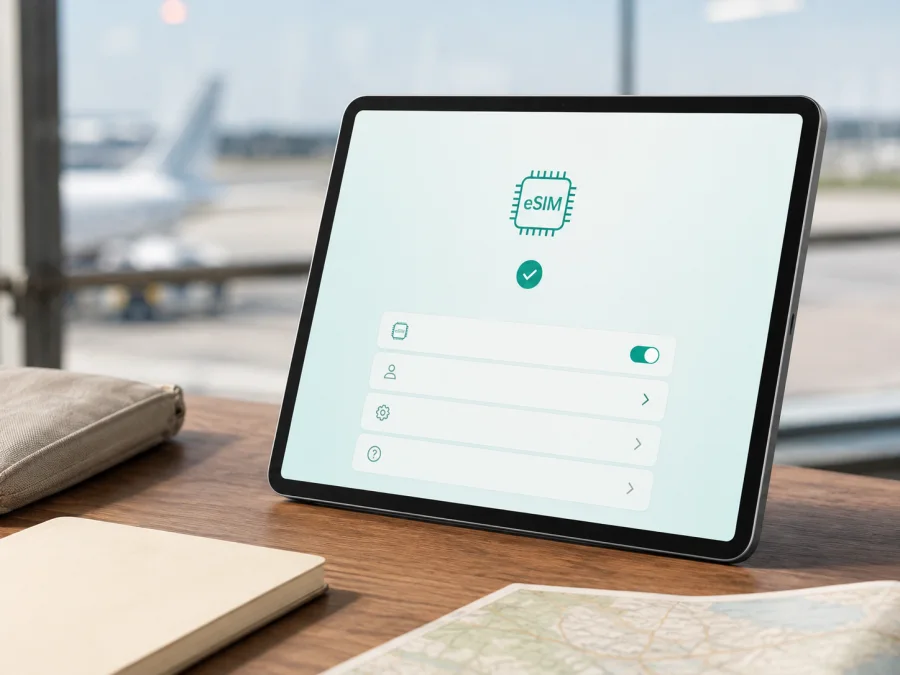
Apple iPad Pro 11-inch 5G 512GB eSIM: compatibility, setup and travel guide
If you have an Apple iPad Pro 11-inch 5G 512GB and need mobile data abroad, the short answer is yes: when the device is the 5G / Wi‑Fi + Cellular version, it is designed to use eSIM. Apple’s current iPad information lists eSIM for cellular iPad Pro models. The 512GB storage option does not remove that capability.
The qualification matters. “5G” must describe the cellular model, not just a retailer’s shortened name. A Wi‑Fi-only iPad Pro cannot add a mobile-data eSIM, and market, carrier, and software can affect activation. This guide keeps the exact variant Apple iPad Pro 11-inch 5G 512GB in view.
Quick answer
For an Apple iPad Pro 11-inch 5G 512GB that is Wi‑Fi + Cellular, eSIM support is expected. Apple’s technical specifications identify eSIM for the cellular 11-inch iPad Pro family, and support guidance includes earlier 11-inch iPad Pro Wi‑Fi + Cellular generations among eSIM-capable iPads. A 5G radio and 512GB storage are useful clues, but check the tablet before choosing a plan.
Three conditions must be true:
- The iPad is a cellular model, not Wi‑Fi only.
- The device is not restricted by a carrier, organization, or market-specific rule.
- The chosen eSIM plan allows iPad or tablet data in every destination on the trip.
When these conditions are met, the tablet can use an eSIM for mobile internet without a physical SIM. Newer cellular generations can be eSIM-only, while older or imported units can have different physical-SIM arrangements. Use the settings and model information on the actual device rather than a product photo.
What the exact variant tells you
| Device detail | Relevance to eSIM |
|---|---|
| Apple iPad Pro | Identifies the product family, but not whether the unit is cellular. |
| 11-inch | Identifies the size family; several generations exist. |
| 5G | Suggests Wi‑Fi + Cellular, but still requires verification. |
| 512GB | Storage capacity; it does not enable or disable eSIM. |
| EID and cellular modem | The strongest on-device evidence that a profile can be provisioned. |
| iPadOS | Controls the names and availability of setup screens. |
Retail listings may shorten “Wi‑Fi + Cellular” to “5G” or omit the generation. Do not infer that every 11-inch iPad Pro with 512GB has the same SIM design: Wi‑Fi-only and cellular units can share the storage size.
Regional and carrier differences
Apple confirms eSIM on supported iPad Pro Wi‑Fi + Cellular models, but activation depends on a carrier or worldwide service provider offering eSIM for iPad. The flow may be provider activation, an app, a transfer, a link, or a QR code, so hardware and plan compatibility should be checked separately.
China mainland requires extra care. Apple notes that activating an eSIM cellular data plan there is available only on iPad models that support eSIM in China mainland, and advises checking the precise model and contacting China Unicom. If the Apple iPad Pro 11-inch 5G 512GB was purchased for that market, do not assume that a plan intended for another country will activate locally.
Imported, refurbished, enterprise, or carrier-assigned units need a closer check. A device can contain eSIM hardware while a provider does not support the desired method. If Add eSIM is missing, investigate the model, region, software, and provider instead of repeatedly scanning a QR code.
Check compatibility before choosing a plan
Run this check on the Apple iPad Pro 11-inch 5G 512GB before arranging mobile data.
Compatibility checklist
- [ ] The box, receipt, or About screen identifies an iPad Pro 11-inch cellular model, not Wi‑Fi only.
- [ ] The model number is visible in Settings > General > About.
- [ ] EID appears in About, or Mobile Data/Cellular Data > Add eSIM is available.
- [ ] iPadOS is current, the battery is charged, and Wi‑Fi is available for installation.
- [ ] The iPad is not carrier-locked or organization-restricted.
- [ ] The plan supports iPad or tablet data and covers the countries or regions on the route.
- [ ] You know when validity starts: at installation, first connection, or another event stated in the plan conditions.
For a quick pre-purchase check, compare the result with the selected plan’s supported-device requirements. If the tablet is used or imported, ask for the exact model identifier and original sales region rather than relying only on “5G 512GB.”
Find the EID
- Open Settings.
- Tap General, then About.
- Look for EID among the identifiers. Share it only in a trusted activation flow when the provider asks for it.
- Note the model number as well. If necessary, tap the part-number field to reveal more detail.
An EID is strong evidence of eSIM hardware, but it does not guarantee that every plan or destination will work. The service, device lock, software, and regional activation rules still matter.
<a id="kesim-device-compatibility"></a>
Use Check your device before arranging a plan if unclear.
Find Add eSIM
Open Settings > Mobile Data. Depending on the iPadOS language and region, this may be labelled Cellular Data. Look for Add eSIM, Add Cellular Plan, Set Up Mobile Data, Join iPhone Plan, Transfer iPad Plan, or Find a New Plan.
If the section is absent, confirm that the iPad is not Wi‑Fi only, restart it, connect to Wi‑Fi, update iPadOS, and check About again. If an EID is present but controls remain unavailable, give the provider the model and region. Do not erase the tablet or delete a working profile as a first step.
How to install and activate an eSIM
Prepare reliable Wi‑Fi, the QR code or activation link, any confirmation code, and the plan conditions. In this travel context the eSIM is for mobile data; it does not automatically provide a phone number, voice calls, or SMS.
QR-code installation
- Turn on Wi‑Fi and make sure the iPad has enough battery.
- Open Settings > Mobile Data/Cellular Data and choose Add eSIM or Add Cellular Plan. During initial setup, choose the mobile-data option and then Use QR Code when shown.
- Scan the code supplied for the plan. On iPadOS 17.4 or later, a QR code shown in an email or web page may offer Add eSIM after you touch and hold it. Otherwise display the QR code on another screen.
- Follow the prompts and enter a confirmation code if requested.
- Tap Continue, Add Cellular Plan, or the equivalent confirmation. Wait for the profile to download over Wi‑Fi.
- Give the line a clear label such as “Travel data.”
Labels vary by region, but the sequence is the same: add the profile, approve it, and wait. A used QR code may not be reusable, so request a replacement instead of retrying indefinitely.
Provider activation, link, or app
Some providers assign a plan directly to the iPad. If a “mobile plan ready to be installed” notification appears, open it and follow the Settings prompts. A provider may send an activation link that offers Activate New eSIM, or an iPad app that guides you through setup. Use only a trusted provider flow.
An eligible existing Apple plan may offer Join iPhone Plan or Transfer iPad Plan, but these options depend on the carrier, account, software, Wi‑Fi, and Apple Account settings.
For platform-specific background, see the Android eSIM installation instructions and the iOS eSIM installation instructions. The iOS guide is the closer match for this iPad; the Android guide is useful when a travel party manages several device types.
Select the travel eSIM for mobile data
Installing a profile is not the same as selecting it for da ta.
- Open Settings > Mobile Data/Cellular Data and tap the new plan.
- Turn the line on if it is disabled.
- Select the travel eSIM as the line for Mobile Data/Cellular Data.
- Review Allow Mobile Data Switching. Leaving switching off can make the data source easier to control while travelling.
- Check the plan’s instruction about Data Roaming. A travel eSIM using a partner network may require roaming for that eSIM; enable it only when the plan calls for it.
- If a home line remains active, check which line handles data and what charges may apply.
When you arrive, turn off airplane mode, allow a few minutes for registration, and test a simple page or app. Local coverage and roaming arrangements affect the result. If the iPad is data-only, use messaging and calling apps over the internet rather than expecting ordinary calls or SMS.
Travel scenarios
Before departure
Check EID or Add eSIM while you still have Wi‑Fi. Confirm destination, data allowance, validity, and account requirements. If validity starts on first connection, home installation can reduce airport stress; if it starts at installation, wait until the timing fits. Save the instructions and do not delete a tested profile unless it can be restored.
At the destination
Select the travel line, check whether roaming is required, and keep the home data line off if you want to avoid accidental use. Watch usage during photo sync, video downloads, or hotspot sessions. Download critical maps and documents before leaving Wi‑Fi.
Across countries or regions
For a multi-country route, confirm that one regional plan covers every destination: coverage, validity, fair-use limits, and networks can vary. Only the selected profile supplies data. On return, switch back to the home line and review roaming settings.
Troubleshooting guide
No EID or mobile-data menu
This often indicates a Wi‑Fi-only unit, an incorrectly identified model, a regional difference, or an iPadOS issue. Recheck About, the model number, updates, and the original sales region. If the box says 5G but the iPad has no EID, ask the seller to explain the mismatch before ordering a plan.
The QR code will not scan
Raise the brightness of the screen showing the code, clean the iPad camera, and hold it steady. Use another screen if the code is in an email on the iPad. Try touch-and-hold Add eSIM on iPadOS 17.4 or later when available. Confirm that the code belongs to this plan and has not already been redeemed; do not edit or publish it.
Installation fails
Check Wi‑Fi, battery, date and time, free storage, current iPadOS, device unlock status, and iPad support in the plan conditions. A provider may require account approval or a confirmation code. Keep the exact error message and contact the plan provider before deleting a partially added profile.
The profile is installed but there is no data
Make sure the travel line is enabled and selected for data. Follow the provider’s APN instruction only if one was supplied. Check whether Data Roaming is required, toggle airplane mode once, and restart if necessary. Also check signal, destination coverage, plan validity, and remaining data. For China mainland or another restricted market, revisit regional eligibility.
Data uses the wrong line
Select the intended eSIM in Mobile Data/Cellular Data and review automatic switching. Turn switching off if you want the travel profile to be the only data source. Background sync, cloud photos, video downloads, and hotspot use can consume data even when the eSIM itself is working normally.
The plan worked and then stopped
Check expiry, allowance, destination coverage, fair-use limits, and the selected data line. Toggle airplane mode after a flight or border crossing and allow time to reconnect. If the plan is valid, contact the provider with the EID, plan reference, country, and time of failure. Keep QR and activation details private.
FAQ
Does the 512GB version support eSIM?
Storage is not the deciding factor. The Apple iPad Pro 11-inch 5G 512GB should support eSIM when it is the Wi‑Fi + Cellular model covered by Apple’s eSIM-capable iPad Pro specifications. Check the EID and Add eSIM controls because the same storage size can exist in Wi‑Fi-only and cellular configurations.
Is 5G proof that eSIM will work?
It is a useful clue that the device is cellular, but not complete proof. Check the model, EID, iPadOS menus, market, carrier lock, and plan support. Regional restrictions can affect activation even when the modem is eSIM-capable.
Will a travel eSIM provide a phone number?
Usually not. Travel eSIMs in this context provide mobile internet; voice calls, SMS, and a conventional number are included only when the specific plan says so. Messaging and calling apps can use the data connection.
Is Kaspersky eSIM Store a mobile operator?
No. Kaspersky eSIM Store is an app and website that helps you choose, arrange, and activate an eSIM with a suitable plan for mobile internet during a trip abroad. It is not the mobile operator, network owner, or underlying internet provider; those conditions depend on the selected plan and its participating local operators.
Final device check and trip eSIM choice
Before choosing an eSIM for the trip, verify the actual tablet:
- Device: cellular Apple iPad Pro 11-inch 5G 512GB, not Wi‑Fi only.
- Identity: EID and model number in Settings > General > About.
- Menu: Settings > Mobile Data/Cellular Data includes Add eSIM or an equivalent control.
- Freedom: no carrier lock or organization restriction.
- Plan: iPad data, all destinations, data allowance, validity, and activation conditions fit the trip.
- Preparation: Wi‑Fi and the activation code are available, and you know whether roaming is required.
If every item is clear, use Kaspersky eSIM Store on the app or website to choose and arrange a suitable eSIM plan for mobile internet on your route, then follow its activation instructions. This matches the exact iPad and plan before departure.


