Travel connectivity guide
Apple iPad Pro 11-inch 5G Cellular eSIM Guide
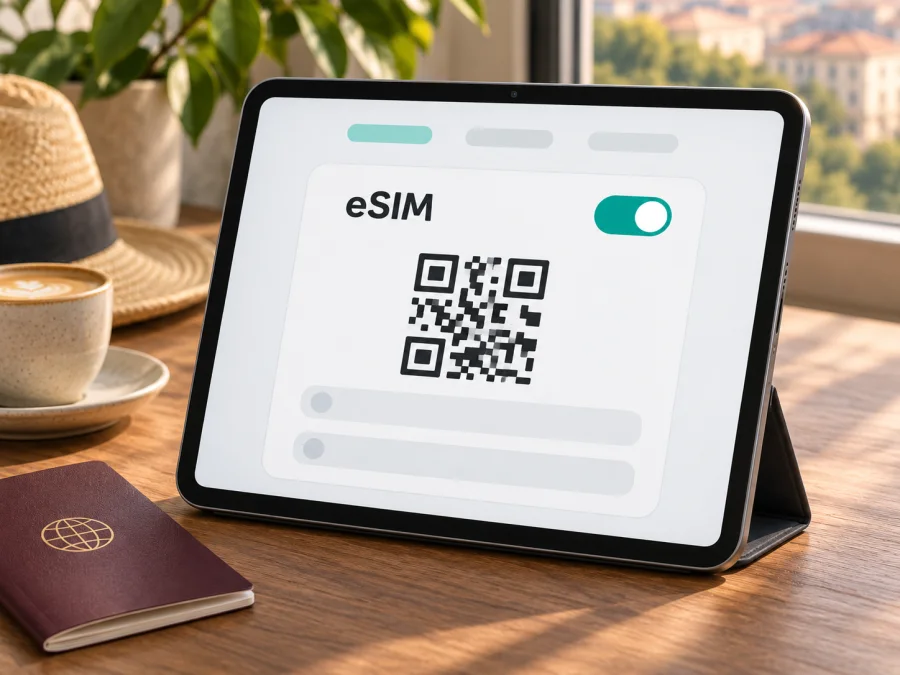
Apple iPad Pro 11-inch 5G Cellular and eSIM: compatibility and setup
If you want to use an iPad for mobile internet on a trip, the label Apple iPad Pro 11-inch 5G Cellular points to the cellular family, but it does not identify one exact generation or sales region. That detail matters: Apple has sold several 11-inch iPad Pro generations, and the phrase in a listing may be descriptive rather than the exact model name. Apple’s current iPad guidance lists 11-inch Wi‑Fi + Cellular models from the first through fourth generation, as well as the newer M4 and M5 models, as supporting eSIM. Apple’s 5G iPad guidance lists the 11-inch third- and fourth-generation models and the newer M4 and M5 versions for 5G. So a 5G 11-inch Cellular iPad Pro belongs to a later generation than the original 11-inch model, but you should confirm the model number and country of sale before buying a plan.
The practical answer is: an Apple iPad Pro 11-inch 5G Cellular is designed for mobile data and supports eSIM when it is a compatible Wi‑Fi + Cellular version. The exact generation, regional version, local eSIM rules, carrier support, and any network restriction still matter. A Wi‑Fi-only iPad Pro cannot add a mobile plan, and a device’s 5G capability alone does not prove that every eSIM plan can be installed or will connect at 5G speeds.
Quick compatibility summary
| Detail | What it means for eSIM |
|---|---|
| Device name supplied | Apple iPad Pro 11-inch 5G Cellular |
| Device type | 11-inch iPad Pro with cellular hardware, assuming the listing is accurate |
| eSIM | Supported by Apple-listed 11-inch Wi‑Fi + Cellular models; confirm the exact generation and regional model |
| 5G | Apple lists 11-inch iPad Pro (3rd and 4th generation), M4 and M5 Wi‑Fi + Cellular versions for 5G; availability also depends on the carrier, plan, bands and local coverage |
| Exact generation in the task name | Not specified; “5G Cellular” is not enough to identify the model number or market |
| Cellular plan type | iPad plans are mobile-data plans; check the particular tariff’s device and destination terms |
| Calls and SMS | A travel data eSIM generally does not add a regular phone number or cellular voice/SMS service |
The exact product name matters when comparing listings. “Apple iPad Pro 11-inch 5G Cellular” includes both 5G and Cellular and should not be treated as a Wi‑Fi-only model or silently merged with another tablet. At the same time, the task wording does not provide a year, chip, generation, part number, or country of purchase. It therefore cannot establish one exact hardware identifier. Use Settings or the model number on the device packaging to narrow it down.
Why the generation and region matter
Apple introduced 5G support in the third-generation 11-inch iPad Pro. Earlier 11-inch Cellular versions exist, but they are not the 5G version described in this task. Apple’s support pages list eSIM for 11-inch iPad Pro Wi‑Fi + Cellular generations 1–4 and the M4/M5 models. Apple’s 5G information identifies the third- and fourth-generation 11-inch models and newer M4/M5 models. This distinction helps explain why a second-hand advertisement, reseller title, or device database may use a broad name that needs confirmation against the model itself.
The term Cellular describes the tablet’s ability to connect to a mobile network when a suitable plan is active. The Wi‑Fi-only configuration lacks cellular service hardware and does not gain eSIM support through a software update. If you are buying, check the full technical model name and model number, not just a title in a store listing. In Settings, open General → About and review Model Name and Model Number. Tapping the model number may display the hardware model identifier. If the iPad is not yet in your hands, request a clear photo of this screen or ask the seller to provide the exact part/model number.
Regional versions can differ in how mobile service is activated and in which networks or frequency bands are available. Rules for activating eSIM also vary by country and provider. Apple specifically notes that eSIM activation on iPad in mainland China is limited to iPad models supported there; do not assume that an imported device can activate an eSIM in every market. The exact restrictions can change, so confirm the device and provider rules for the country where you intend to activate it. In some current iPad families, Apple has moved to eSIM-only cellular hardware; do not infer that a used tablet has a SIM tray simply because an older version did. Check the individual model’s specification and inspect the device itself.
A carrier lock or service restriction is separate from eSIM hardware. Ask the seller or original provider whether the tablet is restricted to a particular provider, whether its cellular service has been blocked, and whether any account or financing restriction remains. If the iPad has been managed by a school or business, an administrator’s policy may also affect setup. Resolve these questions before purchasing a travel tariff.
Check the device before choosing a plan
Run this checklist on the actual iPad rather than relying only on the product listing:
- [ ] Open Settings → General → About and confirm the Model Name and model number.
- [ ] Confirm that the device is an 11-inch Wi‑Fi + Cellular model, not Wi‑Fi only.
- [ ] Open Settings → Mobile Data (the label may vary by iPadOS language) and look for an option such as Add eSIM, Add Mobile Data Plan, or a mobile plan setup prompt.
- [ ] Check the About screen for an EID. An EID is an identifier associated with the embedded SIM hardware. Its presence is useful evidence, but follow the model and settings checks as well.
- [ ] Confirm the iPad is not locked or restricted by its original provider, seller, or organization.
- [ ] Check that the iPadOS version is current enough for the provider’s activation method and QR code flow.
- [ ] Check the country, destination, supported network type, validity period, data amount, and any activation timing in the tariff details.
If you cannot find the EID or an eSIM option, do not immediately conclude that the hardware is incompatible. First verify the exact model number, install available iPadOS updates, connect to Wi‑Fi, and restart the iPad. Menu names can differ with system language and software version. If the model is definitely cellular but the EID and eSIM controls are absent, ask Apple Support or the original provider to check the specific regional model. A missing setting may also reflect a restriction or device management profile.
A useful check is to compare the device’s exact identifier with Apple’s model identification and eSIM setup information. Do not enter a plan’s QR code or activation details merely as a test: many activation codes are intended for one installation, and scanning one may start the actual setup. Verify hardware and tariff requirements first.
Check whether your device is compatible
What to confirm with the plan
A tablet can support eSIM while a particular eSIM plan remains incompatible with it. Some plans or activation flows are designed primarily for phones, while others allow tablets or any supported eSIM device. Before you pay, read the tariff conditions and confirm that the plan can be installed on an iPad. Also check whether the selected destination and local partner network are supported, whether data roaming must be enabled for that profile, and when the validity period begins.
For travel, a data-only plan is often a good fit for maps, email, browsing, cloud documents, messaging apps and video calls over the internet. It usually does not give the iPad a standard mobile number for ordinary voice calls or SMS. Keep access to account verification codes in mind: they may still arrive on your usual phone line, so do not remove or disable the service you rely on for those messages unless you have another way to receive them.
Kaspersky eSIM Store is an app and website where you can choose, order and activate an eSIM with a mobile-data tariff for travel abroad. The specific plan terms, destination availability, data allowance, duration and price shown at the time of selection determine what you receive. The Store does not determine whether the iPad’s hardware is compatible; verify the model first. To browse currently listed destinations and plan options, visit the Kaspersky eSIM Store. This is a general plan-browsing page, not a tariff for a particular country.
Installing an eSIM on the iPad
Set up over reliable Wi‑Fi. Keep the QR code on another screen or print it; the iPad cannot scan a code displayed on its own screen. If the provider offers direct installation, follow the instructions for that plan.
- Prepare. Connect to Wi‑Fi, update iPadOS if an update is available, and confirm the plan is intended for an iPad and that its activation window suits your trip.
- Open mobile settings. Go to Settings → Mobile Data (sometimes labelled Cellular Data) and choose Add eSIM or the option to add a mobile plan.
- Choose activation. Select the provider’s direct-install method or choose Use QR Code. Menu wording varies by iPadOS version.
- Scan and confirm. Scan the provider’s QR code. If prompted, enter its confirmation code, review the plan and tap the option to add it. On supported iPadOS versions, a QR code shown in an email or webpage may also be added by pressing and holding it.
- Finish setup. Wait for the profile to download, then give it a clear label such as “Travel data”. Avoid repeatedly scanning while it processes; many codes are single-use.
- Select data line. In Mobile Data settings, select the travel eSIM when you are ready to use it. Enable Data Roaming for that profile only if the tariff instructions require it; use the specified network if manual selection is necessary.
- Test. Turn Wi‑Fi off briefly and load a webpage. Check that the travel profile is active and selected for cellular data, then reconnect to Wi‑Fi if preferred.
For a general illustrated walkthrough, see How to install an eSIM on iOS. Its screens show an iPhone, so iPad wording may differ. The Android eSIM instructions apply to Android devices and do not replace iPadOS steps.
Choose activation timing carefully
Check when the plan’s validity begins: it may start at purchase, first network connection or a scheduled date. Installing a profile and starting the plan are not always the same event. If installing before departure, keep the confirmation details until service works. Do not delete a profile to troubleshoot unless the provider confirms it can be reinstalled; its QR code may not work a second time.
Using the iPad for mobile data abroad
Before departure, compare every stop with the plan’s destination list. A country-specific tariff may not cover a neighboring country, transit stop or territory, and a regional name does not guarantee coverage at every destination.
Estimate usage before choosing an allowance: navigation, email and messaging usually need less data than video, large downloads, cloud backups or tethering. Download maps and work files over Wi‑Fi and pause automatic uploads if you want to conserve the allowance.
On arrival, open Settings → Mobile Data, turn on the travel profile, choose it for cellular data, and enable Data Roaming for that profile if its instructions require it. Check that the device is not still using the home SIM for data. If the iPad offers a choice of network, start with automatic selection; try a provider-recommended network only if the automatic connection fails. Give registration a few minutes, then test a webpage with Wi‑Fi disabled.
You can keep a home line available for account alerts while assigning data to the travel eSIM, but a data-only profile does not carry your phone number for calls or texts. Check home-line roaming charges separately. Internet messaging apps can work over the iPad’s data connection when already configured.
Before sharing the connection, confirm that both the iPad and tariff allow tethering. An installed profile may not transfer to another device; redownload and transfer rules depend on the provider.
Troubleshooting: common checks
No Add eSIM option: Confirm the iPad is a Wi‑Fi + Cellular model, check its exact model number and EID in Settings → General → About, update iPadOS, connect to Wi‑Fi and restart. If the option remains missing, ask Apple or the original provider to check regional support or restrictions. A Wi‑Fi-only iPad cannot be made cellular by changing a setting.
QR code will not scan: Increase the display brightness, reduce glare, clean the camera lens and check that the code belongs to this plan and has not already been used. Use an alternate activation method only if the provider supplies one. Keep the QR code private because it may contain installation credentials.
Profile installed but no data: Make sure the travel eSIM is enabled and selected for mobile data. Check required roaming, plan activation, remaining allowance and destination eligibility. Toggle Airplane Mode briefly, restart and allow time for registration. If needed, try the provider’s named network when manual selection is supported.
LTE/4G appears instead of 5G: 5G needs a compatible model, plan, local network and coverage. A 5G label does not guarantee 5G service in every location; the plan may provide LTE/4G or lack 5G roaming. Check local tariff conditions and test in another location.
Activation error or uncertain data use: Check whether the code was used, whether the plan supports tablets and which profile is selected for data. Record the exact error and contact the provider associated with the plan before resetting settings or deleting the profile. Settings labels vary, so use Settings search for “Mobile Data” or “Cellular Data” if needed.
Practical travel scenarios
- One-country trip: Confirm the country is included, match the allowance to expected map and messaging use, and install over Wi‑Fi if early installation is allowed. A country plan is not automatically valid in neighboring destinations.
- Multi-country route: Compare every stop with the plan’s destination list, including transit and territories. Check validity across borders and keep tickets, addresses and essential maps available offline.
- Work travel: Confirm the allowance suits video calls, file sync and cloud documents. Download large files on Wi‑Fi and pause background uploads if you need to conserve data. Ask an organization’s administrator before adding an eSIM to a managed iPad.
- Tablet as a backup: Data eSIM supports internet apps, but generally does not add an ordinary phone number for voice calls or SMS. Keep another way to receive account codes.
FAQ
Does Apple iPad Pro 11-inch 5G Cellular support eSIM?
Yes, if it is an Apple-listed 11-inch Wi‑Fi + Cellular model. Apple lists generations 1–4 and M4/M5 models for eSIM; the supplied name omits generation and region, so verify model number, EID and Add eSIM settings.
Does every Apple iPad Pro 11-inch have 5G?
No. Apple identifies third- and fourth-generation 11-inch Cellular models and newer M4/M5 versions for 5G. Earlier 11-inch models or Wi‑Fi-only versions do not match that description. Actual 5G access depends on plan, provider and coverage.
Where can I find the EID?
Open Settings → General → About and look among the device identifiers. Also check Mobile Data for an eSIM setup option. If neither appears, confirm the model and ask Apple or the provider about regional or management restrictions.
Does a travel eSIM provide calls and SMS?
A travel data plan generally provides internet only, not a regular phone number or cellular voice/SMS. Compatible messaging and calling apps can work over data; check plan terms for exceptions.
Should I install the eSIM before travel?
Installing at home over Wi‑Fi can be convenient, but check when the tariff validity starts. Plans may begin at purchase, first connection or a scheduled time. Follow the specific plan terms.
Why might it fail abroad?
The destination may be excluded, roaming may be required, another profile may be selected for data, or the partner network may be unavailable. Check the tariff, activation status, settings and remaining data.
Final check before choosing a travel eSIM
The name Apple iPad Pro 11-inch 5G Cellular leaves out the generation and regional model. Confirm the model number, EID and eSIM setting in Settings → General → About, and check for carrier or administrator restrictions. Verify that the tariff supports iPad activation and includes every country on your route.
Then compare data allowance, validity and activation timing with your needs. Use Kaspersky eSIM Store’s app or website to browse current options for the destination and select, arrange and activate a travel eSIM. Install over a reliable connection, keep the QR details until service works, and select the travel profile for data when ready.


