Travel connectivity guide
Apple iPad Pro 11-inch cellular 128GB eSIM
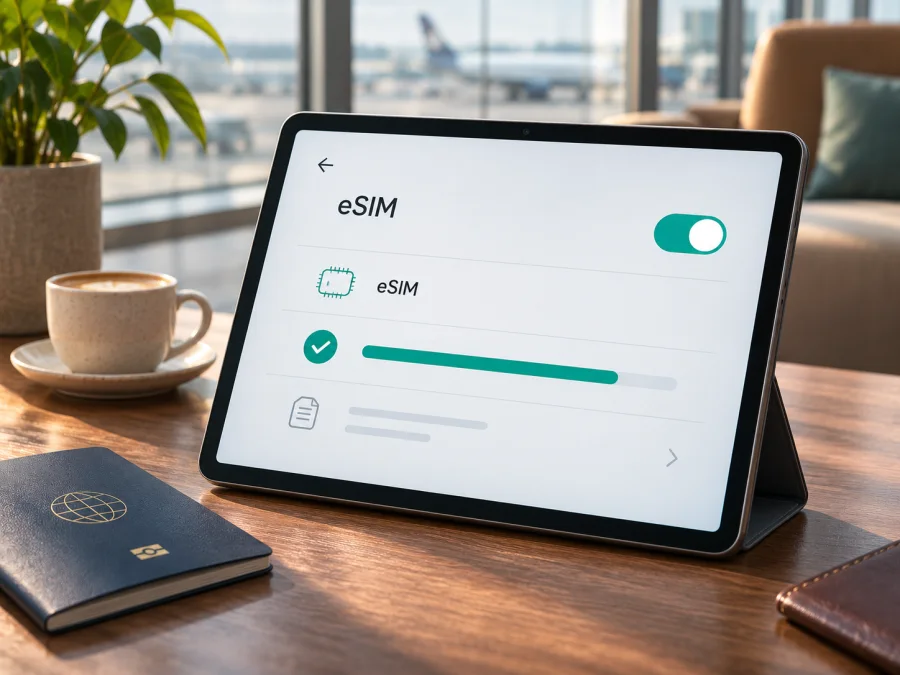
Apple iPad Pro 11-inch cellular 128GB eSIM: compatibility and setup
The name Apple iPad Pro 11-inch cellular 128GB identifies a cellular tablet and its storage capacity, but it does not specify a generation or the country where it was sold. Those details matter: the 11-inch iPad Pro has had several generations with a 128GB option, and regional cellular models do not all have the same SIM configuration.
Short answer: Wi-Fi + Cellular iPad Pro 11-inch models from the generations Apple lists for eSIM can use a digital SIM when the device variant and mobile service support it. Apple lists iPad Pro 11-inch (1st through 4th generation) Wi-Fi + Cellular for eSIM, and separately lists M4 and later cellular models. The exact wording in this article’s title is not enough to prove that a particular unit has eSIM enabled for its sales region. Confirm its model number and the EID or eSIM setup option before choosing a plan. A Wi-Fi-only iPad cannot connect to a mobile network, regardless of its storage.
What the name tells you—and what it doesn’t
“Cellular” means the iPad has mobile-network hardware; it does not by itself confirm that every network or eSIM profile will work. “128GB” is the device’s storage capacity, not an indicator of eSIM capability. Apple offered 128GB cellular configurations in multiple 11-inch iPad Pro generations, so a listing that omits the generation may describe more than one product.
| Detail | What can be established |
|---|---|
| Exact task name | Apple iPad Pro 11-inch cellular 128GB |
| Device type | iPad Pro tablet, 11-inch class, cellular variant |
| Storage | 128GB |
| Generation | Not included in the supplied name; identify it in Settings or from the model number |
| eSIM answer | Supported by Apple-listed Wi-Fi + Cellular generations, subject to regional model and carrier/service support |
| Physical SIM | Depends on generation and region; some models have a nano-SIM tray, while newer eSIM-only models do not |
| Mobile service | A separate eligible data plan is required; eSIM capability alone does not provide connectivity |
Apple’s 2022 fourth-generation 11-inch iPad Pro was offered with 128GB storage. Its general technical specifications list both nano-SIM and eSIM for Wi-Fi + Cellular configurations. That makes it one possible match for the name, not the only one. Older generations also had 128GB configurations. Newer M4 iPad Pro models begin at a different storage tier, so the supplied 128GB detail should not be silently reinterpreted as an M4 model.
Check the exact iPad before buying
Use the iPad itself where possible, especially if it is second-hand or imported.
- Open Settings → General → About.
- Read Model Name and Model Number. If the number shown is a part number, tap it to reveal the model number that starts with “A”.
- Note the software version and check whether EID appears in the About screen. EID is the identifier associated with the embedded SIM hardware.
- Open Settings → Cellular Data (the wording can vary by iPadOS region). Look for Add eSIM, Add Cellular Plan, or a similar option.
- Compare the A-number with Apple’s model identification information and verify the SIM capabilities for that exact generation and sales market.
An EID and an eSIM-add option are useful signs that the tablet can provision an eSIM, but do not guarantee that a specific provider accepts it. Regional support, carrier restrictions, software, and management settings can affect activation.
Compatibility check before checkout
- [ ] The iPad says Wi-Fi + Cellular, not Wi-Fi only.
- [ ] The model number and generation are known.
- [ ] An EID is visible, or the iPad offers an eSIM/cellular-plan setup option.
- [ ] The intended eSIM service supports iPad and the device’s region.
- [ ] The tablet is not restricted by an organization and is not carrier-locked to an incompatible service.
- [ ] The destination and plan terms suit the trip, including data allowance, validity, activation timing, and tethering rules.
An online compatibility checker is a useful first filter, but treat it as one part of the decision. Retail listings may omit a regional suffix, refurbishers may identify a tablet by its family name alone, and a device can have a different cellular configuration from a Wi-Fi model with the same storage. Ask the seller for the A-number if it is not shown, then compare that number with Apple’s model identification page. If you are buying used, inspect Settings in person and confirm that the tablet is not supervised by a school or workplace.
Check the plan side separately before payment. Some eSIM services support phones but not tablets, and a plan for one country may not include every stop on a trip. Confirm that the provider accepts this device type, that the destination appears in the coverage terms, and that the activation instructions match the iPad’s available setup methods. A device can pass an eSIM hardware check and still be unsuitable for a particular plan or local market. The supplied name does not identify a carrier or operator market, so confirm that the provider selected for your trip supports iPad eSIM for the exact destination. Keep the model number and destination together when you check; the product family name alone is not enough.
If you want a second check before choosing a plan, check whether your device is compatible. The final confirmation should still come from the iPad’s own settings and the exact model number.
Regional versions and operator support
Apple’s global device list and country-specific eSIM guidance answer different questions. A model may contain eSIM hardware while local activation rules or service support differ. Apple’s mainland China guidance names specific newer iPad models for eSIM activation, so do not assume that a 128GB 11-inch iPad Pro qualifies there because another region’s specifications mention eSIM.
Sales region can affect the SIM tray, radio bands, and whether the device supports nano-SIM, eSIM, or both. Apple identifies regional model numbers, including China-mainland-only versions. A tray is a clue, not a full compatibility check: some models have both SIM options, while newer models may be eSIM-only. Used devices can also be carrier-restricted or managed by an organization.
Before relying on cellular data abroad, confirm the iPad is a supported Wi-Fi + Cellular model, that it can add the intended eSIM profile, and that the provider supports iPad service in your destination.
Radio compatibility is a separate issue: technologies and frequency bands vary by model and destination network. eSIM support does not guarantee 5G, a particular speed, or coverage everywhere. Check the model specifications if bands matter to your route.
Install and activate an eSIM on iPad
Before starting, connect to Wi-Fi and keep the QR code or instructions available on another screen. Avoid deleting a profile during troubleshooting unless the provider confirms it can be installed again; some codes are single-use.
- Choose a data plan for the destination. Read the country or regional coverage, data allowance, validity period, start conditions, and any speed or fair-use limits. Confirm that tablets are eligible.
- Get the activation method ready. Depending on the service, you may install from the provider’s app, scan a QR code, enter details manually, or use an on-device activation flow. Keep the iPad online during download.
- Open cellular settings. Go to Settings → Cellular Data and choose Add eSIM or Add Cellular Plan. Exact labels and available methods depend on iPadOS, model, and provider.
- Add the profile. Follow the on-screen steps. If using a QR code, scan it with the iPad camera or use the provider’s supported install flow. On supported iPadOS versions, a QR code displayed in an email or webpage may be added by touching and holding it, then selecting Add eSIM. If prompted, confirm the plan and wait for activation to finish.
- Label the plan. Use a clear name such as “Travel data” so it is easy to distinguish from another cellular plan. Labels only help you manage lines; they do not change the plan itself.
- Set the data line. In Cellular Data settings, select the new travel eSIM for mobile data when you want to use it. An iPad data eSIM is generally for mobile data; do not expect a standard phone number, voice line, or SMS unless the specific plan says otherwise.
- At the destination, enable the line. Turn on the eSIM and Cellular Data. If the provider instructs you to enable data roaming for that eSIM, do so for that line only. Check the plan’s start rule before installation or activation so you know when its validity begins.
- Confirm service. Turn off Wi-Fi briefly in a safe place and load a simple webpage. Check the selected data line, signal, and data usage. Restore Wi-Fi afterward if you prefer.
For platform-specific steps, see the iOS eSIM installation instructions and Android eSIM installation instructions. The Android guide is useful when you prepare a plan on another device, but menu names on the iPad follow iPadOS.
Use the iPad for mobile data on a trip
An eSIM can be useful when you want the tablet online for maps, email, document access, translation, or a video call without relying on hotel Wi-Fi. Plan the setup around the trip rather than waiting until you are offline: install while you still have a reliable internet connection, read when the package starts, and keep the QR code or activation details accessible until setup is complete.
After arrival, select the travel eSIM as the Cellular Data line. If you keep a home SIM or another plan active, verify which line is selected for data so the iPad does not use an unexpected service. A data-only travel eSIM can still support internet-based messaging and calls in apps where you are signed in. A phone number, conventional cellular voice calls, and SMS are not normally included unless stated in that plan’s terms.
Estimate data use before departure: maps and messaging typically use less than video, cloud backups, or large downloads. Use Wi-Fi for updates, check the remaining allowance in your account, and verify hotspot terms if you plan to share the connection.
Kaspersky eSIM Store is an app and website where you can choose, arrange, and activate an eSIM with a mobile data plan for an overseas trip. If you are still planning and have not selected a destination, you can browse the Kaspersky eSIM Store to review available destinations and current plan details. Compare the plan conditions with your dates and route; the homepage is a starting point for browsing, not a country-specific tariff.
Practical examples: for a short city break, estimate map and messaging use before choosing a small package; for a multi-country route, confirm every stop is covered; for work, test the line before a meeting and download key files on Wi-Fi. If you plan to use Personal Hotspot, check tethering terms and battery use. When arrival Wi-Fi may be unavailable, install and test ahead of time unless the plan requires activation at destination.
Troubleshooting: what to check first
There is no Add eSIM option. Confirm that the model is Wi-Fi + Cellular and check the A-number, generation, sales region, and EID. A Wi-Fi-only model cannot be upgraded to cellular through software. Also check for a device-management restriction and install the latest compatible iPadOS update.
The QR code will not scan or installation stops. Confirm Wi-Fi, code readability, and whether it has already been used. Increase the display brightness or use manual details only if supplied. Check reuse rules before deleting or reinstalling a profile.
The profile installs but shows no service. Turn on the eSIM and select it for Cellular Data. Toggle Airplane Mode, restart, then confirm the destination is covered and follow any provider instructions for network selection or roaming.
The iPad connects, but apps have no internet. Confirm Cellular Data uses the travel eSIM and that the package is active with data remaining. Test a basic webpage; if needed, briefly disable a VPN or content filter, then restore it.
Data is being used by the wrong plan. Reopen Cellular Data settings and select the intended eSIM for data. Review any option that permits switching cellular data automatically; disable it if you need to keep data on one specific plan. For a home plan, confirm international roaming terms with that provider.
The network is slower than expected. Reception, congestion, supported bands, and plan limits affect speed. Try a different location and check model bands and plan conditions. eSIM does not guarantee 5G.
You cannot transfer the eSIM to another iPad. Many travel eSIM profiles are tied to the device on which they were first installed and cannot simply be moved. Check the provider’s transfer and replacement policy before deleting a profile or replacing the tablet.
If the problem persists, record the model number, iPadOS version, exact error, and whether EID is visible, then contact the eSIM provider. Do not share passwords or one-time codes publicly.
FAQ
Does Apple iPad Pro 11-inch cellular 128GB support eSIM?
It can, if it is an eSIM-capable Wi-Fi + Cellular model and activation is supported in its region. Apple lists supported 11-inch generations, and the fourth-generation 128GB model’s general specifications include eSIM. Confirm the A-number and EID because the name omits generation and region.
Does 128GB mean this is a Wi-Fi + Cellular model?
No. Storage capacity does not identify cellular capability. Check the Model Name in Settings and look for Cellular Data settings, EID, and an eSIM-add option. Listings may also describe Wi-Fi and Wi-Fi + Cellular versions with the same storage.
Can I install an eSIM if there is a SIM tray?
Often, yes. Some iPad Pro generations support both nano-SIM and eSIM. A physical tray does not rule out eSIM; likewise, a tray alone does not prove that a regional model supports every eSIM service. Verify the model number and EID.
Does the iPad eSIM include calls and texts?
A travel data eSIM is usually intended for internet access and does not provide a conventional phone number, voice calling, or SMS unless the plan explicitly includes those features. Internet calling and messaging apps can work over its data connection.
Should I install the eSIM before travelling?
Install on reliable Wi-Fi when possible, but follow the provider’s timing instructions. Validity may begin at purchase, installation, or first connection; check the plan terms.
Does eSIM guarantee coverage in every place on my itinerary?
No. Availability depends on the plan’s destination list, local network partners, radio compatibility, and signal conditions. Check each country on your route and the plan’s coverage details before checkout.
Before you go
The name Apple iPad Pro 11-inch cellular 128GB leaves out the generation and sales region, which determine the SIM setup. Confirm Wi-Fi + Cellular, identify the A-number, and look in Settings for EID or an eSIM-add option. For mainland China or a region-specific unit, check eligibility for that market.
Then choose a plan that matches your destinations, dates, data needs, activation rule, and tethering requirements. Install on reliable Wi-Fi and select the travel eSIM for mobile data when needed.


