Travel connectivity guide
Apple iPad Pro 11-inch cellular 1TB eSIM
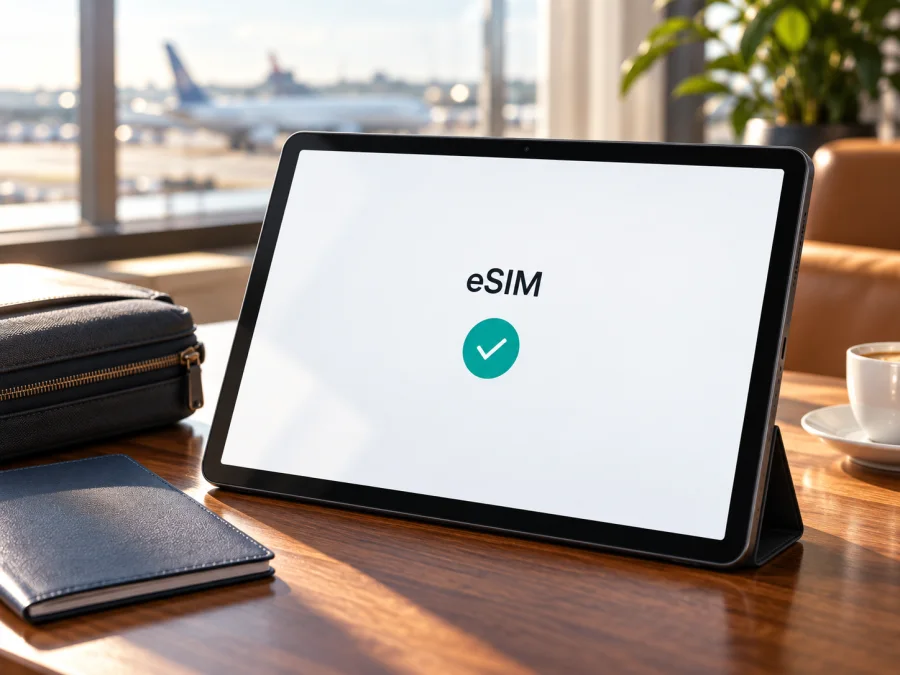
Apple iPad Pro 11-inch cellular 1TB and eSIM
The Apple iPad Pro 11-inch cellular 1TB can use eSIM when it is a supported Wi-Fi + Cellular model and the destination provider accepts it. Apple lists 11-inch iPad Pro cellular generations 1–4, M4, and M5 as eSIM-capable. “1TB” is storage capacity, not a generation or model number; check the exact tablet before choosing a plan.
An eSIM is a digital SIM profile for mobile data without a physical SIM card. A data plan does not itself provide a regular number for calls or SMS; messaging and internet calls can use apps over data.
Does Apple iPad Pro 11-inch cellular 1TB support eSIM?
In general, yes: Apple’s supported-model list includes Wi-Fi + Cellular versions of every 11-inch iPad Pro generation it names, including generations 1–4 and M4/M5. The unqualified product name supplied here does not identify which one you own. The 1TB capacity is offered in more than one generation, and market-specific models and operator policies can affect whether a particular plan can be installed or used. Treat eSIM support as confirmed for the device only after you check its model and the settings on the actual tablet.
Apple’s current technical specifications list eSIM for the current iPad Pro Wi-Fi + Cellular configuration and identify it as eSIM-only, with no physical SIM compatibility. Earlier generations may have a different SIM tray arrangement. A SIM tray does not rule out eSIM, and the absence of one does not mean that any eSIM plan is automatically available: the destination, operator, account, and plan still matter. The Wi-Fi-only version is a separate configuration and cannot connect to a cellular data plan.
| Item | What it means for this device |
|---|---|
| Device name in this guide | Apple iPad Pro 11-inch cellular 1TB |
| Capacity in the name | 1TB of storage; it does not establish the generation |
| Cellular configuration | Required for mobile data over a cellular network; Wi-Fi-only models are not cellular devices |
| eSIM answer | Supported on listed 11-inch iPad Pro Wi-Fi + Cellular generations, subject to model and market checks |
| Data-plan use | Mobile data; voice and SMS are not included unless a separate plan explicitly says otherwise |
| What to verify | Model number, EID or eSIM setup control, carrier lock or service restriction, destination and plan eligibility |
Why “1TB” is not enough to identify the version
Apple has released the 11-inch iPad Pro under different generation names and model numbers, and storage options recur. A listing that says only 11-inch, cellular, and 1TB may therefore describe different-year hardware, bands, SIM hardware, or sales regions. Storage size does not establish whether a particular profile can be used.
Find the model number in Settings → General → About. Tap the displayed number to reveal the “A” model number, then compare it with Apple’s information for that generation and region. You can also look for the EID in About. It identifies the eSIM-capable device; it is not an activation code or proof that a particular operator accepts it.
Market and operator conditions
Compatibility has three parts: iPad support, eSIM availability in the destination, and acceptance by the specific operator or travel-plan provider. A tablet bought in one country may travel elsewhere, but local rules, network bands, and provider eligibility can differ.
Mainland China has a distinct Apple-documented rule: local-provider eSIM service is limited to a country-specific list, and Apple identifies China Unicom as the only supported iPad eSIM operator there. For example, Apple lists the 11-inch iPad Pro (M5) Wi-Fi + Cellular model A3359 for mainland China; the international M5 cellular model has a different number, A3358. Do not assume a model bought elsewhere—or one that appears on Apple’s general eSIM list—can install a mainland-China carrier profile. Match the “A” number against Apple’s current mainland-China list and confirm plan eligibility with China Unicom. Apple also says supported mainland-China models can install non-mainland eSIM plans when travelling abroad, with Location Services enabled. Other destinations have separate operator and plan rules; this China-specific limitation does not apply everywhere.
Outside the sales market, ask the provider about the destination and exact model number. A local network may support eSIM for phones but not offer an iPad-compatible plan. Check data allowance, validity, activation point, networks, and hotspot rules for the chosen plan.
Check compatibility before you buy a plan
Use this checklist on the actual Apple iPad Pro 11-inch cellular 1TB, not just a shop title.
- Confirm the cellular model. In Settings → General → About, check that the product is a Wi-Fi + Cellular version. Wi-Fi by itself cannot add a cellular plan.
- Find the model number. Record the “A” number shown in About and identify its generation and sales region. Do not infer these from 1TB, color, case design, or a seller’s shortened description.
- Look for an EID. In About, check whether an EID is displayed. Its presence is a useful sign that the device has eSIM capability, but it does not confirm that a chosen operator or travel plan accepts it.
- Check the setup menu. Open Settings and look under Cellular Data or Mobile Data for Add eSIM, Add a New Plan, or an equivalent option. Menu names vary by iPadOS version and region. An absent option is a reason to pause and confirm the model, software, and market with Apple or the seller.
- Check for a service restriction. Ask the seller or original carrier whether the iPad is locked or restricted to an account or network. A supported eSIM can still fail when a device or plan is restricted.
- Check the destination and provider. Confirm eSIM availability for the country or region and the exact plan’s compatibility with iPad, including any local model restrictions.
- Make sure you can install it. Have reliable Wi-Fi or another internet connection, the activation instructions, and access to the QR code or profile before you start.
An EID and eSIM addition control are useful signs, but verify plan support for this model and destination. Check device compatibility before payment, and keep the model number handy when contacting Apple or the provider.
After confirming your model and destination, browse the Kaspersky eSIM Store site for current travel-plan options. The app and website help you choose, arrange, and activate an eSIM with a mobile-data plan for an overseas trip. Check availability and terms during selection; the homepage is a starting point, not a promise that a specific country plan is available.
How to install and activate an eSIM on iPad Pro
First confirm eSIM capability, destination coverage, and profile eligibility. Keep the iPad on Wi-Fi. Display a QR code on another screen or print it; the iPad cannot scan its own display with the rear camera. Follow the provider’s instructions, as an activation code may be single-use.
QR-code installation
- Connect to Wi-Fi. Keep the iPad online until the profile downloads.
- Open Settings. Tap Cellular Data or Mobile Data; the label varies by iPadOS version and language.
- Add a plan. Tap Add eSIM, Add a New Plan, or the equivalent, then choose QR installation.
- Scan the code. Use a separate screen or printout. Enter manual details only if the provider supplied them for this plan.
- Confirm installation. Follow the prompts and enter any requested confirmation code.
- Label the line. Use a clear label such as “Travel data.” Do not delete it until the provider confirms it can be reinstalled.
- Select when to use it. Check whether validity starts at purchase, installation, activation, first network connection, or a scheduled date.
- Choose mobile data. Select the travel eSIM in Cellular Data or Mobile Data settings. Enable roaming for that line if the plan instructions require it.
- Wait for registration. In the destination, allow several minutes for network connection before troubleshooting.
A provider may also support activation through its app or account. Transfer rules vary, and a code may be single-use or tied to the first device. Ask before transferring, resetting, or deleting the profile.
For additional platform walkthroughs, see the Kaspersky eSIM Store guides for iOS installation and Android installation. The iOS guide is the relevant one for iPad; the Android guide is included for travelers setting up a second device. iPad menu labels can differ from iPhone instructions, so use the iPadOS prompts and the specific plan instructions as the authority for the tablet.
Use the eSIM for mobile data while travelling
Compare the plan with your full itinerary, including stopovers. Check data allowance, validity, network rules, speed policy, and top-up options. File sync and streaming can use data quickly on a tablet.
Install over Wi-Fi before departure if the provider permits it. On arrival, turn on the travel eSIM, select it for mobile data, and enable data roaming for that profile only if the plan instructions require it. Keep the home line’s data roaming off if you do not intend to use that service.
An eSIM data plan can support maps, tickets, messaging, email, translation, and work apps away from Wi-Fi. It does not guarantee coverage at every address: local networks, radio conditions, supported bands, and plan terms all matter. Save essential tickets, hotel details, and maps for offline use.
Common problems and checks
There is no Add eSIM option
Check that the iPad is a Wi-Fi + Cellular model and confirm the A-number in Settings → General → About. Update iPadOS when possible, restart the tablet, and look under both Cellular Data and Mobile Data if labels differ. Confirm the sales region and destination rules, particularly for mainland China. If the EID is absent and no eSIM control appears, ask Apple or the seller to verify that exact model. Do not buy a plan based only on the word “cellular” in a listing.
The QR code will not scan or the plan cannot be added
Increase brightness on the screen showing the QR code, clean the iPad camera lens, and hold the code steady. If it is displayed on the iPad itself, use another screen or the provider’s manual-entry or app method. An invalid or used-code message may mean it expired, was scanned before, or is tied to another device. Contact the provider before deleting a profile or requesting a replacement.
The profile installed but there is no service
Confirm that the destination is included and that the plan’s start date or activation condition has been met. Make sure the travel eSIM is turned on and selected for mobile data. Enable data roaming for that profile if the instructions require it, then toggle Airplane Mode on briefly and off, or restart the iPad. Wait a few minutes for network registration. If the plan permits manual network selection, try only networks listed by the provider. Do not change APN values unless the plan instructions provide a specific APN.
The connection is slow or keeps dropping
Move to an area with a clearer signal and allow time for network registration. Buildings, underground transport, remote areas, congestion, provider policies, and supported bands can affect performance; a matching band alone does not guarantee coverage. If service remains poor, contact the provider with your location, time, network name, and checks completed.
I am worried about charges on my usual line
Review the selected data line and home operator’s roaming settings before departure. Choose the travel eSIM for mobile data when you intend to use it, and keep the home plan’s data roaming disabled if you do not want to use that service abroad. A “roaming” switch for the travel profile does not itself mean the home carrier is charging; check the active line and its terms.
Frequently asked questions
Does 1TB mean this is an eSIM-only iPad?
No. Storage capacity does not identify the generation or SIM arrangement. Some recent cellular iPad Pro models use eSIM only, while earlier generations can have different SIM hardware. Find the exact model number and check its settings.
Can I install more than one eSIM?
Supported iPads can store multiple plans, but simultaneous use depends on the model and iPadOS. Check the device controls and operator rules before planning to switch profiles.
Does an eSIM give the iPad a phone number?
Not necessarily. The travel-data plan described here is for mobile data and does not provide ordinary voice calling or SMS unless its terms explicitly include those services. Internet calling and messaging apps can use the data connection.
Can I move the eSIM to another iPad after activation?
Do not assume so. A profile or activation code may be tied to the first device or allowed only one installation. Ask the plan provider before removing the eSIM, resetting the tablet, or changing devices.
Before you travel
The Apple iPad Pro 11-inch cellular 1TB can be eSIM-compatible, but the name alone leaves its generation and sales region unknown. Confirm the cellular model, A-number, EID, and Add eSIM control on the tablet. Then check that the destination and chosen operator or travel-plan provider accept that exact model, and review the data allowance, validity, and activation instructions.
Use Kaspersky eSIM Store’s app or website to explore eSIM plans for an overseas trip, compare terms for your route, and follow the supplied installation steps. If compatibility is unclear, verify it before choosing a plan; if the iPad is not eligible, use Wi-Fi or a compatible cellular device as a backup.


