Travel connectivity guide
Apple iPad Pro 11-inch cellular 256GB eSIM
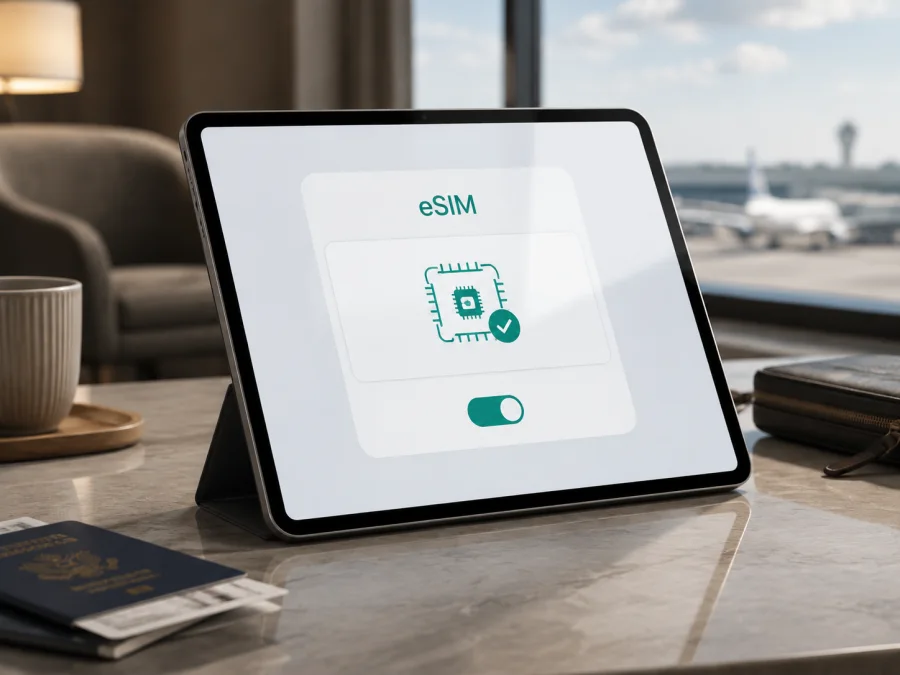
Apple iPad Pro 11-inch cellular 256GB eSIM: compatibility and setup
Quick answer
The Apple iPad Pro 11-inch cellular 256GB can support eSIM when it is genuine Wi‑Fi + Cellular hardware from an eSIM-compatible generation and market. Apple’s current iPad guidance lists the 11-inch iPad Pro Wi‑Fi + Cellular from the 1st through 4th generations, as well as the M4 and M5 Wi‑Fi + Cellular models, among the iPads that can use eSIM.
There is one qualification: Apple iPad Pro 11-inch cellular 256GB is a product description, not a complete Apple model identifier. Capacity does not identify the generation, and “cellular” does not confirm the region, lock status or activation eligibility. The answer is yes for the listed eSIM-capable Wi‑Fi + Cellular families, with regional and carrier conditions. Check the model number, EID and cellular settings before buying.
What the device name tells you
| Part of the supplied name | What it means for eSIM checks |
|---|---|
| Apple iPad Pro | Product family with several 11-inch generations. |
| 11-inch | Screen size, not a complete model identifier. |
| cellular | Should mean Wi‑Fi + Cellular, not Wi‑Fi-only, but Settings should confirm it. |
| 256GB | Storage detail; it does not prove eSIM support. Several generations use this capacity. |
| Exact long-tail variant | Keep every part of the name when comparing the listing, device and tariff. |
Does Apple iPad Pro 11-inch cellular 256GB support eSIM?
Usually yes, if the specific unit is an eSIM-capable 11-inch iPad Pro Wi‑Fi + Cellular model. Apple’s current support guidance lists iPad Pro 11-inch Wi‑Fi + Cellular models from the 1st to 4th generations and the M4 and M5 versions. Apple’s model information also shows 256GB configurations in these product families. Storage is not the deciding factor; the cellular hardware and market version are.
Older 11-inch generations generally combine eSIM with a nano-SIM tray. The M4 and M5 cellular models are activated with eSIM and do not have a physical SIM card. This physical difference is helpful, but it should not replace checking the settings. An iPad purchased for China mainland has additional rules: Apple keeps a separate list of models that support eSIM there, and activation may involve a supported local provider. A China mainland unit must be checked by model number rather than assumed to behave like an international model.
The supplied name omits the generation and A-number, so it could describe a 2018, 2020, 2021, 2022, M4 or M5 cellular iPad Pro, depending on the seller’s naming convention. It could also be incorrectly tagged. The practical conclusion is not to guess from 256GB: identify the model, find the EID and confirm that iPadOS offers a way to add a mobile plan.
Find the EID and the eSIM control
The EID identifies the embedded SIM component. It is a strong sign of eSIM hardware, but it does not guarantee that a provider or plan will accept the device.
- Open Settings.
- Tap General.
- Tap About.
- Read the Model Name, Capacity and EID fields.
- Tap the value beside Model if it first shows a part number, so the A-number is displayed.
- Return to Settings.
- Open Cellular Data or Mobile Data.
- Look for Add eSIM, Add Cellular Plan, Add a New Plan or similar wording.
The wording may vary with the iPadOS language, release and market. An EID plus an add-plan option are the expected signs. If both are missing, pause the purchase, recheck that the tablet is not Wi‑Fi-only, install any offered update and clarify the regional variant. If only one is present, provider support, management settings or regional software may still affect activation.
Regional, carrier and generation differences
The word “cellular” describes hardware, not universal network compatibility. Apple documents eSIM support for the 11-inch Wi‑Fi + Cellular families above, but the provider, destination and tariff must also support activation. Generation changes affect the physical SIM arrangement: older models may have both eSIM and a nano-SIM tray, while M4 and M5 models are eSIM-only in current Apple documentation.
Region is equally important. Apple identifies China mainland variants separately and states that mobile-data activation with eSIM in China mainland is limited to models that support eSIM in that market. For an imported tablet, locate the A-number in Settings > General > About and compare it with the seller’s documentation and intended activation market. Similar screen size and storage do not make sales regions interchangeable.
A carrier lock is separate from eSIM hardware. A QR code cannot remove that restriction. Organization-managed tablets can also limit adding or removing plans, so ask whether the iPad was released from the previous account and management profile.
Compatibility checklist before the tariff purchase
- [ ] It is the exact Apple iPad Pro 11-inch cellular 256GB unit, not Wi‑Fi-only or another storage variant.
- [ ] Cellular Data or Mobile Data appears in Settings.
- [ ] An EID appears under Settings > General > About.
- [ ] Add eSIM, Add Cellular Plan or an equivalent option is present.
- [ ] The A-number and generation match the seller’s description and region.
- [ ] The device is unlocked and not organization-managed or restricted.
- [ ] iPadOS is updated and reliable Wi‑Fi is available for installation.
- [ ] The tariff covers every country or region on the route.
- [ ] Allowance, validity, activation deadline and usage start are clear.
- [ ] You know whether roaming and hotspot use are required or allowed.
Do this check before payment, not after landing. A profile may be non-refundable after incomplete activation. Check the terms in Kaspersky eSIM Store and keep activation details private.
Before you continue to a purchase, check your device against the model, EID, menu and lock checks in this article.
Choose a travel eSIM plan for the iPad
Kaspersky eSIM Store is an app and website where you can choose, arrange and activate an eSIM with a suitable tariff for mobile internet during an overseas trip. It is not a mobile operator, network owner or provider of mobile internet. The actual connection depends on the selected eSIM profile, destination, local partner network and tariff conditions.
Start with the route. A single-country tariff may suit one destination; a regional option is useful only when every stop is included. Compare the allowance with maps, internet calls, synchronization, streaming and hotspot use. Check whether validity begins at installation, activation or first network connection. If allowed, install over Wi‑Fi before departure and leave the travel line inactive.
Install and activate eSIM on Apple iPad Pro 11-inch cellular 256GB
The labels can vary by iPadOS version and region. The sequence assumes a QR code or equivalent activation data.
1. Prepare the iPad
Charge the iPad, connect it to stable Wi‑Fi and confirm the EID and Cellular Data menu. Keep the QR code on another screen if you are scanning with the iPad camera. Do not share it unnecessarily.
2. Open cellular-plan settings
Go to Settings > Cellular Data or Settings > Mobile Data. Tap Add eSIM, Add Cellular Plan, Add a New Plan or the closest option shown. If iPadOS presents a provider choice, use the method supplied with the selected tariff.
3. Scan or enter the activation details
Choose the QR-code option and scan the code. If your iPadOS version supports it, touch and hold a QR code in an email or webpage and choose Add eSIM. Follow the on-screen prompts. If manual details are offered, enter only the values provided; do not invent an APN or copy details from another tariff.
4. Confirm the profile
Review the plan name and confirm installation. A provider may request a confirmation code. Wait while the profile downloads and registers; activation can take several minutes. Keep the iPad connected to the internet. Do not delete the profile or scan the same code repeatedly if the status pauses.
5. Use the relevant instructions
For the Apple workflow, see the iOS installation instructions. If you are preparing another device as well, the Android installation instructions cover the corresponding Android flow. The links do not replace the model, EID, provider and tariff checks above.
6. Select the travel line for data
Return to Cellular Data and select the newly installed travel profile as the line for mobile data. Give it a clear label such as “Trip” so it is not confused with a personal plan. If the iPad offers automatic switching between cellular data plans, leave it off when you want deliberate control of usage.
7. Set roaming only when required
Open the travel profile’s data options and check the tariff instructions. Some travel profiles require Data Roaming because they use a partner network outside the profile’s home market. Turn it on only for the travel profile when required; keep roaming off on the personal line if you want to avoid unintended charges.
8. Test the connection
Turn Wi‑Fi off briefly and open a small webpage or map. Check that the travel profile shows service and that the intended data line is active. If the tariff is intended to begin only at the destination, a lack of service before travel may be expected. Turn Wi‑Fi back on after the test if you are still at home.
Using eSIM during a trip
Before departure
Complete the compatibility check over reliable Wi‑Fi. If the tariff allows advance installation, install the profile, note when validity begins and keep the activation information secure. Do not assume it can be transferred to another iPad.
On arrival
Turn on the travel line, choose it for mobile data and enable data roaming if required. Keep the personal line from being used for data when you want to avoid its roaming charges. If the iPad stays offline, wait briefly, move to a coverage area, confirm the destination and test with Wi‑Fi off.
On a multi-country route
Before crossing a border, check whether the next country is included and follow any network-selection instruction. Monitor the allowance. A 5G-capable iPad can use LTE when that is what the local network or tariff supports; this is not by itself an eSIM failure.
What the iPad eSIM does not automatically provide
This travel use case is for mobile internet. An eSIM tariff does not automatically include a telephone number, traditional calls or SMS unless the selected conditions say so. For calls and messages, use internet applications through the data connection.
Common problems and checks
The Add eSIM option is missing
Confirm that the iPad is Wi‑Fi + Cellular and that Cellular Data or Mobile Data exists. Recheck the EID and A-number in Settings > General > About. Ask whether organization management restricts plan changes, restart the iPad and install an available update. If the controls remain absent, stop and confirm the regional hardware before purchase.
The QR code will not scan
Increase the second screen’s brightness, show the full code and hold the iPad steady. Use the code for this tariff, not a cropped or already-used image. If manual entry or a confirmation code is offered, use only the supplied details. Keep the code private.
The profile will not download
Check Wi‑Fi, battery, date and time, and iPadOS. Confirm that the provider supports eSIM on iPad and that the tariff is intended for the current country or region. A carrier lock or management restriction can block activation. If a partial profile appears, record the message before deleting anything.
The profile is installed but there is no internet
Select the travel profile under Cellular Data, turn cellular data on and enable required roaming on that line. Toggle Airplane Mode, wait for registration and test without Wi‑Fi. Check the destination, validity and allowance. If the iPad remains offline, note the profile, EID, model number and error message before contacting support.
FAQ
Is the exact Apple iPad Pro 11-inch cellular 256GB eSIM-compatible?
Yes, when the actual tablet is an eSIM-capable 11-inch iPad Pro Wi‑Fi + Cellular model. Apple documents eSIM for the 1st to 4th generations and for M4 and M5. Because the supplied name omits generation and A-number, verify EID, add-plan menu, region and carrier first.
Can I use an eSIM from a different country?
Possibly, if hardware, provider, destination and tariff all support activation. Apple notes that eSIM is not available with every provider or in every country or region. For an imported or China mainland variant, confirm the A-number and local rules.
Conclusion: check the device, then prepare the trip eSIM
The right conclusion for Apple iPad Pro 11-inch cellular 256GB is a qualified yes. Apple supports eSIM on the relevant 11-inch Wi‑Fi + Cellular generations, including the 1st to 4th generations and M4 and M5 configurations. The product name alone does not identify the generation, market or carrier status.
#kesim-device-compatibility
Before choosing a travel plan, check the physical Apple iPad Pro 11-inch cellular 256GB for the Wi‑Fi + Cellular configuration, EID, add-eSIM or add-cellular-plan control, exact A-number, current iPadOS and an unlocked, unmanaged status. Then compare the trip route, destination coverage, data allowance, validity, activation timing, roaming requirement and hotspot conditions in Kaspersky eSIM Store. Choose the eSIM only after those checks match. Install it over a reliable connection, select it for mobile data, test with Wi‑Fi off and keep the activation information secure. This final device-and-trip check gives you a controlled way to confirm compatibility before purchase and prepare mobile internet for the journey.


