Travel connectivity guide
Apple iPad Pro 11-inch cellular 2TB 5G eSIM
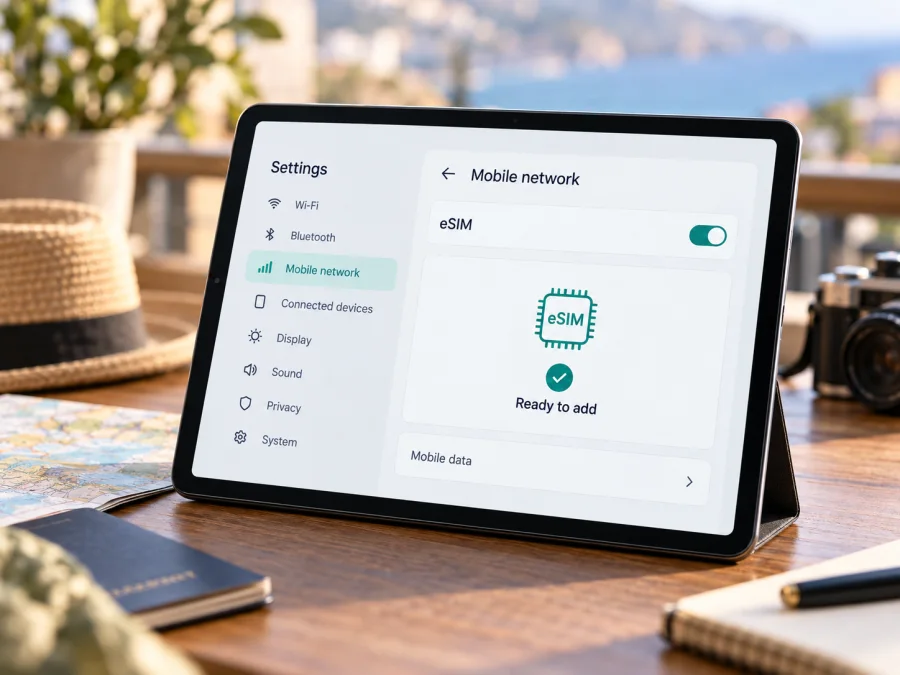
Apple iPad Pro 11-inch cellular 2TB 5G eSIM: compatibility and setup
If you are checking whether an Apple iPad Pro 11-inch cellular 2TB 5G can use a travel eSIM, the short answer is yes for the current cellular generations that Apple identifies as eSIM-capable, but the storage size and “5G” wording alone do not identify the exact regional model. Apple’s current support information lists the 11-inch iPad Pro (M4 and M5) Wi‑Fi + Cellular, and earlier 11-inch Cellular generations, as eSIM-capable. The exact model number, market version and the rules of the country where you want to activate a plan still matter.
This guide explains how to verify the unit in your hands, what the regional differences mean, and how to install a data eSIM for travel. It does not assume every device advertised with this name is the same configuration.
Quick compatibility answer
The input name combines a screen size, cellular connectivity, storage capacity and 5G. It does not include a chip generation or the regulatory model number. Apple has sold multiple 11-inch iPad Pro generations with 2TB storage and cellular connectivity, and the cellular/eSIM setup differs between generations and markets.
For the 2025 iPad Pro 11-inch (M5), Apple lists 256GB, 512GB, 1TB and 2TB storage options. Its Wi‑Fi + Cellular configuration uses eSIM and has no physical SIM tray. Apple’s current specifications also list 5G on Wi‑Fi + Cellular configurations. The 2024 iPad Pro 11-inch (M4) likewise uses eSIM-only cellular activation. Earlier 11-inch iPad Pro Wi‑Fi + Cellular models can support eSIM, but some have a physical SIM tray as well. A 2TB model may therefore be an M4 or M5, or an earlier cellular generation; check the model rather than inferring it from the product title.
| What you see | What it tells you | What to confirm |
|---|---|---|
| “2TB” | Storage capacity, not a cellular feature | The A-number and generation on the iPad itself |
| “5G” or “Cellular” | The listing is intended to describe mobile connectivity | That the unit is a genuine Wi‑Fi + Cellular configuration, not Wi‑Fi only |
| EID in Settings | The iPad exposes an eSIM identifier | That its market version and the plan’s country/operator allow activation |
| “Add eSIM” or a mobile-data setup option | A setup path is available in the current software | That the eSIM provider and specific plan support iPad activation |
| No SIM tray on an M4/M5 cellular model | Consistent with Apple’s eSIM-only design for these generations | Local eSIM rules, carrier support and any account or device lock |
Treat compatibility as two separate checks: first, can this iPad store an eSIM profile; second, can the selected eSIM plan activate and connect in the destination market? A positive answer to the first does not guarantee service on a particular network, in a specific country or on a particular plan.
Regional and generation differences
The words in a retailer listing are not enough to determine regional support. Apple’s published model identifiers distinguish Wi‑Fi-only devices from Wi‑Fi + Cellular and distinguish some market-specific cellular versions. The Settings screen and model number are more reliable than a marketplace title, box sticker or seller description.
For a current M5 11-inch iPad Pro, Apple identifies A3358 as Wi‑Fi + Cellular and A3359 as Wi‑Fi + Cellular for China mainland; A3357 is Wi‑Fi only. Apple lists the cellular M5 as eSIM-only, with no nano-SIM tray. The current M4 generation also has a China mainland-specific 11-inch cellular model, A3006. These codes help identify the hardware; they do not by themselves guarantee that any particular provider’s profile will work.
China mainland is a distinct operator market. Apple’s China-specific guidance says only designated iPad models support eSIM activation with mainland Chinese carriers, and it identifies China Unicom as the supported iPad eSIM carrier. The list includes the China mainland 11-inch iPad Pro M4 and M5 models. Apple also says an eligible mainland model can install a non-mainland carrier’s eSIM when travelling outside mainland China, with Location Services enabled. A model sold outside mainland China should not be assumed to accept a local mainland-carrier eSIM. Check the exact A-number and the carrier’s current eligibility rules before buying a plan for use there.
Older generations need their own check. Apple’s general iPad eSIM list includes the 11-inch iPad Pro (1st through 4th generation) Wi‑Fi + Cellular, but a country-specific restriction can narrow that general support. Some older cellular versions have both a nano-SIM tray and eSIM; the current M4/M5 cellular models are different because Apple specifies eSIM without physical SIM compatibility. A physical tray does not prove that eSIM is absent, and no tray does not prove that a provider supports the device in every market.
There is also a carrier-account question. An iPad can be technically eSIM-capable while a plan provider declines activation because the plan is limited to phones, the account is not eligible, the device is locked, or the operator requires its own activation app or billing relationship. If the iPad was sold under a contract, ask the seller or original operator whether it is unlocked for another provider. “5G” describes radio capability; it does not confirm eSIM activation, 5G access on a travel plan or coverage at your destination.
Check your own iPad before buying
Use the device itself rather than relying only on an online listing. Menu wording may vary slightly with iPadOS language and version, but these checks work together:
- Find the model number. Open Settings → General → About. On the Model Number row, tap the displayed part number if needed to reveal the A-number. Note both the iPad generation/chip shown on the page and the A-number.
- Look for an EID. Stay on Settings → General → About and scroll through the identifiers. If an EID is shown, the iPad has an eSIM identity. Record it only for a provider that asks for it; do not post it publicly.
- Check the cellular menu. Open Settings → Mobile Data (called Cellular Data in some regions or software versions). Look for a control such as Add eSIM, Add a New Plan or a provider setup option. An existing profile may also appear here.
- Confirm the model in Apple’s model list. Compare the A-number with Apple’s “Identify your iPad model” information and, for mainland-China use, Apple’s separate China mainland eSIM list.
- Ask about the operator lock. If the iPad is second-hand, refurbished, or carrier-sold, confirm with the seller or original provider that it can accept another provider’s plan.
- Check the plan’s device and destination rules. Before payment, confirm that the plan supports tablet installation, the destination is included and the activation method works on iPad.
EID is a useful indicator, not a complete compatibility certificate. A missing EID or absent eSIM controls can mean the unit is Wi‑Fi only, has a different regional configuration, is managed or restricted, or needs a software update. Restart and update iPadOS, then check again. If the model number and menu still conflict, have Apple or the seller identify the device before purchasing a plan.
Use this device compatibility check as an additional step before choosing a travel plan. Confirm the exact iPad variant as well as eSIM support; do not substitute a check for an iPhone with a similar name.
What an iPad travel eSIM does
A travel eSIM is a digital SIM profile that can connect a compatible iPad to mobile data through a supported provider in the destination. It is useful when you want maps, messages, booking details, email, video calls or cloud access away from Wi‑Fi. An iPad is often a companion device: you can use it for navigation and work, or share a connection with nearby devices if the plan and iPad settings allow tethering.
A data eSIM is not automatically a phone line. Kaspersky eSIM Store travel plans are intended for mobile internet; unless a specific plan says otherwise, do not expect a regular phone number, standard voice calls or SMS. Messaging and calls through internet apps use data and depend on those apps. Your existing phone can remain responsible for calls or verification messages while the iPad uses the travel profile for data.
The connection ultimately depends on the plan, local partner network, radio bands, local rules and signal conditions. A 5G-capable iPad may use 4G/LTE where 5G is unavailable or not included. Do not assume the fastest network type will be available everywhere on a route.
Before you install a plan
Complete these checks while you still have reliable Wi‑Fi:
- Compatibility: verify the exact iPad model and eSIM option in Settings.
- Unlock status: confirm that the device is not restricted to another provider.
- Destination: check every country on your itinerary. A regional or global label is not a substitute for reading the included destinations for that exact plan.
- Plan terms: compare data allowance, validity period, supported networks if shown, activation timing, hotspot rules and any limits that matter to your trip.
- Activation method: make sure you have a QR code, an install button, a supported app or another method that works on iPad.
- Internet for setup: keep Wi‑Fi available while downloading the profile. Save the installation details somewhere you can access on the iPad.
- Timing: follow the plan’s own instructions about when its validity starts. Installing a profile and starting data use are not always the same event.
- Existing service: decide whether you want to keep another SIM/eSIM active and which line should be selected for mobile data.
Kaspersky eSIM Store is an app and website where you can choose, order and activate an eSIM with a data plan for an international trip. Review the live terms shown for your chosen destination and plan; availability, included destinations and activation options can change.
Install and activate an eSIM on iPad
The exact labels depend on iPadOS, the market and the provider. Use the installation flow supplied with your plan. Keep the iPad connected to Wi‑Fi until the profile is installed and activation has completed. Do not scan an activation code repeatedly or delete a profile just because the first network connection takes a few minutes.
Option A: install from a QR code
- Confirm compatibility and keep the iPad on Wi‑Fi.
- Display the QR code on another screen or print it. If the code is in email or a webpage and your iPadOS supports this method, touch and hold it and choose Add eSIM.
- Open Settings → Mobile Data (or Cellular Data) and choose the option to add a plan. Alternatively, scan with Camera and tap the detected plan notification.
- Scan once and follow the prompts. Enter a confirmation code if the provider asks for it.
- Confirm installation and wait for activation. Label the profile so you can recognize it later.
- Set the start time carefully. If travelling later, follow the plan’s validity instructions before turning on data or roaming.
QR codes are often single-use. If a code is reported as used, check whether the profile is already installed before deleting anything. Contact the provider for another activation method or a replacement.
Option B: install from the app or website
- Open the order or eSIM page in the Kaspersky eSIM Store app or website.
- Choose Install if offered for your device, then follow the prompts into iPad settings.
- Confirm the mobile plan when iPadOS asks to add it.
- Wait for activation with an internet connection available.
- Select the travel profile for mobile data when you are ready, and follow the plan’s roaming instructions.
For device-specific help, see the iOS eSIM installation instructions and the Android eSIM installation instructions. Android steps apply to a separate device, not to iPad.
Choose the line used for data
Open Settings → Mobile Data and select the travel eSIM when you want it to carry data. If the plan requires data roaming, enable it for that profile only. If several plans are installed, check the selected label before changing settings. Switching data lines can briefly interrupt an active connection.
Use the iPad on a trip
Install the profile before departure if the plan allows it and you have reliable Wi‑Fi. First check when validity begins: installation and data use may start at different times, but the plan’s terms decide. At your destination, turn off Airplane Mode, select the travel eSIM under Settings → Mobile Data, and enable data roaming for that profile only if the provider requires it. Wait a few minutes for registration, then load a basic webpage.
For a multi-country trip, check that each destination is included in the exact plan. “Regional” or “global” does not mean every country is covered. Hotspot use, video, cloud backups and automatic updates can consume data quickly, so review usage and save maps or bookings offline where practical. Signal and available network type vary by location; test the connection before depending on it for a meeting or navigation.
Troubleshooting common problems
There is no “Add eSIM” option
Confirm the iPad is Wi‑Fi + Cellular, then check the A-number and EID in Settings → General → About. Update iPadOS and restart. If it is a China mainland model, compare its A-number with Apple’s mainland list and check the carrier’s rules. If the option remains missing, ask Apple or the seller to identify the unit before buying a plan.
The QR code will not scan
Raise the brightness of the screen displaying the code, hold the iPad steady and confirm the code is for eSIM installation. It may be expired or already used. Use provider-supplied manual details or request a replacement rather than repeatedly deleting profiles.
The profile installs but there is no service
Check that the plan includes your location and is within its validity period. Select the travel profile for data, turn off Airplane Mode, and enable roaming for that profile if instructed. Wait briefly, then toggle Airplane Mode or restart once. If it still will not register, contact the plan provider with the A-number and exact error.
Apps connect but have no internet
Verify the travel eSIM is selected for mobile data and the plan has data remaining. Test a basic webpage and check whether all apps are affected. Follow the provider’s APN instructions if supplied; do not guess values.
The iPad uses LTE instead of 5G
“5G” describes device capability, not guaranteed access on every plan or network. The local partner may offer LTE only, 5G may be unavailable at your location, or the plan may have different terms. Check the plan details; LTE may still provide mobile data.
The plan works on a phone but not the iPad
Ask whether the plan and installation method support tablets. Menu labels differ between phone and iPad, and an installed profile may not be transferable after activation. Follow the provider’s device-change policy.
FAQ
Does Apple iPad Pro 11-inch cellular 2TB 5G support eSIM?
Yes, current M4 and M5 11-inch iPad Pro Wi‑Fi + Cellular models support eSIM, including 2TB configurations. Earlier Cellular generations may also support it. Verify the exact A-number and EID because the input name does not identify a generation or market version.
Is every 2TB version Wi‑Fi + Cellular?
No. Storage and cellular connectivity are separate configurations. Confirm Wi‑Fi + Cellular in the listing and on the actual device, then check its model number and EID.
Can a mainland-China model use a travel eSIM abroad?
Apple says designated mainland eSIM-capable iPads can install non-mainland eSIM data plans when travelling outside mainland China, with Location Services enabled. Mainland activation follows a separate model list and operator rules; Apple identifies China Unicom as the supported iPad eSIM carrier there.
Does a travel eSIM add a phone number?
Usually not. Unless the chosen plan explicitly includes voice and SMS, expect mobile data only. Internet calls and messages use apps over the data connection.
Should I install before travel, and will I get 5G?
Installing over Wi‑Fi can be convenient, but first check when validity starts. 5G depends on the iPad, plan, destination network and local conditions; the 5G label alone does not guarantee it.
Final check before your trip
For an Apple iPad Pro 11-inch cellular 2TB 5G, verify the exact generation, A-number, EID and mobile-data menu on the device you will carry. Then confirm that it is unlocked, that the travel plan supports iPad eSIM activation, and that every country on your route is included. Remember that “Cellular,” “2TB” and “5G” describe different parts of the configuration; none replaces the model and plan checks.
Kaspersky eSIM Store is an app and website where you can choose, order and activate an eSIM with a mobile-data plan for an international trip. Check current destination availability and the live terms for the plan you are considering on the Kaspersky eSIM Store homepage. Review compatibility before purchase, install over Wi‑Fi, and follow the provider’s activation and roaming instructions when you are ready to use mobile data.


