Travel connectivity guide
Apple iPad Pro 11-inch cellular eSIM Compatibility
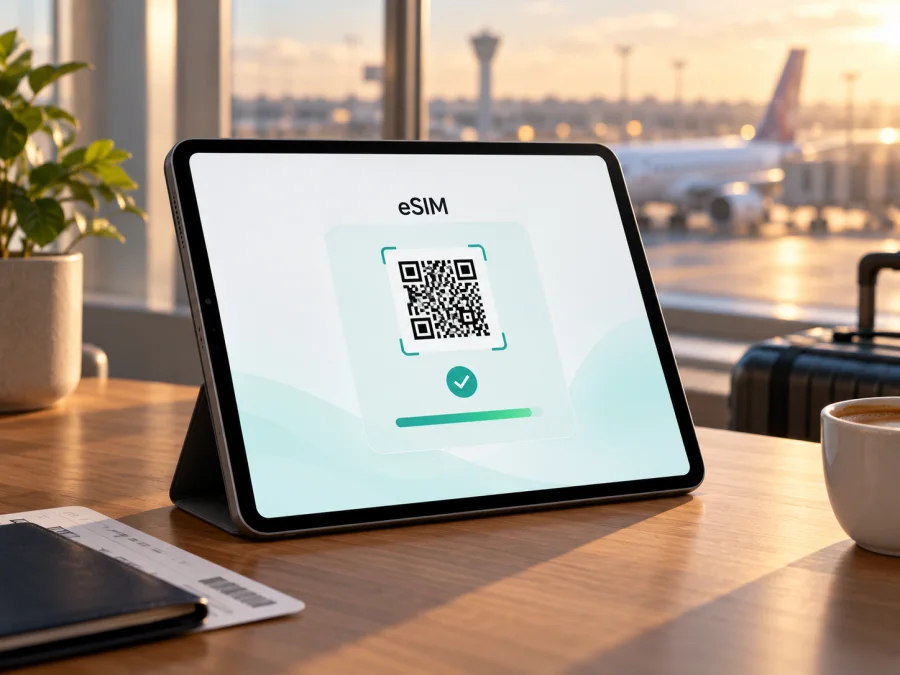
Apple iPad Pro 11-inch cellular eSIM: compatibility and setup
Short answer: Apple lists Wi‑Fi + Cellular versions of the iPad Pro 11-inch (1st through 4th generation) and the M4 and M5 generations as eSIM-capable. A Wi‑Fi-only iPad cannot use a mobile data eSIM. The exact market version still matters: China mainland has a separate compatibility list, and carrier support, device restrictions, and the iPadOS version can affect activation. The input name, Apple iPad Pro 11-inch cellular, does not identify a generation or model number, so check the device itself before choosing a plan.
An eSIM is a digital SIM profile that lets a compatible cellular iPad connect to a mobile data plan without inserting a SIM card. It can be useful when you need maps, bookings, messaging, email, or work access while travelling. On iPad, cellular plans are for data; do not assume they include an ordinary phone number, voice calls, or SMS. Confirm the terms of the specific plan before purchase.
Does Apple iPad Pro 11-inch cellular support eSIM?
Usually yes, if this is a Wi‑Fi + Cellular iPad Pro 11-inch from a generation Apple lists as supported. Apple’s current setup guidance names the 1st, 2nd, 3rd, and 4th generation models, as well as iPad Pro 11-inch (M4) and (M5) Wi‑Fi + Cellular. The Wi‑Fi-only versions are not cellular devices and cannot add a mobile data plan. The product name alone is not enough to confirm which version you own, so use the model number and the Settings screen as the final checks.
There is also an important hardware difference between generations. The M4 and M5 Wi‑Fi + Cellular models use eSIM only and have no physical SIM tray. Earlier cellular versions may support eSIM as well as a nano-SIM, depending on the precise version. A SIM tray does not by itself rule out eSIM, and the absence of a tray does not mean that cellular service is unavailable. It may simply mean that eSIM is the only SIM option on that model.
| Check | What to know |
|---|---|
| Device family | Apple iPad Pro 11-inch cellular; the input does not specify generation or model number |
| eSIM support | Apple lists 1st–4th generation and M4/M5 Wi‑Fi + Cellular models as supported |
| Wi‑Fi-only model | Does not have cellular mobile data or eSIM capability |
| M4/M5 cellular models | eSIM only; no physical SIM card compatibility |
| Earlier cellular versions | eSIM support is listed, but physical SIM capability and model details vary |
| China mainland | Use Apple’s dedicated China mainland model and carrier guidance; general support elsewhere does not guarantee local activation there |
| Activation | Requires a compatible carrier or service provider, an eligible plan, internet access during setup, and an iPadOS version that supports the method |
Support for eSIM hardware does not guarantee that every provider, plan, or destination will work. The service provider must support iPad eSIM activation, and its plan must be valid for the country or region you are visiting. A provider may also impose account, device-lock, or roaming restrictions. Check these conditions independently of the iPad’s basic eSIM capability.
Regional versions and model identification
“11-inch cellular” describes a size and connectivity option, not one universal configuration. The iPad Pro 11-inch has multiple generations and market-specific model numbers, including special China mainland versions. Check the A-number and original sales market; appearance and current location do not identify the variant.
To find the model number, open Settings → General → About. The “Model Number” line may initially show a part number; tap it to reveal the model identifier beginning with “A”. Compare that identifier with Apple’s official “Identify your iPad model” information. You can also check the model name and software version on the same screen. If you are buying a used device, ask the seller for a clear view of this page and confirm the exact model before paying.
China mainland is a distinct case: Apple says local-provider eSIM activation is limited to specifically supported iPad models. A device bought elsewhere may be unable to install a China mainland carrier profile even if it has eSIM hardware. Check both Apple’s market-specific model list and the provider’s rules.
How to check eSIM compatibility on your iPad
Before paying, verify the model number, EID, eSIM settings, and provider eligibility:
- Confirm that it is Wi‑Fi + Cellular. In Settings, open General → About and check the model name and cellular information. A Wi‑Fi-only model has no cellular modem and cannot use an eSIM data plan.
- Record the A-number. In the same About screen, tap the model number if necessary to display the hardware identifier. Match it to Apple’s current model-identification page, paying attention to the generation and any country-specific label.
- Look for an EID. Still in Settings → General → About, scroll through the identifiers. An EID is the identifier associated with an embedded SIM. Its presence is a useful sign that the device has eSIM hardware. Do not publish or send the EID in a public forum; share it only with a provider or support team when they need it.
- Check the cellular settings. Open Settings → Cellular Data (the wording may vary by iPadOS region). Look for Add eSIM, Add a New Plan, Set Up Cellular Data, or a similar option. An existing plan may already be listed there.
- Check the provider and destination. Ask the provider whether it supports eSIM activation on iPad, the exact model number, and the country or region where you will use the plan. A provider that supports eSIM on phones may not support the same activation flow on iPad.
- Check for restrictions. Confirm that the iPad is not locked or restricted by a carrier, employer, school, or device-management profile. If it was purchased through a carrier, contact that carrier about eSIM eligibility and roaming rules.
- Connect to Wi‑Fi and update iPadOS. Activation can require an internet connection and may depend on a recent version of iPadOS. Install a software update before travelling if one is available and convenient.
An EID is a useful check, not the only one. Settings names vary. If a supported cellular model lacks an add-plan option, update and restart iPadOS, check for management restrictions, and ask Apple or the provider to verify the hardware before buying.
Compatibility checklist before purchase
- [ ] The tablet is a Wi‑Fi + Cellular model, not a Wi‑Fi-only iPad.
- [ ] The exact generation and A-number are known.
- [ ] Apple’s model information lists that version for eSIM in the relevant market.
- [ ] An EID or eSIM/add-plan setting is visible, or support has confirmed the device.
- [ ] The iPad is not carrier-locked or blocked by an organisation’s management settings.
- [ ] The chosen provider supports iPad eSIM, not only eSIM phones.
- [ ] The plan covers the destination and the service can be activated where and when you need it.
- [ ] The data allowance, validity period, activation trigger, roaming requirement, and refund terms are understood.
Check your device before selecting a travel plan. If any item is uncertain, verify the model and provider requirements first. This avoids confusing “cellular” with confirmed eSIM eligibility or assuming that a plan’s destination coverage automatically means it supports this specific tablet.
How to install and activate an eSIM on Apple iPad Pro 11-inch cellular
Menu labels vary by iPadOS and provider. Connect to Wi‑Fi and have the provider’s activation details ready. A QR code must be available on another screen or printed page unless the provider offers a supported link or manual setup flow.
- Confirm compatibility. Check the cellular model, regional eligibility, carrier lock, and plan rules.
- Connect to Wi‑Fi. Keep the iPad online during profile download; update iPadOS if required.
- Open cellular settings. Go to Settings → Cellular Data and choose Add a New Plan, Add eSIM, or the provider option shown.
- Follow the provider’s activation method. This may be carrier activation, a supported transfer, an app, web link, or QR code. Scan the code or open a supported link, then enter a confirmation code only if supplied.
- Add and label the plan. Confirm installation and wait for activation. Give the profile a recognizable label if prompted.
- Select the data line. In Cellular Data settings, choose the travel eSIM. Enable Data Roaming only if its provider requires it.
- Check timing. Confirm whether validity starts on purchase, installation, or first connection, and test service when the plan should be active.
For Apple’s instructions for eSIM on iPad, see the iOS installation guide. For a broader device setup reference, see the Android installation guide; Android menu names do not apply to iPad. Follow the provider’s specific activation instructions if they differ from a general walkthrough.
Before leaving home
Install over Wi‑Fi only after checking when validity begins: purchase, installation, or first connection in the destination. If the plan allows later activation, follow its instructions. Keep the confirmation details available offline and do not delete a profile that may be single-use.
Using the eSIM for mobile data while travelling
After arrival, open Settings → Cellular Data, enable the travel eSIM, and select it for mobile data. Turn on Data Roaming for that profile only if the provider requires it. Check the home line separately to avoid unintended roaming charges.
Allow time to register. If service does not appear, briefly toggle Airplane Mode, restart, and check the provider’s network instructions. Connection quality depends on local network availability, coverage, device bands, and congestion.
Estimate your use before choosing a plan. Maps, email, and messaging usually use less data than video calls, streaming, or cloud backups. Use Wi‑Fi for large downloads when practical and check the remaining allowance in the provider’s account or app.
A tablet eSIM is useful for navigation, work, study, and bookings, but does not automatically replace a phone line. Ordinary calls and SMS require another service unless the plan says otherwise. Hotspot use depends on device and plan terms.
Practical travel scenarios
- Short city break: verify the destination, validity period, and data allowance; use the eSIM for maps and bookings, and Wi‑Fi for large downloads.
- Multi-country route: check every stop and any transit country against the plan’s covered destinations. A regional option may fit better, but compare its actual terms.
- Work trip with a home SIM: label the travel profile and select it specifically for mobile data. Review the home line’s roaming settings separately.
- Pre-installed plan: confirm whether installation starts the validity countdown or whether it begins on first network connection.
Common problems and checks
“Add eSIM” is missing
Confirm this is a Wi‑Fi + Cellular model, check the A-number and EID in Settings → General → About, update iPadOS, and check for a carrier or organisation restriction. If the model is supported but the setting is absent, ask Apple or the provider to verify it.
The QR code will not scan or the profile will not download
Use reliable Wi‑Fi, raise the screen brightness, and hold the code steady. If the QR code is shown on the iPad itself, use another screen or request a supported link or manual setup details. Check that the code has not expired or been used. Avoid deleting or repeatedly replacing a single-use profile without provider advice.
The profile is installed but there is no signal
Check that the travel eSIM is enabled and selected under Cellular Data, that the destination is covered, and that the plan is active. Turn on Data Roaming only if the provider requires it. Refresh with Airplane Mode or restart, then follow any network-selection or APN instructions supplied by the provider; do not guess APN values.
Data is not working or the wrong line is active
Temporarily turn Wi‑Fi off to test cellular data. Check the active data line, remaining allowance, plan validity, and any organisation restrictions. If a home SIM is installed, review its roaming separately. A plan label does not select it automatically.
The plan started early or cannot be transferred
Check whether validity begins at purchase, installation, or first connection. eSIM transfer and reissue depend on the provider; some profiles are single-use or tied to one device. Contact the provider before removing the profile or replacing the iPad.
Frequently asked questions
Does every Apple iPad Pro 11-inch cellular support eSIM?
Apple lists 1st–4th generation and M4/M5 Wi‑Fi + Cellular models. Confirm your exact A-number and EID because the product name alone does not specify generation or market. Wi‑Fi-only models do not support cellular eSIM.
Can I use eSIM if the iPad has a SIM tray?
Earlier cellular models may support both a nano-SIM and eSIM. The tray alone does not confirm provider compatibility. M4 and M5 cellular versions are eSIM-only.
Does a travel eSIM include a phone number?
Usually it is a data plan only unless its terms say otherwise. It does not automatically replace ordinary calls or SMS; internet messaging apps may work over data.
Should Data Roaming be on?
Follow the selected plan’s instructions. Some travel profiles require it. Make sure the travel eSIM is the active data line and check the home line separately.
Can I install before travelling?
It depends on the plan. Check whether validity starts at purchase, installation, or first connection before adding the profile.
What about a China mainland model?
Check Apple’s separate China mainland supported-model guidance and the local provider’s eligibility rules. Support in one market does not guarantee activation with every provider elsewhere.
What is Kaspersky eSIM Store?
It is an app and website where you can choose, arrange, and activate an eSIM with a suitable mobile-data plan for a trip abroad. Plan availability and activation terms depend on the selected option and service provider.
What if activation still fails?
Keep the iPad on Wi‑Fi, record the model number and exact error, and contact the eSIM provider. For a device-level issue, contact Apple or the carrier that supplied the iPad. Do not post your EID publicly.
Before you choose a plan for your trip
Start with the exact iPad model, not just the “11-inch cellular” name. Confirm that it is a Wi‑Fi + Cellular version, identify its A-number, and check for an EID or an add-plan option. Then verify that the specific provider supports eSIM on that iPad and that the plan applies to every destination on your route. Review the data allowance, validity, activation trigger, roaming requirement, and transfer restrictions before checkout.
Once compatibility is clear, Kaspersky eSIM Store lets you browse and choose an eSIM option for mobile data during a trip abroad through its app or website. Compare the terms displayed for your destination and select an option that matches your expected use. You can browse available travel eSIM options on the Kaspersky eSIM Store homepage; this is a general destination and plan-browsing link, not a tariff page for a specific country.
In brief: supported cellular iPad Pro 11-inch generations can use eSIM, but the exact model, market, iPadOS settings, carrier restrictions, and provider’s iPad support all matter. Verify those details before purchase, install the profile using the provider’s instructions, and select the travel eSIM as the mobile-data line when you are ready to use it.


