Travel connectivity guide
Apple iPad Pro 12.9-inch 2020 cellular 128GB eSIM
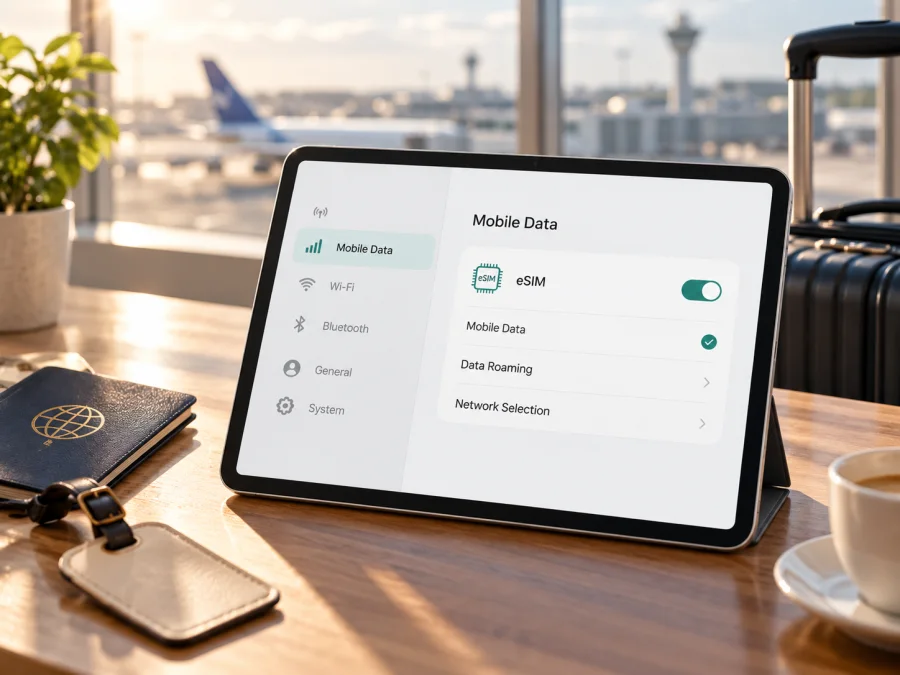
Apple iPad Pro 12.9-inch 2020 cellular 128GB eSIM
The Apple iPad Pro 12.9-inch 2020 cellular 128GB can use eSIM when it is the Wi‑Fi + Cellular model for a market where eSIM service is available. Apple identifies this 2020 tablet as the fourth-generation 12.9-inch iPad Pro and lists eSIM for its Wi‑Fi + Cellular configuration. The 128GB storage size does not determine cellular or eSIM capability: a Wi‑Fi-only iPad with the same storage cannot connect to a mobile network, and regional model numbers and local service rules matter.
Check the model number in Settings before choosing a plan. The usual Wi‑Fi + Cellular model numbers include A2069 and A2232; A2233 is the model Apple identifies as Wi‑Fi + Cellular for mainland China. Apple’s technical information says eSIM is not available in mainland China. Treat that as a geographic service restriction, not a promise that a plan from another market will work there. If you travel outside mainland China with an A2233, verify the exact iPad and destination with the eSIM provider before purchase. The tablet is an LTE device, not a 5G iPad.
At a glance
| Detail | What it means for eSIM |
|---|---|
| Configuration | eSIM implication |
| --- | --- |
| Wi‑Fi only | No cellular service or eSIM mobile data |
| Wi‑Fi + Cellular | eSIM-capable in supported markets; has nano-SIM tray |
| Storage | 128GB does not identify the regional or cellular variant |
| Model generation | 2020, 12.9-inch (4th generation); LTE, not 5G |
| Confirm before purchase | A-number, EID/Add eSIM, destination, operator and plan support |
Does the Apple iPad Pro 12.9-inch 2020 cellular 128GB support eSIM?
Yes, if the specific tablet is a supported Wi‑Fi + Cellular variant. Apple lists the iPad Pro 12.9-inch (4th generation) Wi‑Fi + Cellular among the iPads that support eSIM, and its technical specifications list eSIM alongside the nano-SIM option. This is a cellular-data feature: the iPad is not a phone replacement, and an eSIM data plan does not automatically provide a normal mobile number, voice calls or SMS.
Two details determine the answer. Apple sold Wi‑Fi and Wi‑Fi + Cellular versions: A2229 is Wi‑Fi only, while A2069 and A2232 are standard cellular model numbers and A2233 is the China-mainland-only cellular variant. Storage cannot distinguish them. Also, device capability does not guarantee provider support in every destination. Apple says eSIM is not available in mainland China for this generation. A regional label alone is inconclusive: check the A-number, local Settings controls and the exact destination and operator market with the provider.
How to identify the exact iPad variant
- Open Settings on the iPad.
- Tap General, then About.
- Find Model Number. If it initially shows a part number, tap that entry to display the A-number.
- Compare the A-number with Apple’s iPad identification information and the seller’s description. For this generation, A2229 is Wi‑Fi only; A2069 and A2232 are Wi‑Fi + Cellular; A2233 is the Wi‑Fi + Cellular model Apple identifies as mainland-China-only.
- Check the edge of the tablet for a nano-SIM tray. A tray is a useful clue that it is a cellular model, but it does not by itself prove that eSIM can be activated for your destination or provider.
If the seller cannot provide the A-number, “128GB Cellular” is not enough evidence. Ask for a Settings > General > About screenshot with personal identifiers hidden, or confirmation that the unit can add an eSIM in your intended destination.
Check compatibility before buying a travel plan
Use this checklist before you pay for an eSIM plan:
- [ ] Confirm Wi‑Fi + Cellular. A Wi‑Fi-only iPad cannot add mobile service, even if the storage size and appearance match.
- [ ] Record the A-number. Confirm the specific model rather than relying on “global,” “international,” “unlocked” or “cellular” in an advertisement.
- [ ] Look for an EID. Go to Settings > General > About and scroll through the device details. An EID is an identifier associated with eSIM hardware. Its presence is a strong indication that the iPad has an eSIM component; it does not guarantee that a particular operator or plan will accept it.
- [ ] Look for the setup control. In Settings, open Mobile Data (called Cellular Data in some versions or regions) and look for Add eSIM, Add a New Plan or an equivalent option. Menu wording and availability may depend on the exact model, region, iPadOS and provider. A missing option calls for further checking; it is not a reason to buy first and troubleshoot later.
- [ ] Check the destination and operator market. Ask whether the eSIM profile can be used in the actual country or region you will visit, including any restrictions that apply to a mainland-China-market device or a locally issued service.
- [ ] Ask whether the plan supports iPad. Some travel eSIM products are described for phones, and their activation method or terms may exclude tablets. Confirm that the plan is intended for an iPad or tablet and is data-only if that is what you need.
- [ ] Check the network lock. If the iPad was sold or financed through a carrier, confirm that no provider restriction prevents use of another provider’s profile. Contact the seller or original operator if the status is unclear.
- [ ] Read the plan conditions. Check destination coverage, data allowance, validity, activation timing, top-up rules and any tethering restrictions. Coverage and availability depend on the plan and local network.
- [ ] Prepare internet access. Have Wi‑Fi available for installation and keep the QR code, installation link or provider instructions accessible on another screen if required.
What an EID can and cannot tell you
An EID identifies the embedded SIM capability; it is not an IMEI, phone number, activation code or guarantee of service. If none appears, confirm the cellular A-number, connect to Wi‑Fi, restart and check for an iPadOS update. A Wi‑Fi-only model cannot use eSIM. If a cellular iPad still shows no EID or add-plan control, ask Apple or the seller to confirm its configuration before purchase. Share identifiers only through the provider’s normal support channel.
Check your device compatibility before choosing a plan. The link opens the compatibility section or modal provided by the site template; it complements, but does not replace, checking the physical tablet and confirming the plan with its provider.
Install an eSIM on this iPad
Install only after verifying that the plan is for your destination and supports iPad. Keep the iPad connected to Wi‑Fi, make sure it has enough battery, and read the plan’s activation instructions first. Depending on the provider, iPadOS may add the profile through a QR code, a link, a provider activation message, an app or another carrier-supported flow. Not every method is available for every plan.
Add a plan with a QR code
- Get the correct QR code. Open the order details or activation message supplied for the plan. Check that it belongs to the destination and profile you intend to use. Do not share it: many QR codes can only be installed once.
- Make the code available to the iPad. Display it on a second phone, computer or printed page. On iPadOS 17.4 or later, a QR code displayed in an email or on a webpage on the iPad may offer an Add eSIM action when you touch and hold it. Use that option only if iPadOS recognizes the code and the plan instructions allow it.
- Open mobile-data settings. On the iPad, go to Settings > Mobile Data or Settings > Cellular Data, then choose Add eSIM or the available new-plan option. The exact label can differ by iPadOS version and region.
- Scan or confirm the profile. Use the iPad’s camera to scan the QR code if prompted, then tap the notification to continue. Follow the on-screen steps and enter a confirmation code only if the provider issued one.
- Wait for installation to finish. Keep the iPad online and do not delete the profile while it is being added. Installation and network registration are separate steps; a profile can appear in Settings before it connects to a local network.
- Label the plan. If prompted, choose a clear label such as “Travel data” so you can distinguish it from a home SIM or another stored plan.
- Choose when to use it. If you are still at home, leave the travel profile turned off or keep it from being selected for mobile data until you need it, unless the plan’s activation instructions say otherwise. Check the plan conditions carefully: installing a profile and starting its validity period may be different events.
If you do not have a second screen, do not assume the iPad can scan a QR code from its own display using its camera. Look for an on-device Add eSIM action for the code, request an activation link if the provider supports it, or display the code on another device. Never remove and reinstall a profile as a first troubleshooting step; some providers issue single-use installation details.
For general illustrated setup steps, see the iOS eSIM installation instructions and Android eSIM installation instructions. The Android guide is for Android phones, and the iOS guide may show an iPhone interface; on this tablet, use the iPadOS settings path described above. If the plan uses a provider link or activation notification instead of a QR code, follow the provider’s instructions for that method.
Choose mobile data and activate at the destination
After adding the profile, open Settings > Mobile Data or Cellular Data and select the travel plan as the line for mobile data when you are ready to use it. Turn on Mobile Data. If the plan requires data roaming, enable it for that travel profile only after checking the plan instructions and confirming you have selected the correct eSIM. A data-roaming switch is a setting; it does not itself tell you whether roaming charges apply, so rely on the plan’s stated conditions.
At your destination, allow the iPad a few minutes to register. If the provider requires manual activation or a network selection, follow its directions. Keep your regular SIM available if you rely on it for another service, but ensure that the travel eSIM is selected for mobile data. The iPad’s cellular service is for data; internet calling and messaging apps can work over data, while ordinary voice and SMS depend on a separate supported service and are not included automatically.
Using eSIM for mobile internet on a trip
A cellular iPad gives you a larger screen for maps, bookings, documents, email and video calls away from Wi‑Fi. A compatible travel eSIM adds a mobile-data option without swapping a physical SIM, though it cannot guarantee a signal everywhere. The 128GB storage is for apps and files, not mobile data. Estimate usage—navigation and messages differ from video meetings, cloud backups or streaming—and check the plan’s allowance and validity.
Before travel:
- Match the country or region to your itinerary; nearby destinations may not be included.
- Check data allowance, validity, activation rules and hotspot permission if you plan to connect a laptop.
- Install over reliable Wi‑Fi if advance installation is allowed, and check when validity begins.
- Save order and support details for offline access.
- Choose the intended mobile-data line to avoid accidental home-SIM roaming.
After arrival, switch on the travel profile, select it for mobile data and wait for the network to register. If there is no connection, check that the destination is included and follow the provider’s guidance on data roaming or network selection. When returning home, switch mobile data back to your usual line and turn off the travel profile if you no longer need it. Do not delete an eSIM unless you are sure you will not need to use it again or the provider confirms it can be reinstalled.
Kaspersky eSIM Store is an app and website where you can choose, arrange and activate an eSIM with a suitable mobile-data plan for an international trip. It is not a mobile operator or network owner. To review current destinations and plan terms, browse the Kaspersky eSIM Store; this is the English store homepage, not a page for a specific country tariff. Confirm that the destination, device type and activation conditions match your trip before completing an order.
Common problems and checks
The iPad has no “Add eSIM” option
Confirm the A-number identifies a Wi‑Fi + Cellular model, then look for an EID under Settings > General > About. Connect to Wi‑Fi, restart and install any available iPadOS update. If a cellular A-number still has no EID or add-plan control, check with Apple or the seller before buying a plan; regional restrictions may apply.
The QR code will not scan
Show the full code on a second screen or print it, increase its brightness and hold it steady. If the provider supports it, use an activation link or the iPadOS option to add a code from email or a webpage. A used or expired QR code may need to be replaced by the provider. Do not post the code publicly.
The eSIM installs but has no service
Check the destination, plan validity, profile status and selected mobile-data line. Toggle Airplane Mode, wait for registration and follow the provider’s directions about data roaming or manual network selection. If the issue remains, contact plan support with the iPad model number, software version, destination and steps already tried.
Data uses the wrong SIM or does not work
In Settings > Mobile Data or Cellular Data, select the travel profile for mobile data and check that it is enabled. Confirm that the plan is active for the current date and destination. Review the provider’s usage page and conditions for activation, data roaming and network settings; installation and validity start may be separate events.
Transfer or reinstall is blocked
Transfer rules depend on the provider and profile. Ask before deleting, moving or resetting a working eSIM, since a QR code may be single-use and reinstallation may not be available. If the iPad is carrier-restricted, contact its original seller or carrier.
Frequently asked questions
Can the Wi‑Fi-only Apple iPad Pro 12.9-inch 2020 128GB use eSIM?
No. It has no cellular service. The Wi‑Fi + Cellular variant is required for mobile-data eSIM.
Does every 128GB cellular version have identical eSIM access?
No. Storage does not identify the regional variant or operator eligibility. Check the A-number, EID and Add eSIM option, then confirm that the plan supports the exact iPad and destination.
Is this iPad 5G?
No. This 2020 cellular model uses LTE specifications; do not expect a 5G connection.
Will an eSIM from any country work?
No. The destination must be included and the provider must support the exact device type. Geographic availability, device variant and operator-market compatibility are separate checks.
Can I use eSIM in mainland China?
Apple says eSIM is not available in mainland China for this model and identifies A2233 as its mainland-China-only Wi‑Fi + Cellular variant. Confirm current official guidance for the exact model and market; do not assume that a foreign plan will work there.
Does a travel eSIM include calls and texts?
Not automatically. Travel plans are commonly data-only; check the selected plan’s terms. Messaging and calling apps can use an active data connection.
Can I install before departure or transfer later?
Advance installation may be possible over Wi‑Fi, but check when validity begins. Transfer or reinstallation depends on provider rules, so confirm before deleting or moving the profile.
Final check before your trip
The Apple iPad Pro 12.9-inch 2020 cellular 128GB supports eSIM when it is a compatible Wi‑Fi + Cellular variant; the Wi‑Fi-only configuration does not. Confirm the A-number, EID and Add eSIM option on the iPad, then check the destination, operator market and tablet eligibility for the plan. Apple identifies A2233 as the mainland-China-only variant and says eSIM is not available in mainland China, so regional and geographic restrictions deserve a specific check.
Once the device and destination are confirmed, compare the plan’s data allowance, validity and activation conditions with your itinerary. Use the plan’s instructions to install the profile over Wi‑Fi, choose it for mobile data when needed, and follow the provider’s local-network guidance after arrival. You can use the Kaspersky eSIM Store homepage to review available destinations and current plan information; it is a general store link, not a guarantee of availability for a particular country, iPad variant or operator market.


