Travel connectivity guide
Apple iPad Pro 12.9-inch 2020 cellular 1TB eSIM
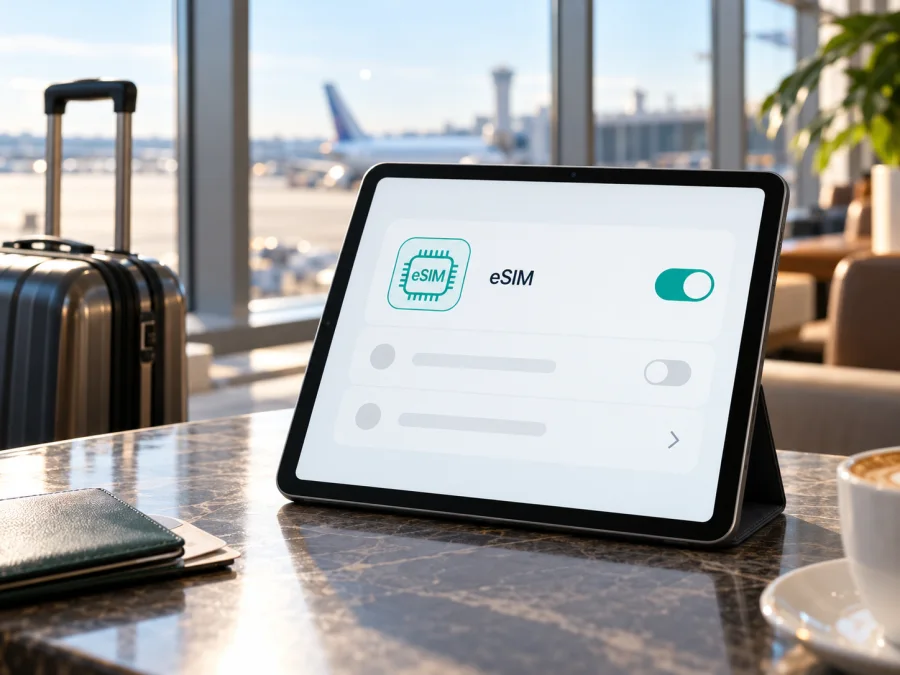
Apple iPad Pro 12.9-inch 2020 cellular 1TB eSIM compatibility and setup
The Apple iPad Pro 12.9-inch 2020 cellular 1TB can use eSIM for mobile data when it is a Wi‑Fi + Cellular model sold for a market where eSIM is available. Apple identifies the 2020 12.9-inch iPad Pro as the fourth-generation model and lists eSIM among its SIM capabilities. Apple says eSIM is not available in mainland China, and not every carrier or plan supports it. The Wi‑Fi-only iPad has no cellular service, regardless of its storage capacity or software version.
In practical terms, a standard international cellular model can be suitable for a travel data eSIM, but the words “cellular 1TB” alone do not prove that a particular used or imported unit has eSIM enabled for your intended market. Check its model number, EID, Settings menu and network restrictions before choosing a plan. The 1TB storage configuration does not change eSIM support.
Compatibility at a glance
| Detail | What it means for eSIM |
|---|---|
| Device named in this guide | Apple iPad Pro 12.9-inch 2020 cellular 1TB |
| Apple generation | Fourth generation, introduced in 2020 |
| Cellular configuration | Wi‑Fi + Cellular is required; Wi‑Fi-only models cannot connect to mobile networks |
| eSIM | Listed for supported Wi‑Fi + Cellular versions; carrier, region and model restrictions apply |
| Physical SIM | The cellular version also has a nano-SIM tray, so eSIM is not its only SIM option |
| Storage | 1TB does not determine whether eSIM is present |
| China mainland | Apple marks eSIM as unavailable there; the mainland cellular variant must not be assumed to support it |
| Mobile service | Requires a compatible data plan and a carrier/network supported where the iPad is used |
What “cellular” means on this iPad
Apple sold the 2020 12.9-inch iPad Pro in Wi‑Fi and Wi‑Fi + Cellular configurations. “Cellular” is a radio and SIM capability, not a promise that a plan is active or that every eSIM provider can activate on the tablet. On the fourth-generation Wi‑Fi + Cellular device, Apple lists nano‑SIM and eSIM. Cellular data is sold separately, and network compatibility depends on the model and service provider.
This iPad is a data-capable tablet. An eSIM plan for it ordinarily provides mobile data, not a conventional mobile phone number for voice calls and SMS. Messaging and voice apps can use the internet, subject to their own accounts and service requirements. If you need calls or texts through a regular number, keep a separate service that supports those features.
The 1TB label refers to local storage for apps and files. It does not indicate a special “eSIM edition”, additional cellular bands, or a different SIM configuration. Likewise, the presence of a SIM tray does not mean eSIM is missing: on supported fourth-generation cellular variants, physical nano-SIM and eSIM coexist.
Regional models: check the exact unit
Apple’s model identification information lists the 2020 iPad Pro 12.9-inch Wi‑Fi + Cellular models as A2069 and A2232, and identifies A2233 as the Wi‑Fi + Cellular version for mainland China. The Wi‑Fi-only model is identified separately. Country of purchase matters: the same family name, screen size and capacity can refer to different market configurations. Do not infer eSIM availability from a seller’s title or the general “Cellular” wording alone.
Apple’s technical specifications list eSIM for the fourth-generation model and footnote that not all carriers support Apple SIM and eSIM, and that eSIM is not available in mainland China. Apple’s current support information also limits local-provider eSIM activation in mainland China to iPad models that support eSIM there. For this 2020 device, do not treat a mainland-China-market A2233 as an eSIM model. A unit imported from elsewhere may have different hardware, but being physically in another country does not by itself remove a model-level restriction or guarantee that a local carrier will provision it.
Regional differences can also affect the cellular bands available to the device. The fact that an eSIM profile installs does not guarantee that the tablet supports the frequency bands used by a specific network in every location. For travel, check the exact model’s bands and the plan’s country and network conditions if you need dependable service in a particular destination. A plan may also require a compatible carrier profile, supported iPadOS version, or a specific activation method.
Carrier lock and account policy are separate checks. An iPad might have eSIM hardware but still be restricted by the provider that originally supplied it, or require the original account holder to remove a restriction. Ask the seller or original carrier whether the iPad is unlocked and eligible for another data plan. A working physical SIM from one provider is useful evidence that cellular radio functions, but it does not prove that an unrelated eSIM can be added.
Check this iPad before buying a plan
Use the device itself when possible; an online listing, box label or seller description is not enough. If the iPad has not been set up, ask the seller to confirm the model number and show the relevant Settings screens, while hiding personal information.
- Confirm it is Wi‑Fi + Cellular. Look for the nano-SIM tray on the right edge and check the model number in Settings. Apple’s identification page distinguishes A2069 and A2232 cellular models from Wi‑Fi-only hardware and lists A2233 as the mainland-China cellular variant.
- Find the EID. Open Settings → General → About and scroll through the device information. On an eSIM-capable iPad, an EID may be listed with the IMEI and other identifiers. The EID is a long identifier for the embedded SIM; it is not the serial number, IMEI, or an activation code. Avoid posting it publicly.
- Look for the eSIM controls. Open Settings → Cellular Data (the label may vary by iPadOS language or release). A supported iPad may show Add a New Plan, Add eSIM, a carrier selection, or a QR-code option. Menu wording and activation methods vary by carrier and software version.
- Check what the seller says about origin. Match the model number to Apple’s list and ask whether the device was purchased for mainland China or another region. A2233 is a specific mainland-China variant; do not assume it has the same eSIM availability as international models.
- Ask about restrictions. Confirm the tablet is not locked to a carrier or tied to an account that prevents adding a different plan. If a plan is already installed, ask whether it can be removed and whether a new provider will accept the device.
- Verify the destination and provider. Before paying, confirm the eSIM seller supports this iPad generation, the destination, the iPad’s model, and the method you plan to use (direct installation, QR code, or manual details).
An EID is a useful indicator, but no single screen should replace the full check. If the EID is absent, the add-plan control is missing, or the model is a mainland-China version, pause and ask Apple or the relevant carrier to confirm before purchase. A missing menu can also result from an old iPadOS version, carrier settings, network availability, device management, or a regional restriction, so investigate rather than concluding from one clue alone.
Check whether your device is compatible before you choose a data plan. Confirm the exact tablet, market variant and activation method, and make sure the device is unlocked for the intended provider.
Add an eSIM: preparation and installation
Have a stable Wi‑Fi connection and keep the iPad charged. Update iPadOS if practical, and keep the plan’s instructions available. Activation codes are often single-use; do not scan repeatedly or remove a profile to troubleshoot unless the provider confirms it can be reinstalled.
The provider determines the available method. Apple documents activation through Settings, a carrier app, QR code or manual details. Follow the specific travel plan’s instructions, since tablet setup can differ from phone setup.
Install from iPad settings
- Connect to Wi‑Fi and open Settings.
- Tap Cellular Data (the label can vary by language or iPadOS release).
- Choose Add a New Plan or the equivalent. Select a carrier only if the instructions direct you to do so.
- To scan a QR code, select the scan option (often Other) and frame the provider’s code. Enter a confirmation code if requested.
- If given manual activation details, enter them carefully. Keep the QR code and activation information private.
- Review and confirm the profile installation. Stay connected to Wi‑Fi until it finishes.
- Label the plan clearly if prompted, then return to Settings → Cellular Data and confirm it appears.
You can also install through a provider app if the plan supports it. Follow the prompts only when they match the eSIM you intend to add. The iOS eSIM installation instructions offer a general walkthrough; the plan’s current instructions take priority. This iPad runs iPadOS, so Android steps do not apply. The Android eSIM installation instructions are for a separate Android device.
Activate and select the plan
“Installed” does not always mean “connected”. Activation may finish immediately or wait until the eSIM reaches an eligible network. At your destination, turn on cellular data, select the travel plan for data, and follow the plan’s direction about Data Roaming. Some travel eSIMs require it on for that eSIM line. Avoid enabling roaming on your home line unless you intend to use that service, since charges may apply.
If you keep another plan active, check which line is selected for data. Multiple plans may be stored, but simultaneous use and switching behavior depend on the model, software and provider. The plan’s validity may begin at installation, activation or first network connection; check its terms before installing well ahead of travel. Keep order details accessible over Wi‑Fi in case setup is interrupted.
Using the iPad for mobile data while travelling
The 12.9-inch iPad Pro can handle maps, messages, bookings, email and video calls over mobile data. Before departure, verify that the plan covers every country on your route, not only the first stop. eSIM availability in a country does not prove that a specific device variant or provider plan is eligible there.
A practical sequence is to check compatibility at home, choose a plan with suitable data and validity, install it while reliable Wi‑Fi is available, then follow the provider’s advice on when to enable it. On arrival, select the travel plan for mobile data and test a simple webpage or map. Use Wi‑Fi to check plan status and instructions if it fails to connect; avoid deleting the profile as a first response.
Cloud photo backup, app updates, maps and streaming can use data quickly. Download maps and essential documents beforehand, and disable large automatic downloads over cellular if needed. Personal Hotspot or tethering may be possible only if supported by iPadOS and permitted by the plan. Check the terms rather than assuming sharing is included.
Kaspersky eSIM Store is an app and website where travellers can choose, arrange and activate an eSIM data plan for a trip abroad. You can browse Kaspersky eSIM Store to review current destinations and plan conditions. Check the individual offer’s destination, data amount, validity, activation rules and device requirements. A plan cannot change the tablet’s hardware limits or guarantee that every local network will be available.
Troubleshooting: when eSIM will not install or connect
Work through the checks in order and note the exact error. “No service” can have several causes, so changing unrelated settings or deleting the profile can make diagnosis harder.
| Symptom | Checks to make |
|---|---|
| No Add a New Plan option | Confirm it is Wi‑Fi + Cellular, check model and region, update iPadOS when appropriate, and look for device-management restrictions. Ask Apple or the carrier to confirm eligibility. |
| No EID in About | Recheck the model and cellular configuration. A Wi‑Fi-only unit or restricted regional variant may not meet your needs. |
| QR code will not scan | Check internet access, code brightness and whether it has already been used or expired. Ask the provider for another method rather than reusing a consumed code. |
| Installation fails | Check that the plan supports tablets, the device is online and unlocked, and any confirmation code or app step is complete. |
| Plan appears but has no service | Confirm activation, destination eligibility, selected data line, cellular-data setting, local coverage and the roaming setting required for that eSIM. Try Airplane Mode briefly, then restart. |
| Wrong line uses data | Select the travel plan under Cellular Data. Check roaming separately for the home and travel lines. |
| Slow or intermittent data | Move to an area with stronger signal, refresh cellular data and check the provider’s network guidance. Local congestion, indoor signal, supported bands and plan conditions matter. |
| Code says already used | Stop trying to reinstall. Contact the provider with the order details; activation codes are often single-use. |
A brief Airplane Mode toggle or restart can refresh a connection, but cannot make an unsupported regional model compatible. Resetting network settings can remove saved Wi‑Fi networks and preferences, so try it only after simpler checks. Do not erase the iPad or remove the eSIM profile as an initial step.
For support, note the model number, iPadOS version, plan name, approximate location and exact error. Do not publicly share screenshots with an EID, QR code, confirmation code or account information; use the provider’s secure channel if those details are requested.
Compatibility checklist before purchase
Use this short checklist before you pay for an eSIM plan:
- [ ] The tablet is the supplied Apple iPad Pro 12.9-inch 2020 cellular 1TB configuration, and not a Wi‑Fi-only model or a different generation.
- [ ] Settings shows an EID or an available eSIM/add-plan control, and Apple or the provider confirms the exact unit is eligible.
- [ ] The model number and country of origin have been checked. A2233 is identified by Apple as the mainland-China cellular version, for which eSIM must not be assumed.
- [ ] The iPad is not carrier-locked or restricted by a previous owner, provider, organisation or management profile.
- [ ] The selected plan supports iPad/tablet installation, the planned activation method, and every country or region on the itinerary.
- [ ] You understand when the plan starts, how long it remains valid, what data it includes and whether it requires data roaming.
- [ ] Wi‑Fi will be available for installation or troubleshooting, and your activation details are kept private.
Frequently asked questions
Does the 1TB version support eSIM?
Storage does not determine compatibility. Apple lists eSIM for supported fourth-generation Wi‑Fi + Cellular iPad Pro models, subject to region and carrier. Confirm that the actual 1TB unit is a supported cellular model. The Wi‑Fi-only 1TB configuration cannot connect to mobile data.
Can an iPad bought in China use a travel eSIM abroad?
Do not assume so. Apple identifies A2233 as the mainland-China Wi‑Fi + Cellular variant and states eSIM is unavailable in mainland China. A travel plan or a different physical location does not change the model. Ask Apple and the plan provider to verify the exact unit.
Is an EID enough to prove a plan will work?
No. Check regional eligibility, unlocked status, software, provider support, destination and activation method as well. An EID alone does not guarantee that a specific plan can be installed.
Can it use a physical SIM, and does eSIM provide a phone number?
Supported cellular fourth-generation models have a nano-SIM tray as well as eSIM. Provider rules still apply. Travel data plans are generally for internet access; check the plan terms instead of expecting voice calls or SMS. Internet calling apps can work when their own requirements are met.
Can I move the eSIM to another device?
An activation code may be single-use and a profile may be tied to the device. Read transfer and reinstallation rules first. If the iPad is lost, replaced or erased, contact the provider before trying to move or restore the profile.
Why is Cellular Data missing from Settings?
Verify that the iPad is Wi‑Fi + Cellular, then check its model and regional version, software and any school or company management restrictions. If the option remains unavailable, ask Apple Support to verify the specific model.
Final check: verify the iPad, then choose a travel plan
For the Apple iPad Pro 12.9-inch 2020 cellular 1TB, the answer is conditional but useful: Apple lists eSIM on supported fourth-generation Wi‑Fi + Cellular models, and the 1TB capacity does not change that capability. Regional hardware matters. In particular, the mainland-China A2233 version should not be treated as eSIM-compatible, and carrier availability and restrictions still apply.
Before choosing a travel plan, confirm the model number, look for the EID and eSIM controls in Settings, check that the device is unlocked, and ask the provider to confirm support for the specific model and destination. Then compare the plan’s data allowance, validity and activation timing with your trip. Kaspersky eSIM Store can help you review current destinations and choose an eSIM data plan for travel through its app or website; check the plan details before arranging it. A compatibility check can prevent a failed installation after departure.


