Travel connectivity guide
Apple iPad Pro 12.9-inch 2020 cellular 512GB eSIM
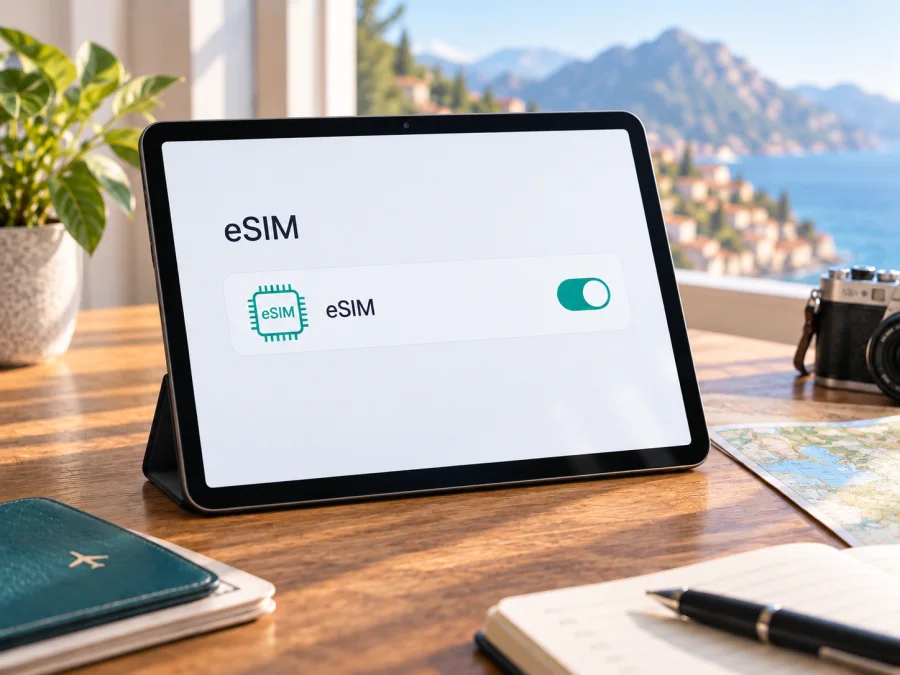
Apple iPad Pro 12.9-inch 2020 cellular 512GB eSIM: compatibility and setup
Yes—Apple iPad Pro 12.9-inch 2020 cellular 512GB supports eSIM, when it is the Wi‑Fi + Cellular version and the regional configuration and provider permit activation. Apple’s technical specifications list eSIM for the iPad Pro 12.9-inch (4th generation), the generation introduced in 2020, and list 512GB among its capacities. The model also has a nano‑SIM tray. The Wi‑Fi-only iPad is a different configuration and cannot use mobile data or eSIM.
There are two important qualifications: Apple says not all carriers support eSIM and eSIM is unavailable in mainland China. A compatible iPad also needs a plan that accepts its precise regional model. Check the actual device and provider before buying a travel plan.
Model details
| Detail | This configuration |
|---|---|
| Device | Apple iPad Pro 12.9-inch 2020 cellular 512GB |
| Generation | iPad Pro 12.9-inch (4th generation), 2020 |
| Network model | Wi‑Fi + Cellular; not Wi‑Fi only |
| Storage | 512GB; storage does not determine eSIM support |
| SIM | Nano‑SIM tray and eSIM on supported configurations |
| Cellular technology | LTE; this 2020 generation is not a 5G model |
| Best use for eSIM | A compatible mobile-data plan, including for travel |
| Market caveat | Regional configurations and carrier support differ; Apple excludes mainland China for eSIM |
The capacity is included to identify the requested variant, but the key check is the cellular hardware. A retail title can omit generation or region, and a SIM tray alone does not verify eSIM. On a second-hand or imported iPad, use its own Settings screen to identify the model number and check the available cellular options.
What eSIM does on this iPad
An eSIM is a digital SIM profile stored in compatible hardware. It can provide a mobile data plan without inserting another physical SIM. For travel, this can be useful for maps, email, messaging, documents, and other internet access while away from Wi‑Fi. The iPad may retain a home nano‑SIM while you use a travel eSIM for data, subject to plan and device settings.
A travel data eSIM is not automatically a phone service. Unless the plan explicitly includes them, it does not provide an ordinary telephone number, voice calls, or SMS. Internet calling and messaging apps can use the data connection if their own requirements are met. Network availability, speed, and coverage depend on the plan, local network, bands, and location.
Do not confuse “cellular” with 5G. Apple identifies the 2020 12.9-inch iPad Pro (4th generation) as an LTE model. Later generations may have different network features. This article concerns only Apple iPad Pro 12.9-inch 2020 cellular 512GB, and a listing that mixes its specifications with a newer generation should be verified.
Regional and carrier compatibility
<a id="kesim-device-compatibility"></a>
Apple lists eSIM under the Wi‑Fi + Cellular specifications and qualifies it with a note that not every carrier supports eSIM and it is unavailable in mainland China. Thus, the hardware supports the feature in eligible configurations, but activation is not universal. Providers can apply their own device, account, market, and location rules. A provider may support eSIM generally but not accept a tablet or a particular imported model.
Check these points before purchase:
- The device is the cellular 2020 12.9-inch iPad Pro, not the Wi‑Fi-only version or another generation.
- Settings shows an EID or an option to add a cellular/eSIM plan.
- The regional model is eligible; mainland China is an exception noted by Apple.
- The provider supports eSIM on iPad and accepts the model number shown on your device.
- The iPad is unlocked, not restricted by management settings, and can connect to Wi‑Fi for setup.
- The plan includes your destination and suits the data and validity you expect to use.
Check the EID and cellular settings
On the iPad, open Settings → General → About. Check Model Name and tap Model Number if needed to show the A-number. Record it for a provider enquiry. The storage size does not identify the radio version, so do not use 512GB as a substitute for this check.
Look for EID (Embedded Identity Document) on the About screen. An EID is a strong indicator that the device has eSIM hardware, but it does not prove that a specific carrier or travel plan accepts it. Keep the number private and share it only through a trusted provider’s activation channel if required. If it is absent, make sure you are checking a cellular model, confirm the A-number and sales region, and update iPadOS before drawing a conclusion.
Check eSIM compatibility for this iPad before choosing a plan. When the market version is uncertain, verify it with the model number instead of relying on the product name alone.
Then open Settings → Cellular Data. Depending on the iPadOS version and region, it may be called Mobile Data or Cellular. Look for Add eSIM, Add a New Plan, Set Up Cellular Data, or existing plan management. Exact labels can differ. A physical SIM already in the iPad does not by itself rule out eSIM. If no option appears, check the EID, model number, iPadOS updates, region, and device management status; contact the carrier with the A-number if necessary.
Quick compatibility checklist
- [ ] Wi‑Fi + Cellular model, not Wi‑Fi only.
- [ ] EID or an eSIM/add-plan option appears in Settings.
- [ ] Regional configuration is eligible, with the mainland China limitation considered.
- [ ] The intended provider accepts this iPad model and supports tablet eSIM activation.
- [ ] The device is unlocked and unrestricted; Wi‑Fi is available for profile download.
- [ ] The travel plan covers the destination and its terms fit the trip.
Install and activate an eSIM
Before starting, connect to stable Wi‑Fi, charge the iPad, and have the activation QR code, link, or provider app ready. Keep a QR code on another screen or printed: the iPad cannot scan a code that is only displayed on its own screen. Some iPadOS versions and providers let you touch and hold a QR code shown in email or on a web page. Use the activation method supplied for your plan.
- Read the plan terms. Check destination, data allowance, validity, compatible devices, installation deadline, and when the validity period begins. It may start at purchase, installation, or first network use; do not assume.
- Connect to Wi‑Fi. The profile must download before the travel eSIM can provide data. Keep the iPad online and do not start activation until you are ready under the plan’s rules.
- Open cellular settings. Go to Settings → Cellular Data/Mobile Data and tap Add eSIM or Add a New Plan if offered. The wording depends on iPadOS and region.
- Use the provider’s activation method. Scan its QR code and follow the detected-plan prompt, open its activation link, or use its supported app. Enter a confirmation code only if one was provided.
- Wait for the profile to install. Keep Wi‑Fi stable. Avoid repeated scans or deleting a profile if setup takes a few minutes. Note any error message so the provider can help.
- Label and select the plan. Give it a clear name such as “Travel data.” In Cellular Data settings select it for data when appropriate. Review any automatic data switching option so usage does not move to another plan unexpectedly.
- Set data roaming as directed. Some travel plans require roaming for that profile and others do not. Follow the provider’s instructions and enable it for the travel line only when required.
- Test at the right time. If the plan should begin on arrival, leave the profile installed and select it at the destination. Turn on Cellular Data, allow the iPad to register, and test a webpage. Do not delete or reinstall the profile unless the provider confirms that is safe.
For Apple-device steps, see the iOS and iPadOS eSIM instructions. The Android eSIM instructions apply to Android devices, not this iPad, and may help if you are preparing a second device. QR, link, and app activation availability depends on the provider. If the on-screen steps differ, ask the plan provider before removing an installed profile.
Use the iPad for data on a trip
The large display is useful for maps, itinerary changes, work files, translation, tickets, and messaging apps. A travel eSIM can give the tablet its own data connection away from Wi‑Fi and reduce dependence on public hotspots. It is still sensible to protect accounts and keep important documents available offline.
Choose the plan for the whole route. A country plan can suit a single destination; a regional plan can be practical across several countries only if each stop is listed as covered. Compare data allowance and validity with expected use. Maps and text messaging usually use less data than video meetings, streaming, cloud backups, and large downloads. Download maps and tickets in advance where possible.
If a home nano‑SIM and travel eSIM are both installed, check which profile supplies Cellular Data. Keep using your phone for ordinary calls and SMS if needed: data-only plans do not include these unless stated. Internet calling apps can use the iPad connection. Confirm with the plan provider whether sharing data by hotspot is allowed before relying on it for other devices.
Kaspersky eSIM Store is an app and website where you can choose, arrange, and activate an eSIM with a mobile-data plan for an international trip. Review the destination, data, duration, and terms shown for the plan, then install it on a compatible device. Kaspersky eSIM Store is not a mobile operator and does not itself provide coverage; service depends on the plan and local network.
Troubleshooting
No “Add eSIM” option: confirm Wi‑Fi + Cellular and check About for an EID and A-number. Update iPadOS, restart, and inspect Cellular Data again. Check region, management restrictions, and carrier activation support. Share the model number with the provider rather than guessing from a menu label.
QR code is not recognized: raise the brightness of the screen showing it, enlarge it without cropping, avoid glare, and check that it is unused and valid. If supported by your iPadOS and provider, touch and hold the QR in an email or web page. Otherwise show it on another device or ask for another activation method. Do not share an activation QR publicly.
Profile installs but data does not work: select the travel profile for Cellular Data, confirm Cellular Data is on, and follow the plan’s roaming instructions. Toggle Airplane Mode off and on, restart, and allow time for registration. Check APN settings only with the provider’s instructions; an incorrect value can interrupt data.
Signal appears but websites fail: check plan validity, remaining data, selected line, roaming, and any activation step. Test more than one app. If the provider permits it, try a different network. A signal icon shows network detection, not necessarily an active data plan.
Provider says the iPad is unsupported: give them the A-number and market of purchase. Verify tablet eligibility, unlock status, and whether the profile was already installed. Many eSIM profiles cannot be moved or reused after installation. Do not reset network settings or remove the profile until support explains the consequences.
FAQ
Does every Apple iPad Pro 12.9-inch 2020 support eSIM?
No. This answer applies to the Wi‑Fi + Cellular version. Wi‑Fi-only models cannot use cellular service. Regional availability and carrier support also matter, including Apple’s mainland China limitation.
Does 512GB confirm eSIM support?
No. It identifies storage capacity. Check the cellular model number, EID, region, and cellular settings on the actual iPad.
Is this a 5G model?
No. The 2020 12.9-inch iPad Pro (4th generation) is an LTE model. Do not confuse it with later generations.
Can nano‑SIM and eSIM be used together?
The iPad has a nano‑SIM tray and eSIM capability on eligible models, but active plan behavior depends on iPadOS and carrier terms. Select the intended data line in Cellular Data settings; do not assume every plan can provide data simultaneously.
Can I transfer the profile to another iPad?
Often profiles are restricted to one installation or device. Confirm transfer or reissue rules with the provider before deleting the profile or changing devices.
Does a travel eSIM include a phone number?
Usually a data-only travel plan does not include a regular number, voice calls, or SMS unless the plan says otherwise. Internet apps can use its data connection.
Should I install before departure?
That depends on when validity begins. If it begins on first network use, installing in advance may be convenient. If it starts at installation, waiting may suit your trip better. Follow the plan’s terms.
Final device and trip check
Before buying, confirm that the actual tablet is the cellular Apple iPad Pro 12.9-inch 2020 cellular 512GB, check its EID and eSIM menu, and have the provider verify its regional model. Confirm that the iPad is unlocked, the destination is included, and the plan’s installation method, start time, allowance, and duration fit your itinerary. Keep activation details private.
After compatibility is confirmed, choose an eSIM plan for the countries or regions on your route, install it over Wi‑Fi, and select it for mobile data at the right time. If the model or plan requirements remain unclear, resolve that before purchase. Checking the exact variant helps avoid arriving with an eSIM that cannot activate on this iPad.


