Travel connectivity guide
Apple iPad Pro 12.9-inch 2020 cellular 5G eSIM
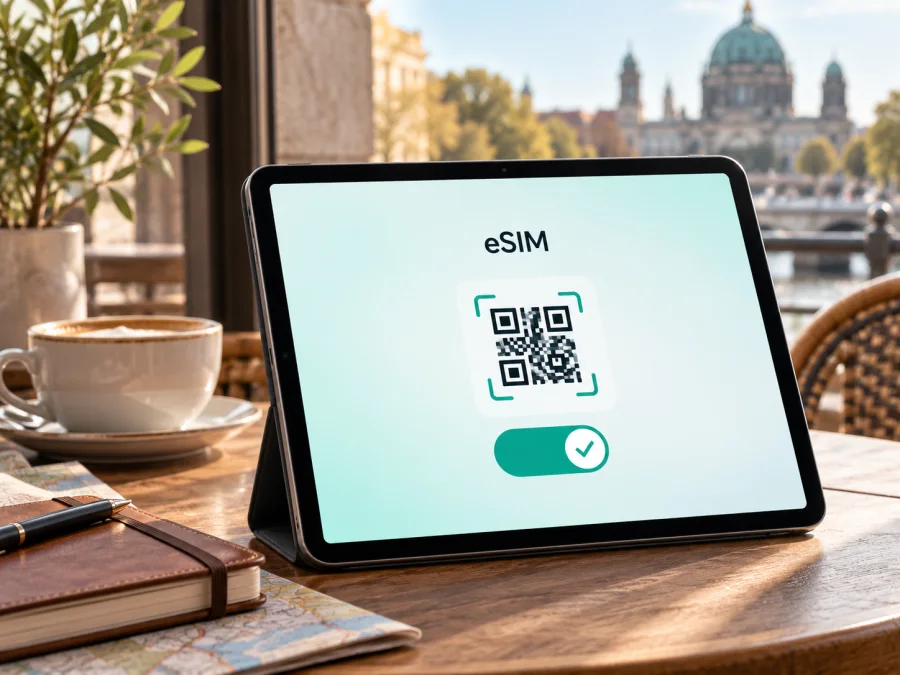
Apple iPad Pro 12.9-inch 2020 cellular 5G eSIM: compatibility and setup
Quick answer: the 2020 iPad Pro 12.9-inch Wi‑Fi + Cellular (4th generation) supports eSIM in markets where Apple and a compatible provider make it available. Its cellular specification is Gigabit-class LTE, not 5G. The “5G” wording in the supplied device name does not change that: Apple lists LTE and eSIM, but not 5G, for this generation. The exact model, country of purchase, current location and plan still matter. Apple says eSIM is not available in mainland China for this generation, so check the iPad itself before choosing a travel plan.
An eSIM is a digital SIM profile for compatible cellular hardware. It provides mobile data without another physical card, but cannot give a Wi‑Fi-only iPad cellular capability or add 5G hardware.
Does Apple iPad Pro 12.9-inch 2020 cellular 5G support eSIM?
Yes, conditionally. Apple’s specifications for iPad Pro 12.9-inch (4th generation) list eSIM for Wi‑Fi + Cellular models. They also list Gigabit-class LTE as the cellular technology. The accurate summary is eSIM: supported on eligible cellular versions and service markets; 5G: not supported. A seller title or search keyword that includes “5G” is not evidence that this iPad can connect to a 5G network.
Apple released the 12.9-inch 4th-generation iPad Pro in 2020. Later generations have different network capabilities, so do not apply a newer model’s specifications to this one. The 5 GHz band sometimes shown in Wi‑Fi specifications is a Wi‑Fi frequency, not 5G cellular service.
| Item | 2020 iPad Pro 12.9-inch Wi‑Fi + Cellular |
|---|---|
| Generation | 4th generation, released in 2020 |
| eSIM | Listed by Apple; carrier and country availability applies |
| Cellular network | Gigabit-class LTE is listed; 5G is not |
| Physical SIM | Global specification lists a nano-SIM tray and eSIM |
| Mainland China | Apple notes eSIM is not available for this generation |
| Service | Requires a compatible data plan and supported local network |
Cellular, eSIM and Wi‑Fi-only are different
“Wi‑Fi + Cellular” identifies the iPad hardware that can connect to mobile data. “eSIM” is one way to add a subscriber profile to compatible cellular hardware. A Wi‑Fi-only model cannot use an eSIM plan, even after an iPadOS update or QR scan; it can go online through Wi‑Fi or another device’s hotspot.
A cellular version may have both eSIM and a nano-SIM tray, but the tray does not prove that eSIM is enabled for the exact market. The provider must also support tablet use and the plan must be valid for the destination. Travel eSIMs are commonly data-only, so check the terms instead of assuming they include a phone number, ordinary calls or SMS.
Regional and carrier versions
Apple lists eSIM for the 2020 Wi‑Fi + Cellular iPad Pro, while qualifying that not all carriers support eSIM and that it is not available in mainland China. Compatibility combines the iPad hardware, regional configuration, provider rules and destination networks. A tablet may have eSIM hardware but still be unable to install a particular profile in a particular place.
Mainland China needs special care. Apple’s 2020 specifications state that eSIM is unavailable there. Apple’s current China-specific iPad guidance limits local-provider eSIM installation to a specified set of models, and the 12.9-inch 4th-generation iPad Pro is not on that list. Do not assume a unit bought elsewhere can install a local mainland China profile. If China is part of your trip, check Apple’s current model rules and the provider’s requirements for both the exact model and installation location.
Outside mainland China, an eligible cellular unit may use eSIM, but provider support is not universal. A carrier may require a tablet plan, account approval, its app or a QR code. A carrier lock can prevent use of a different provider’s profile. If the iPad came from a carrier or was bought second-hand, ask the original carrier whether it is unlocked and whether third-party eSIM plans are permitted.
For an imported, refurbished or used tablet, identify it by model number rather than the seller’s short title. Go to Settings > General > About. Tap the part number beside “Model Number” to reveal the A-number. Keep it available when asking Apple, the seller or a provider about compatibility. The A-number identifies hardware, but may not settle regional service eligibility.
Check compatibility before choosing a plan
Use this checklist before paying for a travel eSIM:
- Confirm the device is Wi‑Fi + Cellular, not Wi‑Fi-only.
- In Settings > General > About, identify the model number and software version.
- Look for EID on the About screen. This is an identifier associated with the embedded SIM and is a useful sign of eSIM hardware. Do not post it publicly.
- Open Settings > Cellular Data and look for Add eSIM, Add a New Plan, or another add-plan control. The wording varies by iPadOS and region.
- Check whether the iPad is carrier-locked. Ask the original carrier if the status is unclear.
- Confirm the plan supports iPad/tablet use, your installation location and every destination on your itinerary.
- Read its data allowance, validity, supported networks and activation rules. Do not assume it includes a phone number, voice calls or SMS.
- Make sure you have Wi‑Fi or another internet connection for setup unless the provider says it is not needed.
Check your device compatibility before selecting a travel plan. A visible EID is useful, but it does not guarantee that every provider or destination accepts the iPad. If a menu is missing or details do not match, compare the A-number with Apple’s specifications and ask the provider to confirm eligibility before purchase.
Find the EID and add-plan menu
- Open Settings and tap General > About.
- Scroll to find EID. You can note that it is present without sharing the complete identifier publicly.
- Return to Settings and open Cellular Data (called Mobile Data in some locales).
- Look for Add eSIM, Add a New Plan or a carrier setup option.
- If neither the EID nor an add-plan control appears, confirm the A-number and that the device is cellular. Check whether your region or location restricts eSIM activation; update iPadOS when practical.
If the menu is absent, first confirm the cellular model and intended service. A school- or employer-managed iPad may have restrictions; ask its administrator.
Before you pay
Proceed once the cellular model and eSIM capability are confirmed, the profile can be installed where you are, and the plan accepts this tablet in the destination. Resolve any possible carrier lock before travelling. Keep the order confirmation and installation instructions accessible on another device as well as the iPad, in case you need internet access to troubleshoot.
Kaspersky eSIM Store is an app and website where you can choose, arrange and activate an eSIM with a data plan for mobile internet while travelling abroad. If your compatibility checks pass, you can browse Kaspersky eSIM Store for your destination and review current details. The homepage is a starting point for checking destinations, not a guarantee that a particular tariff is available for every device or at every time.
How to install and activate an eSIM
The setup path depends on the provider and iPadOS version. These steps describe a typical QR-code installation; follow the provider’s current directions if it offers an in-app or manual method. Use Wi‑Fi during setup when possible. An iPad usually cannot scan a QR code displayed only on its own screen, so show the code on another device or print it.
Before setup
- Confirm compatibility and that the iPad is not locked against this provider.
- Connect to reliable Wi‑Fi and keep the QR code, order information and any confirmation code available.
- Treat the QR code as private; it may be single-use.
- Check when the plan validity begins. Installation, first connection and activation can be different events depending on plan terms.
- Keep your existing SIM or plan available until the new profile is confirmed.
QR-code installation
- Open Settings > Cellular Data (or Mobile Data).
- Tap Add eSIM, Add a New Plan or the add-plan option shown.
- Choose the QR-code option and scan the provider’s code. For manual details, select the manual entry option and copy them exactly.
- Enter a confirmation code if iPadOS requests one.
- Follow the prompts and label the profile clearly, for example “Travel data.”
- Wait for installation to finish while the iPad remains connected to Wi‑Fi.
- Return to Cellular Data settings and confirm that the new profile appears.
- When ready to use it, select the travel profile for cellular data.
- Enable data roaming for that profile only if its instructions require it. A roaming switch is a device setting; check the plan and home-provider terms for charges.
- At a supported destination, turn off Wi‑Fi briefly and test a simple webpage. Network registration can take a few minutes.
See the iOS installation instructions. Android installation instructions apply to a separate Android device, not this iPad. Follow plan-specific directions if they differ.
Install before departure or on arrival?
If the provider allows early installation, setting up over reliable Wi‑Fi gives you time to resolve a QR or account issue before travel. An installed profile may not become active immediately, but timing depends on the plan. Read the activation rule before scanning. If installation must happen in the destination, wait until you arrive and use trusted Wi‑Fi. Keep the confirmation and instructions accessible offline if possible.
Avoid deleting a working profile as a troubleshooting experiment. Removing it may not make a one-time QR code reusable. If the plan’s validity start is unclear, ask the provider before installing rather than assuming every eSIM works the same way.
Use the eSIM for mobile data while travelling
After installation, open Settings > Cellular Data and select the travel eSIM for cellular data when you want it to carry internet traffic. Ensure Cellular Data is enabled. Turn on data roaming for that profile only if the provider’s instructions require it. Menu names can vary slightly by iPadOS version.
A travel eSIM plan is for mobile data unless its terms clearly state otherwise. It is not automatically a regular mobile number with standard calls and texts. Internet calling and messaging apps may work over data if you already have the required account and the app is available. Keep another way to make essential calls if needed.
Before departure, decide how you want the iPad to use its home plan. The selected data line carries traffic; check that it is the travel eSIM if you want to use that plan. Disable cellular data switching if you do not want the iPad to change lines. Ask your home carrier about roaming charges, and check the travel plan’s destinations and supported networks. Coverage and performance depend on local networks, device bands, location and conditions; no plan guarantees service everywhere.
For a multi-country trip, verify each country or region is included. Compare the allowance and validity with expected use: maps, email and browsing consume data differently from video. Download maps and important documents on Wi‑Fi beforehand. Check how to monitor remaining data and whether any top-up or expiration terms apply.
Common problems and checks
No “Add eSIM” option
Confirm that the iPad is Wi‑Fi + Cellular and check the A-number and EID in Settings > General > About. Install an available iPadOS update when practical. Review regional restrictions, especially if the iPad was bought in mainland China or you are trying to install a local mainland China profile. For a managed device, ask its administrator whether cellular settings are restricted. If the option remains absent, contact Apple or the seller with the model number.
The QR code will not scan
Increase the brightness of the screen showing the code, clean the iPad camera and hold the full QR image steadily in frame. Confirm that it belongs to this order and has not already been used. If scanning fails, check whether the provider permits manual activation details. Do not post the QR code publicly.
The profile will not download
Check Wi‑Fi and confirm the iPad can access the internet. Restart the iPad, then retry only if the provider says the code remains valid. Verify that the profile has not already been installed elsewhere and is supported for this iPad and location. Contact the provider with the order reference and error message; do not share an activation code publicly.
The eSIM is installed, but there is no signal
Confirm the plan is active and includes your current destination. Select the travel eSIM for cellular data and make sure data is enabled. Turn on roaming for that profile only if instructed. Toggle Airplane Mode briefly, then wait for registration. Use automatic network selection unless the provider directs otherwise. The iPad cannot connect where a supported local network is unavailable.
Connected, but data does not work
Check that the travel eSIM is selected, the plan still has data and validity remaining, and Cellular Data is on. Temporarily turn Wi‑Fi off to test the mobile connection. Follow APN instructions only when the provider supplies them; do not copy settings from another plan. Check the roaming requirement and, if needed, ask the provider to investigate the connection.
The iPad uses the wrong line, or the QR code says “used”
Review the selected data line, data-switching and roaming settings for both plans. Ask the home carrier about any roaming charges; adding a travel profile does not automatically prevent the home plan from roaming. If the profile was deleted or its code was used, do not keep scanning it. Some codes work once only. Check the provider’s reinstallation policy and request help using your order details.
FAQ
Can Apple iPad Pro 12.9-inch 2020 cellular 5G use 5G?
No. Apple lists Gigabit-class LTE for the 2020 4th-generation Wi‑Fi + Cellular model, not 5G. Later iPad Pro generations may differ, so verify the generation instead of relying on screen size or a retailer keyword.
Does every 2020 12.9-inch iPad Pro support eSIM?
No. A Wi‑Fi-only model cannot use cellular eSIM. Apple lists eSIM for the Wi‑Fi + Cellular version, subject to carrier and regional availability; Apple also notes that eSIM is unavailable in mainland China for this generation. Verify the exact model and intended market.
Can I use eSIM if the iPad has a nano-SIM tray?
Possibly. Apple’s global specification lists both a nano-SIM tray and eSIM for the cellular model. Check the EID and add-plan option, then confirm provider support.
Does a travel eSIM include calls or a phone number?
Do not assume so. Unless the specific plan terms say otherwise, treat it as mobile data only. Internet calling and messaging apps may work through data if their services and accounts are available.
Should I install before travelling?
That can be convenient if the plan allows it, but check the activation timing and any installation-location requirement first. Some plans permit early installation while others have different rules. Confirm whether the code is reusable before scanning it.
What if there is no EID?
Recheck Settings > General > About and make sure you have a Wi‑Fi + Cellular model. If there is no EID or add-plan control, confirm the A-number and region, then ask Apple or the seller. Software cannot add cellular hardware to a Wi‑Fi-only iPad.
Will an eSIM work everywhere I travel?
No. The destination must be included, the iPad and plan must support the service, and a partner network must be available. Check plan details and keep Wi‑Fi or another compatible connection as a backup for important access.
Final check: verify your iPad, then choose a travel eSIM
For Apple iPad Pro 12.9-inch 2020 cellular 5G, the verified summary is: the 2020 4th-generation Wi‑Fi + Cellular model lists eSIM and Gigabit-class LTE; it does not list 5G. eSIM depends on the model, service market and provider, with mainland China restrictions that need special attention. A Wi‑Fi-only version cannot use a cellular eSIM plan.
Before buying, confirm the A-number, EID and add-plan option; check for a carrier lock; and verify that the selected plan accepts this iPad at the installation location and every destination. Review data, validity, network and roaming rules. If checks pass, browse Kaspersky eSIM Store for available destination plans and compare current details for your trip. Kaspersky eSIM Store is an app and website for choosing, arranging and activating an eSIM with a mobile data plan for travel; availability and plan terms should be checked for the device and destination you will use.


