Travel connectivity guide
Apple iPad Pro 12.9-inch 2020 cellular eSIM
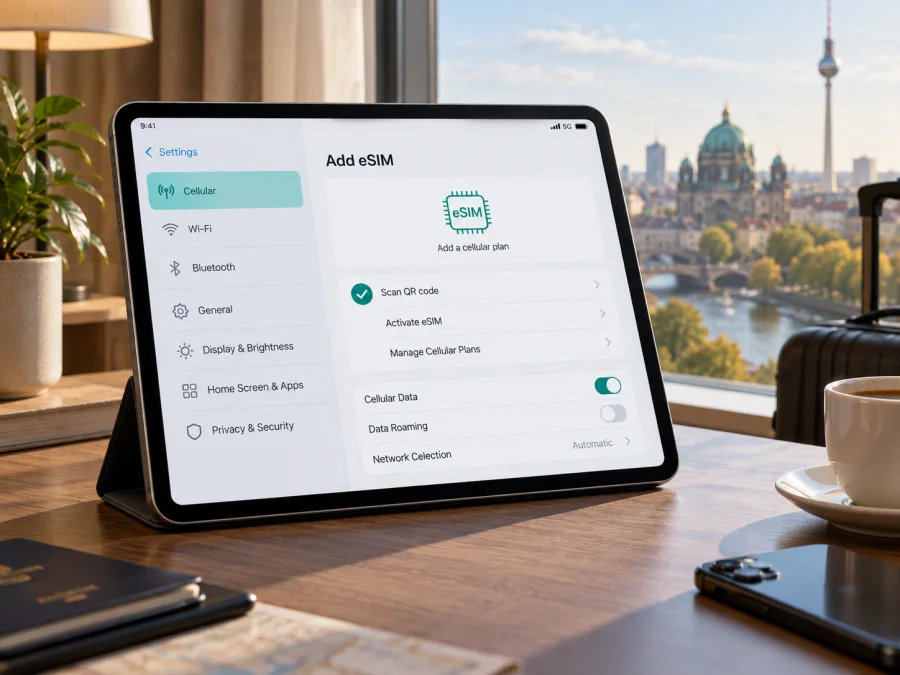
Apple iPad Pro 12.9-inch 2020 cellular eSIM: compatibility and setup
The Apple iPad Pro 12.9-inch 2020 cellular is the fourth-generation Wi‑Fi + Cellular iPad Pro. It supports eSIM on compatible regional versions, so you can add a mobile data plan without inserting a second physical SIM. There are two important limits: eSIM and plan availability depend on the iPad’s exact market version and the provider, and Apple does not make this generation eligible for activating local carrier eSIM plans in mainland China. Check the model in Settings and confirm the EID before choosing a plan.
Quick answer
Does Apple iPad Pro 12.9-inch 2020 cellular support eSIM? Yes, on eSIM-capable Wi‑Fi + Cellular versions outside mainland China. Apple lists eSIM for the fourth-generation 12.9-inch Wi‑Fi + Cellular iPad Pro. The Wi‑Fi-only configuration has no cellular modem and cannot use either eSIM or a mobile data plan. Apple also notes that eSIM is not available in mainland China and that not every carrier supports it.
For travel, a compatible iPad can use an eSIM data plan if the eSIM provider supports iPad and the destination network. A model that works with an overseas eSIM is not necessarily able to activate a mainland China carrier’s eSIM. These are different questions: one concerns where the iPad was sold and what hardware it has; the other concerns the country and carrier from which you are trying to activate a plan.
Apple iPad Pro 12.9-inch 2020 cellular eSIM specifications
| Item | What to know |
|---|---|
| Generation | iPad Pro 12.9-inch (4th generation), introduced in 2020 |
| Cellular configuration | Wi‑Fi + Cellular; Wi‑Fi-only models are not compatible |
| eSIM | Supported by compatible cellular models, subject to market and carrier availability |
| Physical SIM | Nano-SIM tray on cellular models; eSIM can be used as a digital alternative |
| Mobile network | LTE cellular data; Apple lists data-only cellular service for this iPad |
| Calls and texts | It is not a cellular phone; a data eSIM does not provide a standard phone number, voice calls or SMS |
| Mainland China | This generation is not on Apple’s list of iPads that can activate local carrier eSIM plans in mainland China |
| Main checks | Model number, EID or Add eSIM option, carrier/device restrictions, plan and destination support |
This iPad is an LTE device, not a 5G iPad. Cellular data is useful for maps, email, browsing, video calls and other internet services away from Wi‑Fi. An eSIM plan’s data allowance and validity depend on its own terms. FaceTime, messaging apps and other internet services may work over data, but that is different from a regular mobile number and traditional voice service.
Regional versions and carrier restrictions
The product name identifies the screen size, generation and cellular configuration, but a used or imported iPad may have been sold for a different market. Apple’s technical specifications list eSIM under the fourth-generation Wi‑Fi + Cellular model and identify carrier and regional availability as limitations. In practice, do not rely on a reseller’s short listing alone. Confirm the model number in the iPad settings and check whether the device exposes an EID or an eSIM setup control.
Mainland China has a specific restriction. Apple’s current support information lists only certain newer iPad models as able to activate an eSIM plan from a local provider in mainland China; the 2020 fourth-generation 12.9-inch Pro is not included. Apple also identifies China Unicom as the only supported iPad eSIM network provider there. If your trip includes mainland China, do not assume that a profile sold for another country can be activated from within mainland China or that a local Chinese carrier plan will work on this generation. Ask the plan provider about its activation location and the exact iPad model before paying.
Carrier restrictions are another independent issue. A cellular iPad may be subject to provider policies, account requirements or device restrictions. A visible SIM tray confirms cellular hardware, but it does not prove that a digital profile can be added or that a particular plan will be accepted. Likewise, seeing a plan listed in settings does not guarantee service in every destination. Confirm that the iPad is not restricted by a carrier, and that the plan is intended for a tablet or supports this iPad model.
Check compatibility before buying a plan
<a id="kesim-device-compatibility"></a> Use this checklist on the iPad you will take on the trip. If you are buying a second-hand device, ask the seller to show the About screen and eSIM controls before completing the purchase.
- [ ] Confirm the configuration. Open Settings → General → About and check the model name. It should identify an iPad Pro 12.9-inch (4th generation) or the corresponding 2020 device. The Wi‑Fi + Cellular version is required; a Wi‑Fi-only iPad cannot connect to mobile networks.
- [ ] Find the hardware model number. In Settings → General → About, tap the value beside Model Number to switch from the part number to the model number. Compare that exact number with Apple’s information for the market where the device was sold. If the seller, box and settings do not agree, pause and verify with Apple or the seller.
- [ ] Look for an EID. In Settings → General → About, scroll through the device identifiers. Apple says the EID may appear there on an iPad; the number may also be available through the setup information screen or Finder/Apple Devices. An EID is a strong sign that the iPad has an eSIM component, though provider and regional rules still apply.
- [ ] Check the cellular settings. Open Settings → Cellular Data. Depending on software version and region, look for Add eSIM, Add a New Plan, Add Cellular Plan, or an equivalent option. Wording and available methods vary. If cellular settings are entirely absent, first confirm the model is Wi‑Fi + Cellular and restart after updating iPadOS.
- [ ] Check the market and destination. Determine where the iPad was originally sold and where you will activate the profile. Mainland China’s local eSIM rules are distinct from travel eSIM use in other countries.
- [ ] Check the provider and plan. Ask whether the plan supports an iPad, where activation is allowed, whether it starts at installation or first connection, and whether manual APN settings or data roaming are required.
- [ ] Check access restrictions. If the iPad was supplied by an employer, school or carrier, ask whether management settings or a provider restriction prevents adding a cellular plan.
If there is no EID and no eSIM option, do not buy a plan on the assumption that software updates will add eSIM capability. Recheck the exact model and ask Apple or the seller to confirm the original regional configuration. For a quick reference to this device check, check your device.
An EID is an identifier, not an activation code. Do not publish it or send it to an unknown person. A plan provider may request device information during support, but follow its official process and share only what is needed. The QR code or activation details issued for a plan are separate from the EID.
What each check tells you
Install and activate an eSIM
- Check the plan details. Confirm the destination, data amount, validity period, compatible device, activation window and whether the plan begins when installed or when it first connects to a supported network.
- Connect to Wi‑Fi. The iPad needs an internet connection to download the eSIM profile. Leave Wi‑Fi on until installation finishes.
- Open cellular settings. Go to Settings → Cellular Data. Select the option to add a plan or eSIM. The label can vary by iPadOS release and region.
- Choose the activation method. If the provider supplied a QR code, use the on-screen scanner or, where offered, the iPad camera. Follow the provider’s prompts. If you received an activation link or plan-provider app, use that method instead.
- Confirm installation. Review the plan label and accept the prompts to add it. Wait for the profile to download. A confirmation code may be required if the provider specifies one.
- Label the plan. Choose a name such as “Travel” or the destination so that you can identify it later. This label is only for your own settings.
- Select the data line. In Settings → Cellular Data, choose the newly installed plan for cellular data. Keep your home plan available if you still need it, but check its roaming terms before using it abroad.
- Set roaming if required. Follow the plan provider’s instructions for Data Roaming. Some travel data plans require roaming to be enabled on the travel eSIM to connect to a partner network; other plans may specify different settings. Do not change roaming on your home plan unless you intend to use it and understand the charges.
- Test the connection. When you reach the supported destination, turn off Wi‑Fi briefly and load a simple webpage. Check that Cellular Data is on and the travel plan is selected. If connection takes a few minutes, wait and try again before changing multiple settings.
For more detail, see the iOS eSIM installation instructions. The iPad uses iPadOS, but Apple’s tablet setup follows the same general cellular settings flow. If you are setting up a separate Android device for the same trip, the Android eSIM installation instructions cover that process.
Do not delete an installed profile to troubleshoot unless the plan provider confirms that it can be installed again. Some eSIM profiles are single-use or tied to the first device on which they were activated. Removing one may not restore an installation attempt. If a QR code has already been scanned, check the provider’s account or support guidance before reinstalling it.
Use the eSIM for mobile data on a trip
An iPad can be a useful companion when you need a larger screen for navigation, bookings, work documents or video calls. Before departure, choose a data plan for the actual countries on your itinerary and compare its data allowance and validity with your expected use. A country plan may suit a single destination; a regional plan may be more convenient for a route across several supported countries. Always check the plan’s current destination list and network terms rather than assuming that a nearby country is included.
A data-only eSIM does not replace your usual phone plan. The iPad does not provide standard cellular calling or SMS through this plan. You can use internet-based services when the app and account support them, or keep your phone’s existing line for calls and messages. If you share the iPad’s data connection with another device, check the iPad’s Personal Hotspot availability and the plan’s tethering terms first.
Kaspersky eSIM Store is an app and website where you can choose, arrange and activate an eSIM with a mobile data plan for an overseas trip. Before selecting a plan, confirm that the iPad passes the compatibility checks above, then compare destination, data allowance and validity against your itinerary. When you are ready, use Kaspersky eSIM Store to choose a suitable eSIM plan for your trip. The plan’s service, network access and coverage depend on its terms and the local network provider in the destination.
Common problems and checks
“Add eSIM” is missing
Verify that this is the Wi‑Fi + Cellular model and that the model number is correct. Go to Settings → General → About and look for the EID. If the device is a Wi‑Fi-only version, eSIM cannot be enabled. If the model is cellular but there is no EID or eSIM control, check the original market version, install any available iPadOS update, restart, and contact Apple or the seller. A missing menu is not a reason to buy a profile and hope it will appear later.
The QR code will not scan or the profile will not download
Make sure the QR code is complete, in focus and issued for this plan. Increase screen brightness if scanning from another display. Keep the iPad connected to Wi‑Fi and check that date and time are set automatically. If you received a link, open it on the iPad and follow the provider’s instructions. If the code reports that it has already been used, do not repeatedly retry; ask the plan provider whether the profile can be reissued.
The plan installs but there is no internet
Open Settings → Cellular Data and confirm that cellular data is enabled and the travel plan is selected. Check whether the provider requires Data Roaming, an APN entry or a specific network selection. Verify that you are in a supported country and that the plan is active and within its validity period. Toggle Airplane Mode on briefly and off, then allow the iPad to register. If the device remains offline, capture the exact error and contact the plan provider through its support channel.
It connects to the wrong plan
Check the selected cellular data line. The iPad may retain a home physical SIM or another stored plan, and the active data selection can differ from the plan you intend to use. Select the travel plan explicitly. Review the home provider’s roaming terms before re-enabling its data connection to avoid unwanted charges.
Installation fails in a particular country
Separate the device’s eSIM capability from the plan’s activation rules. Check whether installation is allowed before arrival or only in the destination, and whether that country is included in the plan. Mainland China has Apple-specific restrictions for local carrier eSIM activation on this generation. Contact the plan provider before travel if the itinerary includes that market; do not rely on a general “international” label.
You cannot see an EID
Return to Settings → General → About and scroll through the full list. Apple also describes checking device identifiers from the initial setup screen or through Finder/Apple Devices on a computer. If the iPad has no EID and no eSIM option, verify the exact model and sales market before troubleshooting further. The physical nano-SIM tray alone does not prove eSIM support.
Frequently asked questions
Can Apple iPad Pro 12.9-inch 2020 cellular use an eSIM while travelling?
Yes, if it is an eSIM-capable Wi‑Fi + Cellular version, the destination and provider support the plan, and activation is allowed in that market. Confirm the EID and eSIM controls before buying.
Does the Wi‑Fi-only iPad Pro support eSIM?
No. The Wi‑Fi-only model has no cellular connection. You need the Wi‑Fi + Cellular configuration.
Can this iPad activate a local eSIM in mainland China?
Apple’s current mainland China support list does not include the 2020 fourth-generation 12.9-inch iPad Pro. Apple lists only specified iPad models for local eSIM activation in mainland China and identifies China Unicom as the supported iPad eSIM provider there. Check Apple’s latest regional guidance and the exact model before making plans.
Is eSIM the same as a phone number?
No. Cellular service on this iPad is for data. A travel data eSIM does not, by itself, add a standard mobile number, voice calling or SMS. Internet calling and messaging apps may work over the data connection.
Will every international eSIM work with this model?
No. Compatibility depends on the iPad’s exact regional hardware, the provider’s iPad support, the destination network and the plan’s activation conditions. Verify each point before purchase.
Before you choose an eSIM for your trip
Start with the iPad itself: confirm Wi‑Fi + Cellular, verify the model number, and look for an EID or an eSIM addition option in Settings. Then check that the plan supports this iPad and every destination on your route, and review when its validity begins, how much data it includes and whether roaming or manual settings are required. If your trip includes mainland China, verify the local activation restriction against Apple’s current supported-model information.
Once those checks are complete, choose a plan based on your destination and expected data use. Kaspersky eSIM Store can help you choose, arrange and activate an eSIM with mobile data for an overseas trip. The final check is simple: confirm the device, region and plan together before purchase, then keep the provider’s installation guidance available while you set up the eSIM.


