Travel connectivity guide
Apple iPad Pro 12.9-inch 5G 1TB Cellular eSIM
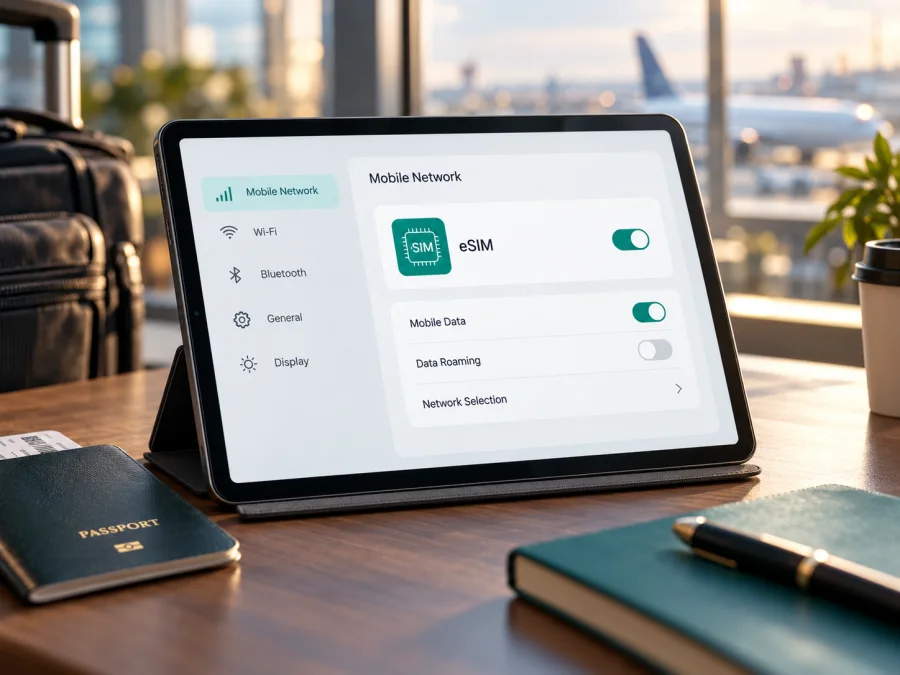
eSIM on Apple iPad Pro 12.9-inch 5G 1TB Cellular
Short answer: an eSIM is supported on Apple’s iPad Pro 12.9-inch Wi‑Fi + Cellular models from the 3rd through the 6th generation, which includes the 5G generations commonly described as 1TB Cellular. However, “Apple iPad Pro 12.9-inch 5G 1TB Cellular” is a search-style name rather than a complete Apple model number. It does not identify the generation, sales region, or exact hardware variant. Check the iPad itself before relying on eSIM: open Settings → General → About and look for an EID and a cellular plan option. The regional model and the country where you want to activate service matter too.
The 1TB capacity does not determine eSIM support. The important distinction is Wi‑Fi + Cellular versus Wi‑Fi only, followed by the model number and market. A tablet can have 5G hardware and a SIM tray yet still face restrictions on which provider’s eSIM it can install in a particular country. This guide explains how to identify the version, verify the eSIM functions, add a data plan, and prepare it for a trip without assuming that every device with a similar retail name behaves the same way.
Does this iPad support eSIM?
Apple lists eSIM capability for iPad Pro 12.9-inch Wi‑Fi + Cellular models in generations 3 to 6. The 5th and 6th generations are the 12.9-inch iPad Pro generations with 5G, and each was offered with a 1TB storage option. So if the tablet is one of those supported Wi‑Fi + Cellular editions and its regional software and hardware expose eSIM, it can add a compatible mobile data plan digitally. A Wi‑Fi-only iPad cannot use mobile networks, regardless of storage size or the name used in a shop listing.
| Item | What the name tells you | What still needs checking |
|---|---|---|
| Product family | iPad Pro, 12.9-inch class | Exact generation and model number |
| Network edition | “5G” and “Cellular” suggest a mobile-network model | Confirm Settings shows cellular settings; a seller title alone is not proof |
| Storage | 1TB capacity | Storage does not enable or disable eSIM |
| eSIM | Supported by the listed 12.9-inch Wi‑Fi + Cellular generations 3–6 | Regional restrictions, operator eligibility, and the EID on this unit |
| Travel use | Can be used for mobile data where a compatible provider and plan are available | Destination coverage, plan terms, device lock or restriction, and supported network bands |
Region and operator differences
Apple’s general compatibility list is not the same as a guarantee that every operator accepts every iPad variant. Cellular radios and supported bands can vary by model number and destination. Providers also decide which devices and plans they support, and some require a plan made specifically for a tablet. A 5G label describes supported radio technology; it does not guarantee 5G service in a particular place, on a particular plan, or with every provider. The iPad can use 4G/LTE where supported even when 5G is unavailable, but actual network access depends on local coverage and the plan.
There is a special distinction for mainland China. Apple’s current guidance says that only specifically listed iPad models can activate a mainland China cellular data plan using eSIM, and that China Unicom is the supported iPad eSIM provider there. The older 12.9-inch Pro generations described in this article are not among the currently listed mainland-China eSIM models. Apple identifies a China-mainland-only model number, A2462, for the 5th-generation 12.9-inch Pro. Do not assume that eSIM activation with a mainland China provider will work on this variant just because a global iPad specification mentions eSIM. Mainland-China activation rules describe the operator market and are separate from the general ability of a device to use a travel eSIM elsewhere. For a device bought in or intended for use in mainland China, check the precise model number and Apple’s country-specific guidance before purchasing a plan.
Check this exact iPad before buying a plan
Start with the iPad, not just the product listing. On the device, go to Settings → General → About. Check the displayed model name and tap the entry next to Model Number if necessary: Apple may initially show a part number, and tapping it reveals the hardware model number beginning with “A”. Record both that number and the iPadOS version. Compare them with Apple’s model-identification information and the documentation for the country where the unit was sold.
Look for an EID on the same About screen. An EID is the identifier associated with the built-in eSIM hardware. Its presence is a strong practical sign that the iPad has an eSIM component, but it does not by itself prove that a given provider, plan, or national market will allow activation. Also open Settings → Cellular Data (the label may vary slightly by language or iPadOS version). On a supported unit, look for an option such as Add eSIM, Add Cellular Plan, or a plan setup prompt. Menu wording can differ by software version and market. If neither an EID nor an option to add a plan appears, do not buy a plan on the assumption that it will install; confirm the exact model with Apple or the seller first.
Compatibility checklist
- [ ] The iPad is a Wi‑Fi + Cellular model, not Wi‑Fi only.
- [ ] The model number corresponds to a supported 12.9-inch generation and regional variant.
- [ ] An EID appears under Settings → General → About.
- [ ] Settings → Cellular Data offers a way to add or manage a plan.
- [ ] The device is not blocked by a carrier lock, account condition, or management profile.
- [ ] The provider supports eSIM on iPad, the specific region, and the plan type you want.
- [ ] The plan’s countries, data allowance, validity, activation timing, and tethering conditions fit the trip.
- [ ] You can connect to Wi‑Fi to download the eSIM profile before travel or on arrival.
Check whether your device is compatible before you choose a travel plan. The check should be for this physical iPad and its model number, not another tablet from the same product family.
How to confirm the exact variant
In Settings → General → About, note the model name, model number, capacity, and software version. The About screen’s Model Number field can switch between a part number and a hardware number when tapped. The physical model number also appears in Apple’s model-identification materials and may be printed on the original packaging. Avoid inferring generation solely from the screen size or storage: several generations share the same 12.9-inch size and 1TB option.
Installing and activating an eSIM
- Check the plan and destination. Confirm that the plan includes the country or countries on your itinerary and that it supports a tablet. Read when its validity begins: buying, installing, first connecting, and first using data can be different events under different plan terms.
- Connect to Wi‑Fi. A Wi‑Fi connection is usually needed to download an eSIM profile. Do not remove an existing plan or reset network settings just to begin installation.
- Open cellular settings. Go to Settings → Cellular Data and choose the option to add an eSIM or cellular plan. The exact label depends on iPadOS and region.
- Use the method supplied with the plan. If the provider supplies a QR code, scan it with the iPad camera and follow the detected-plan prompt. In supported iPadOS versions, a QR image shown in an email or web page may also be added by touching and holding the code. If the provider supplies an activation link, open it on the iPad and approve the new eSIM prompt. If it requires an app or manual details, use that provider’s steps and enter the information exactly as issued.
- Review and add the plan. Follow the screens to download and add the cellular plan. If prompted for a confirmation code, use the code supplied by the provider. Wait for the installation confirmation; leave Wi‑Fi connected until the profile appears in Cellular Data settings.
- Label the plan. Give it a name that makes the purpose clear, such as “Travel data” or the destination. This helps avoid selecting the wrong line if another plan is already installed.
- Choose when to use it. Before departure, you can usually install the profile while online and leave it turned off until needed, if the plan’s terms allow. When ready, enable the plan and set it as the line for cellular data. Follow the provider’s instructions about data roaming: some travel eSIMs require it, while others specify a different setting.
- Check the connection. Turn Wi‑Fi off briefly only when you are ready to test mobile service. Confirm that the selected plan is active, the iPad shows a network, and a simple webpage loads. Then restore Wi‑Fi if you do not need cellular data at that moment.
The Apple instructions for iOS eSIM installation and Android eSIM installation provide general phone setup guidance; menu names on an iPad differ, so use the tablet’s Cellular Data settings and the plan-specific steps above.
Using the iPad for mobile data on a trip
An iPad eSIM is useful when you want a larger screen for maps, translation, work files, video calls, or a hotspot for another device. Choose a plan for the whole route, not only the first airport. For a multi-country trip, check whether one regional plan covers each stop or whether separate country plans make more sense. Confirm the network coverage and plan limits for the actual locations you will visit; a country name in a plan title does not guarantee service in every remote area or indoors.
Kaspersky eSIM Store is an app and website where you can choose, arrange, and activate an eSIM with a data plan for an international trip. It is a way to prepare a travel data option on a compatible device; service is delivered over the networks specified by the plan terms and depends on local availability. Check the current plan details for the destination, data amount, validity, activation conditions, and supported devices before choosing. You can browse the Kaspersky eSIM Store to review current destinations and plan information. This is the store homepage, so it is for checking available options rather than a promise of a particular country plan.
An iPad cellular plan is primarily for data. Do not assume it includes an ordinary phone number, standard voice calls, or SMS unless its terms say so. Messaging, voice, and video apps can work over data where their services are available. If you need calls or text messages tied to your usual number, keep a separate supported phone line or use the relevant app service. An iPad’s cellular plan and an iPhone plan are not automatically interchangeable; provider support and account eligibility determine whether sharing or transferring is possible.
Common problems and checks
There is no “Add eSIM” option. Confirm that the iPad is a Wi‑Fi + Cellular model, then check the EID and hardware model number. Restart the iPad and install an available iPadOS update over Wi‑Fi. If the EID is absent or settings do not show cellular service, pause before buying a plan and contact Apple or the seller with the model number. If this is a China-market activation, check the separate mainland-China model and provider requirements.
The QR code will not scan or the profile does not download. Increase screen brightness on the device displaying the code, clean the iPad camera, and make sure the complete QR code is visible. Check that the iPad has a working Wi‑Fi connection and that the code has not expired or already been used. If the code is on the iPad’s own screen, use the supported touch-and-hold option when available or display it on another device. Do not repeatedly scan a one-time code if the first attempt appears to have installed the plan; check the plan list first.
The profile was added but there is no service. Check that the eSIM is switched on and selected for cellular data. Check the provider’s activation instructions, destination coverage, data roaming requirement, and plan start conditions. Toggle Airplane Mode on for several seconds and off again, then restart the iPad. If manual network selection is offered, return to automatic selection unless the provider asks you to choose a specific network. A plan may not connect before its covered destination or activation window.
The iPad shows a network but apps have no internet. Verify that Cellular Data is enabled for the travel plan, confirm it is the selected data line, and check the remaining allowance and validity in the plan account. Look for a captive portal or provider prompt, and test a basic website with Wi‑Fi disabled. A VPN, private relay, content filter, or custom DNS setting can sometimes affect access; temporarily test without changing unrelated security settings, then restore your normal configuration. If only one app fails, check that app’s cellular-data permission.
Activation fails with a message about an unsupported device or provider. Compare the exact model number with the provider’s device rules and confirm the plan supports iPad rather than only phones. A regional hardware variant, operator lock, or local activation restriction can block an otherwise valid profile. Ask the provider which model numbers and markets it supports; do not assume that the tablet’s 5G capability settles eSIM eligibility.
FAQ
Is eSIM guaranteed by “5G 1TB Cellular” in the product name?
No product title can confirm the exact hardware variant or market. Those words point toward a cellular iPad, and Apple lists eSIM support for the 12.9-inch Wi‑Fi + Cellular generations 3–6. Still verify the model number, EID, Cellular Data menu, and provider requirements on the unit itself.
Does 1TB storage make eSIM available?
No. Storage capacity and SIM hardware are separate. The 1TB version may be sold as Wi‑Fi only or Wi‑Fi + Cellular depending on the generation and configuration. This input says Cellular, but confirm the device shows cellular settings and EID.
Can I install a travel eSIM before leaving home?
Often you can install a profile in advance over Wi‑Fi, but activation and validity rules differ. Read whether the plan starts at installation, at activation, or when it first connects to a supported network. If timing is unclear, check with the plan provider before installing.
Will a plan work in every country because the iPad supports 5G?
No. The iPad must support eSIM, the plan must include the destination, and the local network must be compatible and available. 5G is not guaranteed by the device label alone; coverage may be LTE or unavailable in some locations.
Is eSIM available for this iPad in mainland China?
Do not infer that from the global specification. Apple’s current mainland-China guidance limits local iPad eSIM activation to specifically listed model numbers and a supported provider. The 12.9-inch 5th- and 6th-generation models described here are not on that current list. Check Apple’s latest regional requirements and the actual model number for any mainland-China use.
Can I move the same eSIM to another tablet?
Not necessarily. Some providers allow transfer; others bind a profile to the first device or require a new activation. Check the plan terms before deleting or moving a profile. An installed eSIM is not a physical card that can simply be moved between tablets.
Does an iPad eSIM replace my phone plan?
Usually it should be treated as a separate data option. A travel plan may not include a phone number, calls, or SMS. Keep another supported line or internet-based communication app for those needs, and confirm the plan terms.
Before your trip: confirm the iPad, then choose the plan
For Apple iPad Pro 12.9-inch 5G 1TB Cellular, eSIM support is plausible and documented for the relevant 12.9-inch Wi‑Fi + Cellular generations, including the 5G 5th- and 6th-generation models. The supplied name alone does not identify the generation, model number, or sales market, so use the device’s About screen to verify the EID and exact variant. Confirm the provider supports that variant in the country where you intend to activate the plan, and pay special attention to mainland China’s separate requirements.
Once the iPad passes those checks, compare current travel-plan details for your destination and route: supported location, data allowance, validity, activation timing, device eligibility, and roaming or tethering requirements. Kaspersky eSIM Store’s website and app can help you choose and activate a suitable eSIM data plan for an international trip. Confirm compatibility before arranging the plan, install it over reliable Wi‑Fi, and select the correct data profile when you are ready to connect.


