Travel connectivity guide
Apple iPad Pro 12.9-inch 5G 2TB eSIM Guide
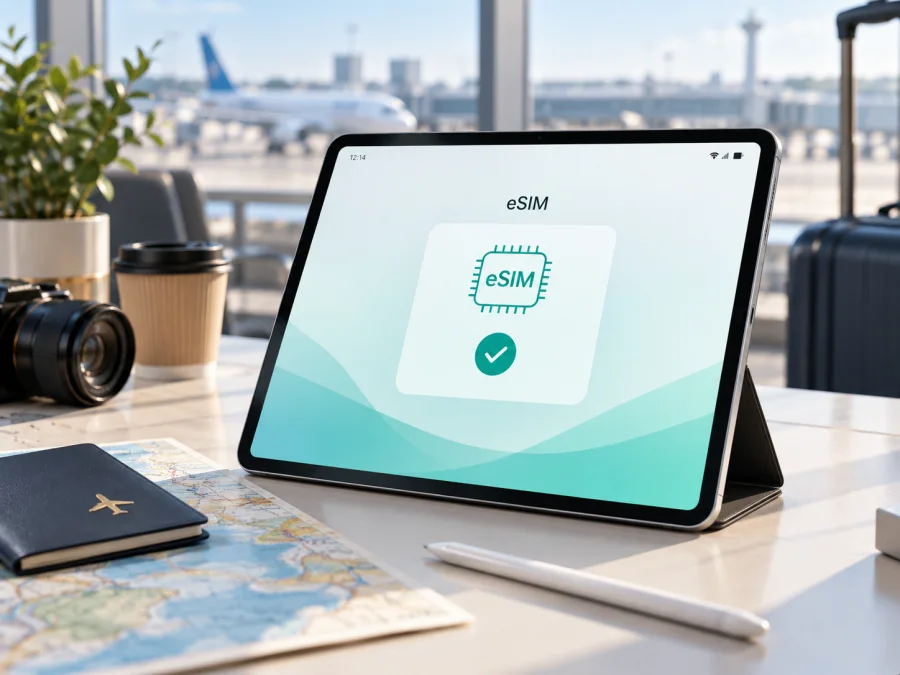
Apple iPad Pro 12.9-inch 5G 2TB eSIM: compatibility and setup
If you are checking whether Apple iPad Pro 12.9-inch 5G 2TB can use an eSIM, the short answer is yes when the unit is a supported Wi‑Fi + Cellular model and the selected plan and carrier allow iPad activation in the destination. The 5G and 2TB labels are important, but they do not replace checking the actual model, EID, market and operator status.
This article preserves the device name exactly as supplied: Apple iPad Pro 12.9-inch 5G 2TB. The input does not include a generation. Apple has more than one 12.9-inch cellular iPad Pro with 2TB storage, so confirm the generation and model number before buying an eSIM plan rather than assuming that every similarly titled listing is identical.
Quick answer: does Apple iPad Pro 12.9-inch 5G 2TB support eSIM?
Apple's current iPad eSIM guidance lists the 12.9-inch iPad Pro from the 3rd through the 6th generation among the Wi‑Fi + Cellular models that support eSIM. Apple's technical specifications for the 12.9-inch 5th-generation and 6th-generation cellular configurations also list eSIM and 2TB options. That supports a positive answer for the cellular variant represented by the requested device name.
The answer is still conditional in real use:
- A Wi‑Fi-only iPad has no cellular service or eSIM, even if it has a 12.9-inch display and 2TB storage.
- “5G” identifies cellular network capability; it does not by itself prove that a used device has an eSIM menu.
- Apple says eSIM is not available from all carriers or in all countries and regions.
- A carrier, organisation or market-specific configuration may restrict activation, roaming or switching plans.
- Mainland China has additional eSIM limitations; Apple advises checking the supported iPad models there and contacting China Unicom.
The reliable conclusion is therefore: Apple iPad Pro 12.9-inch 5G 2TB is eSIM-compatible if the actual unit is supported Wi‑Fi + Cellular hardware, shows an EID or an eSIM setup control, is not restricted, and can use the chosen plan in the destination region.
What each device modifier means
| Detail | Meaning for eSIM checks |
|---|---|
| Apple iPad Pro | Product family; it does not identify one generation. |
| 12.9-inch | Display size shared by several iPad Pro generations. |
| 5G | Cellular capability on the appropriate configuration; bands and service depend on market and carrier. |
| 2TB | Storage capacity; it does not independently enable eSIM. |
| Generation | Not provided in the input, so verify it in Settings or with the seller. |
| Wi‑Fi + Cellular | The hardware category required for mobile data and eSIM. Confirm it directly. |
| EID | An embedded-SIM identifier shown on supported cellular units. |
The 2TB cellular iPad Pro is a data device, not automatically a phone replacement. A travel eSIM in this context is intended for mobile internet. Do not assume that it includes a regular phone number, voice calls or SMS unless the individual plan explicitly says so. Messaging and calling apps may work through the data connection.
Generation and regional differences
The missing generation matters for used and refurbished devices. The 12.9-inch 5th-generation model uses M1 and the 6th-generation model uses M2; both have Apple documentation for cellular 2TB configurations with eSIM. Verify the actual iPad, not only the listing.
Before purchase, verify the display family, Wi‑Fi + Cellular category, generation, model number, EID and available add-plan control on the actual iPad.
Country of sale can change the result. Apple notes that carrier support and eSIM availability vary by region, and an imported model may have different activation rules. iPadOS cannot add missing cellular hardware or remove an operator restriction.
Verify the exact iPad before buying a plan
Do this on the iPad while connected to reliable Wi‑Fi. If you are buying used, ask the seller to show these screens before payment.
1. Identify the model and generation
Open Settings > General > About. Review Model Name, Model Number, capacity and iPadOS version. Tap the model number if needed to reveal the hardware identifier, then compare it with Apple's iPad model information. Confirm Wi‑Fi + Cellular and the 2TB capacity; do not infer either from a listing that only says “5G”.
2. Find the EID
Remain in Settings > General > About and scroll below the serial number. Apple's device-identification guidance says that a cellular iPad may show EID, IMEI/MEID and ICCID there. Copy it only into a protected activation or support form that asks for it.
If the EID is absent, first make sure you are checking the actual cellular unit and that setup is complete. If it remains absent, treat eSIM support as unverified. A reset or language change cannot turn a Wi‑Fi-only iPad into a cellular one.
3. Check the cellular menu
Open Settings and look for Cellular Data or Mobile Data. Look for Add a New Plan, Add eSIM, Find a New Plan or equivalent wording. Names can vary by iPadOS language, version and region. Apple also supports QR-code setup through this area on compatible models.
The EID and menu are complementary checks: the EID points to embedded-SIM hardware, while the menu shows whether the system exposes an activation path. If neither is present, do not buy a travel eSIM for this unit until Apple or the seller explains why.
4. Check restrictions and software
Ask whether the iPad has a carrier restriction, unpaid account issue or organisation management. A school or employer profile may prevent adding cellular plans. Make sure it can reach the internet for activation and is not in the middle of a restore or update.
Compatibility check before purchase {#kesim-device-compatibility}
Use this checklist for the iPad and exact trip:
- [ ] The model number identifies a 12.9-inch iPad Pro Wi‑Fi + Cellular unit.
- [ ] The capacity is 2TB, matching Apple iPad Pro 12.9-inch 5G 2TB.
- [ ] An EID appears under Settings > General > About.
- [ ] Cellular Data/Mobile Data and an add-plan or add-eSIM control are visible.
- [ ] The device is not operator-restricted, organisation-managed or account-blocked.
- [ ] The selected provider supports iPad data activation, not only smartphone activation.
- [ ] The plan covers every country or region on the itinerary.
- [ ] You know the data allowance, validity start, hotspot rules and refund conditions.
- [ ] Wi‑Fi or another internet connection is available for installation.
Check your device again if the iPad, destination or plan changes. Compatibility has two parts: the hardware must accept the profile, and the selected service must be permitted to activate on that hardware in the relevant market.
Kaspersky eSIM Store is an app and website that helps users choose, arrange and activate an eSIM with a suitable mobile-data plan for an international trip. It is not a mobile operator, network owner or provider of mobile internet. Complete the checks above and review the destination, data volume, duration and activation conditions shown for the chosen option.
How to install and activate an eSIM on iPad
Prepare the iPad, plan details and a stable internet connection. Keep the QR code private because it may contain the information needed to download the profile. If the code is displayed on the same iPad, open it on another screen or use the supplied alternative activation method.
For general guidance, see the Android installation instructions and the iOS installation instructions. The iOS page is the relevant family of instructions for iPadOS, although labels may differ slightly on an iPad.
Step 1: prepare the device
Connect to Wi‑Fi, charge the iPad, turn off Airplane Mode and finish any pending update or restore. Keep the order or profile information ready. If the provider requests the EID, copy it from Settings > General > About into the protected activation form.
Step 2: open cellular setup
Go to Settings > Cellular Data or Settings > Mobile Data. Choose Add a New Plan, Add eSIM, Find a New Plan or the equivalent command. If a carrier-activation notification appears, follow it instead.
Step 3: add the profile
Choose QR-code setup if that is how the eSIM was delivered. Scan the code from the order or activation screen, or enter manual details when supplied. On supported iPadOS versions, a QR code received in an email or provider webpage may offer Add eSIM when you touch and hold it. Do not guess a rejected confirmation code; request a new one from the issuing service.
Step 4: wait for installation
Follow the prompts until the plan is added. Registration can take several minutes and depends on the iPad, provider and local network. Do not delete the profile simply because the first attempt is slow. If the code says it was already used, contact the issuer before trying another device.
Step 5: select the travel data line
Give the profile a clear label such as “Travel data” or the destination. In Cellular Data/Mobile Data, select it for mobile data. Review any automatic data-switching option so that the intended travel profile remains the data source.
Step 6: set data roaming only when required
Some travel profiles use a partner network and require Data Roaming for that eSIM. Follow the plan instructions and enable roaming for the travel profile only when needed. Keep roaming off on the primary line if you want to avoid accidental charges there.
Step 7: test the connection
Temporarily disable Wi‑Fi and open a simple webpage. Confirm that the intended eSIM is selected and that cellular data works, then restore Wi‑Fi. If validity starts on first destination connection, follow the plan wording and do not start it early unless that is acceptable.
Using eSIM for mobile internet while travelling
Installing over Wi‑Fi before departure is often convenient, but the best timing depends on the plan's validity rule. Some plans start at installation, some at first network registration and some at first data use. Read the plan conditions before deciding when to activate it.
One destination
Confirm that the destination is covered. After landing, turn off Airplane Mode, select the travel eSIM for mobile data and enable its data roaming if required. Give it a few minutes to register. Check that the iPad is not silently using another line for data.
Several countries
Confirm every border crossing in a regional plan instead of assuming neighbouring countries are included. For separate plans, add and switch profiles as instructed. Apple says that supported iPads can store more than one eSIM, but only one eSIM is used at a time for the active cellular data connection. Do not delete an old profile until its validity and any needed balance are no longer relevant.
Work, maps and media
Maps, email, cloud documents and messaging are common uses. Video, automatic photo backup and system updates can consume data quickly. Delay large downloads until Wi‑Fi and monitor the balance in the provider's app or profile. A 5G-capable iPad may use LTE when 5G is unavailable; that is a network condition, not proof that the eSIM failed.
Kaspersky eSIM Store helps users prepare this travel scenario through an app and website for selecting, arranging and activating an eSIM plan for mobile internet abroad. The network, coverage, speed and activation rules come from the applicable local operator and chosen plan. Review those conditions in the purchase flow; the service is not an operator and does not guarantee coverage everywhere.
Common problems and fixes
No Cellular Data or Add eSIM option
Return to Settings > General > About and verify model number, EID and capacity. A Wi‑Fi-only device, management profile, regional restriction or incomplete setup can explain the missing control. Restart the iPad and update iPadOS only after confirming a backup. If the EID is also absent, pause the purchase and ask Apple or the seller to identify the hardware.
QR code will not scan
Increase brightness on the screen showing the code, keep it flat and fully visible, and make sure it belongs to this order. If it is on the same iPad, show it on another screen or use manual activation if supplied. Never change the code or guess missing characters.
Profile will not download
Check Wi‑Fi, date and time, and the provider's activation conditions. Confirm the EID entered is correct and that the plan supports iPadOS. A plan can cover a country yet be unavailable for a particular device category. Ask whether the profile was already assigned, consumed or restricted to another device before deleting anything.
Installed profile has no service
Select the travel eSIM for data and check whether its data roaming is required. Toggle Airplane Mode once and restart if needed. Confirm destination coverage, validity and balance. A carrier-selection or registration error may indicate a provider or regional restriction rather than a bad installation.
LTE appears instead of 5G
This is not automatically a compatibility problem. 5G depends on the destination network, spectrum, plan, signal and carrier settings. If data works over LTE, the eSIM is functioning; 5G availability is a separate network question. If there is no data, check the selected line, roaming, any provider-supplied APN instructions, plan validity and balance.
Data uses the wrong line
Return to Cellular Data/Mobile Data, select the travel profile and review automatic data switching. Check app-level mobile-data permissions and background activity. On an iPad with several stored profiles, confirm which one is active instead of relying only on its label.
The profile was deleted
Do not assume that a deleted eSIM can be restored by scanning the same QR code. Some profiles are single-use or cannot be transferred. Contact the issuer through the order or support channel and provide device details only through a protected form.
FAQ
Is Apple iPad Pro 12.9-inch 5G 2TB compatible with eSIM?
Yes, when it is the Wi‑Fi + Cellular version covered by Apple's eSIM support list. The 12.9-inch 3rd through 6th generation cellular iPad Pro models are listed as supported, but the input does not specify a generation. Confirm the model, EID, cellular menu, market and carrier before purchase.
Does 2TB guarantee eSIM support?
No. Storage is not the deciding feature. The unit needs cellular hardware and an eSIM-capable configuration. A 2TB Wi‑Fi-only iPad remains Wi‑Fi-only.
Where is the EID?
Open Settings > General > About and scroll below the serial number. Cellular iPad identifiers may include EID, IMEI/MEID and ICCID. Finder, the initial setup information or original packaging may also show identifiers, but verify that they belong to the same device.
Can an eSIM provide calls and SMS on this iPad?
Do not assume it can. Travel eSIM plans here are for mobile internet and normally do not provide a regular number, voice service or SMS unless the individual plan explicitly includes them. Internet calling and messaging apps may work over data.
Can more than one eSIM be stored?
On supported iPads, Apple says more than one eSIM can be stored, while only one eSIM is used at a time. Stored profiles are not the same as simultaneous active services. Switch the data profile in cellular settings and keep old profiles until you no longer need them.
Should the plan be installed before travel?
Often it is convenient because you can use Wi‑Fi and troubleshoot calmly. The correct timing depends on when the plan starts counting validity, so follow the stated installation and activation rule.
Is eSIM always better than roaming?
Not automatically. It can be a practical alternative, but value depends on destination, allowance, duration, coverage and conditions. Compare the complete terms and choose what fits the trip.
Conclusion: check the device, then prepare the trip
Apple iPad Pro 12.9-inch 5G 2TB is a strong candidate for travel eSIM data when the unit is a supported Wi‑Fi + Cellular model. Apple's current documentation supports eSIM on the relevant 12.9-inch cellular generations, but generation, region, operator policy and plan eligibility still matter. The decisive evidence is the correct model and capacity, an EID under Settings > General > About, an available cellular and Add eSIM path, and no carrier or management restriction.
Before travelling, complete the compatibility checklist, confirm the destination and plan conditions, install over Wi‑Fi, select the travel eSIM for data and enable roaming only if required. If you use Kaspersky eSIM Store, use its app or website to choose, arrange and activate a suitable eSIM plan for mobile internet abroad; remember that it is not the network operator and does not replace device, carrier or regional checks.
Final device check and trip eSIM block
- Confirm Apple iPad Pro 12.9-inch 5G 2TB as the exact device label, then verify generation and model number.
- Confirm Wi‑Fi + Cellular, a visible EID and Add eSIM or equivalent cellular setup.
- Confirm that the iPad is not operator-restricted or organisation-managed.
- Confirm that the chosen eSIM plan supports iPad data, covers the route and has suitable validity, allowance and hotspot conditions.
- Install and test over Wi‑Fi, select the profile at the right time and keep activation details private.
When these checks are complete, choose the eSIM for the route in Kaspersky eSIM Store, activate it through the supplied flow and travel with a clear understanding of what the plan covers.


