Travel connectivity guide
Apple iPad Pro 12.9-inch 5G eSIM
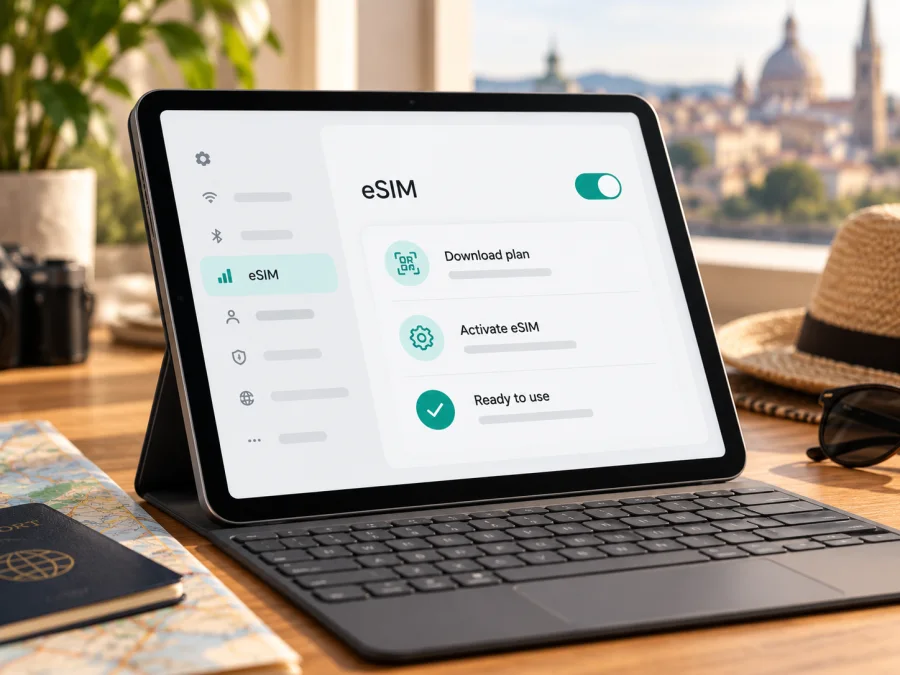
Apple iPad Pro 12.9-inch 5G eSIM: compatibility and setup
Short answer: the cellular Apple iPad Pro 12.9-inch 5G can use eSIM when it is a compatible Wi‑Fi + Cellular model. Apple lists the iPad Pro 12.9-inch (5th and 6th generations) as 5G-capable, and lists Wi‑Fi + Cellular iPad Pro 12.9-inch models from the 3rd through 6th generations as eSIM-compatible. That means the words “12.9-inch 5G” point to a capable family, but they do not identify the generation, exact model number, market version, carrier restrictions, or whether a particular mobile data provider will activate it. Confirm those details on your own iPad before choosing a plan.
Apple Support’s Set up eSIM on iPad and Use 5G with your iPad pages, checked on November 1, 2026, list the supported generations and explain that cellular service depends on the provider and country or region. Apple’s model-identification guide also distinguishes Wi‑Fi from Wi‑Fi + Cellular variants and marks some model numbers as China mainland versions. This article keeps those distinctions: eSIM availability is a device capability, while activation and service depend on the exact device, market, and provider.
At a glance
| Item | What to know |
|---|---|
| Exact topic | Apple iPad Pro 12.9-inch 5G |
| eSIM verdict | Supported on compatible Wi‑Fi + Cellular versions; verify the model number and eSIM menu on the device |
| 5G generation | Apple lists the 5th- and 6th-generation 12.9-inch Wi‑Fi + Cellular iPad Pro for 5G |
| Wi‑Fi-only model | Does not have cellular service and cannot use an eSIM for mobile data |
| Regional variation | Model numbers and network support can vary by market; a China mainland version needs a separate regional check |
| Provider requirement | The provider must support eSIM activation for iPad and the destination must be supported |
| Best pre-purchase checks | Model number, EID or Add eSIM option, carrier lock or restrictions, destination and plan terms |
The table is a quick guide, not a substitute for checking the device itself. In particular, “5G” describes cellular network capability, not a promise that every listing with that phrase has an eSIM-ready configuration or will work with every travel eSIM provider. A used, refurbished, imported, managed, or carrier-supplied iPad can have details that are not obvious from a short product title.
Does Apple iPad Pro 12.9-inch 5G support eSIM?
Yes, if yours is a supported Wi‑Fi + Cellular model. Apple’s current iPad eSIM setup guidance includes iPad Pro 12.9-inch (3rd to 6th generation) Wi‑Fi + Cellular. Its 5G guidance narrows the 12.9-inch 5G family to the 5th and 6th generations. Therefore, a 5th- or 6th-generation Wi‑Fi + Cellular iPad Pro 12.9-inch is the likely interpretation of “Apple iPad Pro 12.9-inch 5G,” and Apple documents eSIM support for that class of device.
Two qualifications matter. A Wi‑Fi-only version has no cellular service and cannot use a SIM plan; a hotspot from another device is separate. Also, the supplied name does not specify generation or model number. Ask a seller for the A-number and whether it is Wi‑Fi + Cellular.
An eSIM is a digital SIM profile, not service by itself. A provider must support eSIM activation on iPad in your destination. Do not assume a plan that supports an iPhone also supports an iPad. Check the plan description too: many travel plans provide data without an ordinary phone number, voice calls, or SMS.
Identify the generation and regional version
Use Settings rather than relying on the box, an online listing, or the “5G” label. On iPadOS, open Settings → General → About. Find Model Name and Model Number. The displayed part number may appear first; tap it to show the A-number model identifier. Record it exactly. Apple’s model-identification page maps these identifiers to product generations and indicates which variants are Wi‑Fi + Cellular.
For example, Apple’s identification guide lists A2461 and A2379 among 5th-generation Wi‑Fi + Cellular variants and identifies A2462 as the China mainland version; A2378 is Wi‑Fi-only. This is not the full model list for every generation. Match your A-number to Apple’s current model guide rather than guessing from appearance or storage.
Regional and carrier details matter in three separate ways:
- Radio compatibility: cellular versions can differ in supported frequency bands. 5G availability also depends on the local network, provider, plan, and coverage where you are. A device may connect using LTE even if it supports 5G elsewhere.
- eSIM policy by market: model identifiers can be market-specific. Apple’s setup guidance explicitly directs users to check which iPad models support eSIM in China mainland. If the iPad was sold for that market, verify the exact model against Apple’s China mainland rules and the provider’s requirements. Do not infer eSIM eligibility from a China mainland device’s physical SIM tray or from another region’s model number.
- Provider restrictions: a carrier may restrict activation, require an eligible account, or support only certain devices. A device that has eSIM hardware may still fail activation because the provider does not support that model, account, destination, or activation method.
A carrier, company, or school may also restrict mobile plan activation or manage the device. If applicable, confirm those restrictions with the seller or administrator before purchase. Keep a note of the exact model number and the name of the person or provider who confirmed eligibility. That record helps if an activation issue appears later, especially when the iPad was purchased second-hand or imported and its original box is unavailable.
Check eSIM compatibility before buying a plan
Do these checks over Wi‑Fi before selecting a travel plan. Check your device first.
- Open Settings → General → About. Record Model Name, A-number, and iPadOS version.
- Look for EID on the About screen. It is a useful sign of embedded SIM hardware, but does not guarantee that a particular provider or market supports activation.
- Open Settings → Mobile Data/Cellular Data and look for Add eSIM or Add a New Plan. Wording varies by version and region.
- If neither EID nor an eSIM option appears, verify that this is a Wi‑Fi + Cellular model, update and restart if practical, then confirm the A-number with Apple Support or the seller before buying.
- Ask the plan provider whether it supports iPad, your regional model, destination, and activation method (QR code, app, link, or carrier activation).
Compatibility checklist
- [ ] The device is Wi‑Fi + Cellular, not Wi‑Fi only.
- [ ] I have confirmed the A-number and generation in Settings.
- [ ] The iPad shows an EID or an available eSIM/mobile plan setup option.
- [ ] The regional model is accepted by the provider, including any China mainland restrictions.
- [ ] The iPad is not restricted by a carrier, company, school, or management profile.
- [ ] The provider confirms that the plan can be activated on an iPad and covers my destination.
- [ ] I have read the plan’s data allowance, validity, activation timing, and roaming instructions.
- [ ] I have reliable Wi‑Fi available for installation and know where to get help if setup fails.
If any item is unclear, resolve it before checkout. The compatibility of the tablet and the availability of a plan are related but separate checks. The device manufacturer can confirm the model’s features; the plan provider can confirm its own activation rules and destination service.
Prepare the iPad for installation
Install over a stable Wi‑Fi connection, preferably before departure. Keep the iPad charged and have the plan’s QR code or activation instructions ready. If the code is on the iPad screen, use another screen or an alternative method offered by the provider. Check when validity starts: profile installation, first connection, and scheduled activation may be treated differently. Do not delete a working profile or rescan a one-use code as a troubleshooting shortcut.
Install and activate an eSIM on Apple iPad Pro 12.9-inch 5G
The settings wording can vary slightly by iPadOS version and language. Apple’s Set up eSIM on iPad guidance describes carrier activation, QR-code setup, supported provider apps, links, and plan discovery. For a travel eSIM, use the activation method supplied with that plan.
QR-code installation
- Connect the iPad to Wi‑Fi and open Settings → Mobile Data or Cellular Data.
- Tap Add eSIM or Add a New Plan. If prompted, choose the option to use a QR code. On some versions, scanning can also be started from the Camera app.
- Scan the provider’s QR code from a printed copy or another screen. If your provider supplies a confirmation code, enter it when asked. Do not share the QR code publicly; it may be a one-use activation credential.
- Review the detected plan and tap the on-screen option to continue or add it. Wait for the profile to install. Keep the iPad connected to Wi‑Fi and do not close the setup flow while it is working.
- Give the plan a clear label, such as “Travel data,” so you can distinguish it from another mobile plan. Labels are for your own convenience and do not change the plan.
- Select the travel eSIM as the mobile data line when you intend to use it. If you are setting it up before the trip, you can leave it installed and follow the plan’s activation timing instructions; do not assume that turning the line on is the only step that controls when validity begins.
- At the destination, turn on the eSIM line and select it under Mobile Data/Cellular Data. Enable data roaming for that eSIM only if the provider’s instructions require it. Confirm the destination and plan are covered, then test a simple webpage.
If the provider offers installation through an app, activation notification, or link, use its directions instead of scanning a QR code. On newer iPadOS versions, a QR code received by email or shown on a webpage may be added by pressing and holding the code and choosing Add eSIM. The exact options depend on iPadOS and provider support.
For further guidance, see the iOS eSIM installation instructions. The Android eSIM installation instructions describe Android-specific menus and are not the menu path for this iPad. If the instructions supplied with your plan differ from a general guide, follow the provider’s current instructions for the plan you selected.
After installation
Wait for the on-screen confirmation that the plan was added. An installed profile may initially show no service if you are outside its supported area or have not reached the plan’s activation time. When ready to use it, check that the eSIM is enabled and selected for mobile data. If data roaming is required, enable it for the travel eSIM, not automatically for every line on the device. A roaming switch permits the eSIM to connect according to its plan; it does not expand the plan’s coverage or change its conditions.
Kaspersky eSIM Store is an app and website where travelers can choose, arrange, and activate an eSIM data plan for an overseas trip. To browse current destinations and plan details, visit the Kaspersky eSIM Store. Check the plan’s destination, allowance, validity, activation timing, and device requirements before choosing it.
Use the eSIM for mobile data while travelling
Select the travel eSIM for mobile data when needed. 5G requires a compatible model, plan, local network, supported bands, and coverage; the iPad may use LTE where 5G is unavailable. Tethering depends on the device and provider’s plan terms. A data plan is not necessarily a phone number, so keep another way to receive important calls or verification codes.
Common travel situations
Install before departure. Add the profile over home or hotel Wi‑Fi, then leave it ready according to the activation rules. This helps avoid having to find a connection immediately after landing. Confirm whether the validity clock starts at installation, at first use, or at a scheduled time.
Arrive in a new country. Turn on the travel eSIM, choose it for mobile data, and allow time for the network to register. Check the provider’s country coverage and any roaming setting. If the plan covers a region rather than one country, verify that each stop on a multi-country itinerary is included.
Keep your usual plan for account access. If you keep another mobile plan installed, label the lines and choose carefully which one supplies data. Disable data switching if it could move data to a home plan with unexpected roaming charges. The setting name and availability can vary in iPadOS.
Cross a border or change regions. Check that the destination is included and allow the iPad to reconnect. Nearby countries are not automatically covered by the same plan.
Troubleshooting: eSIM setup or mobile data is not working
Change one setting at a time and note any error message. This helps separate activation, coverage, and plan issues.
The Add eSIM option is missing
Confirm Wi‑Fi + Cellular and re-check the A-number in Settings → General → About. A Wi‑Fi-only device cannot add a mobile plan. For a cellular model, look for EID, update and restart if appropriate, and ask Apple Support or the administrator to check regional or management restrictions.
The QR code will not scan or the profile will not install
Use a clear QR image and working internet. Confirm that the code belongs to this plan and has not already been used. If it is invalid or expired, contact the provider; do not repeatedly delete or reinstall profiles.
The profile installed but there is no signal
Confirm the plan is enabled, selected for data, active, and valid at your location. Toggle Airplane Mode, restart, and try an area with better reception. Enable roaming for the travel eSIM if instructed. If it still fails, ask the provider to check activation and supported local networks.
Mobile data is selected but webpages do not load
Check which line is selected, the plan status and destination, and any roaming instruction. Wait a few minutes and retry a basic page. Enter APN values only if the provider supplies them.
5G does not appear
Apple lists 5G for the 5th- and 6th-generation 12.9-inch Wi‑Fi + Cellular iPad Pro. A compatible plan, band, local network, and coverage are also required. LTE may appear when 5G is unavailable; that alone does not mean the eSIM failed.
I see an activation or eligibility error
Compare the message with the plan’s device and market rules. Contact the provider with the A-number, iPadOS version, exact error, and order reference. Never post a QR code or one-time credential publicly.
A plan is installed but not using data
Check that the profile is enabled and selected for mobile data, roaming is on if required, and the plan is active for the destination. Ask the provider to confirm activation if no network appears.
FAQ
Does “5G” mean every Apple iPad Pro 12.9-inch 5G has eSIM?
No. Check the exact Wi‑Fi + Cellular model, region, eSIM menu, and provider eligibility. Apple lists 5G on generations 5 and 6 and eSIM on generations 3–6.
Can the Wi‑Fi-only iPad Pro use a travel eSIM?
No. The Wi‑Fi-only version has no cellular modem for a SIM plan. It can access the internet over Wi‑Fi or a hotspot from another device, but that is not eSIM activation on the iPad.
Is an EID enough to prove compatibility?
It is a helpful hardware check, not a complete guarantee. Also confirm the iPad is a cellular model, the regional variant is accepted, the provider supports iPad activation, and the plan covers the destination.
Can I install the travel eSIM at home and activate it later?
Often, but the validity start depends on the plan. Check its terms; installation and first data use are not always separate.
Will an iPad eSIM give me a phone number?
Not necessarily. Many travel plans are data-only; check the plan details and use internet apps where appropriate.
Can I move the profile to another iPad after activation?
Do not assume it can be transferred; check the provider’s rules before deleting a profile or reusing its code.
Why does my imported iPad behave differently?
Imported models can differ in model number, network bands, or eSIM eligibility. Check the A-number with Apple and the provider.
Final check before your trip
For Apple iPad Pro 12.9-inch 5G, the answer is yes for supported Wi‑Fi + Cellular models, including generations 5 and 6. The title alone cannot confirm generation, region, or provider acceptance. Before checkout, verify the A-number, EID or eSIM menu, restrictions, destination coverage, and plan terms. Kaspersky eSIM Store is an app and website for choosing, arranging, and activating eSIM data plans for overseas trips. Check current details and install over reliable Wi‑Fi.


