Travel connectivity guide
Apple iPad Pro 12.9-inch cellular 128GB 5G eSIM
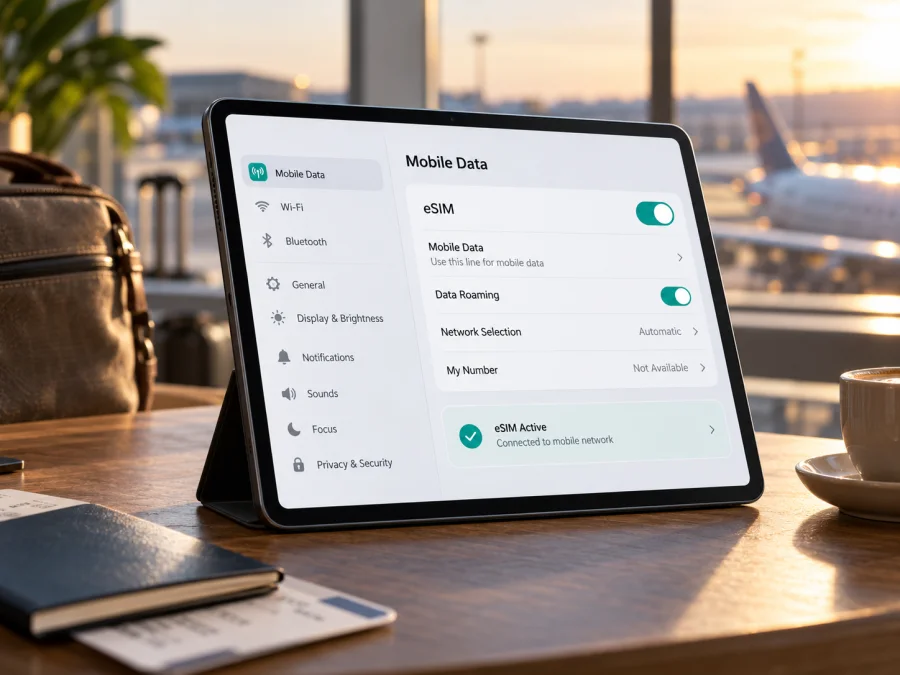
Apple iPad Pro 12.9-inch cellular 128GB 5G eSIM: compatibility and setup
The Apple iPad Pro 12.9-inch cellular 128GB 5G can use eSIM in supported markets, but the input name does not identify one exact generation or regional model. Apple sold 128GB, 5G-capable 12.9-inch Wi-Fi + Cellular configurations as the 5th-generation model in 2021 and the 6th-generation model in 2022. Both generations support eSIM in markets where Apple and the mobile provider allow it. A mainland China version is a meaningful exception: Apple says only specific iPad models support eSIM activation in China mainland, and these older 12.9-inch models are not on that supported list. Check the model number and EID on the iPad itself before choosing a travel plan.
This distinction matters because the storage capacity and 5G label do not by themselves prove that a particular unit can download an eSIM profile. The cellular radio, eSIM hardware, the sales market, the current iPadOS version, and the provider’s service all have a role. Use the guide below to identify your iPad, test the settings, install a profile, and prepare mobile data for a trip.
Does Apple iPad Pro 12.9-inch cellular 128GB 5G support eSIM?
Usually yes, if it is a 5th- or 6th-generation Wi-Fi + Cellular model sold for a market where eSIM is available. Apple’s specifications for both cellular generations include eSIM, alongside a nano-SIM tray. Apple’s supported-device list includes the 12.9-inch iPad Pro from the 3rd through 6th generations. Since 5G and 128GB align with the 5th- and 6th-generation 12.9-inch models, these are the likely generations behind the product name.
The name is still not precise enough to certify an individual tablet. It does not include a generation or model number, and a device intended for mainland China follows a separate eSIM policy. In that market, Apple’s current list names supported iPad models; the listed models do not include the 12.9-inch 5th- or 6th-generation Pro. A China-market model may have cellular service and 5G yet not support eSIM activation there. Do not infer eSIM availability from the 5G badge, the presence of a SIM tray, the seller’s headline, or the fact that another regional version works.
| Detail | What it means for eSIM |
|---|---|
| Device name supplied | Apple iPad Pro 12.9-inch cellular 128GB 5G; generation and market are not stated |
| Likely generations | 5th generation (2021) or 6th generation (2022), both offered with 128GB, Wi-Fi + Cellular, and 5G |
| eSIM in supported markets | Apple lists eSIM for the 12.9-inch cellular models in these generations |
| Mainland China | eSIM activation is restricted to models on Apple’s mainland-China support list; the 12.9-inch 5th- and 6th-generation models are not listed |
| Physical SIM | These generations have a nano-SIM tray in addition to eSIM in supported configurations |
| Final check | Confirm model number, EID, eSIM settings, and provider/tariff compatibility on the actual iPad |
Why the generation and market matter
“12.9-inch” describes the display size, while “cellular” distinguishes a model with mobile-network hardware from a Wi-Fi-only iPad. Neither word gives the precise regional configuration. The 5th generation appeared in 2021 and includes model numbers such as A2461 and A2379 for international Wi-Fi + Cellular variants, plus A2462 for mainland China. The 6th generation appeared in 2022 and includes A2437 and A2764 for Wi-Fi + Cellular variants, plus A2766 for mainland China. Apple’s identification page explains how to match the A-number to the generation and sales region.
Check compatibility before you buy a plan
Use this checklist on the actual device. A retailer’s listing is useful background, but the iPad’s own identifiers and settings are more specific.
- Confirm it is Wi-Fi + Cellular. Open Settings > General > About and inspect the model information. A Wi-Fi-only iPad cannot add an eSIM for mobile data. You can also read the A-number on the back of the device, although Settings gives the model identifier more clearly.
- Identify the generation and region. In Settings > General > About, tap Model Number if needed to switch between the part number and the A-number. Compare that A-number with Apple’s model-identification information. In particular, check whether it is a mainland-China-only model such as A2462 or A2766.
- Look for an EID. In Settings > General > About, scroll through the device identifiers for EID. Apple also explains that a cellular iPad’s EID can be found in device information on a Mac or PC, in the Apple Account device list, or on the original packaging. Treat the EID as a private identifier: do not post it publicly.
- Look for the eSIM controls. Open Settings > Mobile Data (the wording may vary by iPadOS language) and check for an option such as Add eSIM, Add Mobile Plan, or Find a New Plan. The available labels and provider options can vary by iPadOS release, region, and carrier.
- Check for an operator restriction. Ask the seller or original carrier whether the device is locked or restricted. A locked iPad may reject a profile or be unable to use a plan from another provider.
- Check the plan’s device rules. Before paying, verify that the plan supports iPad/tablet use, the destination, the required activation method, and any restrictions on tethering or data use.
A missing EID or absent eSIM option is a reason to pause and verify the exact model with Apple or the seller. It is not a reason to try random QR codes or repeatedly purchase plans. Conversely, an EID by itself is helpful evidence of eSIM capability but does not prove that a specific provider supports this model, market, or destination. Use the Check your device compatibility guide as another step, then confirm the exact tariff conditions before checkout.
Set up an eSIM on the iPad
Prepare the iPad while you have a reliable Wi-Fi connection. Keep the QR code or activation details available on another screen or printed page. If the code is shown on the iPad itself, the camera cannot scan its own display; on a supported iPadOS version you may instead press and hold an eligible QR code in an email or web page and select Add eSIM. Follow the instructions supplied with the plan, because a QR code may be single-use and some providers use an app or activation link instead.
- Update iPadOS. Open Settings > General > Software Update and install an available update if practical. Restart the iPad if the update asks you to.
- Connect to Wi-Fi. Keep the connection active while the profile downloads. Do not rely on the new eSIM for internet access before it is installed and activated.
- Open mobile-data settings. Go to Settings > Mobile Data. Choose Add eSIM or Add Mobile Plan. If the device displays Find a New Plan, use it only if your chosen provider offers the plan through that route.
- Choose the provider’s activation method. Scan the QR code with the iPad camera and tap the detected mobile plan, or use the provider’s supported activation link or app. If an installation code is required, enter it exactly as supplied.
- Review and add the plan. Confirm that the displayed plan is the one you intend to install, then tap Continue and Add Mobile Plan (or the equivalent on screen). Enter a confirmation code if requested by the provider.
- Wait for installation. Keep Wi-Fi on and leave the settings screen open while the iPad downloads and registers the profile. This can take a few minutes. Do not scan the same code repeatedly if the first attempt appears to be processing.
- Label the plan. Choose a clear label such as “Travel” so you can distinguish it from another mobile-data plan. Labels are for your convenience and do not change where the plan works.
- Choose the data line. In Settings > Mobile Data, select the new eSIM as the line for mobile data when you want to use it. If the iPad offers a setting to switch mobile data automatically, decide whether that behavior matches your intended use and the conditions of both plans.
- Check roaming instructions. Some travel eSIMs require Data Roaming to be enabled for that specific profile; others do not. Follow the plan’s instructions. If needed, open the eSIM’s information in Mobile Data settings and turn on roaming for that line only.
- Test the connection. Turn Wi-Fi off briefly, confirm that the correct data plan is selected, and load a simple webpage. Turn Wi-Fi back on after the test if you are not ready to use mobile data.
Apple’s iPad activation steps are similar across supported generations, but menu names change between iPadOS versions and by language. For further help, see the iOS eSIM installation instructions and the Android eSIM installation instructions. The iOS guide is the relevant one for this iPad; the Android guide is included for travelers setting up another device.
Use the eSIM for mobile data on a trip
Before departure, confirm that the destination is included and that the plan’s validity period covers the dates you need. Compare the included data allowance with your likely use: maps, messaging, email, browsing, and occasional video calls consume less data than frequent video streaming, large downloads, or cloud backups. If you are visiting more than one country, confirm that every stop is covered by the same plan rather than assuming a regional plan includes every border crossing.
When you arrive, open Settings > Mobile Data, select the travel eSIM for mobile data, and enable it. Turn on data roaming for that profile only if its instructions require it. Keep your regular SIM or plan settings as you prefer, and review which line is selected for data so the iPad does not use an unintended subscription. If the device offers a switch for automatic mobile-data selection, check its behavior before relying on it; switching between lines can affect charges under your other plan.
Once you have confirmed the iPad’s eSIM support, Kaspersky eSIM Store can help you choose, arrange, and activate an eSIM with a suitable mobile-data plan for an overseas trip through its app or website. Compare the destination, data allowance, validity, and activation rules before choosing. The service is a way to prepare a travel eSIM plan; mobile connectivity itself depends on the plan’s provider and the local network.
Troubleshooting: common eSIM problems
“Add eSIM” does not appear
First verify that you have a Wi-Fi + Cellular model and that its model number belongs to an eSIM-capable regional variant. Check Settings > General > About for an EID and install the latest iPadOS update available for the device. If the iPad is a China-market model, compare it with Apple’s mainland-China eSIM list rather than the general international list. If the model should support eSIM but the option is still absent, restart the iPad and ask Apple or the original carrier to confirm the hardware and any restrictions.
The QR code will not scan or says it is invalid
Increase the screen brightness of the device displaying the code, clean the iPad camera lens, and hold the camera steady with the full code in view. Make sure the QR code belongs to the plan you selected and has not already been used. If it appears in an email or web page on the iPad and your iPadOS version supports it, touch and hold the code to add it without scanning. Some providers require a fresh code or a confirmation code; request help from the provider if the profile cannot be downloaded.
The profile installs but there is no service
Check that the profile is enabled and selected under Settings > Mobile Data. Confirm that the destination is included, the plan is active, and you are within network coverage. Follow the provider’s instructions for data roaming. Toggle Airplane Mode off and on, restart the iPad, and allow time for registration. If the plan lists a supported network selection, use automatic selection first and contact the provider if the iPad still cannot register.
Mobile data works slowly or stops unexpectedly
Check the remaining data, plan validity, and whether the current location is covered. Large system updates, video, photo backups, and app downloads can consume data in the background. Confirm the iPad is using the intended line and test with Wi-Fi switched off. A 5G label does not guarantee 5G service at every location; the local network and the iPad’s regional bands affect the available connection. Where available, LTE may work when 5G is not available.
The iPad uses the wrong plan
Open Settings > Mobile Data and select the intended eSIM for cellular data. Review automatic switching options and the status of other active plans. If you want to avoid using another plan’s allowance, turn off that line or its data use where appropriate, while remembering that doing so may affect services tied to it. Check the selected line again after changing profiles or restarting the iPad.
Frequently asked questions
Does the 128GB capacity affect eSIM support?
No. The 128GB storage size does not itself determine eSIM capability. The cellular hardware, exact model number, sales market, iPadOS, and provider support matter. The generation should also be confirmed because the product name does not include it.
Is a 5G iPad always compatible with a travel eSIM?
No. 5G describes mobile-network capability, not whether a particular provider can provision an eSIM on a particular regional model. Check the EID and eSIM controls, verify the A-number, and read the plan’s device and destination requirements before purchase.
Can I use a mainland-China version of this 12.9-inch model with eSIM?
Apple’s current mainland-China support page lists only specific iPad models for eSIM activation there; it does not list the 12.9-inch 5th- or 6th-generation Pro. A mainland-China-only model number therefore needs special caution. Do not assume that a plan or setting available in another market will work on it. Ask Apple and the relevant provider to confirm the exact device and the market where you plan to activate it.
Final compatibility check before your trip
For the Apple iPad Pro 12.9-inch cellular 128GB 5G, the practical answer is yes for supported international Wi-Fi + Cellular variants, with a market-specific exception that must be checked. The 128GB 5G name most often points to a 5th- or 6th-generation device, but it is not enough to distinguish those generations or regional models. Confirm the A-number, locate the EID, and make sure Add eSIM or an equivalent mobile-plan option appears. Pay particular attention if the model was sold for mainland China.
Before you choose a travel tariff, confirm that the device is unlocked, the exact model accepts eSIM in the market where you will activate it, and the provider supports that iPad and destination. Then compare data amount, validity, activation timing, and any roaming instructions. Once those checks are complete, use Kaspersky eSIM Store’s app or website to choose and activate a suitable eSIM plan for mobile data on your trip. Save the activation details and support information where you can reach them, and keep access to Wi-Fi during setup in case you need to check the plan.


