Travel connectivity guide
Apple iPad Pro 12.9-inch cellular 128GB eSIM
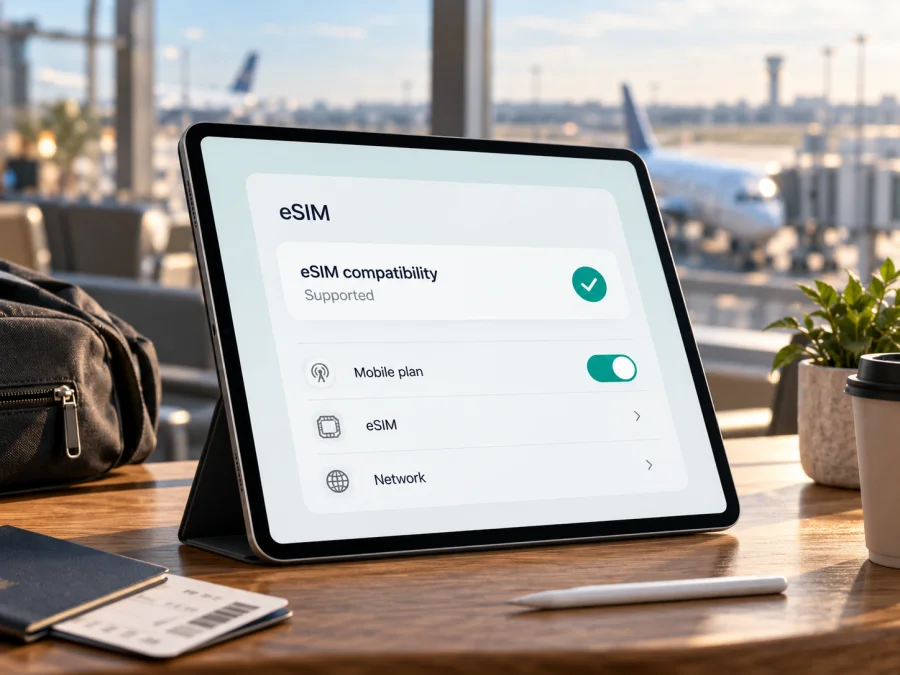
Apple iPad Pro 12.9-inch cellular 128GB eSIM: compatibility and setup
The Apple iPad Pro 12.9-inch cellular 128GB can support eSIM, but the name does not identify one hardware generation. Apple sold a 128GB cellular version of the original 2015 iPad Pro, which is not on its eSIM-supported list, as well as later 128GB cellular versions that are. The generation, exact model number and market therefore matter more than the storage label.
If you are checking a used iPad or preparing for a trip, identify the model in Settings and look for an EID or eSIM setup option before choosing a plan. A SIM tray or the word “Cellular” alone does not prove that eSIM is available.
Quick answer and model overview
| Version described by Apple | 128GB cellular? | eSIM answer |
|---|---|---|
| iPad Pro 12.9-inch, 1st generation (2015) | Yes; A1652 | No eSIM support; it uses a nano-SIM |
| iPad Pro 12.9-inch, 3rd generation (2018) | No; 128GB was not an offered capacity | Cellular model is on Apple's eSIM list |
| iPad Pro 12.9-inch, 4th generation (2020) | Yes; cellular examples include A2069 and A2232 | Supported in eligible markets |
| iPad Pro 12.9-inch, 5th generation (2021) | Yes; cellular examples include A2461 and A2379 | Supported in eligible markets; mainland China needs a separate check |
| iPad Pro 12.9-inch, 6th generation (2022) | Yes; cellular examples include A2437 and A2764 | Supported in eligible markets; mainland China needs a separate check |
Apple's current guidance lists the iPad Pro 12.9-inch (3rd to 6th generation) Wi-Fi + Cellular for eSIM. That means three generations match the 128GB capacity in the task: the fourth, fifth and sixth. The first-generation 128GB cellular model does not. A Wi-Fi-only iPad, regardless of generation or storage, cannot connect to a mobile plan directly.
The short answer: eSIM is supported if this is a compatible later-generation cellular model and the regional version and provider allow activation. It is not supported on the original 2015 128GB cellular model. Because the task name leaves out generation and region, verify the actual iPad before purchase.
Why generation and region matter
“Cellular” means that the iPad has mobile-network hardware. It does not mean every generation has an embedded SIM. Earlier iPads used a physical nano-SIM; a SIM tray is not proof of eSIM support. Legacy Apple SIM capability on some older iPads is a separate system, and Apple says Apple SIM can no longer activate new data plans. Storage is also a separate choice: the same generation can have Wi-Fi and Wi-Fi + Cellular configurations.
Model numbers help separate versions that look similar. The 2015 cellular model is A1652. Later 128GB cellular examples include A2069 or A2232 for the fourth generation, A2461 or A2379 for the fifth, and A2437 or A2764 for the sixth. Apple identifies other numbers, including A2233, A2462 and A2766, as mainland China configurations. Check the A-number on your iPad to identify its exact generation and market.
Regional differences matter most when you plan to activate a local eSIM in mainland China. Apple says local-carrier eSIM activation there is limited to iPad models specifically supported in that market. Its mainland China list is narrower than the general international list. Do not assume that an iPad listed as eSIM-capable for another country will accept a local mainland China plan. Confirm the precise model number and carrier before purchase. A travel plan from another provider and a local carrier plan are different service cases, so check the provider's own destination and activation rules as well.
A travel data eSIM is generally for mobile data; it does not by itself provide a regular phone number, voice calls or SMS. Internet calling and messaging apps can still work over the data connection.
Identify your exact iPad before choosing a plan
Check the iPad itself rather than relying on a retailer title, the box alone or appearance. Refurbished listings may omit the year, and several generations share a similar 12.9-inch design.
- Connect to Wi-Fi, open Settings, then tap General → About.
- Find Model Number. Tap the displayed part number once to reveal the hardware A-number.
- Compare the A-number with Apple's iPad identification and confirm the generation. Make sure the device is explicitly Wi-Fi + Cellular, not Wi-Fi only.
- In About, scroll for EID. Also look under Settings → Cellular Data or Mobile Data for an option such as Add eSIM or Add a New Plan. Labels vary with iPadOS version and language.
An EID is the identifier for an embedded SIM. Its presence is a useful sign that the hardware can host eSIM profiles, but it does not guarantee that every provider or country supports the iPad. If it is missing, check the A-number and confirm that this is a cellular model; update iPadOS and restart before investigating further. If the supported model still has no eSIM control, ask Apple or the seller to verify the hardware version before paying for a plan. Do not post the EID or a QR activation code publicly.
Before buying, check whether your device is compatible. Use the exact A-number rather than a generic “iPad Pro 12.9” label. Compatibility depends on the model, regional variant, software, provider and destination. A checker may not distinguish every generation, so contact the provider if the result is unclear.
Compatibility checklist
- [ ] The iPad is Wi-Fi + Cellular.
- [ ] The A-number identifies an eSIM-supported generation. For the 12.9-inch Pro, Apple lists generations 3–6; the 128GB models are generation 1 and generations 4–6.
- [ ] EID or an eSIM/mobile-data setup control appears in Settings.
- [ ] The regional version can activate eSIM in the country where you will use the plan.
- [ ] The plan supports iPad and covers your destination.
- [ ] The iPad can connect to Wi-Fi for installation, and its iPadOS is current enough for the provider's steps.
- [ ] You understand the plan's data allowance, validity, activation timing and roaming instructions.
Resolve any uncertainty before checkout. A plan cannot add eSIM hardware to the first-generation A1652, and a successful purchase cannot override regional activation limits.
Install and activate an eSIM on iPad
Menu names and installation methods vary by iPadOS and provider. Connect to Wi-Fi for profile installation. Keep the QR code available on another screen if needed; activation codes may be single-use, so do not delete a profile unless the provider advises it.
Prepare
- Confirm the generation, A-number, EID and destination compatibility.
- Update iPadOS if an update is available, then restart the iPad.
- Connect to stable Wi-Fi and keep the device charged. Have the provider's QR code, activation code or app ready.
- Read the plan terms. Check when validity starts, whether to install before departure or on arrival, and whether Data Roaming must be enabled for that eSIM.
- If a physical SIM or another plan is already installed, note which line you want to use for cellular data.
Add the plan
- Open Settings → Cellular Data or Mobile Data.
- Tap Add a New Plan, Add eSIM, or the equivalent option displayed.
- Follow the provider's method: scan a QR code, enter details manually, use carrier activation, transfer a plan from another iPad, or continue in a provider app. Available methods differ by plan.
- Review the confirmation and approve installation. Stay on Wi-Fi while the profile downloads and registers.
- Give the plan a clear label, such as Travel data or a destination name.
- Turn on the new line and select it under Cellular Data when you want it to carry data. Enable Data Roaming for that line only if the plan's instructions require it.
- Keep your home plan set as intended. Review your home carrier's roaming rules so the iPad does not use that line for data abroad by accident.
The iPad may show Activating while it registers. Some plans start only on arrival, so check the start rule before removing or reinstalling a profile. If you need device-specific walkthroughs, see the iOS eSIM installation instructions and Android eSIM installation instructions. iPad setup uses Apple's iPadOS menus.
Use the iPad for data while travelling
A cellular iPad can keep maps, tickets, translation, email and cloud documents available away from Wi-Fi. Before selecting a plan, compare its destination list with every stop on your itinerary. A country plan may not cover a layover or border crossing; regional plans may also have terms that vary by destination.
If allowed, install over Wi-Fi before departure and select the travel eSIM when its validity should begin. Plans can start at purchase, installation or first connection; check the terms and keep your order details.
On arrival:
- Turn off Airplane Mode and confirm the travel line is enabled.
- Select that eSIM under Cellular Data.
- Follow the provider's instructions for Data Roaming on the travel line.
- Wait for network registration; if needed, toggle Airplane Mode or restart.
- Load a simple webpage and check the remaining data and validity in the provider account or app.
Kaspersky eSIM Store is an app and website where you can browse, choose and activate an eSIM plan for mobile data during an international trip. Visit the Kaspersky eSIM Store website to check current destinations and plan terms. This is a general place to browse; it is not a claim that a specific country tariff is available or suitable for every iPad. Check the destination, allowance, validity and compatibility before selecting a plan.
Streaming, cloud photo sync and system updates can use data quickly. Download large files over Wi-Fi, review background-data settings and check plan terms before hotspot sharing.
Common problems and checks
“Add eSIM” is missing
Confirm Wi-Fi + Cellular and the A-number first. The first-generation A1652 has a SIM tray but is not an eSIM model. For a supported generation, update iPadOS, restart and check About for an EID. Ask Apple or the seller to identify the model if Settings remains unclear.
The QR code will not scan
Confirm that the iPad is online through Wi-Fi and the code is complete, unused and intended for this device. Increase brightness on the screen showing the QR code and hold it steady. If the QR code is open on the iPad itself, display it on another device or use a provider-supported manual method. Do not reuse or share the code publicly.
The profile installs but there is no service
Check the start rule, selected data line, destination and roaming instructions. Toggle Airplane Mode and restart. If needed, check for updates and contact the provider with your order reference and error; do not remove the profile unless advised.
The wrong line is using data
Open Settings → Cellular Data and check the selected line. If the home SIM remains active, review its roaming settings and your home plan's charges. The travel eSIM can be installed correctly while the iPad continues using the home line because the data selection was not changed.
It works in one country but not another
Check destination, validity and network instructions; a regional package may exclude a stop. For mainland China, follow Apple's model-specific guidance and confirm the provider's service rules.
FAQ
Does every Apple iPad Pro 12.9-inch cellular 128GB support eSIM?
No. The 2015 first-generation 128GB cellular model is not listed as eSIM-capable. The fourth-, fifth- and sixth-generation 128GB cellular models are included in Apple's general support list, subject to regional restrictions. Check the A-number and EID on the actual iPad.
Does 128GB mean the iPad has cellular service?
No. Capacity and connectivity are separate. Check that the listing and Settings identify Wi-Fi + Cellular. A Wi-Fi-only model cannot install a mobile data plan directly.
Does a SIM tray mean eSIM is supported?
No. Later supported models may have both a nano-SIM tray and eSIM, while the 2015 A1652 also has a tray but is not eSIM-capable. Use the generation, A-number and EID together.
Will an EID make every plan work?
No. It identifies embedded SIM hardware, not universal provider support. Verify the regional model, plan, destination and activation rules.
Can I make normal calls and send SMS with a travel data eSIM?
A travel data plan generally provides data rather than a regular number, voice service or SMS. Internet-based calling and messaging apps can work over data, subject to the apps and accounts you use.
Can I set up the plan before departure?
Often, if the provider supports advance installation and you have Wi-Fi. Validity may begin at purchase, installation or first network connection. Check the plan's activation rule before installing.
Final compatibility check
For Apple iPad Pro 12.9-inch cellular 128GB, eSIM support depends on generation and region. The original 2015 128GB cellular iPad Pro does not support it; 128GB cellular models from the fourth through sixth generations are included in Apple's general eSIM list, subject to market-specific rules. Confirm the A-number, EID and eSIM controls, then check the provider's compatibility information before choosing a plan.
Once the device is verified, compare destination coverage, data allowance, validity and activation timing. Kaspersky eSIM Store's website and app let you browse and activate an eSIM plan intended for mobile data during international travel; availability and conditions depend on the plan shown for your trip. Install over Wi-Fi, select the travel line when appropriate, and keep your home line's roaming settings in view.


