Travel connectivity guide
Apple iPad Pro 12.9-inch cellular 256GB 5G eSIM
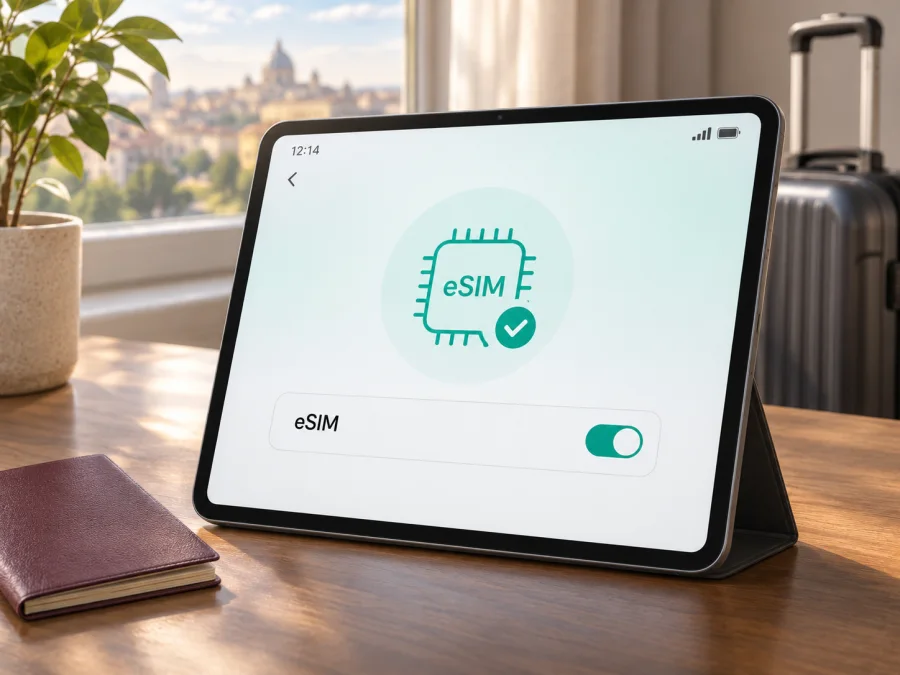
Apple iPad Pro 12.9-inch cellular 256GB 5G eSIM: compatibility and setup
Short answer: the global-market cellular iPad Pro 12.9-inch models that match the 5G and 256GB description support eSIM. Apple’s specifications list eSIM for the 12.9-inch iPad Pro (5th generation), and Apple’s current iPad setup guide includes the 12.9-inch models from the 3rd through 6th generations among devices that can use eSIM activation methods. Because “Apple iPad Pro 12.9-inch cellular 256GB 5G” does not name the generation or market version, compatibility depends on hardware variant, sales market, iPadOS version, and carrier; check the model number and Settings before choosing a plan. A model sold for mainland China has different carrier restrictions, and an eSIM plan’s country availability is a separate question from whether the tablet has eSIM hardware.
Does Apple iPad Pro 12.9-inch cellular 256GB 5G support eSIM?
For the standard international 5G cellular variants, the answer is yes. The 5G 12.9-inch iPad Pro generations are the 5th generation (introduced in 2021) and 6th generation (introduced in 2022); both were offered with 256GB storage. Apple’s technical specifications for the 5th-generation Wi-Fi + Cellular model explicitly list eSIM alongside nano-SIM. The Apple model-identification guide lists 256GB for both generations and gives their regional cellular model numbers. These facts were checked against Apple Support on 4 November 2026.
That answer has an important market qualifier. Apple says eSIM availability depends on country or region and carrier. Its 5th-generation specifications state that eSIM is not available in mainland China, and Apple’s current list for eSIM activation with a mainland China carrier does not include the 12.9-inch 5th- or 6th-generation iPad Pro. Therefore, a tablet purchased for that market should not be assumed to accept a local mainland China carrier’s eSIM. A model bought elsewhere may use a supported travel eSIM outside mainland China, but it still cannot install a profile from a mainland China carrier unless Apple lists that specific model as supported there.
The word “cellular” also matters: a Wi-Fi-only iPad does not have mobile-network capability. And “5G” describes cellular-network generation, not eSIM availability in every country. If you are buying a used tablet or an imported unit, verify the model number and the EID directly rather than relying only on the seller’s short product title.
At a glance
| Detail | What to expect |
|---|---|
| Device name supplied | Apple iPad Pro 12.9-inch cellular 256GB 5G |
| Cellular version | Required; the Wi-Fi-only model cannot connect to a mobile plan |
| Likely generation when 5G is specified | 12.9-inch iPad Pro (5th generation, 2021) or (6th generation, 2022) |
| 256GB option | Listed by Apple for both 5th- and 6th-generation 12.9-inch models |
| eSIM on standard international cellular versions | Supported, subject to carrier, country, and plan compatibility |
| Mainland China carrier eSIM | Do not assume support; the 5th/6th-generation 12.9-inch models are not on Apple’s current mainland-China supported-model list |
| Physical SIM | Nano-SIM tray is present on the 5th- and 6th-generation cellular models; eSIM and physical SIM can coexist as supported options |
| What to verify before purchase | Generation, model number, EID, Add eSIM option, carrier lock or restrictions, plan coverage and terms |
“Likely generation” is deliberately conditional. The supplied name does not contain a generation or Apple model number. It preserves the exact storage, cellular, and 5G modifiers, but cannot distinguish every regional configuration. If the seller’s listing uses “5G” loosely or combines variants, treat the label as unconfirmed and inspect the device itself.
How to identify your exact iPad Pro version
On the iPad, open Settings → General → About. Check the model name, model number, and available cellular identifiers. Apple displays a part number beside “Model Number”; tap that entry to switch to the shorter hardware model number, usually beginning with “A”. You can compare that number with Apple’s model-identification information or ask Apple Support or the seller to confirm the market version. Storage capacity alone does not identify the cellular radio or eSIM configuration.
For reference, Apple identifies the 2021 12.9-inch iPad Pro (5th generation) cellular versions as A2461, A2379 with mmWave, and A2462 for mainland China. For the 2022 6th generation, Apple lists A2437, A2764 with mmWave, and A2766 for mainland China. A2378 and A2436 are the Wi-Fi-only versions, so they are not substitutes for a cellular model. The market code is useful evidence, but the on-device checks below are the practical final confirmation for your unit and current software.
Check EID and the eSIM menu
- Connect the iPad to Wi-Fi and install any available iPadOS update if it is appropriate for your device.
- Go to Settings → General → About and look for EID. EID is the identifier associated with the device’s embedded SIM capability. If an EID is present, that is a strong sign that the device has eSIM hardware.
- Open Settings → Cellular Data. Depending on your iPadOS version and region, the heading may appear as Mobile Data. Look for Add eSIM, Add a New Plan, or an option to add a cellular plan.
- If the menu is present, check that the eSIM plan’s provider supports iPad and the country where you plan to use it. The presence of EID does not mean every provider, tariff, or destination is supported.
- If neither EID nor an add-plan option appears, confirm that the iPad is a Wi-Fi + Cellular model and check its exact model number. Update iPadOS, restart once, and ask Apple or the seller to verify the model before buying an eSIM plan.
Do not publish or send your full EID in a public post. It is an identifier used for provisioning and support. Share it only through a trusted support channel when a provider specifically needs it. An EID check also does not establish that a tablet is unlocked, that a particular carrier accepts it, or that the plan includes service in your destination.
Check your device before you choose a travel eSIM. Confirm the exact device and region, and make sure that the plan is intended for a cellular iPad rather than only a phone if the provider sets device-type restrictions.
Regional versions and carrier compatibility
The 12.9-inch name covers more than one generation and market version. Apple’s official identification pages distinguish global cellular models from mainland-China-only models, and the radio bands and network features can also differ by model number. For example, mmWave 5G is specified for certain model numbers and is not a universal feature of every 5G label. None of these distinctions changes the tablet’s 256GB storage, but they can change which networks it can use and which eSIM profiles can be installed.
For a standard international model, eSIM is a supported way to add a cellular data plan where the carrier offers compatible iPad service. In mainland China, Apple’s support page lists only specific current models for carrier eSIM activation and names China Unicom as the supported iPad eSIM carrier. It says other iPads cannot install profiles from mainland China carriers. The 12.9-inch 5th- and 6th-generation models are not on that list. This geographic restriction refers to eSIM profiles from carriers in mainland China; it should not be confused with the tablet’s ability to use an eligible non-mainland travel plan when abroad. Verify the exact plan and place of use before purchase.
Carrier lock and network compatibility are separate from eSIM support. A tablet may have an EID and an Add eSIM menu but still be restricted by a seller, carrier, corporate device-management policy, or the provider’s device eligibility rules. If you bought it through a carrier, ask whether the iPad is unlocked and whether it accepts a third-party data plan. For a second-hand device, have the seller demonstrate the Settings screens and confirm that the iPad is not managed by an organization that prevents adding cellular plans.
What to check before choosing a travel plan
Use this short checklist before paying:
- Cellular hardware: verify Wi-Fi + Cellular in Settings; a Wi-Fi-only iPad cannot use a mobile plan.
- eSIM evidence: look for EID and an Add eSIM option on the device itself.
- Regional eligibility: confirm the exact model and the country where you will use the plan. Mainland China has a separate supported-model list.
- Provider rules: make sure the plan accepts cellular iPads and the iPad is not carrier-locked or restricted by device management.
- Trip fit: check coverage for every destination, data allowance, validity, price, activation trigger, and any APN or roaming instructions.
- Installation access: keep Wi-Fi available while downloading the profile, and have the QR code ready on another screen if needed.
- Service type: travel eSIMs are generally for data; do not assume a phone number, voice service, or SMS unless the plan explicitly includes them.
Resolve any uncertainty before purchase. A compatible tablet can still be rejected by a provider’s rules, so check device and destination eligibility.
How to install and activate an eSIM on iPad
Menu labels vary slightly by iPadOS version and provider. Keep the iPad connected to Wi-Fi and follow the activation details supplied with the plan. Apple supports provider activation, QR codes, compatible apps, and other provider-specific methods. The QR route is common for travel data eSIMs.
1. Prepare the plan
Choose a plan that covers your destination and supports cellular iPads. Read when its validity begins, how much data it includes, and whether data roaming or a manual APN is required. Find the QR code or installation details in your order account. If the QR is displayed on the iPad, open it on another screen or use a provider-supported manual method.
2. Open cellular settings
Go to Settings → Cellular Data or Settings → Mobile Data, then tap Add eSIM or Add a New Plan. Some iPadOS versions let you scan the provider QR code with Camera and tap the notification. During initial setup, choose the QR option on the mobile-data screen.
3. Add the profile
Scan the entire QR code and follow the prompts to download the plan. Enter a confirmation code if requested. If scanning is unavailable, use manual details or an activation link only if the provider offers one. Treat the QR code as private; many codes are single-use and cannot be scanned again after installation.
4. Label and select the eSIM
Give the profile a clear label such as Travel data or the destination name. Keep your home plan selected until you are ready to use the travel plan, if the plan’s activation rules allow that. Some plans start on installation; others start on first connection in the covered destination, so confirm the trigger before installing early.
5. Set data and roaming
When ready, turn on the travel profile and select it under Cellular Data. Enable Data Roaming for that profile only if its instructions require it. Keep roaming off for your home line if you want to avoid its charges, and disable cellular-data switching if you do not want the iPad to switch lines automatically.
6. Confirm connection
Allow a few minutes for network registration, then open a simple web page. If the profile stays on “Activating” or shows “No Service”, check the selected data line and plan instructions before trying to reinstall it.
The Store’s iOS installation instructions show the general Apple QR-code flow; iPadOS labels may differ from iPhone. The Android installation instructions are available for a separate Android device.
Use the iPad for mobile data while travelling
If the plan permits advance installation, add the profile while you still have stable Wi-Fi. Check whether the plan activates on installation or first connection, and keep the order details and support route available offline. Do not guess an APN; enter one only when the provider gives you the value.
After arrival, enable the travel profile and select it for cellular data. If required, turn on roaming for that profile. You may keep a home SIM active if your carrier allows it, but check which line supplies data before using maps, email, or streaming apps. A tablet is useful for navigation, bookings, and messaging over data; it does not automatically provide a phone number or SMS.
For a multi-country trip, confirm that every destination is included. A regional plan may fit a route across several countries, but its availability, duration, and terms vary. Compare coverage, data allowance, validity, activation rules, and current price rather than assuming a country plan follows you across borders. The iPad can store multiple eSIMs, but Apple says only one eSIM can be used at a time on supported models. Do not delete an installed profile unless you know whether the provider allows it to be restored or transferred.
Kaspersky eSIM Store is an app and website where travellers can choose, arrange, and activate an eSIM with a suitable mobile-data plan for an international trip. Browse destinations and check current plan options on the general Store homepage; it is not a country-specific tariff page. Review the current plan conditions before ordering.
Common eSIM problems and what to check
There is no EID or Add eSIM option
Confirm that this is the Wi-Fi + Cellular model. Check Settings → General → About for the model number, restart, and install an available iPadOS update. If EID and the add-plan control are still missing, ask Apple or the seller to confirm the regional version before buying.
The QR code will not scan
Increase the code’s size and brightness, remove glare, and make the whole code visible. Use a manual method only if the provider offers one. Keep the QR private because it may be single-use.
The profile is stuck activating or there is No Service
Keep Wi-Fi connected during installation. Confirm destination coverage, enable the profile, select it for cellular data, and follow the provider’s network instructions. Toggle Airplane Mode briefly or restart. Some plans connect only after arrival; enable roaming on the travel profile if its instructions require it.
The profile is active but apps have no internet
Check the selected data line, remaining allowance, and any Wi-Fi sign-in page. Enter an APN only if the provider supplied one. Avoid deleting the profile or resetting network settings as an early step.
I see unexpected roaming charges
Check which line is supplying data and disable automatic data switching if needed. Keep roaming off for your home line unless you have checked its charges; the travel eSIM may have its own roaming requirement.
The provider rejects the device or location
An eSIM-ready iPad may still fail a plan’s regional, device-type, or activation rules. Verify the exact model and terms with the provider before purchase. Changing language or region settings cannot replace device eligibility.
Frequently asked questions
Does the 256GB version have eSIM?
Storage does not determine eSIM support. The standard 5th- and 6th-generation 12.9-inch cellular models support eSIM. Confirm cellular hardware, model number, and EID on your particular tablet.
Does 5G mean every eSIM will work?
No. 5G describes the cellular-network capability. eSIM use also depends on the regional model, carrier, country, plan, and provider’s device rules.
Can I use an eSIM from a mainland China carrier?
Do not assume so. Apple’s current mainland-China list does not include the 12.9-inch 5th- or 6th-generation iPad Pro. Check Apple’s regional guidance and the plan provider before purchase.
Can I keep a physical SIM inserted?
The 5th- and 6th-generation cellular versions have a nano-SIM tray and standard international versions support eSIM. Do not assume both lines provide simultaneous data.
Does a travel eSIM include a phone number?
Usually it is for mobile data only. Voice, a conventional number, and SMS are included only when the specific plan says so. Internet messaging and calling apps use data.
Can I install it before departure or transfer it later?
Validity may start on installation or first connection. Transfer and reinstallation depend on the provider, so check before scanning a single-use code or deleting a profile.
Should Data Roaming be enabled?
Follow the plan’s instructions. Some travel eSIMs require roaming on the travel profile; this does not mean you should enable it on your home line.
Final check before your trip
For the standard international Apple iPad Pro 12.9-inch cellular 256GB 5G, eSIM support is expected if the device is the 5th- or 6th-generation cellular model. The exact regional version still matters, and Apple’s current mainland-China carrier list does not include either 12.9-inch 5G generation. Confirm the hardware model, EID, and Add eSIM option on the iPad; then verify that the plan accepts cellular tablets, covers every destination, and fits your trip’s timing and data needs.
Once those checks are complete, use Kaspersky eSIM Store’s app or website to choose and arrange an eSIM with a suitable mobile-data plan for your international trip. Compare the current coverage, data allowance, validity, activation conditions, and price for the route you will take. Install and activate the profile according to its instructions, select it for cellular data when you are ready, and keep the plan details available in case you need help while travelling.


