Travel connectivity guide
Apple iPad Pro 12.9-inch cellular 512GB 5G eSIM
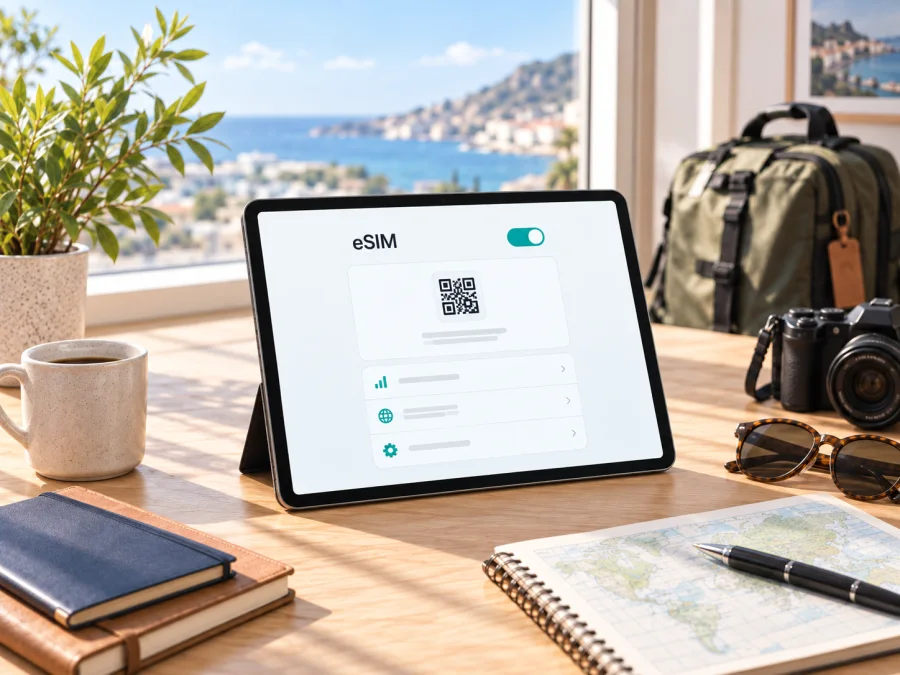
Apple iPad Pro 12.9-inch cellular 512GB 5G eSIM compatibility and setup
Short answer: the cellular version of Apple iPad Pro 12.9-inch cellular 512GB 5G can use eSIM when it is one of the supported regional models and the mobile provider supports eSIM for iPad. Apple’s current iPad eSIM guidance lists Wi-Fi + Cellular iPad Pro 12.9-inch models from the 3rd through 6th generation. The name supplied here does not state a generation, so check the model number and region on your own iPad before choosing a plan. A Wi-Fi-only iPad cannot connect to a mobile network, and Apple says eSIM activation is not available in mainland China for the listed generations.
What this exact configuration tells you
The name identifies a cellular 12.9-inch iPad Pro with 512GB storage and 5G, but it does not state the generation or regional model number. Apple sold several generations and radio configurations under this family name. “Cellular” means it has mobile-network hardware; “512GB” is storage and does not affect eSIM; “5G” indicates support for 5G on compatible networks and bands, not guaranteed 5G service in every destination.
| Detail | What it means for eSIM |
|---|---|
| Apple iPad Pro 12.9-inch | Several generations exist; check the generation and model number in Settings. |
| cellular | Must be Wi-Fi + Cellular, not Wi-Fi-only. |
| 512GB | Storage capacity; it does not enable or disable eSIM. |
| 5G | Availability depends on the model’s bands, provider, plan, and local coverage. LTE may be used where 5G is unavailable. |
Apple’s current setup guide lists Wi-Fi + Cellular iPad Pro 12.9-inch models from the 3rd through 6th generation as supporting eSIM setup. The 5th- and 6th-generation specifications include 512GB cellular configurations and list eSIM. Since the supplied name omits generation, verify the individual tablet, especially if it is used, refurbished, or imported.
Regional versions and provider restrictions
An eSIM-capable iPad still needs a provider and plan that support eSIM activation on iPad. Phone eSIM support from a provider does not automatically mean it can activate an iPad data plan. Setup can use a QR code, provider activation, or a provider app, depending on the provider and country.
Apple notes that eSIM is not available in mainland China for the 5th- and 6th-generation 12.9-inch iPad Pro, and its current setup guidance says mainland China activation is limited to supported models. If this iPad was sold for that market, do not rely on the “5G Cellular” retail description; confirm its model number and region with Apple or the seller. Imported models can differ in radio bands and service eligibility.
A 5G-capable iPad may use LTE when 5G coverage, compatible bands, or provider access is unavailable. That is not necessarily an eSIM fault. Check the exact model number and destination network support rather than assuming every regional version behaves identically.
Compatibility check before buying a plan
Use this checklist before placing an order:
- [ ] Confirm that the device is Apple iPad Pro 12.9-inch cellular 512GB 5G with Wi-Fi + Cellular hardware, not Wi-Fi-only.
- [ ] In Settings → General → About, look for an EID; in Settings → Mobile Data, look for Add eSIM or Add Mobile Data Plan. Names can vary by iPadOS version and region.
- [ ] Identify the generation and model number. Tap Model Number in About to reveal the A-number if needed.
- [ ] Check for a carrier lock or school/work management profile before changing settings.
- [ ] Confirm that the provider supports iPad eSIM and that the plan covers your destination.
- [ ] Have Wi-Fi, sufficient battery, and the QR code or activation details ready.
If EID or the add-eSIM option is missing, confirm that this is the cellular model, update iPadOS, and ask Apple or the seller to identify the precise model and region. Check the plan before purchase; storage size and a 5G label alone do not prove compatibility.
Ask the plan provider whether its activation method accepts an iPad EID and whether it requires data roaming after arrival. Confirm that the plan covers your full route, including any stopovers, and learn whether its validity starts at purchase, profile installation, or first connection. These details can affect when you should install or switch on the profile, even after hardware compatibility is confirmed.
Check your device for eSIM compatibility before ordering. EID is a useful sign of eSIM hardware, but the provider must also support activation for that iPad and destination.
Where to find EID and eSIM settings
Open Settings → General → About and review Model Name, Model Number, and EID. EID is an identifier associated with the built-in eSIM hardware; it is not your plan’s phone number or QR code. Keep it private and share it only with the provider or official support when requested.
Then open Settings → Mobile Data and look for Add eSIM, Add Mobile Data Plan, or a similar option. Existing profiles may be listed there. If the menu is missing, search Settings for “eSIM” or “Mobile Data,” restart, and install the latest iPadOS update available. A missing menu can relate to the Wi-Fi-only configuration, regional limitations, device management, software, or provider rules.
For a used iPad, ask the seller to show About and Mobile Data settings and confirm that no carrier lock or organization restriction prevents activation. Changing an eSIM profile cannot unlock a device.
How to install and activate an eSIM
Before setup, confirm compatibility, connect to Wi-Fi, keep the QR code or provider instructions available, and review when the plan’s validity begins. Many travel plans cover mobile data only, without a standard phone number, voice calls, or SMS unless their terms say otherwise.
- Open the activation details. Display the provider’s QR code on another device, or use its supported app or activation notification.
- Open Mobile Data settings. On iPad, go to Settings → Mobile Data and choose Add eSIM or the available plan option.
- Choose the supplied method. Scan the QR code, follow provider activation, or enter details manually only if the provider supplies them.
- Review and add the plan. Confirm the provider details and keep the iPad on Wi-Fi while the profile downloads.
- Wait for installation. Activation may take several minutes. Do not repeatedly scan a one-time code while it is processing.
- Label the profile. Use a clear label such as “Travel data” to distinguish it from any existing plan.
- Select it for mobile data. Choose the travel eSIM when you are ready to use it, following the plan’s activation rules.
- Set data roaming if required. Enable roaming for the travel profile only when the provider’s instructions require it.
- Test the connection. With Wi-Fi briefly off and coverage available, open a simple webpage. If you installed the plan early, leave it inactive until the plan’s stated start time if required.
See the iOS installation instructions or Android installation instructions. The Android guide can help when the QR code is displayed on an Android phone. iPad menu names may differ from iPhone instructions, so follow the options actually shown by iPadOS and the plan provider.
Using the iPad while travelling
Before departure, check that the plan covers every country on your route, confirm its validity rules, and save support details for offline access. Install over Wi-Fi in advance if allowed. On arrival, turn on the travel profile, select it for mobile data, and wait a few minutes for it to register. Enable data roaming for that profile if the provider requires it.
For a short visit, use the connection for maps, messaging, reservations, and browsing; leave large downloads and streaming for Wi-Fi when practical. On a multi-country trip, confirm coverage in each destination because a single-country plan may stop working at a border. Monitor the plan’s data balance and validity through the provider’s app or account, if available. Hotspot or tethering works only when the provider and plan allow it.
A cellular iPad is data-focused. Do not assume an eSIM includes an ordinary phone number, voice minutes, or SMS. Internet calling and messaging apps may work over data. If you still need your usual number for calls or verification texts, check your home plan’s roaming rules before disabling it. The iPad can switch between 5G and LTE as coverage changes; that is normal and does not necessarily indicate a profile issue.
Common problems and practical checks
“Add eSIM” is missing. Confirm Wi-Fi + Cellular hardware and check About for EID. Restart and update iPadOS. Imported, supervised, or region-restricted devices may need confirmation from Apple, the seller, or an administrator.
The QR code is rejected or the profile will not download. Check Wi-Fi, confirm that the code is for this plan and has not already been used, and verify that the provider supports iPad activation. Improve screen brightness and camera focus. If the code says “already used,” contact the provider before deleting the profile or requesting a replacement.
The profile is installed but there is no service. Make sure it is switched on and selected for mobile data; turn off airplane mode; check destination coverage and roaming instructions. Wait briefly, restart, and try automatic network selection. Contact the provider if the profile remains unable to register.
The iPad connects but apps have no internet. Turn Wi-Fi off for a cellular test, confirm Mobile Data is on and the travel plan is selected, then check balance, validity, and activation rules. Change an APN only when the provider supplies exact settings.
There is LTE instead of 5G or the signal is weak. Check local coverage, model bands, and provider availability. Try again outdoors or near a window. A 5G label does not guarantee 5G service at every location or on every plan.
The iPad is locked or managed. Ask the original carrier to confirm unlock status or contact the organization administrator. An eSIM profile cannot remove a carrier lock or management restriction; avoid resetting the iPad until activation can be restored.
Frequently asked questions
Does Apple iPad Pro 12.9-inch cellular 512GB 5G support eSIM?
Apple lists Wi-Fi + Cellular 12.9-inch iPad Pro models from the 3rd through 6th generation for eSIM setup. The 5th- and 6th-generation specifications include 512GB cellular configurations and eSIM. Because the supplied name does not include generation or region, verify EID and the eSIM menu on the specific iPad. Mainland China and provider restrictions apply.
Does 512GB change eSIM compatibility?
No. Storage does not determine eSIM support. The cellular hardware, generation, region, software, and provider do. A 512GB Wi-Fi-only iPad still cannot use mobile data.
Can I use a physical SIM and eSIM?
Some generations have a SIM tray and eSIM support, but the available configuration depends on model and region. Check the device settings and provider instructions rather than assuming phone-style dual-SIM behavior.
Will a travel eSIM work wherever 5G is available?
Not necessarily. The plan must include the destination, its network must support the iPad’s bands, and the provider must permit activation. LTE may be the available connection even on a 5G-capable iPad.
Can I transfer an eSIM from my iPhone?
Only if the provider supports the relevant transfer or shared-plan feature. A one-time travel eSIM QR code may be limited to one installation, so do not assume it can move between devices.
Should I install the plan before travelling?
Often, advance installation over Wi-Fi is convenient. Check when validity begins: if it starts at installation, wait until the right time; if it starts on first connection in the destination, advance installation may be suitable. Keep the instructions available offline.
Check the iPad, then choose a trip plan
Before purchasing, confirm that your Apple iPad Pro 12.9-inch cellular 512GB 5G is the Wi-Fi + Cellular model, note its generation and regional model number, and look for EID or Add eSIM in Settings. Check that the provider accepts iPad eSIM activation for your destination, review the plan’s data amount and validity, and confirm whether roaming must be enabled. Resolve any carrier lock or device-management restriction in advance.
Kaspersky eSIM Store is an app and website where you can choose, arrange, and activate an eSIM plan for mobile data on an overseas trip. Use it to review the destination and plan conditions, then follow the activation instructions supplied for the compatible device. Once you have checked the iPad and selected a plan that covers your route, install it over Wi-Fi and switch to it for travel data when its validity rules allow. A few minutes of checking at home can make setup at the airport or after arrival much simpler.


