Travel connectivity guide
Apple iPad Pro 12.9-inch cellular 5G eSIM
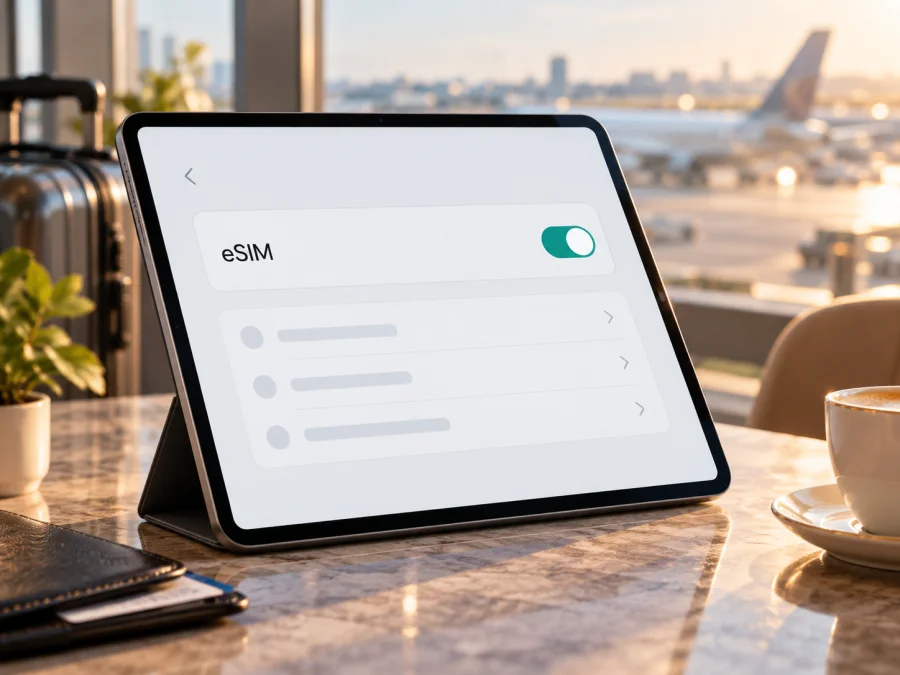
Apple iPad Pro 12.9-inch cellular 5G eSIM: compatibility and setup guide
If you are preparing an iPad for a trip, the key question is whether its cellular version can use a travel eSIM. The short answer for Apple iPad Pro 12.9-inch cellular 5G is yes for the 12.9-inch Wi‑Fi + Cellular models Apple identifies as fifth or sixth generation. Apple lists those generations as 5G-capable and includes 12.9-inch Wi‑Fi + Cellular iPad Pro generations three through six in its eSIM setup guidance. The 5G models are the fifth generation (2021) and sixth generation (2022).
There is an important qualification: “cellular 5G” does not identify the exact model number or market. Regional variants and carrier rules affect which eSIM profiles you can install. In particular, eSIM service from carriers in China mainland is limited to specifically listed iPad models; the 12.9-inch iPad Pro 5G models are not on Apple’s current mainland list. A model sold elsewhere may support eSIM while travelling outside China mainland, but do not assume it can install a profile from a mainland carrier. Confirm the model and destination before buying a plan.
At a glance
| Detail | What it means |
|---|---|
| Exact topic | Apple iPad Pro 12.9-inch cellular 5G |
| Cellular version | Must be Wi‑Fi + Cellular; Wi‑Fi-only models cannot use an eSIM for mobile data |
| 12.9-inch 5G generations | Fifth generation (2021) and sixth generation (2022) |
| eSIM capability | Apple lists Wi‑Fi + Cellular generations 3–6 for eSIM setup; regional and carrier limits apply |
| Physical SIM | These generations may also have a nano-SIM tray; eSIM does not mean SIM-tray-free |
| 5G service | Requires a compatible model, plan and local network; LTE/4G may be used where 5G is unavailable |
| Usual travel-plan use | Mobile data; voice, SMS and a regular phone number are not included unless stated in the plan |
What the product name does—and does not—confirm
The 12.9-inch iPad Pro has multiple generations. Apple’s current guidance includes Wi‑Fi + Cellular generations three through six for eSIM; the first two generations are not in that list. The 5G wording narrows this guide to the fifth- or sixth-generation cellular model, since 5G support on the 12.9-inch Pro starts with the fifth generation. This does not include Wi‑Fi-only iPads, even if the screen size and appearance are identical.
Retail listings sometimes shorten “Wi‑Fi + Cellular” to “cellular” or omit the generation. Verify the model number in Settings rather than relying on a shop title, box label or the country where you currently use the iPad. Device capability and service availability are separate: the iPad may have eSIM hardware, while a provider or local carrier may not support activation for that model or market.
Regional versions and carrier restrictions
Cellular iPads are sold in variants that can differ in radio bands and SIM configuration. Apple’s model-identification guidance distinguishes multiple 12.9-inch fifth-generation Wi‑Fi + Cellular identifiers, including A2461 and A2379, and identifies A2462 as the China mainland-only version. The sixth generation also has regional model differences. Check the A-number shown in Settings and compare it with Apple’s current model information; do not infer it from the exterior.
A regional model’s radio bands affect which local networks it can use. Separately, the provider and local carrier determine whether a plan can be installed and used in a country. A 5G-capable iPad does not guarantee 5G in every location, on every plan or through every roaming partner. A plan may provide LTE/4G only. Review its destination list and network details, particularly if a certain band or 5G access is important.
China mainland needs an additional check. Apple’s mainland support page lists only specific iPad model numbers that can activate eSIM plans from mainland carriers and says other iPad models cannot install those carrier profiles. The 12.9-inch cellular 5G Pro models are not on that list. Therefore, don’t assume a mainland carrier eSIM will work simply because the iPad supports eSIM elsewhere. When travelling outside mainland China, an eSIM-capable iPad may be able to install a non-mainland plan, subject to the provider’s device rules and destination coverage. These are market-specific activation limits, not proof that the iPad has no eSIM hardware.
If the iPad came from a mobile operator, also ask whether it is locked or restricted by an account or device-management profile. A restriction may prevent adding another provider’s profile. A working physical SIM does not prove that a separate travel eSIM can be activated.
Check the iPad before choosing a plan
Menu wording varies by iPadOS version and region. Use these checks together:
- Open Settings → General → About.
- Read Model Name and Model Number. The number may first appear as a part code; tap it to reveal the hardware identifier beginning with “A”. Record it.
- Confirm the name says Wi‑Fi + Cellular. A Wi‑Fi-only model has no cellular service capability.
- Look in Settings → Cellular Data (called Mobile Data in some regions) for Add eSIM, Add Cellular Plan or Add a New Plan.
- In Settings → General → About, look for an EID. An EID identifies embedded-SIM hardware and is a strong indication of eSIM capability. Keep it private; do not post it or send it to an unknown seller.
- Compare the A-number with Apple’s model information and the provider’s device, country and plan requirements.
A missing add-plan option does not by itself prove incompatibility. The iPad may be Wi‑Fi-only, a regional restriction may apply, iPadOS may need updating, or a management profile may hide cellular settings. If the model should support eSIM but the EID or option is absent, restart, update iPadOS over Wi‑Fi, and ask Apple or the seller to confirm the model before buying a plan.
Compatibility checklist
- [ ] Settings identifies it as an Apple iPad Pro 12.9-inch Wi‑Fi + Cellular model.
- [ ] You know the generation, A-number and sales region rather than relying on the listing title.
- [ ] Settings shows an EID or an eSIM/add-plan option, or Apple confirms support for the exact model.
- [ ] The iPad is not locked or restricted by its original carrier or device-management settings.
- [ ] The eSIM provider accepts tablets and covers every destination on your itinerary.
- [ ] You have checked data allowance, validity, activation timing, network type and any hotspot limits.
- [ ] For use with a carrier in China mainland, the exact model and plan are specifically supported there.
Check your device’s compatibility before choosing a plan. A generic “eSIM supported” result does not confirm that every profile or destination network will work.
Install and activate an eSIM
You normally need an internet connection to download an eSIM profile. Use reliable Wi‑Fi before departure, charge the iPad and have the provider’s QR code or instructions ready. Depending on the plan, installation may use a QR code, an app, an activation link or manual details. Follow the provider’s instructions if they differ from the general steps below.
- Confirm the plan. Check the covered countries, tablet support and when validity starts. Some plans begin at purchase or installation; others begin on first connection to a supported network.
- Connect to Wi‑Fi. Keep the QR code on another screen or printed. If it is displayed on the iPad itself, use the provider’s app or manual setup if offered; the iPad cannot scan a code shown on its own screen.
- Open cellular settings. Go to Settings → Cellular Data/Mobile Data and tap Add eSIM, Add Cellular Plan or the equivalent option. If the provider requires its app, follow the in-app flow.
- Scan or enter details. Centre the supplied QR code in the camera frame. Enter a confirmation code if prompted. For manual installation, copy the provider’s values exactly; do not guess an activation code or server address.
- Label the plan. Use a clear name such as “Travel data” to distinguish it from a home plan.
- Select the data line. In Cellular Data settings, choose the travel eSIM for mobile data when appropriate. Keep your home plan available only if you understand its roaming conditions; check any automatic data switching setting.
- Activate at the correct time. Some providers recommend installing before departure and switching the line on after arrival; others start validity earlier. Follow that specific plan’s rules. Do not delete a working profile as a troubleshooting step unless the provider directs you to—some QR codes are single-use and profiles may not transfer.
- Test at the destination. Turn off Wi‑Fi briefly, make sure the travel plan is enabled and wait for it to register. Try a webpage or messaging app. If the provider requires data roaming for its travel profile, enable it for that eSIM only and check the plan terms.
For device-specific walkthroughs, see the iOS eSIM installation instructions and the Android eSIM installation instructions. The iOS guide applies to an iPad; the Android guide is for readers setting up another device.
Mobile data on a trip
A travel eSIM can help when an iPad is your navigation, work or entertainment screen and Wi‑Fi is unavailable or inconvenient. Depending on the plan, use data for maps, email, cloud documents, video calls, messaging and browsing. Travel plans are commonly data-only: they do not provide a standard phone number, voice service or SMS unless the plan explicitly says otherwise. Internet-based calls and messaging can work through apps already set up on your account.
Estimate your data use before choosing an allowance. Maps and email generally use less than high-resolution video, large downloads, photo backups and app updates. Download maps, documents and entertainment over Wi‑Fi before travel; consider turning off automatic updates and background uploads. Reduce streaming quality if data is limited.
If you want to share the connection with a laptop, check that both the iPad and the specific plan allow Personal Hotspot or tethering. This can depend on the plan, local network and iPadOS. Do not assume hotspot use is included. When allowed, use a strong password and monitor data use.
For a multi-country itinerary, check each country against the plan’s coverage list. “Regional” or “global” in a plan name does not guarantee coverage everywhere. Review validity, fair-use limits, network partners and whether a separate package is needed for another destination. Kaspersky eSIM Store is the app and website where you can choose, arrange and activate an eSIM plan for mobile data on an international trip; the network shown on the iPad is the local partner network.
Common situations
- One-country holiday: Compare plans covering the full stay, estimate usage and follow the provider’s activation timing. Install over Wi‑Fi in advance only if doing so does not start validity too early.
- Several countries: Verify every stop on the plan’s destination list and check whether validity runs continuously or starts at first connection.
- Work while travelling: Make important files available offline. Confirm hotspot rules and estimate extra data for video meetings; keep another connection option for critical work because coverage and speed vary.
- Hotel or transit Wi‑Fi: Use Wi‑Fi for large downloads when suitable. Complete any sign-in page before assuming public Wi‑Fi is connected, and switch back to Wi‑Fi when it helps conserve mobile data.
Troubleshooting
No “Add eSIM” option: Check that the model is Wi‑Fi + Cellular, confirm its A-number and look for an EID. Update iPadOS, restart and review device-management restrictions. Ask Apple or the seller to confirm compatibility if the exact model is listed as supported but settings still do not match.
QR code does not scan or setup fails: Confirm Wi‑Fi works and the code belongs to the purchased plan. Reduce glare, increase brightness on the screen showing the code, and hold the iPad steady. Use the provider’s app or manual details if available. Avoid repeated attempts with an old code; some are single-use.
Profile installs but does not connect: Confirm the travel line is on and selected for mobile data, Airplane Mode is off, the plan is valid and you are in a covered country. Wait or restart. Enter an APN or enable roaming only if the provider specifies it, and follow its values exactly.
Signal bars but no data: Check mobile data, the selected line, remaining allowance and any required travel-eSIM roaming setting. Try another app or webpage. If network selection is available, automatic selection is a sensible first setting; use a manual partner network only if the provider recommends it.
No 5G or slow service: 5G requires a compatible regional model, a suitable plan and local coverage. Buildings, terrain and congestion can affect performance; LTE/4G may be available instead. Check the plan’s network details and test in a more open area before assuming the device is faulty.
Home plan appears to be using data: Recheck the selected data line and automatic switching. Turn off roaming for the home plan if you do not intend to use it, while enabling roaming only for the travel eSIM if instructed. Home-carrier billing rules vary.
Provider says the plan is incompatible: eSIM hardware is only one part of compatibility. A plan may be phone-only, exclude the device’s market, require a newer iPadOS version or omit the destination. Contact the provider through its official support channel with the model number and error. Do not share your password, one-time sign-in code or QR code with an unverified person.
When asking for help, note the iPadOS version, exact model number, destination and error text. Share only details requested through a verified support channel; keep EID and activation information private.
Frequently asked questions
Does Apple iPad Pro 12.9-inch cellular 5G support eSIM?
Yes, if it is a fifth- or sixth-generation Wi‑Fi + Cellular 12.9-inch iPad Pro. Apple lists generations three through six for eSIM setup and identifies generations five and six as 5G-capable. A Wi‑Fi-only iPad cannot use cellular data, and regional or carrier restrictions still apply.
Is the eSIM model different from the cellular model?
The cellular version has cellular hardware and may support a physical nano-SIM, eSIM or both depending on generation and market. eSIM is a digital profile, not a different screen size. The Wi‑Fi-only model has no cellular service capability.
Can I use eSIM in every country?
No. The device’s bands, provider availability, local carrier rules and plan destination list all matter. China mainland has specific limits for iPad eSIM profiles from mainland carriers, so verify the exact model and local plan before purchase.
Does a travel eSIM include a phone number?
Usually not. Travel data plans commonly provide internet access only. Standard voice calls and SMS are excluded unless the plan specifically includes them; internet-based communication apps can work over data.
Can I transfer the profile to another iPad?
Do not assume so. Some profiles are assigned to one device or their activation code can be used only once. Check the provider’s transfer or replacement policy before deleting a profile or moving to another device.
Should I install before flying?
It depends on when the plan starts. If the provider permits advance installation without starting validity, setting up over home Wi‑Fi can simplify arrival. Otherwise, wait until the recommended time. Keep the QR code until installation succeeds.
Does 5G work wherever I travel?
No. It depends on the exact regional model, supported bands, plan and local coverage. The iPad may use LTE/4G instead. Check the provider’s network details for the destination.
Before you go
The Apple iPad Pro 12.9-inch cellular 5G supports eSIM when it is a fifth- or sixth-generation Wi‑Fi + Cellular model, but a product title alone cannot confirm that a particular plan will work. Identify the A-number in Settings, check for an EID or eSIM settings, confirm regional and carrier restrictions, and make sure the provider accepts tablets for every destination. Resolve uncertainties before checkout.
Once the device and plan are confirmed, compare the package’s data allowance, validity, activation timing and network details. Kaspersky eSIM Store is an app and website that helps you choose, arrange and activate an eSIM plan for mobile data on an international trip. Use the English Kaspersky eSIM Store site to check current destinations and plans, then follow the profile instructions and select it for mobile data at the appropriate time. Checking the model and plan in advance makes it easier to prepare a practical connection option for your journey.


