Travel connectivity guide
Apple iPad Pro 13-inch cellular 128GB eSIM
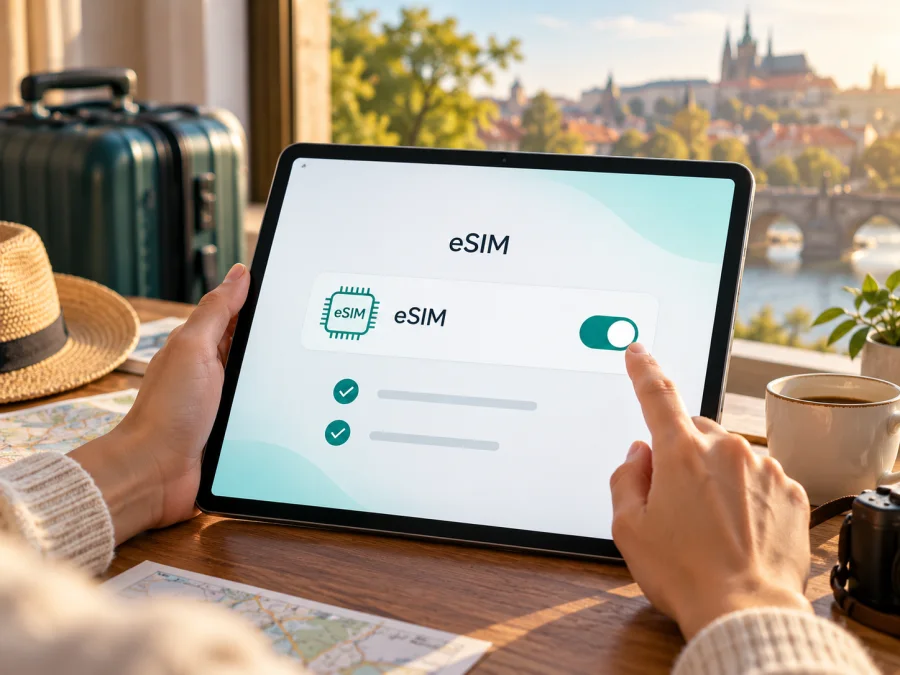
Apple iPad Pro 13-inch cellular 128GB eSIM: compatibility and setup
If you are considering an Apple iPad Pro 13-inch cellular 128GB for mobile data, there is one important detail to resolve before buying a plan: Apple Support’s “Identify your iPad model” page, checked 1 November 2026, lists the 13-inch iPad Pro M4 and M5 with 256GB, 512GB, 1TB and 2TB storage, not 128GB. The exact name in this guide therefore does not identify a confirmed Apple configuration. It may be a listing error, a mix-up with another iPad model, or a device described by a seller using incomplete details.
The eSIM answer depends on the actual iPad behind that listing. A genuine iPad Pro 13-inch Wi-Fi + Cellular model from the M4 or M5 generation supports eSIM and uses eSIM rather than a physical SIM card. The Wi-Fi-only model cannot connect to a mobile network. Apple’s China mainland cellular variants have their own restrictions: local iPad eSIM service is limited to supported model numbers and China Unicom. Check the model number and EID on the device before purchasing a travel plan.
This guide explains how to identify the tablet, confirm that it can install an eSIM, set up a data plan, and troubleshoot a connection while travelling. No plan can make a Wi-Fi-only iPad cellular, and a capacity label alone does not prove which cellular variant you have.
At a glance
| Detail | What to know |
|---|---|
| Exact requested name | Apple iPad Pro 13-inch cellular 128GB |
| Is the 128GB configuration confirmed? | No. Apple’s official 13-inch iPad Pro M4 and M5 capacity lists start at 256GB. Confirm the seller’s model number and storage before purchase. |
| eSIM on a real 13-inch Pro cellular model | Yes on documented M4 and M5 Wi-Fi + Cellular models; these generations use eSIM without a physical SIM tray. |
| eSIM on a Wi-Fi-only iPad | No cellular modem or eSIM service. |
| Regional caveat | China mainland variants and local provider rules differ. China Unicom is the only supported iPad eSIM provider for local mainland service, according to Apple. |
| What proves compatibility on your unit | The model number, an EID in Settings, and a cellular plan/eSIM option. Confirm all three where possible. |
| What a travel eSIM is for | Mobile data under the selected plan’s destination, validity, device and network conditions. |
Does Apple iPad Pro 13-inch cellular 128GB support eSIM?
The exact 128GB configuration is not verified as an official 13-inch iPad Pro model. Apple’s current identification information lists 256GB as the entry capacity for both iPad Pro 13-inch (M4) and iPad Pro 13-inch (M5). So, if a store advertises a “13-inch cellular 128GB Pro,” do not assume that it is a genuine 13-inch iPad Pro variant. Ask for a photo of Settings > General > About, the model number beginning with “A,” and the original model or part number. Compare those details with Apple’s model-identification information before paying.
For the confirmed cellular Pro generations, eSIM support is clear. Apple Support’s “Set up eSIM on iPad” and 13-inch M4 technical specifications, checked 1 November 2026, list the Wi-Fi + Cellular M4 and M5 models as eSIM-capable. They do not have a nano-SIM tray. The cellular hardware supports mobile data, while the Wi-Fi model does not. Thus, the practical answer is yes for an identified M4 or M5 Wi-Fi + Cellular iPad Pro 13-inch; unconfirmed for the device described only as 128GB.
A cellular iPad is primarily a data device. Do not expect an eSIM travel data plan to supply a standard mobile phone number, ordinary cellular voice calling or SMS unless those features are explicitly included by the plan provider. Internet calling and messaging apps can work over data, subject to their own account and service requirements.
The key distinction: storage is not the cellular model
The capacity printed in an advertisement does not tell you whether an iPad has cellular hardware. Apple sells Wi-Fi and Wi-Fi + Cellular configurations, and the model number identifies the hardware and market variant. On the other hand, the stated “128GB” conflicts with the official storage capacities for both generations of the 13-inch iPad Pro. The mismatch means you should treat the product identity as unresolved, even though the M4 and M5 cellular Pro models themselves do support eSIM.
There is also a similarly named tablet that can cause confusion: a 13-inch iPad Air may be offered in 128GB configurations. That does not make it an iPad Pro, and its processor, model identifier and feature set are different. Do not silently substitute an Air or an older 12.9-inch Pro for the requested 13-inch Pro. Verify the exact product being sold.
Regional versions and operator compatibility
Cellular iPads use model-specific radio bands, and local providers decide which plans and devices they support. An eSIM-capable tablet can still be incompatible with a particular carrier or travel plan. Check the exact hardware model, supported destination and provider conditions before checkout.
Apple Support’s “Identify your iPad model” page, checked 1 November 2026, identifies M4 iPad Pro 13-inch Wi-Fi + Cellular models as A2926 for the general market and A3007 for China mainland; the M5 identifiers are A3361 and A3362. These numbers help identify documented generations; they do not validate the advertised 128GB configuration. Find the model number on the actual device, not only in the listing.
Mainland China has a specific provider restriction. Apple Support’s “Using eSIM with your iPad in China mainland” page, checked 1 November 2026, lists A3007 (M4) and A3362 (M5) as eligible for local iPad eSIM there and names China Unicom as the only supported iPad eSIM provider. Other iPads, including models purchased outside mainland China, cannot install eSIM profiles from mainland China providers. Apple says those supported China models can install non-mainland plans when travelling abroad, with Location Services enabled during installation.
A model’s purchase region and the market where you activate service are separate considerations. Verify that the model can install the profile in the place you plan to use it, that the destination is included, and that the provider supports eSIM on iPad. An eSIM menu alone does not guarantee network bands, local coverage or plan compatibility.
How to check your iPad before buying
If you have not bought it yet, ask the seller to show the device’s About screen and model number. On the iPad, open Settings > General > About. Tap the part number beside Model Number to reveal the hardware model identifier.
- [ ] Confirm model and generation. Check that the model resolves to an actual 13-inch Pro cellular generation, such as M4 or M5.
- [ ] Resolve the capacity mismatch. Apple lists 256GB, 512GB, 1TB and 2TB for the 13-inch Pro M4 and M5. If a seller claims 128GB, request an explanation and verify the device before purchase.
- [ ] Look for an EID. In About, scroll down for EID, IMEI and ICCID. An EID is a useful sign of eSIM hardware. Keep device identifiers private.
- [ ] Check cellular settings. Look for Settings > Cellular Data or Mobile Data and an action such as Add eSIM, Add a New Plan or Find a New Plan. Labels vary by iPadOS and region.
- [ ] Confirm the plan conditions. The provider must support iPad eSIM and your destination. Check regional restrictions, management profiles and any carrier/account limitations.
M4 and M5 13-inch Pro cellular models are eSIM-only and do not have a nano-SIM tray, but the tray’s presence or absence alone is not enough to identify every iPad generation. A Wi-Fi-only model cannot be made cellular by adding a profile.
Check your device before choosing a plan. If EID or cellular settings are missing, verify the model and iPadOS version first. Ask Apple Support or the seller if the device identity remains unclear.
Installing and activating an eSIM on iPad
Prepare a reliable Wi-Fi connection, update iPadOS if possible, and keep the activation details available. A provider may use a QR code, an activation link, an app, direct carrier activation or an existing iPad plan transfer. Follow the method issued for your selected plan; do not scan an old, shared or already-used activation code unless the provider tells you it can be reused.
- Check the plan first. Confirm that it covers the country or region you will visit, works on iPad, provides the amount of data and validity you need, and explains when its validity begins. Check whether installation can happen before departure and whether activation should wait until arrival.
- Connect to Wi-Fi. Keep the iPad online during profile download and activation. If you are outside your home market, check that location services are enabled where your regional model requires them.
- Open the cellular setup screen. Go to Settings > Cellular Data (or Mobile Data). Choose the option your provider specifies, such as Add eSIM, Add a New Plan or Use QR Code. Exact menu text can differ by software version.
- Add the profile. Scan the provider’s QR code with the iPad camera and accept the detected mobile plan, or use the provider’s activation link/app or direct activation instructions. On supported iPadOS versions, a QR code displayed in email or on a web page may be pressed and held to reveal Add eSIM. Enter any confirmation code supplied by the provider.
- Wait for installation to complete. Keep the Settings screen open and do not delete the profile if activation appears delayed. A plan may take a few minutes to register. Follow any instruction to restart or contact the provider if the status remains pending.
- Select the travel plan for data. In Cellular Data settings, select the newly installed plan for mobile data. If the iPad displays a data roaming switch, use it only as instructed by the plan provider. The right setting depends on how that plan routes service; do not infer it from the word “travel.”
- Test deliberately. When the plan should be active, turn Wi-Fi off briefly and load a simple web page. Check the cellular status, selected plan, data roaming instruction and remaining allowance in the provider’s app or account. Restore Wi-Fi after the test if you want to conserve mobile data.
- Keep your usual plan under control. If you already use another iPad data plan, confirm which line is selected for Cellular Data. Remove or disable a plan only if you understand whether doing so affects later reactivation. Some QR codes are single-use, and deleting a profile may require the provider to issue a replacement.
Apple supports several iPad activation routes, but a carrier must support the method and the device. You can read the iOS eSIM setup instructions for a general walkthrough; iPad settings use the iPadOS labels described above. The Android setup instructions apply if you are setting up a separate Android device.
If a provider offers “Join iPhone Plan” or “Transfer iPad Plan,” those features are not the same as installing a new travel data eSIM. Availability depends on the carrier and account. A QR-based travel plan is usually activated using the provider’s own instructions, not by transferring an unrelated subscription.
Using Apple iPad Pro 13-inch cellular 128GB on a trip
Once confirmed as a cellular eSIM iPad, it can provide mobile data for maps, email, messaging, bookings and work away from Wi-Fi. Compare the plan’s destination list, data allowance, validity, restrictions, price and supported devices. A regional plan is useful only when it explicitly covers every stop on your route.
Kaspersky eSIM Store is an app and website where you can choose, arrange and activate an eSIM with a mobile-data plan for an international trip. Browse Kaspersky eSIM Store plans for your destination and review the current terms. The stated plan, local provider and destination determine the network service; Kaspersky eSIM Store is not a mobile operator and does not itself provide coverage.
Installing over reliable Wi-Fi before departure can be convenient, but follow the plan’s activation timing. Validity may begin at installation or at first connection, depending on the plan. When you arrive, select the travel plan for cellular data and follow its roaming instructions. Use Wi-Fi for large downloads if you need to conserve a limited allowance.
A data eSIM does not automatically replace your phone plan or provide ordinary calls and SMS. If you intend to share the iPad connection with another device, verify that the plan permits hotspot use. Keep essential tickets and directions available offline.
Three practical scenarios
- One-country break: Choose a plan that names the destination; download maps and travel documents over Wi-Fi, then activate at the time specified by the provider.
- Several countries: Compare every country and territory on the route against the plan’s destination list. Regional labels do not guarantee coverage in every stop.
- Work trip with an existing plan: Select the travel eSIM as the data line when appropriate, check roaming conditions on the existing plan, and verify hotspot permission before relying on it.
Troubleshooting: when eSIM will not install or connect
Because “128GB” conflicts with Apple’s published Pro capacities, begin by confirming the model number, EID and About screen. Then check the likely cause below.
| Symptom | Checks |
|---|---|
| No EID or cellular menu | Confirm Wi-Fi + Cellular model, update iPadOS and restart. A Wi-Fi-only iPad cannot use eSIM. |
| No Add eSIM option | Check model region, provider support, device-management restrictions and iPadOS version. Some methods appear only for participating providers. |
| QR code rejected | Confirm it belongs to this plan, is readable and has not already been used. Keep Wi-Fi on; ask the provider for a replacement if needed. |
| Profile installed, no data | Enable Cellular Data, select the right plan, check activation timing, destination coverage, remaining allowance and the provider’s roaming instruction. |
| Activation pending or failed | Use reliable Wi-Fi, check automatic date and time, restart once and wait briefly. Ask the provider to check the account/profile before deleting it. |
| No signal | Check airplane mode, location, supported partner networks and the plan’s destination. Try again where reception is clearer. |
| Service stops | Check validity and data balance; background sync, updates or hotspot use may consume data. Ask the provider about renewal options. |
| Mainland China eSIM unavailable | Verify an eligible regional model and China Unicom support for local iPad service. |
For support, share the model number, iPadOS version, error message and plan reference privately. Send the EID only if Apple or the provider needs it. Do not post QR codes, activation codes or device identifiers publicly.
Frequently asked questions
Is Apple iPad Pro 13-inch cellular 128GB an official configuration?
Apple lists 256GB, 512GB, 1TB and 2TB for the 13-inch Pro M4 and M5. It does not list 128GB, so verify the real device and capacity before relying on this product description.
Does every 13-inch iPad Pro support eSIM?
No. Wi-Fi-only models have no cellular service. M4 and M5 Wi-Fi + Cellular models support eSIM and have no physical SIM tray. Regional and provider restrictions still apply.
How can I check for eSIM hardware?
Look for EID in Settings > General > About, check for Cellular Data/Mobile Data settings, and confirm the hardware model number. Use these checks together.
Can I use any travel eSIM?
No. The plan must support iPad, cover your destination and work with the tablet’s regional variant. Confirm activation and roaming conditions with the provider.
Does a data plan include a phone number, calls or SMS?
Not automatically. Travel data plans are generally for internet access; check the plan terms for any additional services.
Should I install before travelling?
Often it is convenient to install over Wi-Fi, but follow the plan’s validity-start instructions. Some QR codes are single-use, so do not delete a profile unless you know how it can be restored.
Before you choose a plan
The requested name Apple iPad Pro 13-inch cellular 128GB combines a cellular description with a capacity that Apple does not list for the 13-inch Pro M4 or M5. Verify the real model before treating this exact configuration as compatible. If the device is confirmed as an M4 or M5 Wi-Fi + Cellular model, eSIM support is documented; if it is Wi-Fi-only, it cannot install a cellular data profile. For a mainland China service plan, verify the specific eligible regional model and China Unicom support.
Use the EID, model number and cellular settings as a practical compatibility check, then confirm the chosen plan supports iPad and covers every destination on your route. Review how much data it includes, how long it remains valid, when its validity starts and whether roaming or tethering is allowed. After those checks, choose and activate an eSIM in Kaspersky eSIM Store for your international trip, following the selected plan’s current instructions. That sequence avoids relying on a misleading capacity label and gives you a clear way to test the connection before depending on it while travelling.


