Travel connectivity guide
Apple iPad Pro 13-inch cellular 256GB 5G eSIM
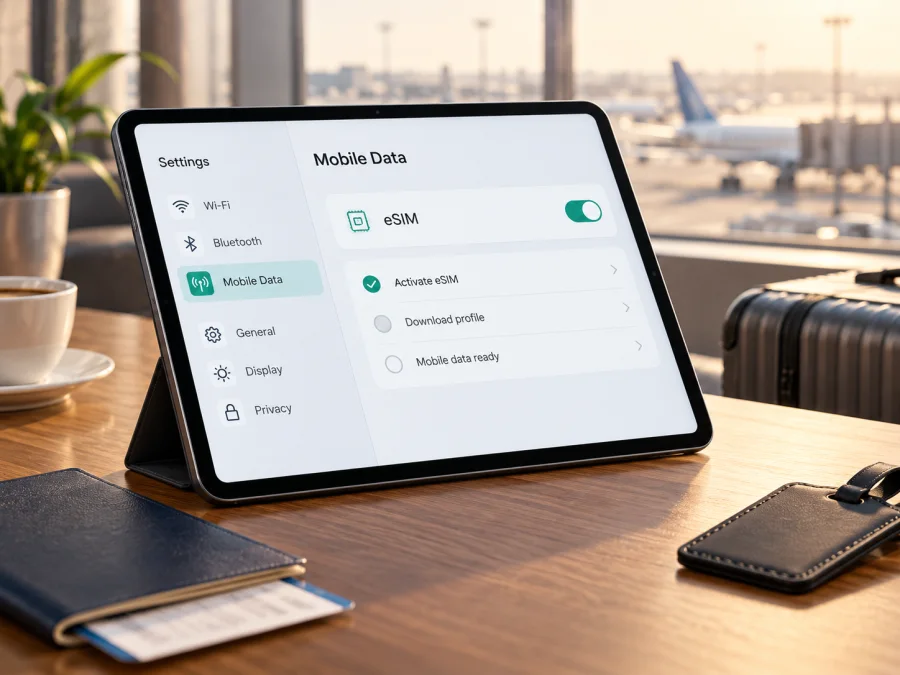
Apple iPad Pro 13-inch cellular 256GB 5G eSIM: compatibility and setup
Short answer: Yes, an iPad Pro 13-inch Wi‑Fi + Cellular model with eSIM hardware can use an eSIM for mobile data. Apple lists the 13-inch iPad Pro (M4 and M5) Wi‑Fi + Cellular models as eSIM-capable; these generations use eSIM and have no physical SIM tray. However, Apple iPad Pro 13-inch cellular 256GB 5G does not specify the chip generation, model number, or sales market. Identify the exact iPad and check provider eligibility before buying a plan.
The storage size does not determine eSIM support. “Cellular” distinguishes the mobile-data version from Wi‑Fi only; a Wi‑Fi-only tablet cannot be made cellular by adding an eSIM. “5G” describes network capability, not a promise of 5G service in every country, on every plan, or at every location. A compatible iPad may use LTE where available.
Does Apple iPad Pro 13-inch cellular 256GB 5G support eSIM?
For the 13-inch M4 or M5 Wi‑Fi + Cellular model, the answer is yes: Apple confirms eSIM capability and eSIM-only hardware. The exact task name alone does not establish that the tablet is one of those generations. Listings, used devices, and imported models may omit generation or region, so check the unit itself instead of relying on storage capacity or a 5G label.
| Product detail | What it tells you | What still needs checking |
|---|---|---|
| Apple iPad Pro 13-inch | Device family and screen size | Generation and regional model |
| cellular | The model has mobile-data capability | Provider and plan compatibility |
| 256GB | Storage capacity | eSIM availability or network restrictions |
| 5G | Cellular generation the device may support | Coverage, network bands and plan access at your destination |
Apple identifies the M4 13-inch iPad Pro as a 2024 model and M5 as a 2025 model; both are available with 256GB and Wi‑Fi + Cellular. This helps narrow down a listing, but the model number is the useful identifier. A Wi‑Fi-only version cannot connect to cellular data, even if a listing incorrectly mentions 5G.
Generation and regional variants
On the iPad, open Settings > General > About and find the model name and model number. Tap the part number if needed to display the A-number. Apple lists A2926 for the general-market iPad Pro 13-inch (M4) Wi‑Fi + Cellular and A3007 for the mainland China version. For M5, the corresponding examples are A3361 and A3362. Use Apple’s current model-identification information to verify the exact generation and market; do not assume that every country uses the same identifier.
Mainland China has a distinct local eSIM rule. Apple lists designated China-market iPad model numbers that support activation of local iPad eSIM plans and identifies China Unicom as the only supported iPad eSIM operator there. The rule is specific to local activation in mainland China and does not describe every other country or every international travel plan. If the tablet will be used there, confirm the exact model and plan eligibility with the provider before purchase.
Elsewhere, eSIM hardware does not guarantee that a particular operator accepts an iPad or a specific regional variant. Provider, destination, account, activation method and device restrictions can all matter. A country where a model was sold is not automatically the same as the country where a plan works. Likewise, 5G radio support does not establish eSIM eligibility or network coverage.
Check the iPad before buying a plan
Check the actual device when possible. In Settings > General > About, note the model and A-number. In Settings > Mobile Data (called Cellular Data in some regions or iPadOS versions), look for mobile-plan controls. Menu wording can vary. A Wi‑Fi-only iPad has no cellular modem and will not show an EID or eSIM setup option.
Find the EID and eSIM controls
In Settings > General > About, scroll for EID. It is the identifier associated with the embedded SIM hardware. Its presence is a strong sign of eSIM capability, but does not show whether the tablet is restricted or whether a provider accepts it. Share the EID only with the service provider or support team that needs it for activation.
Then open Settings > Mobile Data and look for Add eSIM, Add New Plan, Set Up Cellular Data, or a provider-specific setup option. Labels and available actions depend on iPadOS, region, and provider. If an option is missing, verify the model number and software rather than treating that alone as a definitive compatibility result. Update iPadOS and restart the tablet. A school- or company-managed device may have restrictions on adding plans; ask its administrator. For a used device, check with the seller or provider that it can accept a new profile.
Compatibility checklist
- [ ] It is a Wi‑Fi + Cellular model, not Wi‑Fi only.
- [ ] The model number confirms the generation and regional version.
- [ ] The EID or Apple’s model documentation confirms eSIM capability.
- [ ] The provider supports activation on iPad, not just phones.
- [ ] No carrier, account, or management restriction blocks the profile.
- [ ] The plan covers every destination you need and suits the trip length.
- [ ] You know when its validity begins and whether data roaming is required.
- [ ] You have Wi‑Fi or another working connection for setup.
Check your device before selecting a package. If any item is unclear, ask the seller or provider to verify the A-number and EID against the plan.
Choosing an eSIM for a trip
Match the data allowance and validity period to your route and use. Maps, email, tickets and messaging usually need less data than video streaming, cloud photo uploads, large downloads or video calls. Download maps and important documents over Wi‑Fi before leaving. Review the plan’s destination list, included data, activation timing, supported network access, hotspot terms and any fair-use limits. A regional package may cover several stops, but check each country on the itinerary; a country plan may be simpler for a single destination. Current terms at checkout take precedence over old screenshots or assumptions based on a plan name.
Kaspersky eSIM Store is an app and website where you can choose, arrange and activate an eSIM with a mobile-data plan for an international trip. It helps you review destination and plan conditions before setup. It does not change device compatibility or guarantee a particular network or 5G connection. Browse current eSIM plans to review available destinations and details; the homepage is a starting point, not a country-specific tariff.
Many travel eSIMs are intended for mobile data only. Do not assume that a plan includes a conventional phone number, voice service, or SMS unless its own terms say so. Internet calling and messaging apps can use data, subject to the app and service. If you need bank messages, check how your usual number and its roaming settings will work during the trip.
How to install and activate an eSIM
Set up the profile on reliable Wi‑Fi and follow the provider’s specific activation instructions. If the plan says to wait until arrival, follow that timing. Keep a QR code on another screen or on paper so the iPad can scan it; some providers instead use an activation link, app, or direct assignment. A QR code may be single-use, so do not delete an installed profile or scan it again unless the provider says to.
See the iOS eSIM installation guide for general Apple setup guidance. The Android eSIM installation guide covers a second device if needed. On iPad, the relevant menu may be named Mobile Data or Cellular Data.
Add the profile with a QR code
- Connect to Wi‑Fi. Keep the iPad online while it downloads the profile.
- Open the QR code. Use another screen or a printed copy. On iPadOS 17.4 or later, if the code is in an email or web page on the iPad, press and hold it and choose Add eSIM if offered.
- Scan or add the code. Otherwise open Camera, scan it and tap the mobile-plan notification. Follow the prompts; enter a confirmation code if the provider requests one.
- Review and continue. Confirm the plan details, then tap Continue and Add Mobile Plan, or the equivalent buttons shown.
- Wait for installation. Leave the iPad connected while the profile downloads and activation completes; it may take a few minutes.
- Select the data line. In Settings > Mobile Data, choose the new plan when you want to use it.
- Apply the provider’s roaming instructions. Some plans require data roaming on for that eSIM; others do not. Enable it only when instructed, and check which line is carrying data to avoid unexpected charges.
If the provider assigns the profile directly, accept its Mobile Plan Ready to Be Installed notification and follow the prompts. If it sends an activation link, open it on the iPad and approve the eSIM prompt. These methods depend on provider support and software version. Once installed, note the plan label and activation conditions so you can recognize it later.
Installation timing and first use
Installation and first connection may trigger different events. A plan may start validity when installed, when it first registers on a supported network, or at a stated time. Read its terms before setup. Some plans can be installed before departure and left off until arrival; others specify a different sequence.
At your destination, open Settings > Mobile Data, select the travel eSIM for data, and enable its line. Turn on data roaming only if the provider requires it. Test a simple web page with Wi‑Fi switched off. If you need your regular plan for calls or SMS, check that the travel profile is selected for data and review the home plan’s roaming charges.
Using the iPad while travelling
A large tablet is convenient for maps, bookings, work and entertainment, but background syncing and video can use data quickly. Turn off cellular downloads or photo backups if you want to conserve the allowance. Download essential content in advance and check that individual apps are permitted to use mobile data.
- One country: Choose a plan that explicitly includes the destination and covers the intended dates. Install according to its activation rules and select it for data after arrival.
- Several countries: Compare every stop with the included destination list. Coverage may change at borders; allow time for the iPad to register with a partner network.
- Work or study: Test the profile and required apps before relying on them. Check hotspot terms if you plan to share the connection and keep important files available offline.
- Transit: Do not assume an airport or stopover is included. Onboard airplane Wi‑Fi is separate from cellular service, which may be unavailable during flight.
A 5G label does not mean the iPad will show 5G throughout the trip. The result depends on local coverage, the regional model’s supported bands, provider arrangements, plan, signal and network load. It may connect using LTE instead. Check destination coverage and the plan details; the network icon is not proof of the plan’s full capabilities.
Common problems and checks
No EID or eSIM option
Confirm that the tablet is Wi‑Fi + Cellular and check its A-number in Settings > General > About. Compare it with Apple’s model identification information, update iPadOS and restart. Ask an administrator about managed-device restrictions. If the model should support eSIM but the EID or controls remain absent, contact Apple Support or the seller to verify the hardware and regional version before buying a plan.
QR code will not scan or the profile will not download
Make the code brighter and fully visible, clean the camera lens, and avoid blurred or already-used codes. If the code is on the iPad, try the press-and-hold Add eSIM action on supported software. Check that Wi‑Fi works and any sign-in page has been completed. Review the provider’s activation time, device eligibility, confirmation-code requirement and download limit. Do not erase a profile as a first step; a QR code may not be reusable. Ask the provider for a replacement if the code expired or reports as used.
Profile installed, but no service
Check that the plan’s activation window has begun and the location is included. Select the travel profile for mobile data and enable its line. Turn data roaming on only if required by the provider. Briefly toggle Airplane Mode, wait for network registration, and restart if needed. Test in a place with a clearer signal.
Apps show no connection or data is not updating
Switch Wi‑Fi off for a simple test, confirm the correct eSIM is selected, and check mobile-data permissions for the app. Look for data-saving settings, a VPN, content filter, or management policy that might affect traffic. Verify the plan’s balance and validity in its account or app. If the iPad shows cellular service but the plan’s usage does not update after normal use, contact the provider with the time, location and plan reference.
5G is unavailable or provider says “unsupported”
Check that the plan and local network support 5G for the destination and that the regional iPad supports the bands in use. LTE may be expected in some areas. If the provider rejects the iPad, ask whether the limit concerns all iPads, a specific regional model, destination, or activation method. Provide the exact model number and iPadOS version; share the EID only through a secure support channel if requested. Hardware capability and a provider’s eligibility policy are separate checks.
Frequently asked questions
Can the 256GB model use eSIM?
Storage does not determine eSIM support. The key details are cellular hardware, generation, region and provider eligibility. Apple confirms eSIM on the 13-inch M4 and M5 Wi‑Fi + Cellular models. Check the actual A-number and EID.
Does 5G guarantee 5G data abroad?
No. Network access depends on destination coverage, compatible radio bands, provider and plan. The iPad may use LTE where 5G is unavailable.
Can I keep my usual plan and a travel eSIM?
A compatible iPad can keep multiple plans saved, but the active data selection and service depend on iPadOS and provider support. Choose the intended data line and check roaming charges on the usual plan. Do not assume two plans provide mobile data simultaneously.
Does a travel eSIM include a phone number or SMS?
Only if the individual plan explicitly includes them. Many travel plans provide data only; internet calling or messaging apps can use that data.
Can I install it before departure?
Often, if the provider permits it. Check whether validity begins at installation or first network connection. Follow any instruction to wait until arrival, and use Wi‑Fi for setup.
What if the QR code has already been used?
Do not delete a profile that installed successfully. If installation failed and the code is marked used, ask the provider whether it can reset the activation or issue a replacement; codes may be single-use.
Can I use eSIM in mainland China?
Local iPad eSIM activation there is model- and operator-specific. Apple lists designated models and China Unicom as the supported iPad eSIM operator. For an international travel plan, separately confirm the service, destination coverage and availability with its provider; the local-carrier rule does not prove that every travel profile works there.
Final check before you travel
The Apple iPad Pro 13-inch cellular 256GB 5G supports eSIM when it is a compatible Wi‑Fi + Cellular model; Apple specifically confirms that status for the 13-inch M4 and M5 generations. The product name alone does not identify the generation or regional version. Check the model number and EID, confirm that the provider accepts that iPad for your destinations, and review activation timing, allowance and roaming requirements before selecting a plan.
Install the profile over Wi‑Fi using the provider’s stated method, select it for data at the right time, and test it before relying on it for travel. Kaspersky eSIM Store helps you review and activate an eSIM plan for an international trip through its app and website. Browse current plans and check the current destination conditions against your exact iPad.


