Travel connectivity guide
Apple iPad Pro 13-inch cellular 2TB 5G eSIM
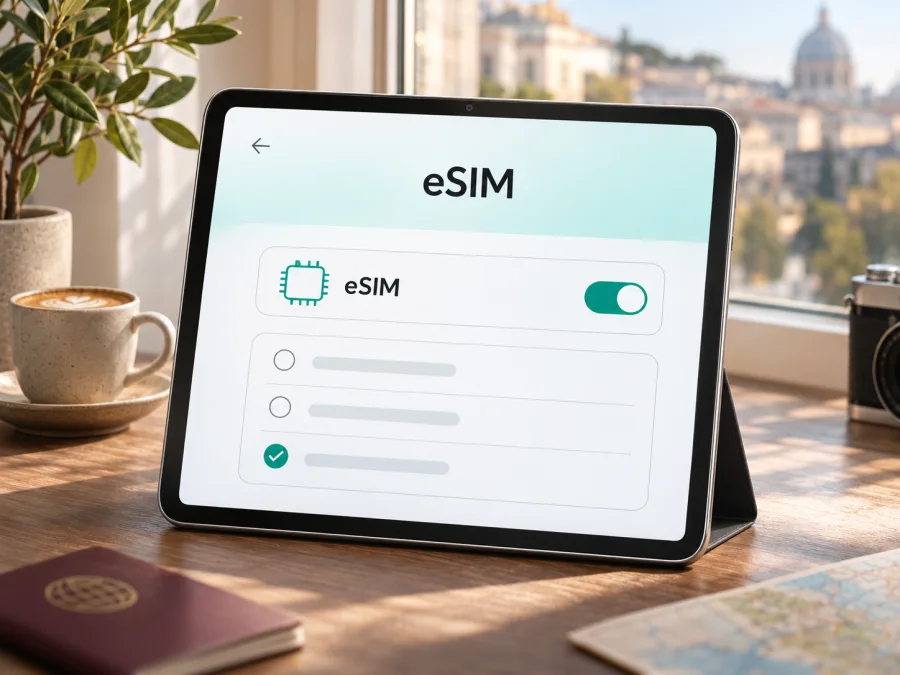
Apple iPad Pro 13-inch cellular 2TB 5G eSIM: compatibility and travel setup
The Apple iPad Pro 13-inch cellular 2TB 5G combines a large-screen tablet with mobile data connectivity, but the wording in a product listing is not enough to identify its exact regional model. Apple’s current specifications list 13-inch iPad Pro Wi‑Fi + Cellular configurations with 2TB storage, 5G and eSIM. Apple also identifies more than one generation and regional model under the 13-inch iPad Pro name. Check the model number on the tablet before relying on a seller’s shorthand.
Quick answer: if your tablet is the Wi‑Fi + Cellular version of a supported 13-inch iPad Pro, it can use eSIM for mobile data, subject to the model’s regional capabilities, iPadOS, and the eSIM provider’s support. The “cellular” and “5G” labels point to a cellular model, but an exact match for the supplied variant cannot be established from the name alone: it does not specify M4 or M5, a model number, or country of sale. A Wi‑Fi-only tablet cannot add cellular service, and a regionally restricted model may not accept every local operator’s eSIM.
Compatibility at a glance
| Detail in the requested variant | What it tells you | What to confirm |
|---|---|---|
| Apple iPad Pro 13-inch | Identifies the product family and screen size | Generation and exact model number in Settings > General > About |
| cellular | Indicates the Wi‑Fi + Cellular configuration when this is the actual device specification | That the listing refers to the tablet itself, not a generic family description |
| 2TB | Storage capacity; Apple lists this capacity for the 13-inch iPad Pro | It does not independently prove cellular or eSIM support |
| 5G | Apple lists 5G for supported Wi‑Fi + Cellular versions | Local carrier bands, coverage and plan support vary by market |
| eSIM | Supported on Apple’s current 13-inch iPad Pro Wi‑Fi + Cellular models, including M4 and M5 | Regional restrictions and provider compatibility still apply |
Apple’s currently published iPad Pro specifications list 2TB as a 13-inch capacity, and say Wi‑Fi + Cellular models support 5G and eSIM. They also say the iPad Pro models covered there use eSIM and are not compatible with physical SIM cards. Apple’s iPad eSIM setup page separately names the 13-inch iPad Pro (M4, M5) Wi‑Fi + Cellular. That supports a clear answer for those generations, but it does not identify which one you have from the supplied name. The label may refer to an M4 or M5 unit, or a listing may have omitted a key regional detail.
A tablet can be compatible with eSIM in general and still be unable to install a particular profile. An eSIM plan must support iPad, the destination market and the specific device variant. Cellular service may also require an unlocked device and an active data plan. The iPad’s 5G capability does not guarantee 5G service on every network; a plan may connect over LTE depending on its technology, local bands, coverage and provider settings.
What regional versions change
Apple’s published specifications and model listings distinguish versions by model number and market. The exterior product name and storage size do not reveal every radio or eSIM limitation. For a device purchased second-hand, imported, or described only as “13-inch cellular 2TB 5G,” ask for the model number and original sales region before buying a data plan.
China mainland requires particular care. Apple’s support information says only specific iPad versions support eSIM profiles from carriers in China mainland, and lists the 13-inch iPad Pro M4 Wi‑Fi + Cellular model A3007 and M5 Wi‑Fi + Cellular model A3362 among them. Apple names China Unicom as the only supported iPad eSIM carrier there. Other iPad models, including models bought outside China mainland, cannot install eSIM profiles from China mainland carriers. This is a restriction on use with carriers in China mainland; it should not be mistaken for a blanket statement that every other regional iPad lacks all eSIM capability worldwide. Apple also says those supported China mainland versions can install non-China eSIM data plans when travelling outside China mainland, with Location Services enabled.
For other countries and regions, check Apple’s model identification and cellular network information, then ask the intended provider whether that exact model is accepted. Differences can affect supported bands, available setup methods, and whether the tablet has an eSIM option or physical SIM tray. Do not assume that a device’s ability to connect to a 5G network in one country guarantees the same experience in another. This article does not claim that the requested variant is unlocked or compatible with a particular operator or tariff.
Check the tablet itself before purchase
Use the settings on the device rather than relying on a marketplace title, box description, or screenshot from a different unit. Menu wording can vary slightly with iPadOS language and version.
- Connect the iPad to Wi‑Fi and open Settings.
- Tap General, then About.
- Read the product name and model information. The entry next to Model Number may initially show a part number; tap it to reveal the model identifier, such as an A-number.
- Compare the identifier with Apple’s current model information for the exact generation and original region. If the seller cannot provide this, treat the regional configuration as unconfirmed.
- In Settings > General > About, look for an EID. Its presence is a useful sign that the tablet has an eSIM component, but still verify provider, country and plan compatibility.
- Open Settings > Cellular Data (or Mobile Data, depending on region). Look for Add eSIM, Add Cellular Plan, Set Up Cellular, or an equivalent option. If no option appears, update iPadOS, restart, and check the model number and region before drawing a conclusion.
- Ask the provider whether it supports eSIM activation on this iPad model. Confirm that the device is not carrier-locked and that any plan can be used in the intended destination.
If you are checking a sealed tablet, the EID and menu cannot be inspected before purchase. Ask the seller for a clear photo of Settings > General > About on that exact device, or use Apple’s packaging/model-number guidance. A photo from a different product is not evidence about the one being sold. A missing EID or absent eSIM control can also reflect a restricted regional model, software issue or incorrect product description; do not resolve that uncertainty by buying a plan and testing blindly.
For a quick pre-purchase decision, check your device’s eSIM compatibility and compare the model identifier with Apple’s current regional information. If the model number is unknown, postpone activation until it is confirmed.
Prepare an eSIM for a trip
An iPad eSIM is useful when you want mobile data for maps, messages, work files, video calls or a personal hotspot alternative to public Wi‑Fi. Before choosing any travel plan, check the destination list, data allowance, validity period, activation conditions, supported network type and whether tethering is permitted. Consider how you will use the iPad: video streaming and cloud backups can consume more data than navigation or messaging. Make sure the plan is intended for tablet use and does not require a phone number or voice service that it does not include.
Kaspersky eSIM Store is an app and website where travellers can choose, arrange and activate an eSIM with a mobile-data plan for an international trip. It does not change the tablet’s hardware compatibility or replace checking plan conditions. You can browse the Kaspersky eSIM Store to check the currently available destinations and plans. Confirm the destination and device support before completing an order; a general store page is not a country-specific tariff or a promise of coverage.
Before you leave
- Verify the A-number, generation, sales region, EID and eSIM menu.
- Confirm the iPad is unlocked and the plan supports tablet eSIM activation.
- Check destination, data, validity, activation and tethering conditions.
- If permitted, install over reliable Wi‑Fi before leaving and keep the QR code on another screen. Do not delete the profile unless the provider confirms it can be installed again.
Install and activate eSIM on iPad
Apple supports several provider-dependent setup routes: carrier activation, an available plan in iPad settings, transfer from another iPad, a provider app, or a QR code. The labels and order of screens can vary. Follow the provider’s directions for the specific plan; do not scan a code intended for another device or account.
QR code or activation details
- Connect the tablet to a stable Wi‑Fi network and update iPadOS if an update is available.
- Open Settings > Cellular Data or Settings > Mobile Data and choose Add eSIM or Add Cellular Plan.
- Choose the QR-code option when it is offered. Scan the provider’s code from a printed copy or a second screen. If the provider supplies manual activation details, use the manual entry option shown by iPadOS.
- If the QR code arrives by email or is shown on a provider webpage, some iPadOS versions let you touch and hold that code and choose Add eSIM. Availability depends on iPadOS and how the code is presented.
- Follow the setup prompts. Give the profile a useful label, such as Travel data, so it is easy to distinguish from other mobile plans.
- If prompted, confirm the plan or enter a confirmation code supplied by the provider. Wait for the installation and activation messages before leaving Settings.
- In Cellular Data / Mobile Data, select the new plan for cellular data. Turn on data roaming for that profile only if the provider’s instructions require it and the plan’s conditions allow it.
- When you reach the destination, enable the travel plan if it is not already active, confirm that cellular data is assigned to it, and allow the iPad to register on a supported network. Network registration may take a few minutes.
App-based or carrier-assigned activation is also available when supported by the provider. A transfer from another iPad, or adding an iPad to a phone plan, depends on provider support and may deactivate the previous profile; do not assume an iPhone QR code can be reused.
The Kaspersky eSIM Store iOS guide explains the general QR installation flow for Apple devices: read the iOS eSIM installation instructions. The menu names on an iPad may differ from the iPhone examples in that guide. An Android guide is also available at Android eSIM installation instructions; it is for Android devices, not this iPad.
Choose the data line and keep the regular setup in mind
iPad cellular service is data-focused. Do not expect an eSIM data plan to provide a regular mobile phone number, SMS or conventional voice calls unless its specific terms explicitly say otherwise. Internet calling and messaging apps may work over the data connection. Keep your primary phone’s service configured separately if you need calls or verification messages while travelling.
Verify the active data line in Settings. A listed profile confirms installation, not service in the destination; network availability, activation timing, account status and roaming settings still matter.
Practical travel scenarios
Work trip. Install over reliable Wi‑Fi before departure if allowed, then use the profile for maps and work messages. Keep large updates and backups on Wi‑Fi to conserve data.
Multi-country route. Confirm that each country is included; a country plan does not automatically cover a neighbour. Check activation timing too, since validity may start at installation or first connection.
Shared access. If you want to connect another device, confirm that both the iPad and plan support hotspot sharing. Do not rely on tethering unless it is explicitly allowed.
China mainland. Apple lists specific model numbers for local iPad eSIM activation and names China Unicom as the supported carrier. This differs from an international eSIM used abroad; Apple requires Location Services on when eligible models install a non-China profile outside China mainland.
Troubleshooting checklist
“Add eSIM” is missing
Confirm it is Wi‑Fi + Cellular, check the A-number and EID in General > About, update iPadOS and restart. Regional restrictions are not removed by an update. If the model should support eSIM but the menu is still missing, contact Apple or the seller before ordering.
The QR code will not scan
Display the active provider code clearly on another screen or printout, and keep the iPad online. Use manual entry or the provider app if that is the specified method. Codes can be single-use, expired or tied to another order; confirm status before requesting a replacement.
The profile installs but there is no data
Confirm the travel profile is enabled and selected for data, the destination is included, and the plan is active. Toggle Airplane Mode and restart. Enable roaming only if the provider’s instructions and plan terms allow it. Check remaining data and local coverage; if needed, select a network the provider supports. Contact the plan provider if registration still fails.
It connects to LTE instead of 5G
5G availability depends on the device model’s supported bands, the local network, plan and coverage. A 5G-capable iPad can fall back to LTE indoors, in weak signal areas, or where the provider’s partner network does not offer 5G access. Verify the local plan and coverage rather than treating the 5G label as a guarantee of 5G everywhere.
The tablet is locked or the provider rejects it
Ask the original carrier or seller to confirm that the iPad is unlocked and eligible for another provider’s profile. An eSIM capable device can still be restricted by an account, market rule or carrier policy. Share the exact A-number and iPadOS version with the provider’s support team; do not send an EID publicly or post it in an open forum.
Activation works at home but not after arrival
Check the start condition, destination, selected profile and roaming settings. Enable Location Services if required for the model or activation method. Toggle Airplane Mode and restart. If service does not return, contact the provider over Wi‑Fi with the order reference and A-number. Do not remove the profile unless support advises it; reinstalling may require a new activation.
Frequently asked questions
Does Apple iPad Pro 13-inch cellular 2TB 5G support eSIM?
Apple lists eSIM for the 13-inch Wi‑Fi + Cellular iPad Pro, including M4 and M5 generations. The supplied title omits generation, A-number and region, so verify the individual tablet and local restrictions before buying a plan.
Does 2TB mean that the tablet has eSIM?
No. Storage capacity describes how much local storage the configuration has. It does not establish cellular hardware or regional eSIM eligibility. Verify Wi‑Fi + Cellular, EID, the add-eSIM control and model number separately.
Can I use this iPad for 5G in every country?
No. Bands, provider access, plan terms and coverage vary; the tablet may use LTE where 5G is unavailable.
Can I use an eSIM profile from a phone?
Only if the eSIM provider permits activation on an iPad and the plan is intended for tablet use. Some providers support transfer, adding a tablet to a phone plan, or activation on multiple device types; others do not. Do not assume that a phone QR code can be reused.
Does travel eSIM include calls or SMS?
Check the plan terms; do not treat a mobile-data plan as a phone line. Internet calling and messaging apps may work over data with their own account requirements.
Can I move the installed eSIM to another iPad later?
It depends on the profile and provider. Confirm transfer and reinstallation rules before removing it or replacing the tablet.
Is China mainland eSIM compatibility the same as global compatibility?
No. Apple publishes a specific list of iPad versions that can install profiles from China mainland carriers, and names China Unicom as the supported iPad eSIM carrier there. That local restriction is separate from using a supported international plan outside China mainland. Check the exact model number and location before activation.
Final check before choosing a travel eSIM
Treat Apple iPad Pro 13-inch cellular 2TB 5G as the exact product name to verify, not as proof of a particular generation or regional build. Confirm the model number, EID, eSIM menu and unlocked status on the tablet; match the model and destination with the plan provider; then check data allowance, validity, activation and roaming instructions. If the tablet is Wi‑Fi + Cellular and its regional model is accepted by the provider, eSIM can be a practical way to get mobile data on a trip. When you have confirmed compatibility, use the Kaspersky eSIM Store website or app to review available travel destinations, choose a plan that fits your route and data needs, and follow its installation instructions before you leave.


