Travel connectivity guide
Apple iPad Pro 13-inch cellular 512GB eSIM
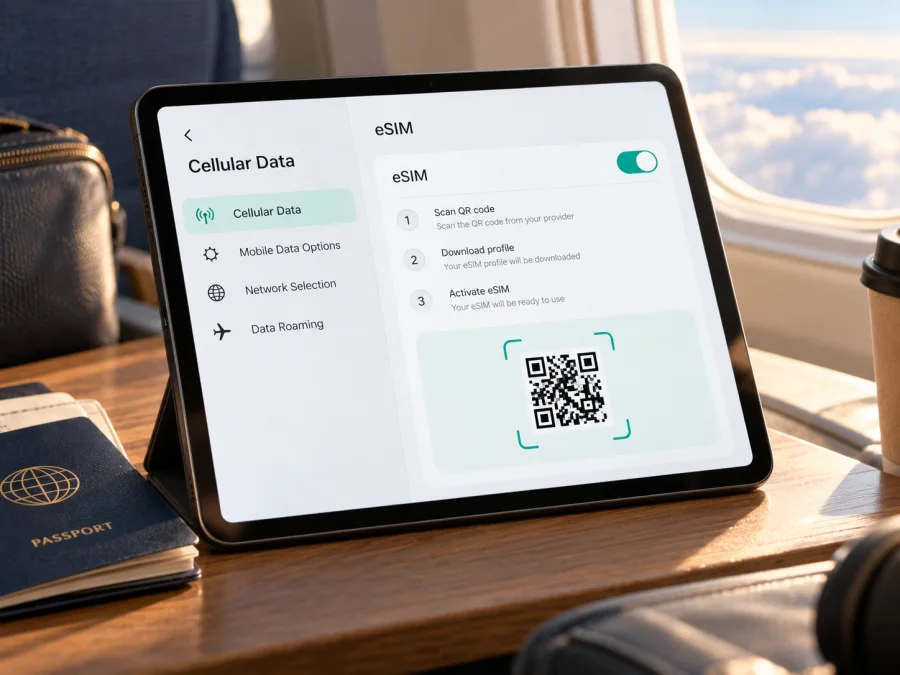
Apple iPad Pro 13-inch cellular 512GB eSIM: compatibility and setup
Does Apple iPad Pro 13-inch cellular 512GB support eSIM?
Yes, if “cellular” refers to a Wi‑Fi + Cellular version of the 13-inch iPad Pro. Apple lists both the 13-inch iPad Pro (M4) Wi‑Fi + Cellular and the 13-inch iPad Pro (M5) Wi‑Fi + Cellular among iPad models that support eSIM. In these generations, cellular service uses eSIM; there is no physical nano-SIM tray. The Wi‑Fi-only model does not have cellular service, even if the storage size and exterior look similar.
The supplied name, Apple iPad Pro 13-inch cellular 512GB, does not identify its chip generation or the regional model number. Apple has offered 512GB cellular configurations in more than one generation, so do not assume that a product listing’s shortened title tells you whether the tablet is M4 or M5. The practical answer is that the cellular configurations in both listed generations support eSIM, but the service available to you can still depend on the exact model number, where it was sold, your current country or region, and the provider whose data plan you want to use. Confirm these details before choosing a plan.
| Item | What to know |
|---|---|
| Device wording in this guide | Apple iPad Pro 13-inch cellular 512GB |
| Cellular model | Wi‑Fi + Cellular, not Wi‑Fi only |
| Storage | 512GB; storage capacity does not determine eSIM support |
| Possible generations | 13-inch iPad Pro (M4) or (M5); check Settings to identify yours |
| eSIM | Supported on the cellular M4 and M5 models listed by Apple |
| Physical SIM | These generations use eSIM and do not have a nano-SIM tray |
| Mainland China exception | Only designated China mainland models can install a mainland China carrier’s iPad eSIM; China Unicom is the supported iPad eSIM carrier there |
| Main use | Cellular data; verify plan eligibility and destination coverage with the plan provider |
Why the regional model matters
“Cellular” identifies the connectivity type, but not the sales region. Apple lists M4 cellular model A2926 for general markets and A3007 for China mainland. For M5, the corresponding listed models are A3361 and A3362. Check the A-number in Settings → General → About; the model number is more reliable than a retailer’s shortened product name.
Mainland China has separate eSIM rules. Apple lists only designated iPad models for use with mainland China carrier eSIM profiles and names China Unicom as the only supported iPad eSIM carrier there. Other iPads, including models bought outside mainland China, cannot install profiles from mainland China carriers. That restriction concerns mainland China carrier profiles; it does not mean that a compatible China-market iPad cannot use an international travel eSIM abroad. Apple says Location Services must be on to install a non-mainland eSIM while travelling outside mainland China.
A plan provider may support eSIM on phones but not tablets, or limit plans by destination, device, or account. Before paying, confirm that the specific plan accepts iPad and your A-number, covers every destination, and meets your activation and data needs. The 512GB storage capacity does not affect compatibility.
Before you add a plan: identify and check the tablet
Settings labels can vary slightly by iPadOS version or language.
- Open Settings → General → About.
- Check Model Name for the 13-inch iPad Pro and its M4 or M5 generation.
- Tap the value beside Model Number to reveal the hardware A-number. Note it, especially for a device bought in mainland China or used there.
- Scroll to EID. Apple lists EID among the identifiers on Wi‑Fi + Cellular iPads. An IMEI may also appear. Treat both as private identifiers.
- Check that Cellular Data settings are present and look for Add eSIM, Add Cellular Plan, or a provider plan option.
- Ask the plan provider whether it supports your exact A-number, tablet use, and destination, and whether the iPad must meet any account or unlock requirements.
An EID is evidence of eSIM-capable cellular hardware; it does not guarantee that a particular carrier or travel plan will accept the iPad. If there is no EID or cellular menu, first verify that the device is truly Wi‑Fi + Cellular rather than relying on the shop title.
Compatibility checklist
- [ ] This is the 13-inch Wi‑Fi + Cellular model.
- [ ] I checked the generation and A-number in Settings.
- [ ] EID and cellular settings are present.
- [ ] The provider confirms iPad support for this model and destination.
- [ ] I checked validity, data allowance, activation timing, and any roaming requirement.
- [ ] I checked regional rules if mainland China is involved.
For a quick pre-purchase check, check whether your device is compatible, then confirm the result against the plan provider’s tablet and destination rules. A checker is a useful first step, but may not cover every regional exception.
Installing and activating a travel eSIM
Set up over stable Wi‑Fi and keep the provider’s QR code or app accessible. Some activation codes work only once; check the plan’s instructions before removing an installed profile.
- Prepare. Connect to Wi‑Fi and keep the confirmation email or provider app available. Update iPadOS if practical.
- Check the plan. Confirm the destination, data allowance, validity, start trigger, and iPad support. Some plans start on installation, while others start on first connection or at a scheduled time.
- Open settings. Go to Settings → Cellular Data (sometimes Mobile Data) and tap Add eSIM or Add a New Plan.
- Add the profile. Scan the provider’s QR code and follow the prompts. If the QR is on the iPad screen and your iPadOS version supports it, touch and hold it and choose Add eSIM. Use a provider app or activation link if offered; enter a confirmation code when requested.
- Label the line. Use a clear label such as “Travel data – Japan” so it is easy to distinguish from your usual plan.
- Select data service. In Settings → Cellular Data, select the travel line when you are ready. Follow the provider’s instructions about Data Roaming; some travel profiles require it for partner networks.
- Test on arrival. Turn Airplane Mode off and try a webpage. Allow a few minutes to register before troubleshooting. Avoid deleting the profile unless the provider tells you to.
For setup guidance, see the iOS installation instructions. They use some iPhone labels; on iPad use Cellular Data or Mobile Data. The Android guide is for Android devices and is not the iPad setup path.
Using the iPad for mobile data while travelling
Choose the travel eSIM as the source of cellular data when you want to use it away from Wi‑Fi. It can support maps, email, browsing, work files, video calls, and messaging apps. Many travel plans are data-only and do not include a regular phone number, voice calls, or SMS; check the specific terms. Internet calling and messaging apps may still work over data.
If a home plan is also installed, check which line supplies data and how its roaming is billed. Disable automatic data switching if you do not want the iPad to fall back to another line unexpectedly. For multi-country travel, check every destination in the plan’s coverage list rather than relying on the package name. Video streaming, cloud sync, and hotspot sharing can use data quickly, so confirm tethering terms and allowance if you plan to share the connection.
Kaspersky eSIM Store is an app and website where travellers can choose, arrange, and activate an eSIM with a mobile-data plan for an international trip. It does not change device compatibility or guarantee local network availability. You can browse destination options on the Kaspersky eSIM Store website; the homepage is for general browsing, not a country-specific tariff.
Common problems and checks
No Cellular Data menu or EID: Verify General → About, the A-number, and that the iPad is Wi‑Fi + Cellular. Restart and update iPadOS. If a cellular model still lacks these options, ask Apple or the seller to confirm the hardware before buying a plan.
QR code will not scan: Increase the brightness on the other display, keep the full code in frame, or use the provider’s supported app or manual flow. If a one-time code is reported as used, ask the provider for help instead of repeatedly retrying it.
Profile installs but there is no service: Make sure the travel line is enabled and selected for data, Airplane Mode is off, the plan is valid at your location, and Data Roaming is set as the provider requires. Wait a few minutes, restart, and check the plan’s APN or network instructions if supplied.
Mobile data does not load: Temporarily turn Wi‑Fi off to test cellular service, confirm the plan has started and has data remaining, and check the provider’s destination networks. Signal can vary indoors and by location. If mainland China or a China-market iPad is involved, verify the model and regional rules; Apple requires Location Services to install non-mainland plans on supported China-market models while abroad.
Moving the profile: Do not assume you can transfer or reinstall a travel eSIM on another iPad. Ask the provider before deleting it or changing devices; activation rules vary.
Practical trip scenarios
Single-country holiday: confirm the destination, data allowance, and validity, install over Wi‑Fi at the time recommended by the plan provider, then select the travel eSIM for cellular data when you want the plan to start.
Multi-country or work trip: verify every country and network in the plan terms. Label the travel and home lines clearly, select the travel plan for data, and pause large uploads or video streaming if the allowance is limited. Save activation details and directions for offline use.
Mainland-China device travelling abroad: check the A-number and Apple’s Location Services requirement for installing a non-mainland eSIM abroad. Ask the travel-plan provider to confirm that it supports that specific model.
Frequently asked questions
Does 512GB mean this is the cellular version?
No. Storage describes capacity, not radio hardware. Confirm Wi‑Fi + Cellular in the Model Name and check the EID and cellular settings.
Does this name tell me whether it is M4 or M5?
No. Both generations have 13-inch cellular configurations with 512GB storage. Check Settings → General → About, then use the model number to identify the regional version.
Does a travel eSIM include a phone number?
Many travel plans are data-only. Check the specific terms; internet calling and messaging apps may still work over the data connection.
Can I transfer the profile to another iPad?
Do not assume so. Transfer or reinstallation depends on the provider’s activation rules. Ask before deleting a profile or changing devices.
Final check before your trip
The Apple iPad Pro 13-inch cellular 512GB is eSIM-compatible when it is a Wi‑Fi + Cellular model from the supported M4 or M5 family. Because the request name does not specify generation or sales region, identify the exact model in Settings → General → About, confirm the EID and cellular controls, and check any market-specific rules—especially if mainland China or a China-market iPad is involved. Before you choose a travel data plan, verify that the provider accepts that model for each destination, review the allowance and activation terms, and decide which line should supply mobile data. With those checks complete, you can install the eSIM over Wi‑Fi, select it when you are ready to use travel data, and troubleshoot without removing the profile prematurely.


